Part of Lumos Launchpad: Foundation, step 6.
Background
Lumos continually syncs with your integrated apps to keep data about your users, apps, and accounts up to date. Lumos runs syncs automatically every day, and you can also trigger ad hoc syncs from several places in the platform. This article describes both.What is syncing in my environment?
Whatever is currently connected here, in the Integrations tab. These connected integrations will sync on a daily basis automatically.Where can I trigger ad hoc syncs?
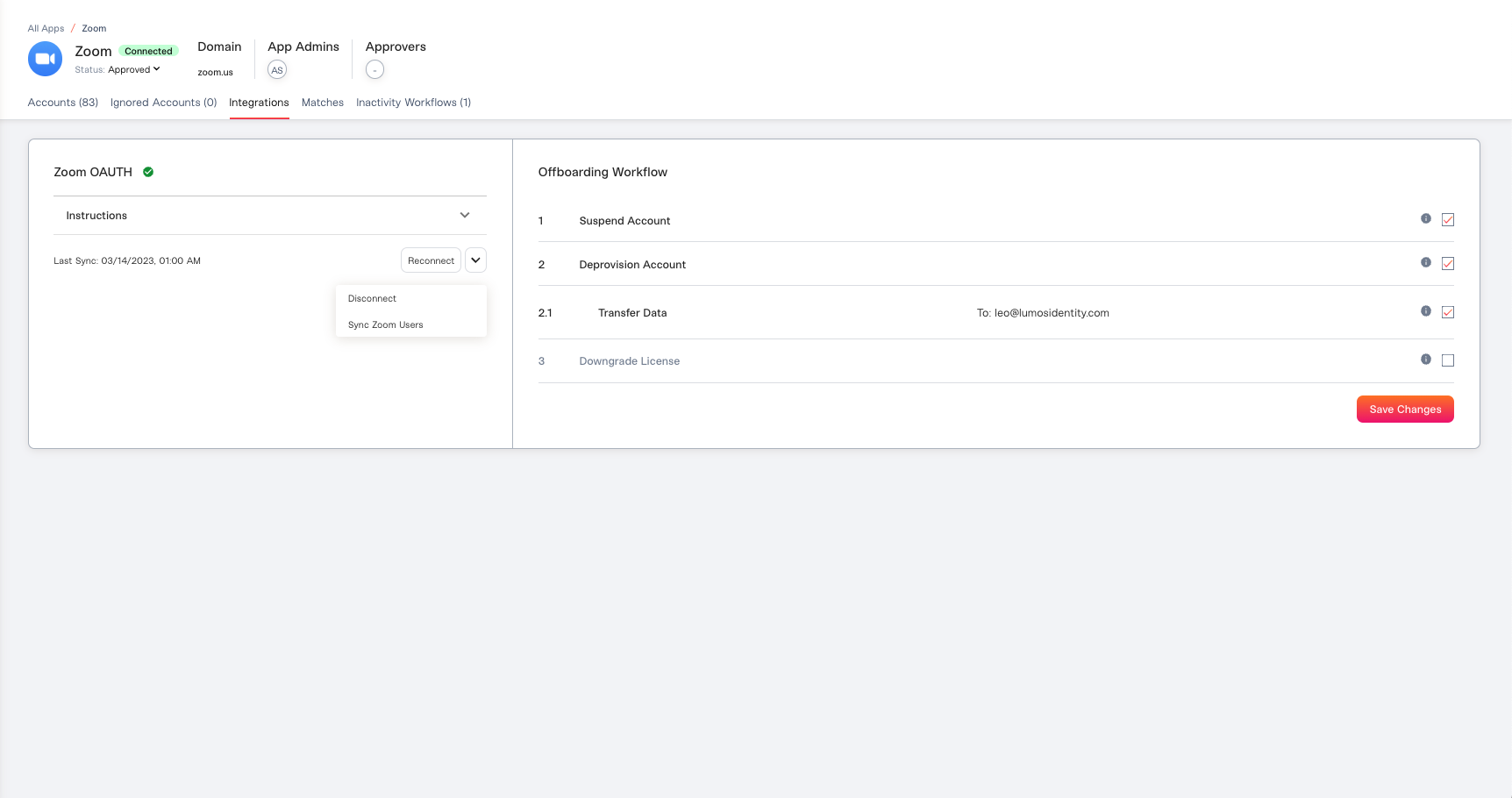
If you want to trigger a sync for a particular app (e.g. direct Lumos integration)
Click the connected integration. Next to the “Reconnect” button, you’ll see the option to trigger a sync. Typically, for most integrations, this will be “Sync<app\_name> Users”.
The “Sync Users” scan runs automatically once per day for all of your integrations.
If you want to trigger a sync for your IdP (or delegated integration)
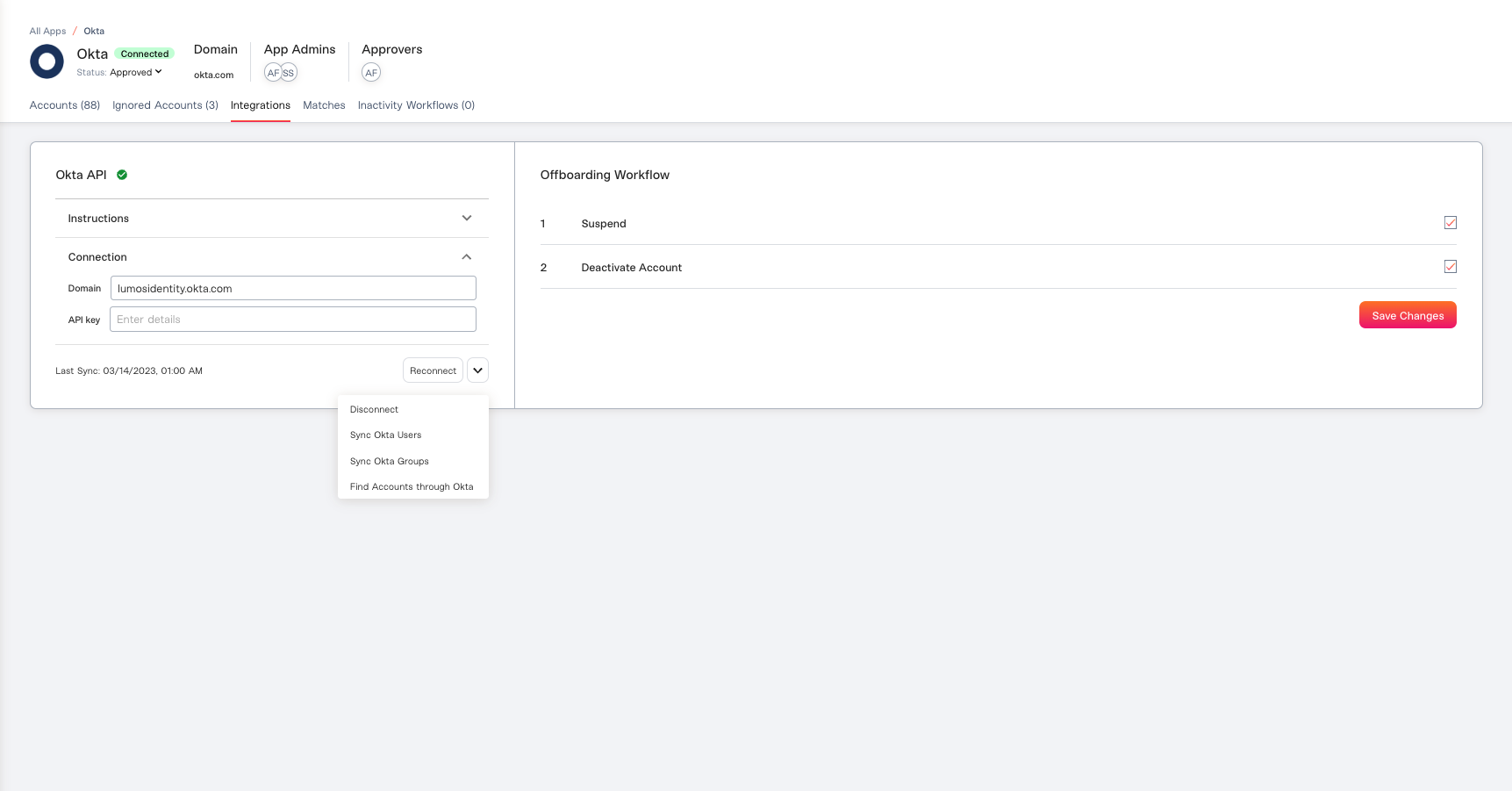
Say you want to make sure your manager/team/title information is reflecting properly. Or, you want to make sure the apps from your delegated integration have populated. Click that app in the Integrations tab, and select the app you want to sync (Okta, OneLogin, O365, Atlassian, Google Cloud, Google Workspace). Beyond the option to “Sync<app\_name> Users”, you should see a few more options.
“Sync <app\_name> Groups” will do a pull of all the groups from your IdP.
The “Sync Groups” scan runs automatically once per day.
“Find Accounts through <app\_name>” will find all the apps from that integration to populate/update the All Apps table.
The “Find Accounts” scan runs automatically once every four days.
If you want to trigger Shadow IT discovery (O365, Google Workspace)
Navigate to the app in the Integrations tab, and trigger “Find Accounts through OAuth”, which will look for all apps access via OAuth token The “Find Accounts through OAuth” scan runs automatically once per day when your email provider scan syncs users. “Find Accounts through Email”, which will look at just the email subject headers (not email bodies) of all the emails your employees’ inboxes to discover Shadow IT The “Find Accounts through Email” scan does not run automatically, and must be kicked off manually.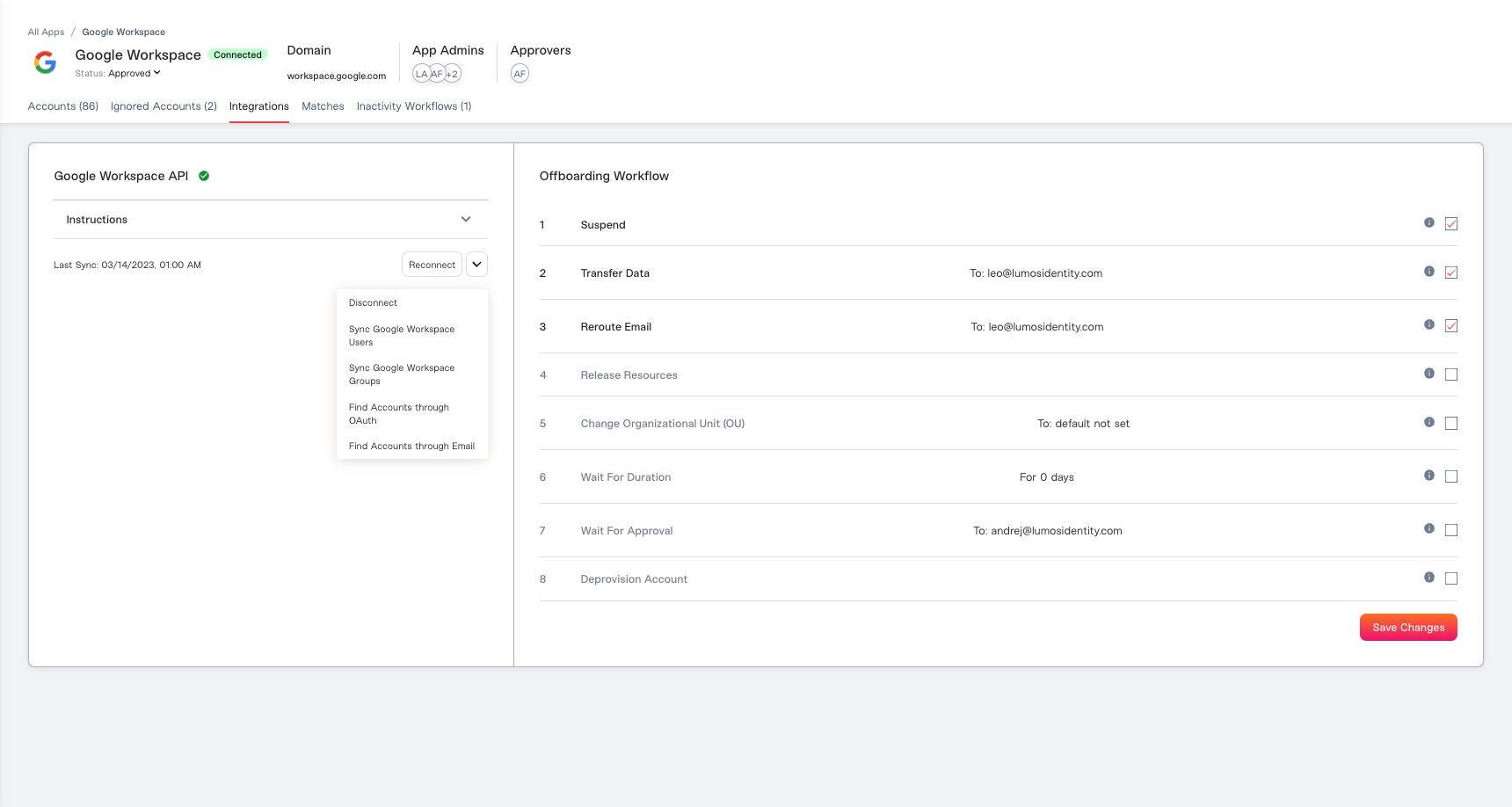
AppStore Specific Syncs
There are a number of syncs that you can trigger while configuring your AppStore.If you want to sync apps with your IdP
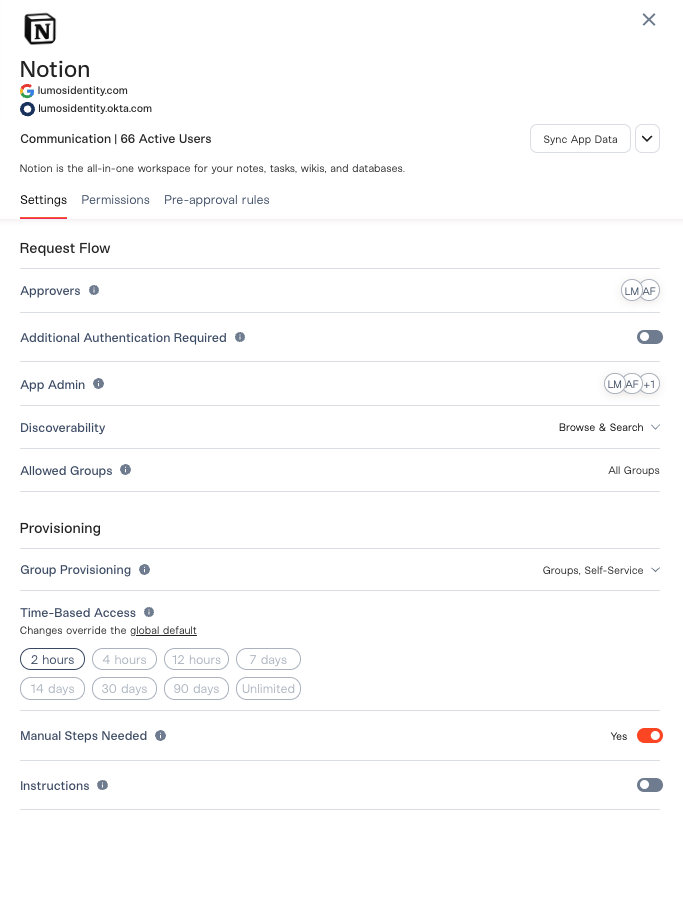
When you go to add apps to your AppStore, you’ll see the option to click “Sync Apps”, which syncs against O365, OneLogin, or Okta to pull in the newest apps that exist in your IdP. The “Sync Apps” scan runs automatically once every four days.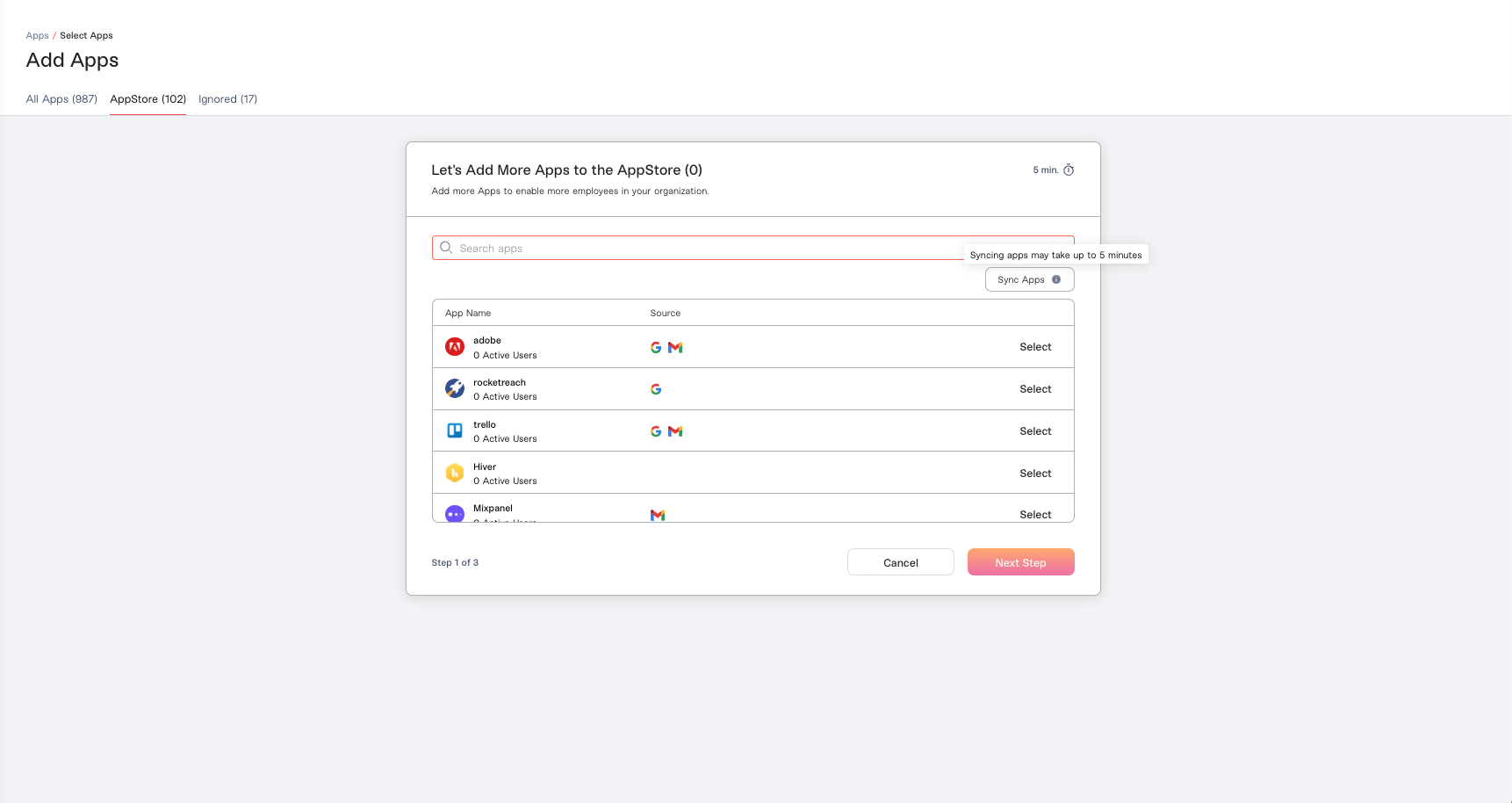
If you want to sync a single app against your IdP
When you want to make sure you have the correct provisioning settings and assignment groups, click “Sync App Data” within the Advanced Settings of your AppStore. This syncs against O365, OneLogin, or Okta to ensure you have the right groups associated and the right provisioning configurations. Make sure you refresh the page in your browser after clicking Sync App Data to see the new groups. The “Sync App Data” scan runs automatically for every app once per day.