

After this article
You’ll be able to connect Microsoft 365 to Lumos to manage users, groups, licenses, and app access, and to offboard people.User and Access Management Capabilities
Required plan and roles
- Microsoft access: a Microsoft Entra ID administrator who can grant admin consent to the Lumos application through Microsoft Graph.
- Admin consent: the connection uses Microsoft Graph. Complete the Microsoft sign-in and consent when prompted on the connection card.
Read-only access vs provisioning
Is read-only possible? Yes, but not through self-service setup. By default the connection grants write access, and you can’t selectively choose scopes during the initial connect. To connect read-only instead, reach out to Lumos Support. What read-only requires. A Support-assisted connection instead of the standard self-service flow below. With read-only permissions you won’t be able to provision new accounts or manage access. What full provisioning requires. The standard admin-consent connection described below, completed by a Microsoft Entra ID administrator. That default connection is what enables account creation, license assignment, group management, suspend, and deprovisioning. Watch out for. You can’t narrow the scopes during initial setup on your own. After connecting with default (read/write) access, you can revoke specific optional scopes in the Entra admin center under Enterprise applications → Lumos → Permissions, but getting a fully read-only connection from the start requires contacting Support rather than a self-service toggle.Instructions
- Find the Microsoft 365 / Entra ID card in your Lumos integrations (Reconnect or add new)
- Click on the card, make sure you’ve completed the steps above (“Before you begin”), then click Connect Microsoft 365 / Entra ID.
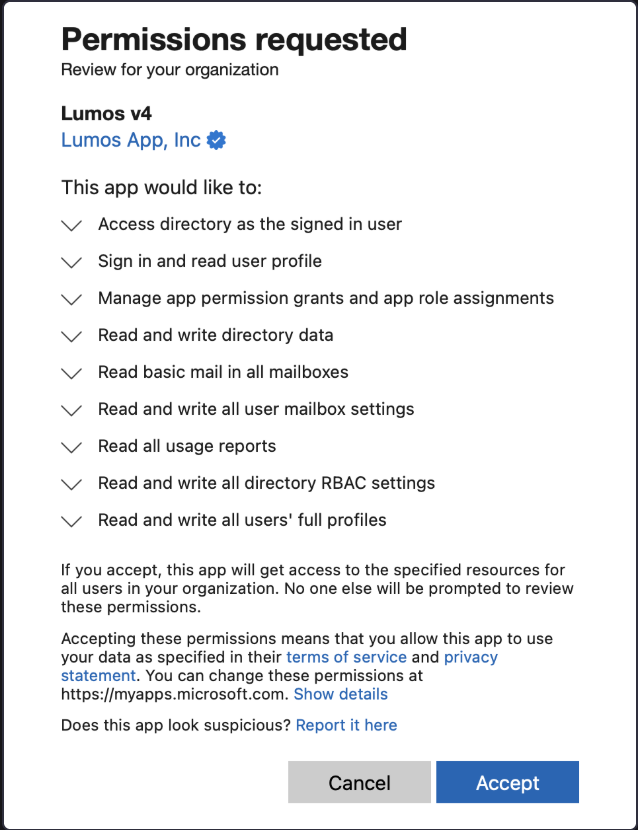
- Accept the scopes when prompted via OAuth:
- The connection is complete.