

After this article
You’ll know how to set up and manage account provisioning workflows in Lumos, enabling you to automatically create accounts for users before provisioning permissions, and automatically remove their access when it is no longer needed.Background
Oftentimes, when an employee first requests access to a permission within an application (e.g. Zoom Pro License, GitHub Repo Access), they don’t yet have an account within the application. This edge case can cause a lot of issues when automating provisioning, as it often requires manual intervention or complex workflow logic to ensure that the account is created properly. This article shows you how to configure dedicated Account Provisioning workflows in Lumos, which are workflows that run during an access request, specifically when an employee is approved to access a permission but doesn’t yet have an account in the application. This feature streamlines the onboarding process and ensures that accounts are created consistently before permissions are granted.Understanding Account Creation vs. Permission Provisioning
Before diving into configuration, it’s important to understand the difference between account creation and permission provisioning:- Account Provisioning - This workflow runs when a user needs access to an application but doesn’t yet have an account. It handles tasks like creating the user in the system and setting up basic access.
- Permission Provisioning - This workflow runs after the account exists and handles granting specific permissions, roles, or licenses within the application.
- If an employee requests a permission and already has an account, only the permission provisioning workflow runs.
- If an employee requests a permission but doesn’t have an account, the account provisioning workflow runs first, followed by the permission provisioning workflow.
- If an employee requests an app (rather than a specific permission), the account provisioning workflow always runs.
Steps to Configure Account Provisioning Workflows
Step 1: Ensure “Permission”-based Provisioning is Enabled Lumos supports two provisioning methods: provisioning to an app and provisioning to a permission. For more information, see app vs. permission provisioning. Account Provisioning workflows are only relevant when you want to allow end users to request access to fine-grained permissions, so make sure this feature is enabled before proceeding.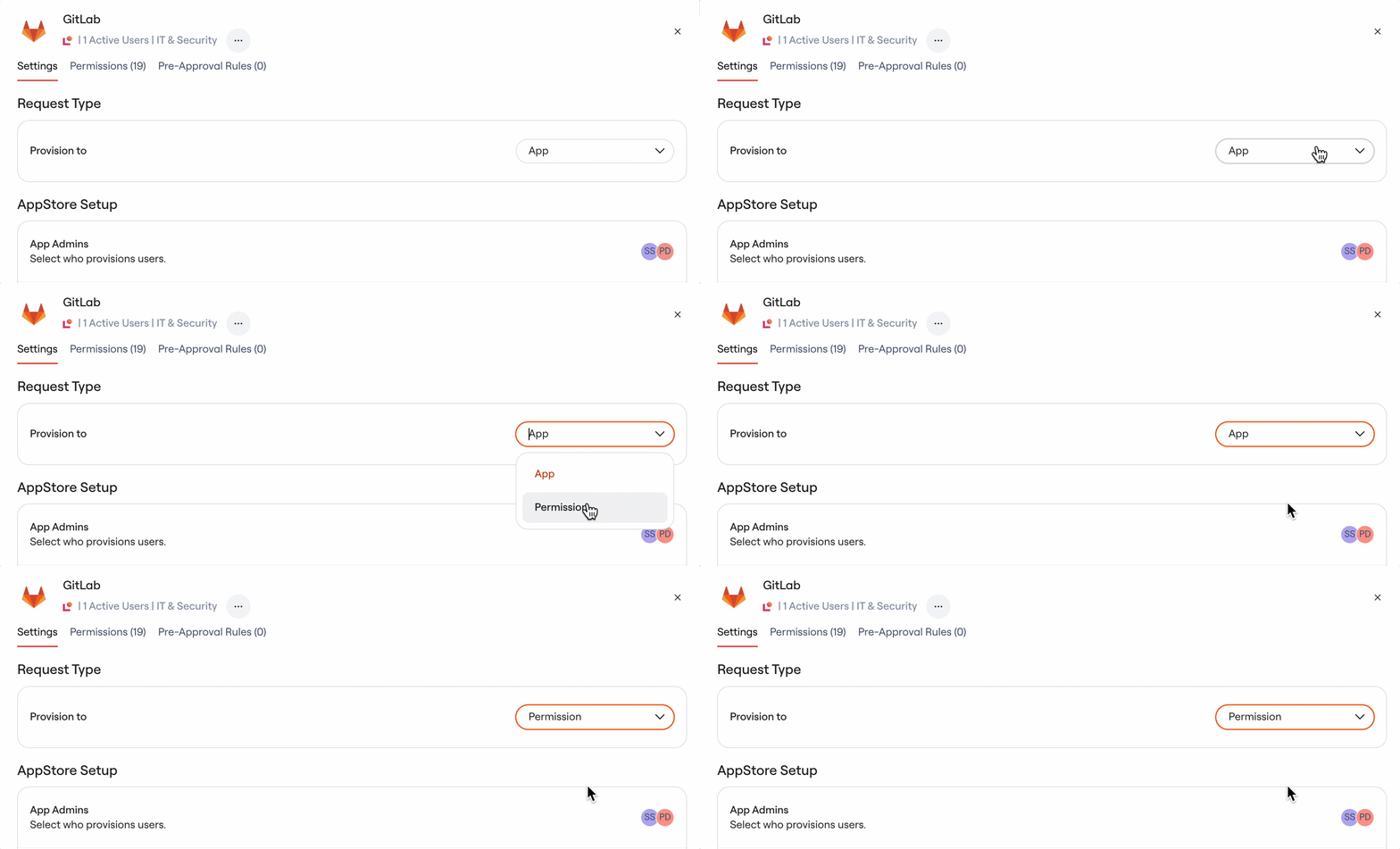
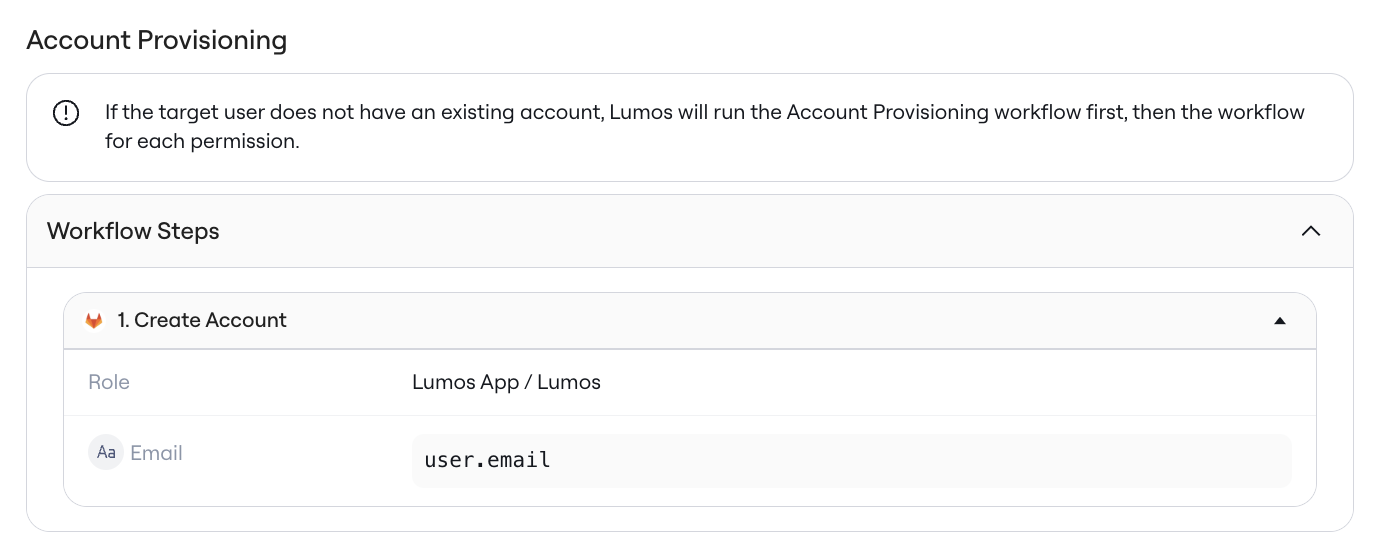
- Create Account: if an integration supports it, you can run an integration action to automatically create a new account
- Assign App: Identity Providers will often let you assign an app or “tile” to a user, which is a helpful action to use during account creation
- Request Manual Provisioning: If an application does not support any form of automated provisioning, you can create a Task in Lumos with custom instructions for an admin to create a new account
- Wait: some SCIM actions require a waiting period before it’s save to proceed to permission provisioning
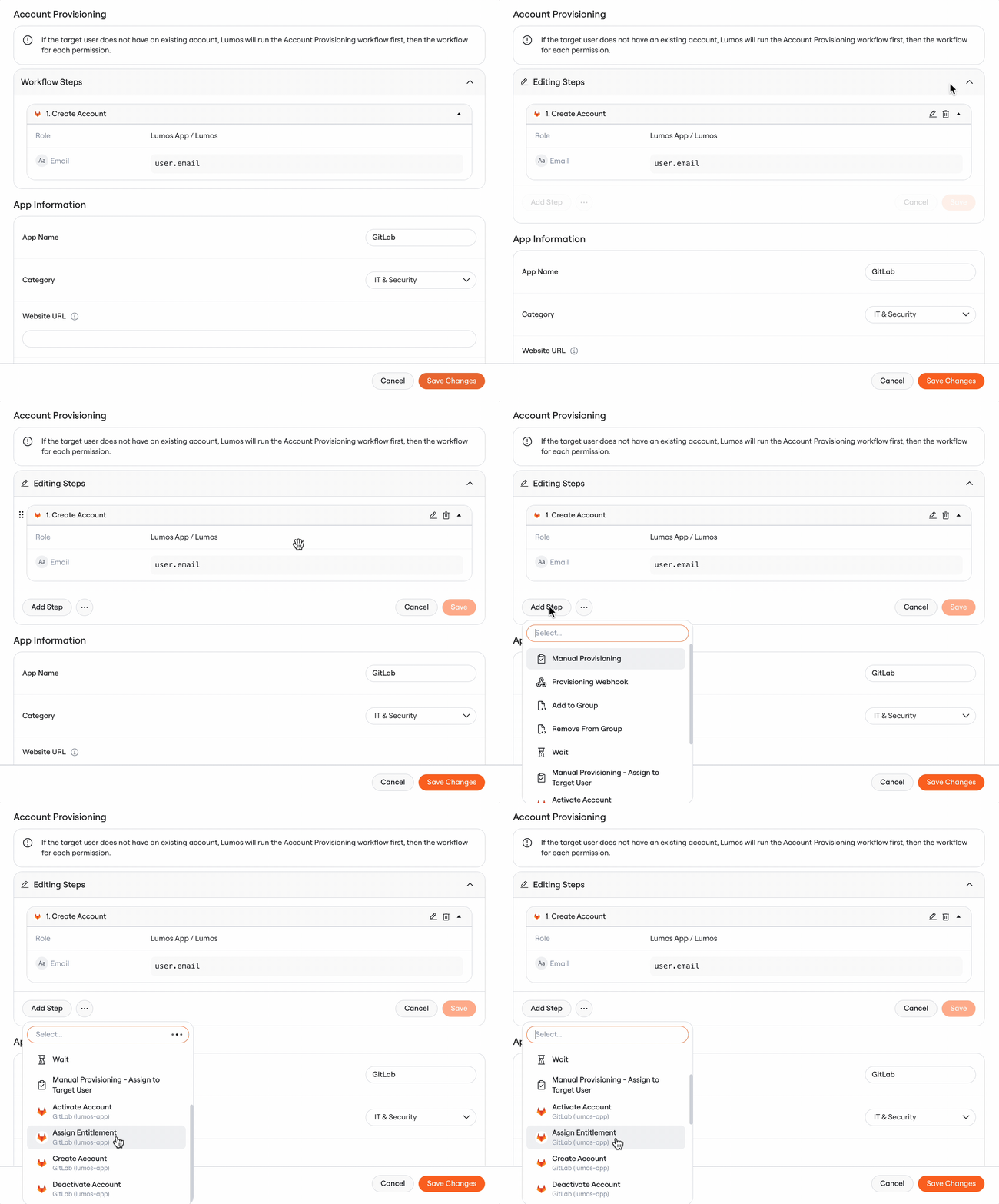
Configuring Account Deprovisioning Workflows
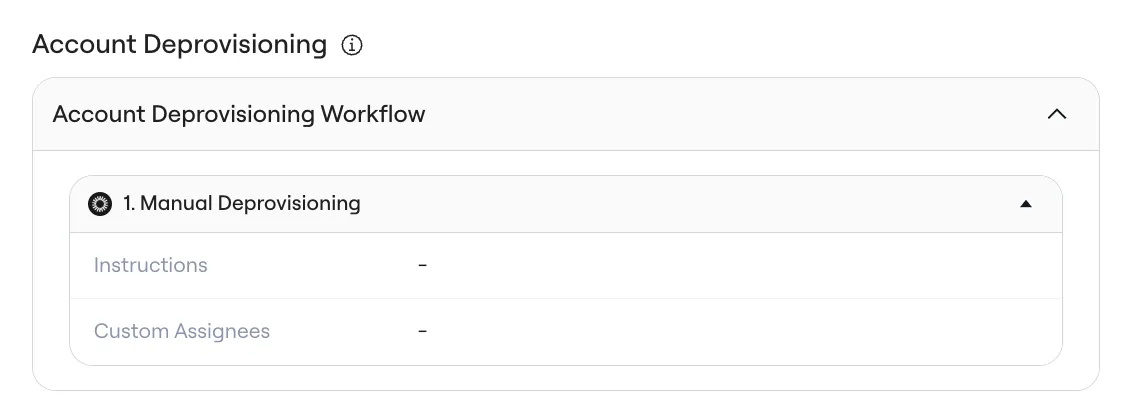
The complement to an Account Provisioning workflow is Account Deprovisioning. This workflow is run in two specific circumstances:- Time-Based Requests: if a user requests access to a permissions for a finite period of time (e.g. 30 days), and they do not yet have an account, Lumos will provision the account at the time of the request, and deprovision the account at the time of expiration.
- Mover Workflows: if your organization’s access policies dictate that a user account should be removed after an internal transition (e.g. promotion, re-organization, role change), Lumos will use the Account Deprovisioning workflow to remove their access.
FAQs
Can I use the “Create Account” step from the latest integrations?
Yes. You can use the “Create Account” step from all new style integrations, including ones that require input parameters. This provides more flexibility in how accounts are created.What happens if my account creation workflow fails?
If the account creation workflow fails, an Error Task will be generated with details about the failure. After this task is resolved by an admin, the workflow will resume, and the the permission provisioning workflow run next.Will this feature work with my existing provisioning workflows?
Yes. This feature works with all existing provisioning workflows. Configure the additional account creation workflow for each app where you want this behavior.How does Lumos determine if an account already exists?
Lumos checks for an existing account correlated to the user’s identity, either from your Identity Provider (like Okta, Google, or AzureAD), or from a direct integration. If the user does not yet have an account, or if an account existed at one point but is no longer active, the system will automatically kick off the Account Provisioning workflow before granting access to a permission.Can I create different account creation workflows for different permissions within the same app?
Currently, account creation workflows are configured at the app level, not the permission level. This ensures consistency in how accounts are created across all permissions for a given app.Why is configuring the account provisioning workflow necessary if I’m provisioning access to a permission?
Lumos checks whether a user has an existing account before assigning a permission. If no account exists, the account must be provisioned first before the requested permission can be assigned. To skip this, remove the “Assign to App” step from the account provisioning workflow settings.When is Account Deprovisioning run?
Account Deprovisioning workflows are run in two scenarios:- Time-Based Requests: if a user requests access to a permissions for a finite period of time (e.g. 30 days), and they do not yet have an account, Lumos will provision the account at the time of the request. After the period of time has passed, Lumos will deprovision the account using the defined Deprovisioning Workflow. If these time-based requests are later extended, Lumos will deprovision the user’s account once all extensions are complete.
- Mover Workflows: if your organization’s access policies dictate that a user account should be removed after an internal transition (e.g. promotion, re-organization, role change), Lumos will use the Account Deprovisioning workflow to remove their access.