

What is Identity Agent Force
Identity Agent Force is a set of AI security agents that analyze your connected environments and surface the highest-risk identity issues as actionable Issues in Lumos. The agents focus on non-human identities (service principals, IAM roles, and machine credentials) and other risks that point-in-time access reviews tend to miss. Each agent specializes in one environment and produces a small set of high-confidence findings rather than flagging everything.Getting started
- Connect the relevant integration. For Microsoft Entra ID, see Connecting Microsoft Entra ID (NHI). For AWS, see Connecting to AWS IAM Identity Center (NHI).
- Create the agent for that environment and confirm it is connected (see Creating an agent above).
- Open the Identity Agent Force page to review findings.
- Open each Issue, review the remediation workflow the agent proposes, and launch it. The Issue completes when the workflow finishes.
Why it works differently: compound risk
Most scanners flag single signals, such as “this app has too many permissions.” In practice, most broad permissions are intentional, so single-signal alerts create noise and train teams to ignore reports. Identity Agent Force looks for compound risk instead: the combination of privilege, credential mismanagement, ownership gaps, and dormancy that together create an exploitable vulnerability.
Non-human identities do not go through periodic access reviews, do not trigger offboarding workflows, and do not respond to MFA challenges. When one is compromised, the blast radius can span an entire directory or AWS Organization. Identity Agent Force analyzes them through this compound-risk lens and surfaces only the combinations that create real, exploitable vulnerabilities.
The agents
Identity Agent Force includes these agents. Each one has its own page with setup steps and the findings it surfaces.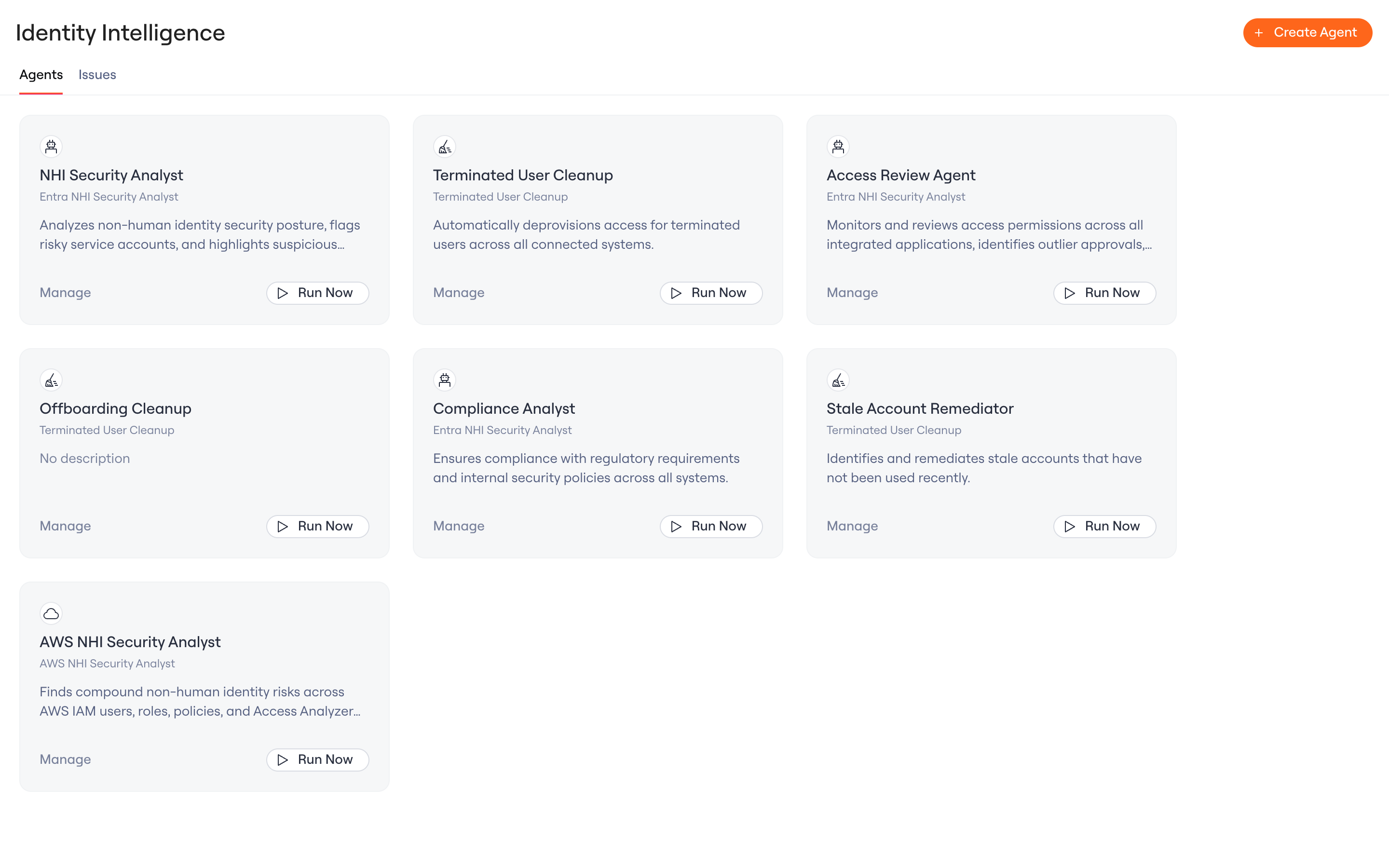
Identity Agent Force agents
Creating an agent
- On the Identity Agent Force page, open the Agents tab and select Create Agent.
- Give the agent a name, then choose a specialization (for example, AWS NHI Security Analyst).
- Add an optional description, then select Create & Configure to open the agent and connect its environment.
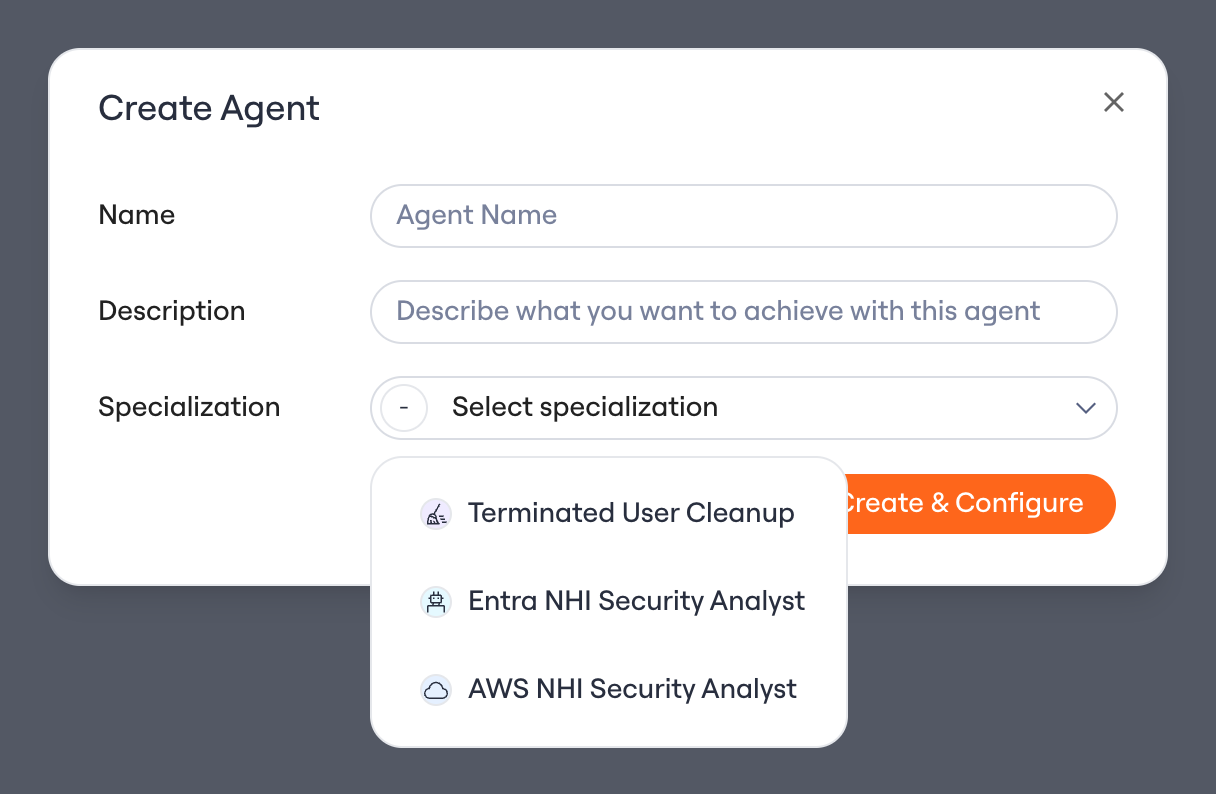
Choosing a specialization when creating an agent
How issues work
Each agent runs continuously and surfaces findings as Issues on the Identity Agent Force page. An issue identifies a specific identity, explains the combination of factors that makes it dangerous, and includes the evidence and queries your team can use to validate it independently. Findings that fail verification are dismissed automatically and never reach your team.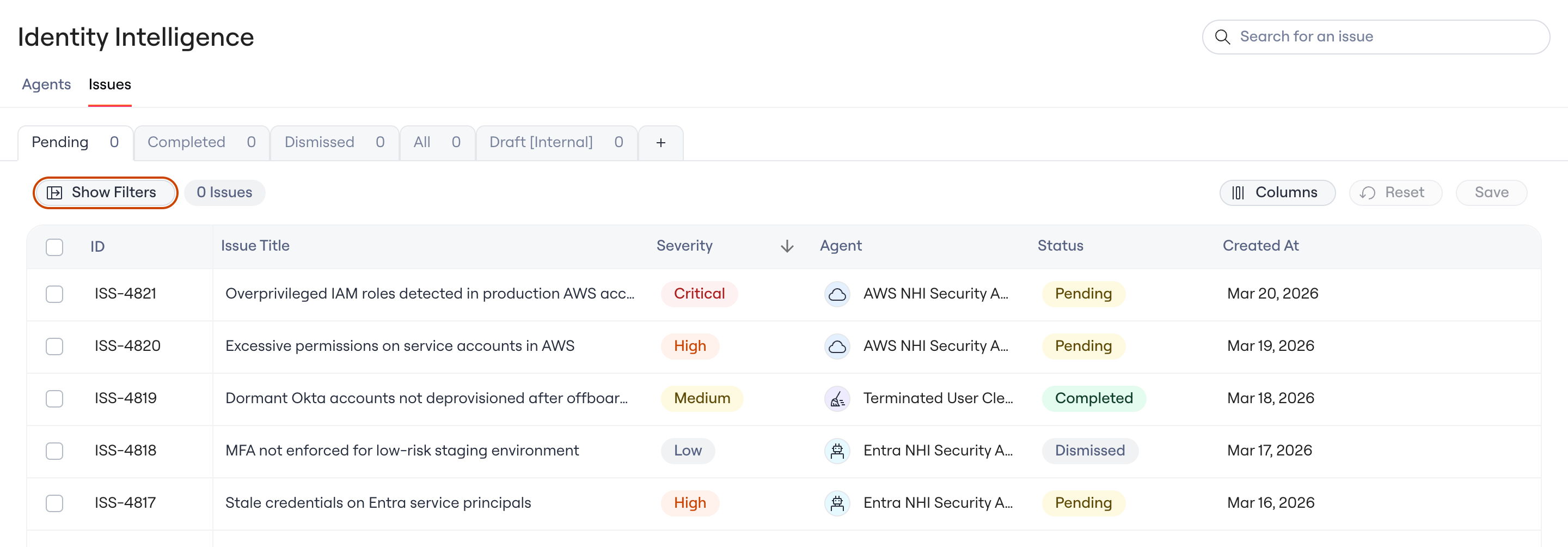
An issue surfaced by an agent, with AI overview and remediation steps
Remediating an issue
Each Issue comes with a remediation workflow the agent builds for it. You review it, edit it if needed, and launch it. Nothing runs until you do.- Assign the fix to an owner. A manual task goes to the right person or group in the Task Center, and the Issue waits until it is done.
- Notify the people involved. The workflow can send a message to the people who need to know.
- Require an approval first. Add an approval step before any change runs.
- Remove access through the app’s connector. For an Issue tied to an account in a connected app, the workflow can use that app’s removal steps.
- Fix each affected app separately. An Issue that spans several apps splits into sub-issues, and each one runs its own workflow.
Coverage: OWASP Non-Human Identity Top 10
Identity Agent Force maps its findings to the OWASP Non-Human Identity Top 10. Coverage varies by agent and environment.Limitations
- Agents analyze connected environments only.
- Some signals depend on what the connector can read. For AWS, activity is based on role last-used data.
- Analysis is read-only. Agents never change resources in your environment on their own. Changes happen only through a remediation workflow an admin launches.