

Connect to the Lumos Admin MCP Server
The Lumos Admin MCP server connects your AI client to the tools IT admins use to configure and run Lumos using the Model Context Protocol (MCP), the open standard for letting AI tools call external services. The Admin MCP Server helps you triage approvals, manage knowledge entries, audit approval policies, set up apps in the AppStore, and more in plain language, without leaving the tool you already use.Looking for help with access requests?If you just want to search the AppStore and request access for yourself, use the Lumos User MCP Server. This page is for admins and privileged users who manage Lumos.If you are trying to govern which MCP servers and tools your employees’ agents can call, see MCP Governance: Deployment.
Before you begin
You need:- A Lumos account with a privileged role. The specific tools you can run depend on your Lumos permissions, for example, a Task Center action only succeeds if your role allows it, the same as in the Lumos web app.
- An MCP-compatible client that supports remote (HTTP) MCP servers and browser-based OAuth. Supported clients include Claude Code, Claude, Codex, Gemini CLI, and OpenCode.
- Network access to the Lumos MCP endpoint.
toolsets query parameter to that URL, for example https://api.lumos.com/mcp/admin?toolsets=task-center. See Choose your toolsets below.
How it works
By default, you connect over OAuth in your browser. Your client opens a Lumos login page in your browser. You log in and approve a consent screen that shows what the client can do, with the permissions grouped by toolset. Lumos then gives the client a token scoped to only the permissions you approved. You authorize each client the first time it connects. Lumos remembers your approval, so you won’t log in or approve again unless your access is revoked or the client requests new permissions.Choose your toolsets
The admin server groups its tools into toolsets which are named bundles you select per connection so you load only the tools you need and save valuable context window space. To use a toolset, add atoolsets query parameter to the endpoint URL when you connect.
-
Retrieve a reserved toolset:
-
Retrieve all tools:
Toolset catalog
The sections below describe each toolset’s tools and show example prompts.core (default)
The default toolset when you omit the toolsets parameter is a read-only set that lets an agent look around your Task Center and Knowledge Hub without any write access. It contains list_task_center_tasks, get_task_center_task, list_knowledge, and get_knowledge — described under their respective toolsets below. To take actions, connect with the task-center, knowledge-hub, or appstore toolset.
task-center
View and act on manual tasks in the Lumos Task Center — approval, provisioning, deprovisioning, and error tasks — across your own queue or the whole domain.
Example prompts:
- “What tasks are waiting on me in Lumos?”
- “Show all open provisioning tasks across the company.”
- “Show me the details of task 4711 — who requested what, and who can approve it?”
- “Approve Maria’s Salesforce access request.”
- “Reassign the Okta provisioning task to dana@acme.com.”
- “Retry error task 99, the integration is back up.”
knowledge-hub
List, inspect, create, update, and archive Knowledge Hub entries for your domain.
Example prompts:
- “List our Knowledge Hub articles tagged for the AppStore.”
- “Show me the full text of the ‘VPN Access Policy’ knowledge entry.”
- “Create a knowledge article documenting our contractor offboarding steps.”
- “Update the ‘Onboarding checklist’ entry with the new IT ticket link.”
- “Archive the outdated ‘Legacy VPN setup’ knowledge entry.”
appstore
Inspect and configure the approval workflows behind your AppStore apps — who reviews access requests and under what conditions.
Example prompts:
- “What’s the approval workflow for Figma?”
- “Which permissions are requestable on Salesforce?”
- “Who can approve access requests in our org?”
- “Show me the provisioning workflow that runs when someone is granted GitHub.”
- “Change the Notion approval flow to manager first, then app admins.”
- “For the Datadog Admin permission, require a security team approval instead of inheriting the app’s workflow.”
- “Add AWS to the AppStore with me as the admin, and make it searchable but not browsable.”
- “Add a required intake question to Zoom asking why the user needs a license.”
- “Set time-based access options on Miro to 30 days or 90 days, defaulting to 30.”
Connect your client
Pick your client below. Every client uses the same endpoint,https://api.lumos.com/mcp/admin, with the toolsets you want appended as a query parameter. The examples use ?toolsets=all; swap in the toolsets you need (comma-separated), or omit the parameter for the default core set.
You can run this server and the user server at the same time — just give each a distinct name in your client (the examples use lumos-admin) so the two don’t collide.
- Claude Code
- Claude (desktop & web)
- Codex
- Gemini CLI
- opencode
- Other clients
Add the server with HTTP transport:Or add it as JSON:
Authenticate and approve access
When your client connects, Lumos opens a browser-based OAuth flow.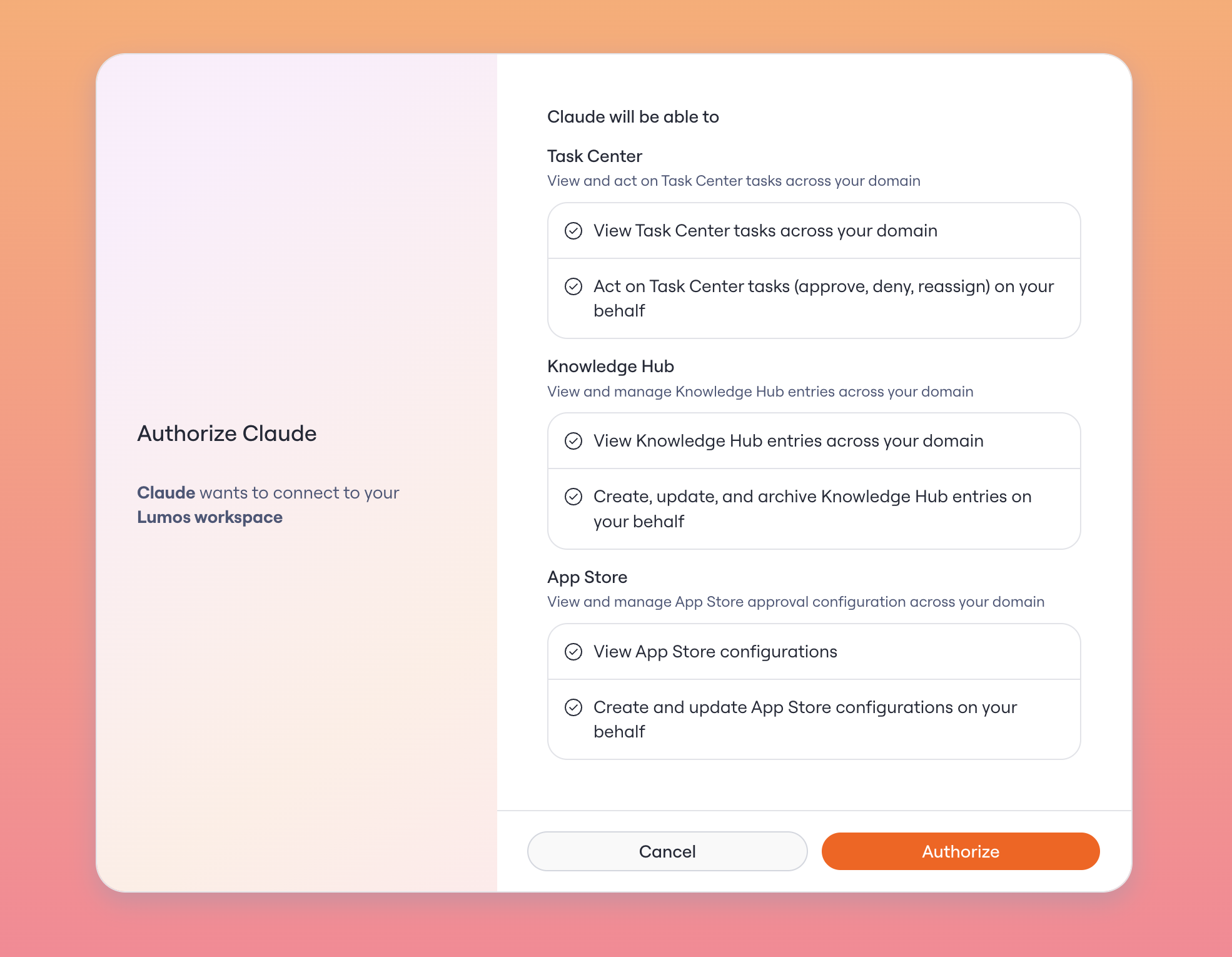
- Confirms you’re logged in, or asks you to log in.
- Shows which client is requesting access (for example, Claude).
- Lists the permissions it’s requesting, grouped by toolset.
- Lets you approve or deny the connection.
Lumos grants you only the scopes your role allows, so your token may end up with fewer scopes than the client requested. And a granted scope is a delegation ceiling, not a grant of authority: even with the scope, a tool only succeeds if your role permits the specific action — for example, administering that particular app, or being assigned to that task.
Lumos remembers your approval for the same user, client, and scopes. You’ll approve again only if the client requests new scopes, your access is revoked, or the client asks for a fresh consent prompt.
Verify your tools
After you log in, check that the Lumos admin tools appear in your client. Most clients list them in a Tools or MCP panel. Command-line clients may show them with a status or diagnostic command.Run your first request
Once the tools are connected, tell your agent what you need in plain language. It picks the right admin tool, asks for anything it’s missing, and guides you through the action.Troubleshooting
A tool is “not in the enabled toolset(s)”
You asked your agent to use a tool that belongs to a toolset you didn’t connect with. Reconnect with that toolset added to the?toolsets= parameter. The error names the toolset(s) that contain the tool.
You get an “unknown toolset” error
Check the spelling and casing of thetoolsets value. Names are lowercase and kebab-case (for example knowledge-hub), and the all keyword must be lowercase too (all, not ALL). The error lists every valid toolset name plus all.
A write tool is missing, or a call fails with a missing-scope error
A write tool shows up only if your token holds the toolset’s write scope, and Lumos grants that scope only when your Lumos role includes the matching permission. So a write tool is hidden (and a direct call is rejected with a missing-scope error) for one of two reasons:- Your role doesn’t include that write permission. Ask an org admin to grant it, then reconnect.
- Your client connected before it requested the write scope. Re-authorize so it requests the scope again — see Changing your toolsets or granted scopes.
Changing your toolsets or granted scopes
Both are fixed at connection time, so changing either means reconnecting:- Toolsets live in the server’s URL. Edit the
toolsetsvalue in your client’s MCP config, then restart or reload the client. - Scopes live in your saved authorization. A normal reconnect won’t re-prompt you, because Lumos remembers your approval — you have to trigger a fresh authorization. For CLI clients, re-run the login (for example,
codex mcp login lumos-admin); for other clients, remove the server from your config and add it back. Your client then re-requests scopes, and Lumos grants those your role allows.
A tool is denied even though you approved the scope
OAuth scopes are a ceiling, not a grant. The tool also checks your Lumos role. If your role doesn’t permit the action (for example, acting on another team’s tasks), the tool is denied even with the scope approved. Ask an org admin to adjust your role.The client can’t discover the server
Check that the MCP URL is correct and uses the/mcp/admin path (not /mcp/user or the Lumos web app URL). The ?toolsets= query parameter must be part of that same URL.