Video Walkthrough
What the video covers
The walkthrough follows a Reviewer through one app (Datadog) in a SOX audit campaign. Lumos adds two columns to the review table: AI Suggest, with the recommended decision, and AI Review Insights, with the reason for it. The suggested way to work through a review:- Start with the Reject suggestions. Check each one against its insight, such as Terminated, and reject the access if you agree.
- Work through the Review suggestions. These are the ones Albus flagged for human judgment, like Inactive, Overprivileged, or Unusual Access. Take similar cases together, such as all the Inactive ones. You can accept a non-human account flagged for review if it’s expected.
- Scan the Accept suggestions. Approved Access means the person got this entitlement through an approved AppStore request, so it needs little attention. Role Aligned means the access fits the person’s role.
- Complete the review.
How It Works
Lumos’ AI agent, Albus, looks across your identities, apps, accounts, entitlements, policies, access reviews, organizational structure, SoD rules, and much more to determine if someone’s access is appropriate and why or why not. Reviewers will see:- AI suggested decision: Albus makes an
AcceptorRejectrecommendation on each account or entitlement being reviewed. For decisions where more information is needed, Albus recommendsReviewfor the Reviewer to make the final determination. - AI review insights: Albus explains why the decision was made via an Insight category and accompanying detailed insights. Details on Insight categories and how they are generated:
Enabling Agentic UARs in Your Review
AI Insights are enabled by default for Access Reviews. You can enable/disable them at the Campaign and at the individual Access Review level. These setting will only affect unlaunched Access Reviews.Enabling/Disabling Agentic UARs at the Campaign Level
- Navigate to a Campaign
-
Click on Edit Default Review Settings
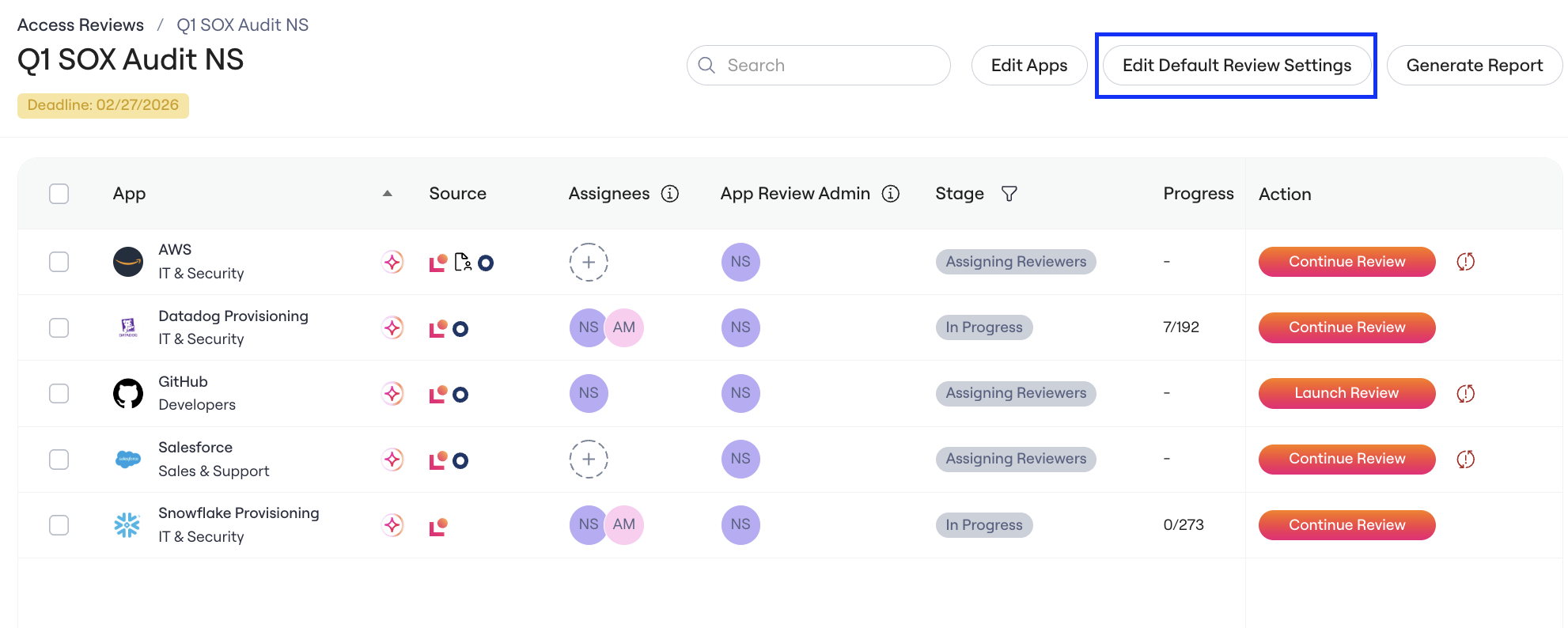
-
Toggle AI insights on or off
Notes: Enabling or Disabling will only impact unlaunched Access Reviews
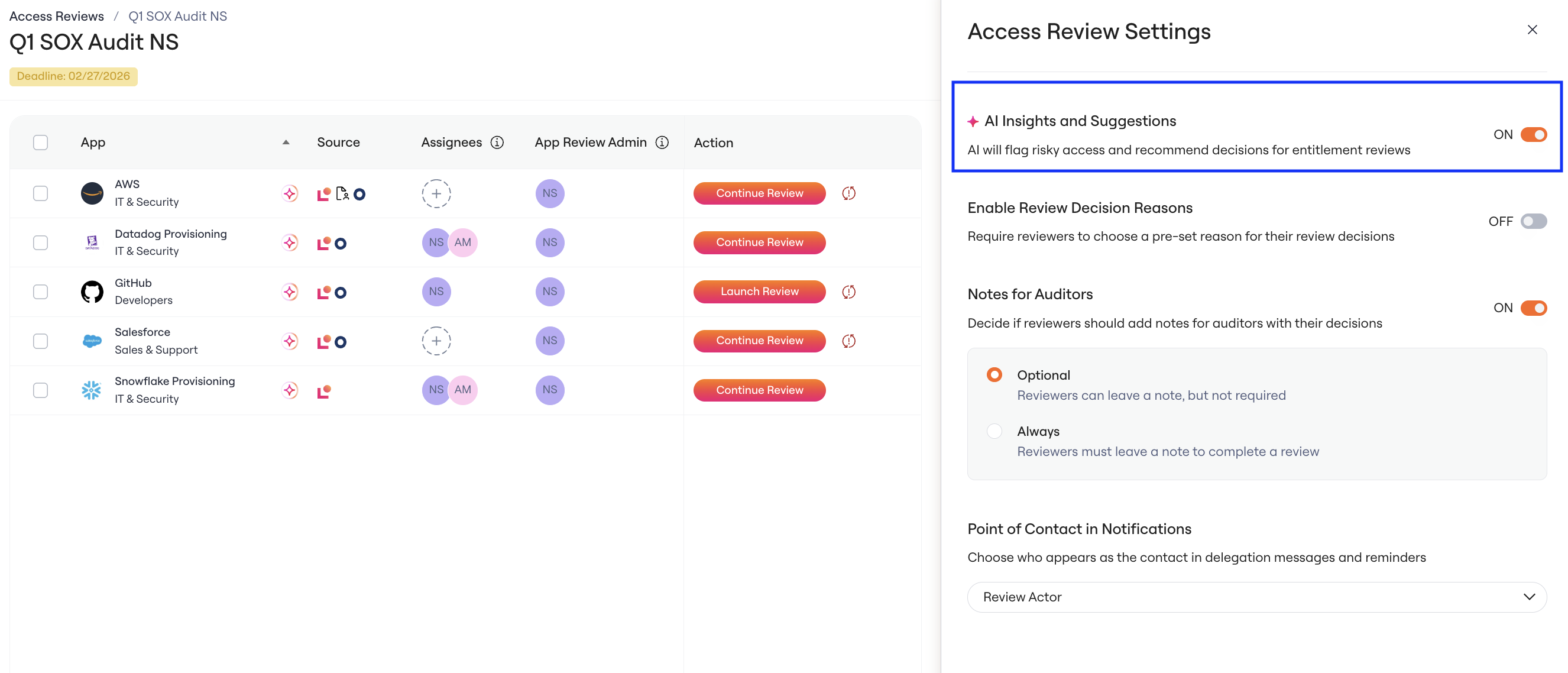
-
View AI Insights icon for Access Reviews with AI insights enabled
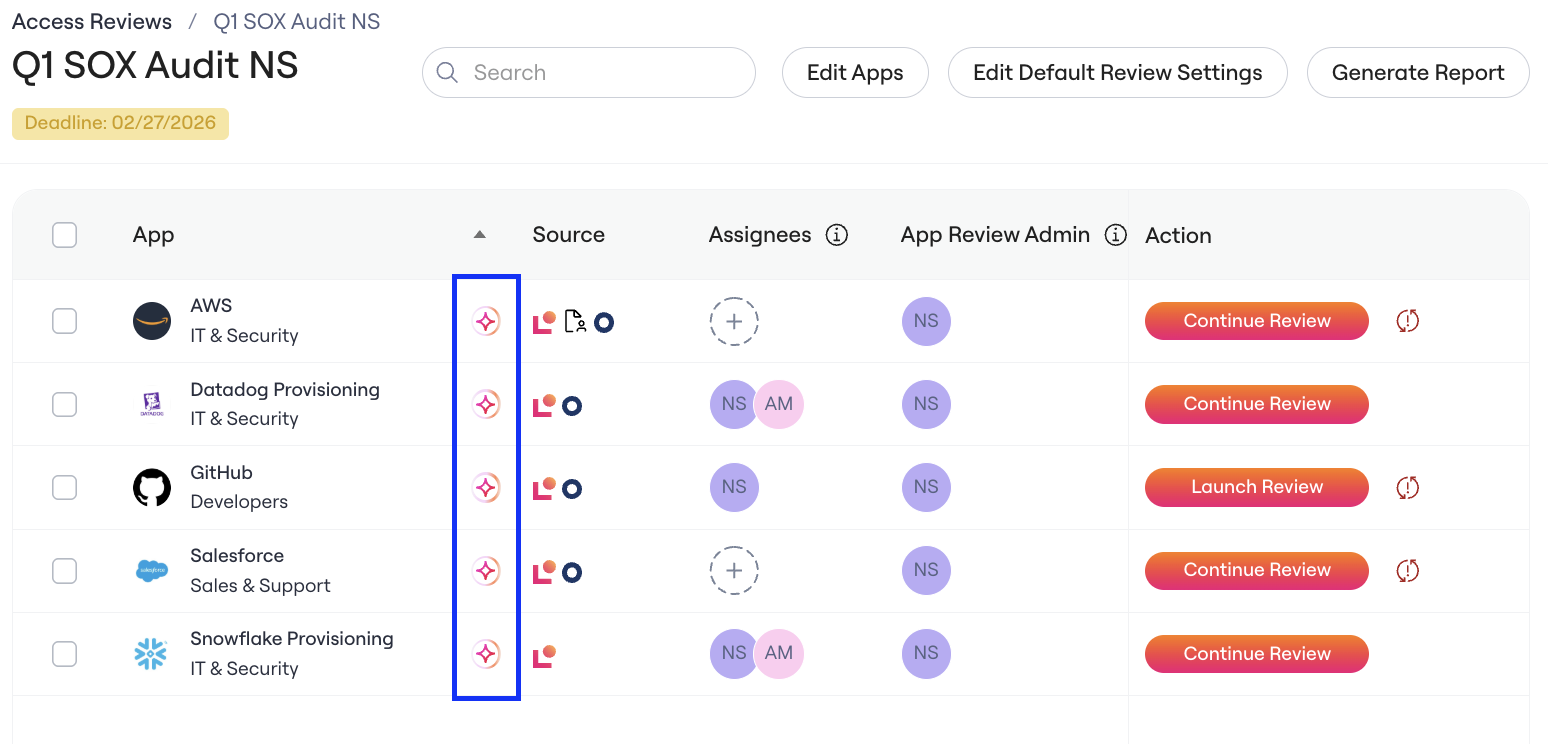
Enabling/Disabling Agentic UARs for a specific Access Review
- Navigate to a specific Access Review
-
Open on Access Review Settings
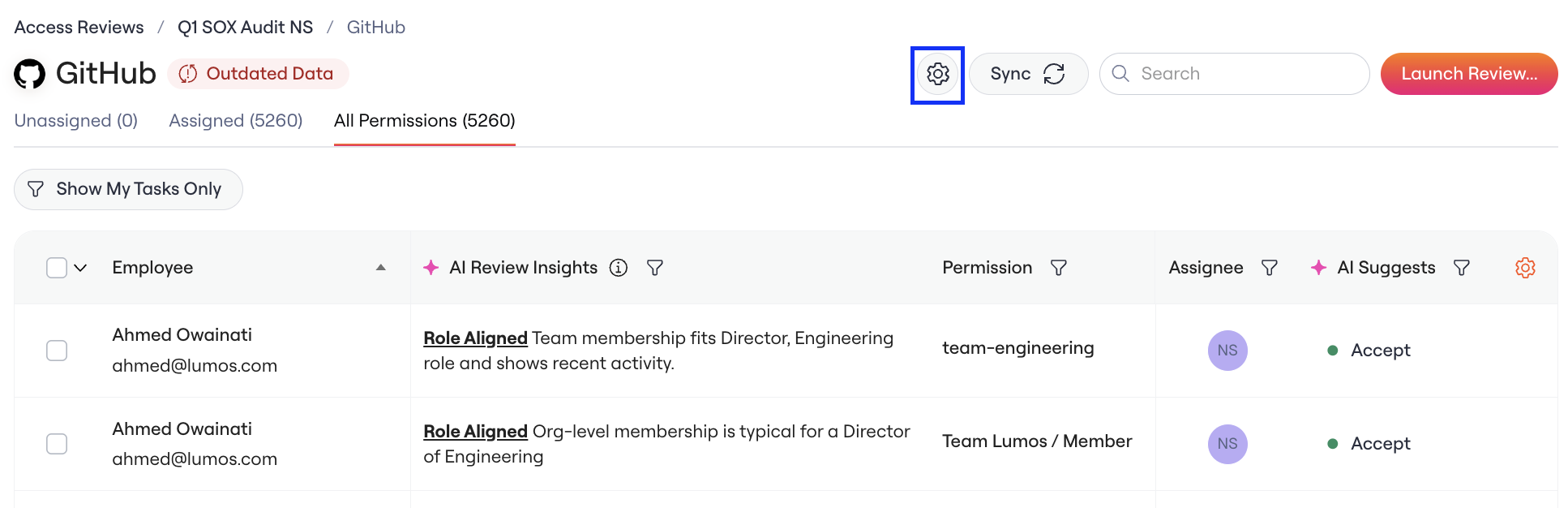
-
Enable/Disable AI insights for this Access Review
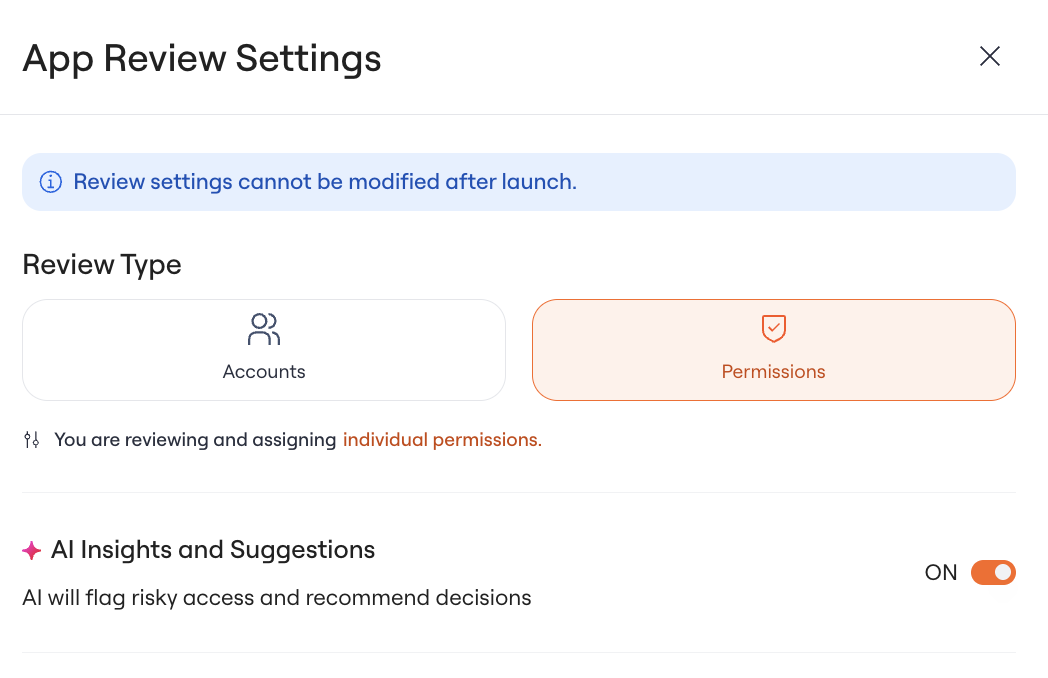
Enabling/Disabling AI Insights in Auditor Reports
-
Navigate to Access Reviews Settings
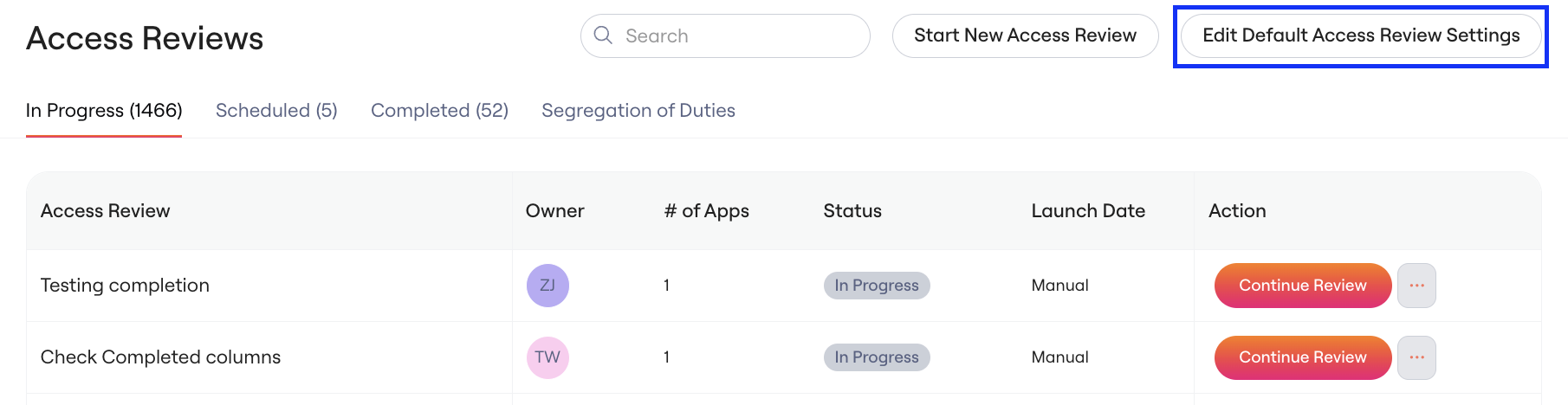
-
Enable/Disable AI insights in Auditor Reports
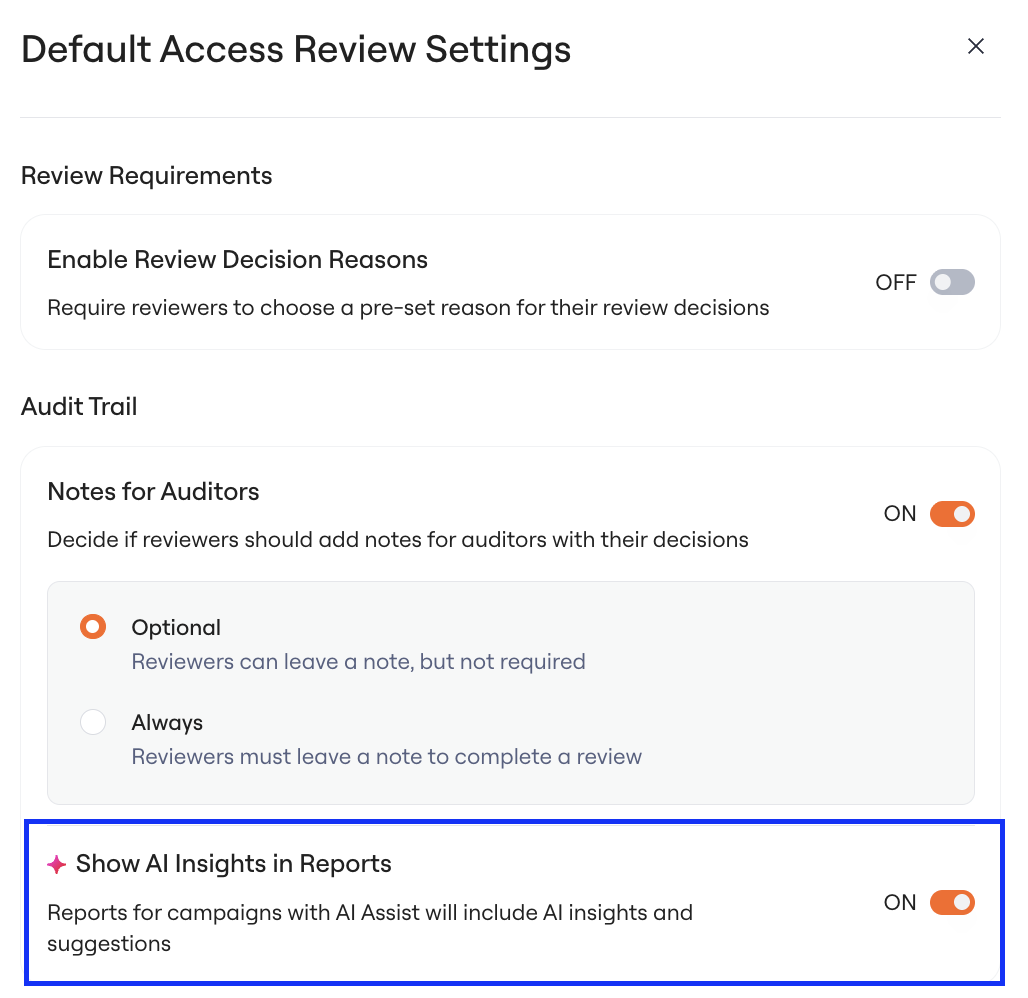
-
This setting will affect all Auditor Reports.
- Generating a report when this setting is enabled will include AI insights if they were enabled at any time for a Review
- Generating a report when this setting is disabled will not include AI insights
-
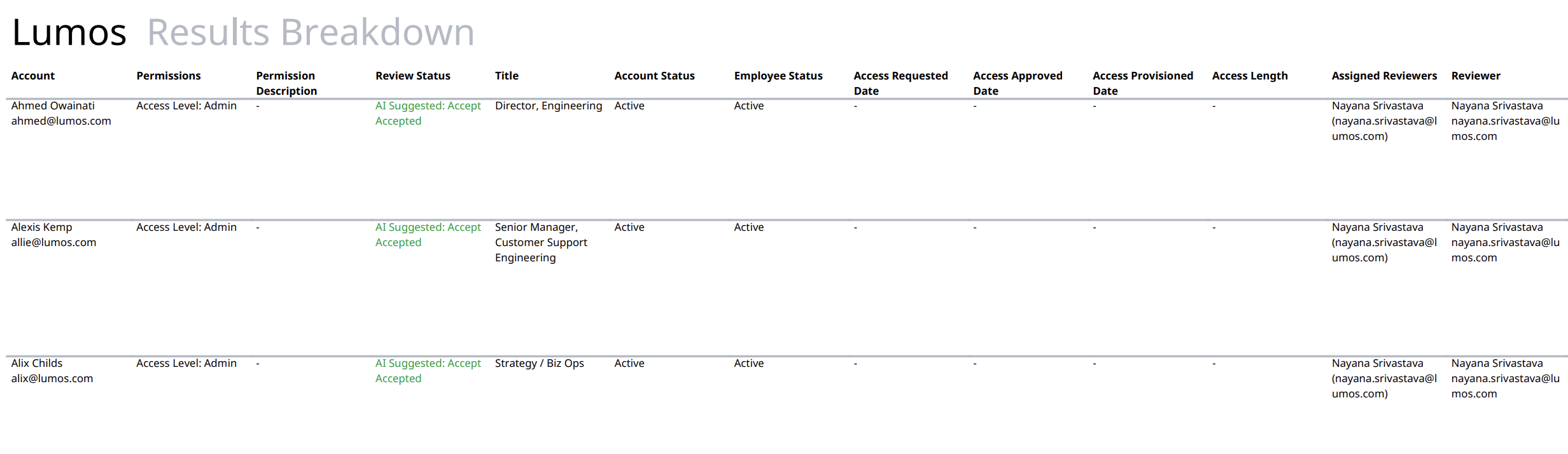
View AI insights in the Auditor Report