

Connect to the Lumos User MCP Server
The Lumos user MCP server connects your AI client to the Lumos AppStore using the Model Context Protocol (MCP), the open standard for letting AI tools call external services. Search the app catalog, request access, and check your request status without leaving the tool you already use. This guide shows you how to connect a client, log in, and run your first request.Looking for the Admin MCP server?If you are trying to configure and manage Lumos, try the Lumos Admin MCP Server.If you are trying to govern which MCP servers and tools your employees’ agents can call, see MCP Governance: Deployment.
Before you begin
You need:- A Lumos account you can log in to through your organization’s login method.
- An MCP-compatible client that supports remote (HTTP) MCP servers and browser-based OAuth. Supported clients include Claude Code, Claude, Codex, Gemini CLI, and OpenCode.
- Network access to the Lumos MCP endpoint.
How it works
You connect over OAuth in your browser, so you never paste an API key or token into the client. Your client opens a Lumos login page in your browser. You log in and approve a consent screen that shows what the client can do. Lumos then gives the client a token scoped to only the tools you’re allowed to use. You authorize each client the first time it connects. Lumos remembers your approval, so you won’t log in or approve again unless your access is revoked or the client requests new permissions.Connect your client
Pick your client below. Every client uses the same endpoint:https://api.lumos.com/mcp/user.
- Claude Code
- Claude (desktop & web)
- Codex
- Gemini CLI
- opencode
- Other clients
Add the server with HTTP transport:Or add it as JSON:
Authenticate and approve access
When your client connects, Lumos opens a browser-based OAuth flow.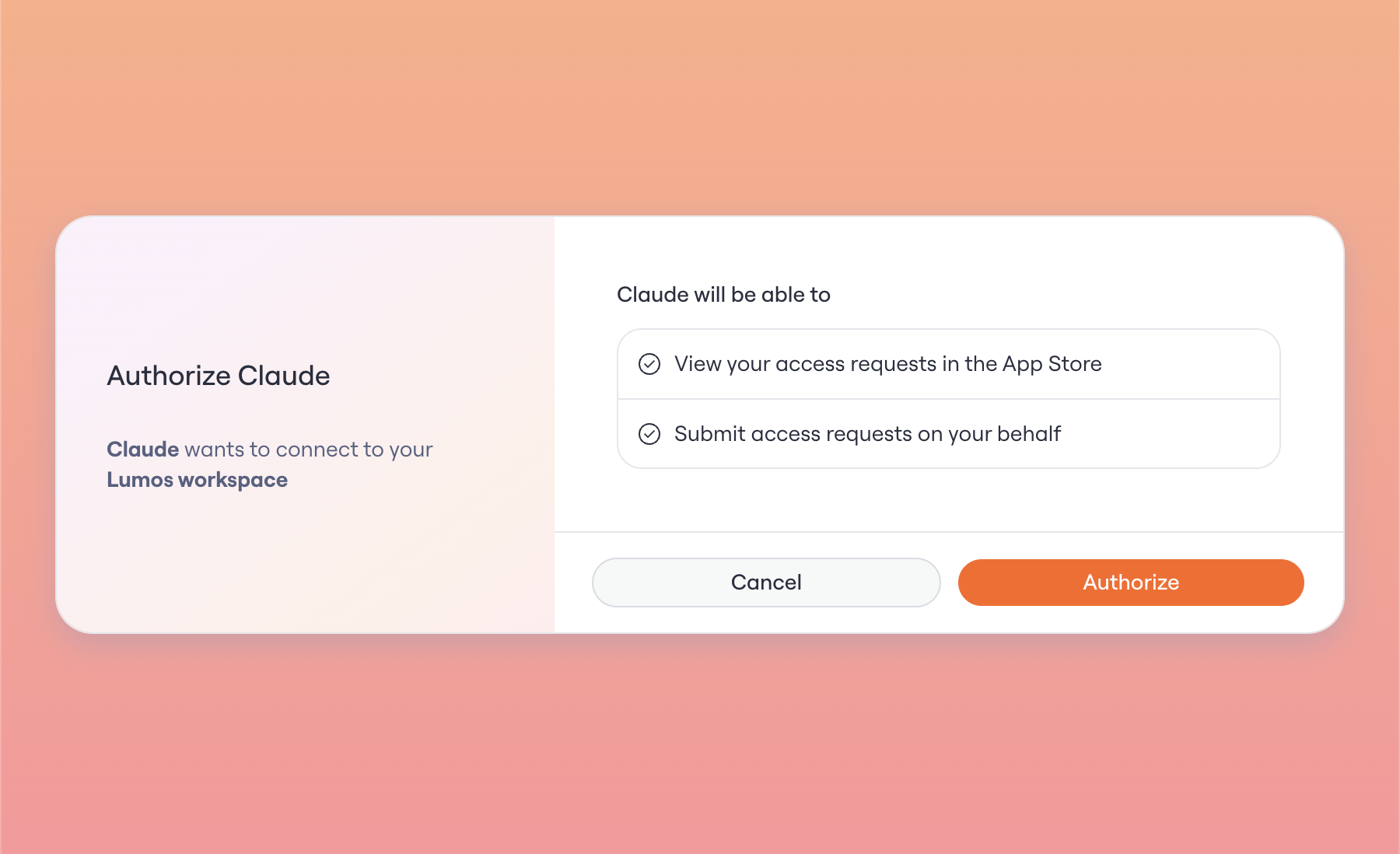
- Confirms you’re logged in, or asks you to log in.
- Shows which client is requesting access (for example, Claude).
- Lists the permissions it’s requesting.
- Lets you approve or deny the connection.
Lumos remembers your approval for the same user, client, and scopes. You’ll approve again only if the client requests new scopes, your access is revoked, or the client asks for a fresh consent prompt.
Verify your tools
After you log in, check that the Lumos tools appear in your client. Most clients list them in a Tools or MCP panel. Command-line clients may show them with a status or diagnostic command.
The exact tools you see depend on your Lumos permissions and your organization’s feature flags.
Run your first request
Once the tools are connected, tell your agent what you need in plain language. It searches the AppStore, finds matching apps and permissions, and guides you through the request.Troubleshooting
The client can’t discover the server
Check that the MCP URL is correct and includes the/mcp/user path. Your client must connect to the MCP endpoint, not the Lumos web app URL.
The browser login flow doesn’t open
Confirm your client supports remote MCP authentication. Older clients may need an update to complete browser-based OAuth.You’re connected but don’t see the expected tools
The tools you see depend on your Lumos role, your product access, and your organization’s feature flags. If a tool you expect is missing, check these with your Lumos admin.A write action is denied
You may have approved thelumos:user:write scope, but your Lumos role may not grant the permission the tool needs. For example, you might be able to view AppStore items but not submit access requests.