

Background
Escalation Policies automatically escalate Access Review assignments when Reviewers don’t act in time, so you don’t need to escalate to a Reviewer’s manager manually. Set up these policies in your Lumos Settings to keep your regular Access Reviews on schedule.Steps
1. Go to Settings > Escalation Policies.
2. Click “Add New Policy”.
3. Ensure “Access Review” is toggled
You’ll be able to make policies for AppStore, but you’ll want to create this for Access Review.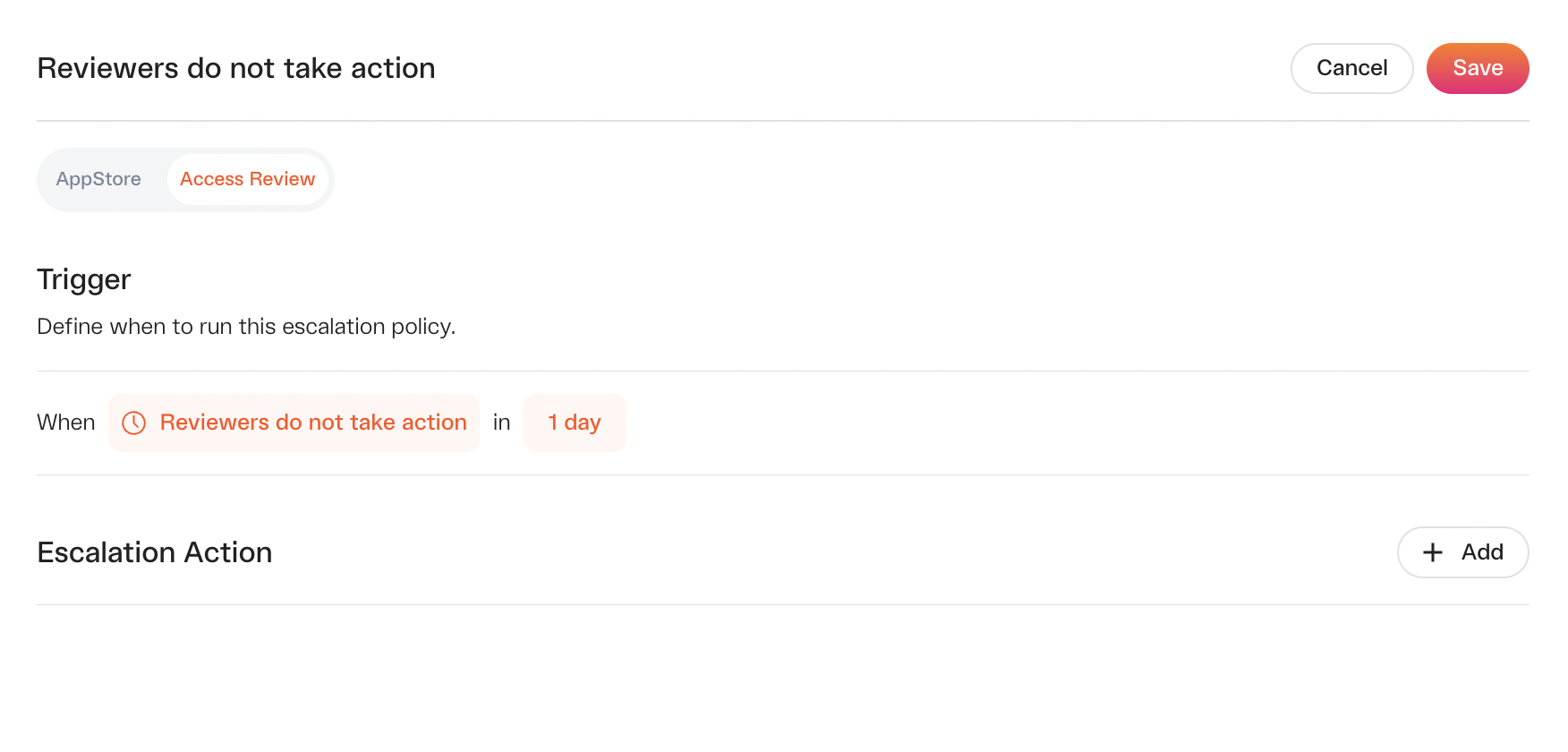
4. Define your trigger
When it comes to Access Review escalation triggers, you have one option:-
Reviewers do not take action
- This will trigger the escalation action(s) when any assignee of an account or permission review has not taken action by the SLA time period. The countdown starts from the launch of the app review when the assignee is notified.
- You’ll be able to set the SLA option.
5. Configure your Escalation Action(s)
- Click Add to add actions. You need at least one escalation action per rule.
- You’ll see the option to “Reassign to” followed by users and a couple of shortcuts (Reviewer’s Manager, App Admin, Review Owner) to configure.
- If you add another escalation action, you’ll configure how long Lumos waits before the next escalation step.
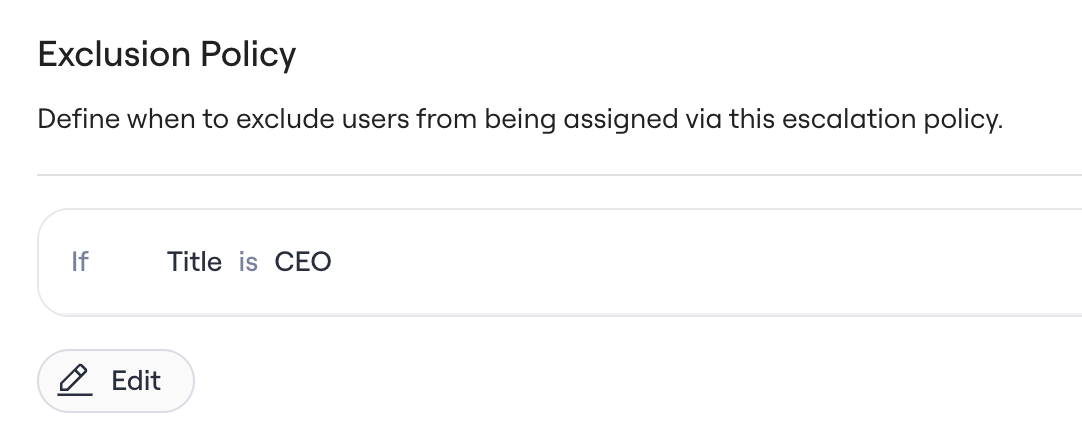
6. Configure the Exclusion Policy
-
Can be used to prevent escalation assignment to users matching a specified condition:
7. [Optional] Rename your escalation policy
By default, Lumos names this rule based on your trigger, but you can rename it for easy reference.8. Click Save
FAQ
Are escalations auditable?
- Yes.
- Lumos will log when policies are created, edited, and deleted in the Activity Log.
- Lumos will also log when the reviews have been escalated and who it has been escalated to in the Activity Log.
Can I escalate to myself?
- Generally yes. However, if you are the target account of the review Lumos will automatically skip this step in the escalation policy so as to follow Segregation of Duties.
Do escalations run on review admins?
- Access Review escalations only run on assignees of account or permission reviews. Review owners and App review admins are not re-assigned from escalation policies.
Can I create two policies with the same trigger?
- No this is not supported today. This ensures that it is clear what escalation actions will occur for a specific trigger.
What happens to my ongoing access reviews if I create an escalation policy — does the policy automatically run for all pending account or permission reviews?
- The escalation policy will apply to all reviews created moving forward since the release of this feature (Dec 12 2023).
Can you read my vacation calendar and automatically reroute based on OOO?
- This is not supported today.
How many escalations will occur during the lifecycle of a review?
- Depends on the number of steps added to the Escalation Policy under the Escalation Action.
- For each review item, Lumos will only complete 1x the execution of the entire Escalation Action. Once the Escalation Action is completed in its entirety, no further escalations will take place.
How often does the Escalation Policy Trigger “No active approver set” run?
- This will check for matches approximately every 1 hour