

Background
Schedule an Access Review when it needs to start on a specific date or run at a regular cadence. A scheduled review starts even if you’re out of office, so you don’t need to launch it manually. If you make a review recurring, Lumos automatically queues up new Access Reviews at your preferred cadence and handles most of the preparation.How to schedule a new review
1. Create a new access review and get to the Review Details. See Creating a New Access Review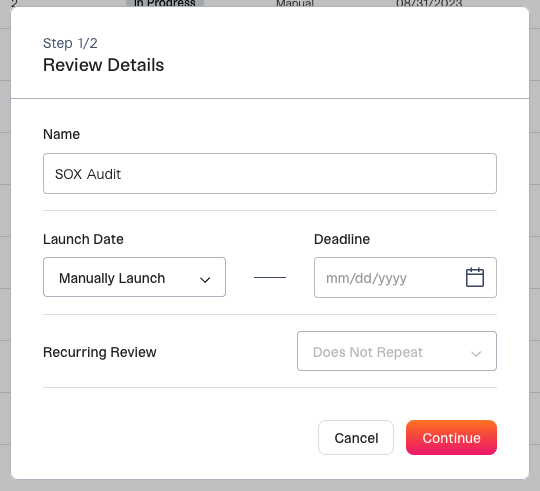
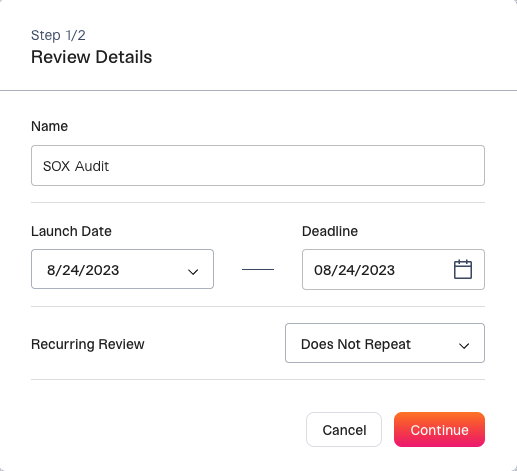
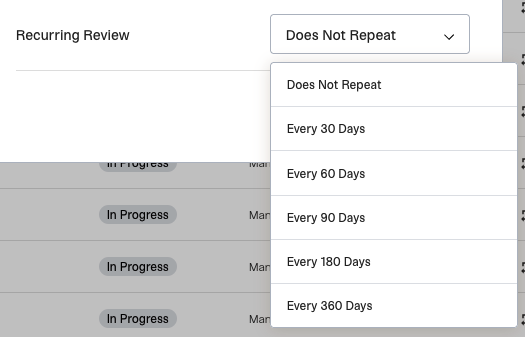
How to make a completed review recurring
1. Edit a completed review. See Editing an Access Review 2. When you get to Edit Review Details, choose the recurrence interval. 3. Choose the Starting From date. This is the Launch Date for the next recurring review, which is also the date that the review is auto-launched.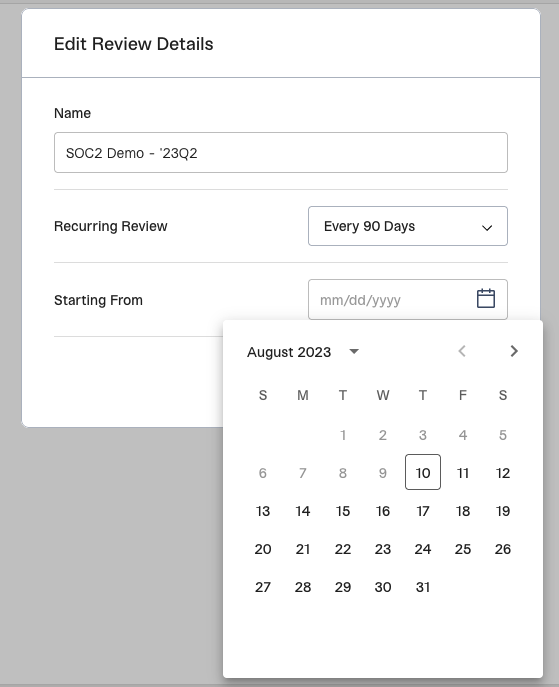
What happens before a scheduled review is auto-launched?
Seven days before the Launch Date, Lumos starts sending notifications and checking for data freshness/recency in the upcoming review. Every day leading up to the review Launch Date, Lumos checks for updates to the data listed below and refreshes it.- App Data If new CSVs are uploaded to the app or data is refreshed via integration, Lumos will update it in the access review every day prior to the launch date. This means that new active accounts will be added to the review, deactivated accounts will be removed from the review, and changes to roles/entitlements will be updated in the review.
-
Account Review Assignments
- If an account is assigned to an employee’s manager and the manager is updated in your Source of Truth. Lumos will automatically update the reviewer assignment to the new manager every day before the launch date.
- If there are any unassigned accounts at the time of a scheduled launch, Lumos auto-assigns to the App Review admin. Leading up to the scheduled access review, the App Review admin is notified about any unassigned accounts/ missing reviewers and can assign these new accounts. After launch, they can also re-assign those accounts as needed.
What blocks a scheduled review from auto-launching?
There are two situations that block a review from launching automatically on the launch date.- Outdated data If data from an integration, or uploaded via CSV, is 7+ days out of date, Lumos will not auto-launch a review. You can still manually launch the review. See Assigning Reviewers and Launching Your Access Review Lumos sends notifications to Review Owners and App Review Admins if CSV data or integration data is outdated so they can take action. See Access Review Notifications
- Incomplete Reviews If the last scheduled review for this app is still not marked as “Complete”, the App Review Admin and Review Owner are notified. The last review needs to be Complete before the next one can begin. See Access Review Notifications
What time does my scheduled access review run?
-
There are 4 scheduled tasks running every morning:
- Data reimport for scheduled reviews: Midnight CDT (12:00 am)
- Create next recurring reviews: Midnight CDT (12:00 am)
-
Auto launch scheduled reviews: 6AM CDT
- These will include notifications for delegating reviewers and auto-launch blockers (stale data, incomplete past reviews)
- Send notifications about missing reviewers: 6:00 am CDT
- Lumos keeps attempting to pull in new accounts/ permissions from 7 days before the target date and up until the day before the target launch date of the scheduled/ recurring review. The accounts/ permissions are locked on launch.