

Background
When a Reviewer rejects access during an Access Review, Lumos removes that access. This applies to whole accounts and to individual permissions (entitlements) that a Reviewer rejects while keeping the account. This article covers the full removal flow:- Choosing how removals run for each app in a campaign
- Confirming removals
- Tracking automatic removals
- Completing manual removal tasks
- Handling failures
- Adding evidence for your auditors
Why use account workflows for removals
- Access is removed the same way everywhere. The deprovisioning workflow an app uses for Offboarding or the AppStore can also run its Access Review removals. A removal follows the same steps no matter what triggered it.
- No configuration is required. Each app defaults to the deprovisioning workflow assigned to Access Reviews on its Account Workflows tab. Permissions default to the workflow configured for that permission on the app. Webhook and Manual remain available for apps that need them.
Choose how removals run
Before you start: the workflow you want to use must already exist on the app’s Account Workflows tab. See Standardized Account Workflows.- In the sidebar, go to Access Reviews, select your campaign to open it, and find the app you want to configure.
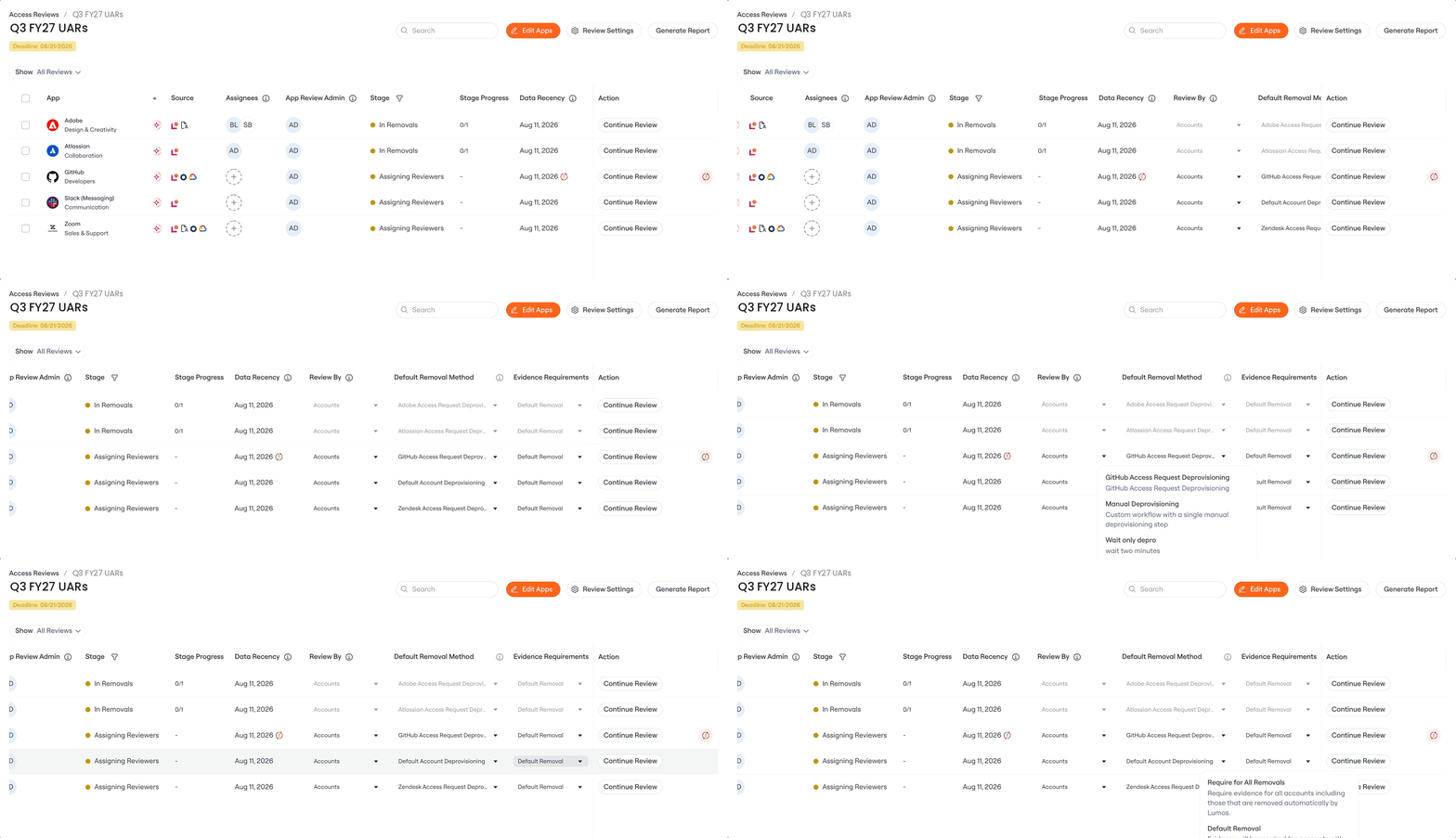
- Open the “Default Removal Method” dropdown and choose what happens when access needs to be removed for this app.
-
For account workflows, select a deprovisioning workflow from the options. Lumos removes the account’s access automatically by running the workflow’s steps in order. For example, it deactivates the account, deletes it, and then transfers the user’s data.
The workflows in this list come from the app’s Account Workflows tab (Apps → [App Name] → Account Workflows). Every deprovisioning workflow saved there appears here, and the one assigned to Access Reviews is selected by default. If a workflow you expect is missing, check that tab.
-
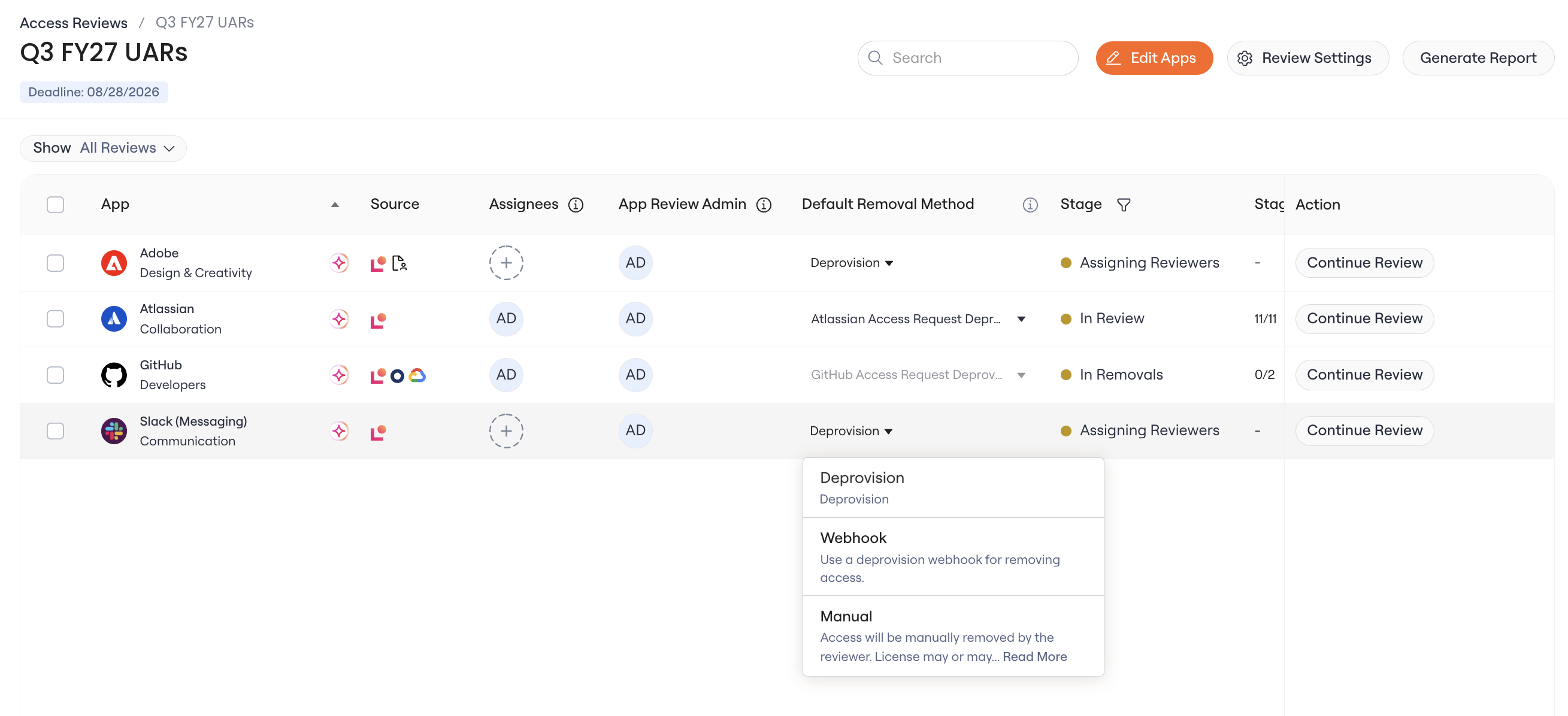
For permission reviews, choose how rejected permissions are removed: the permission’s default deprovisioning workflow, Webhook, or Manual. These options work the same as the account options, but run against the individual permission. The default workflow comes from the permission’s configuration on the app’s Permissions tab.
Confirm removals
After Reviewers finish their decisions, and before anything is removed, you confirm exactly what will run:-
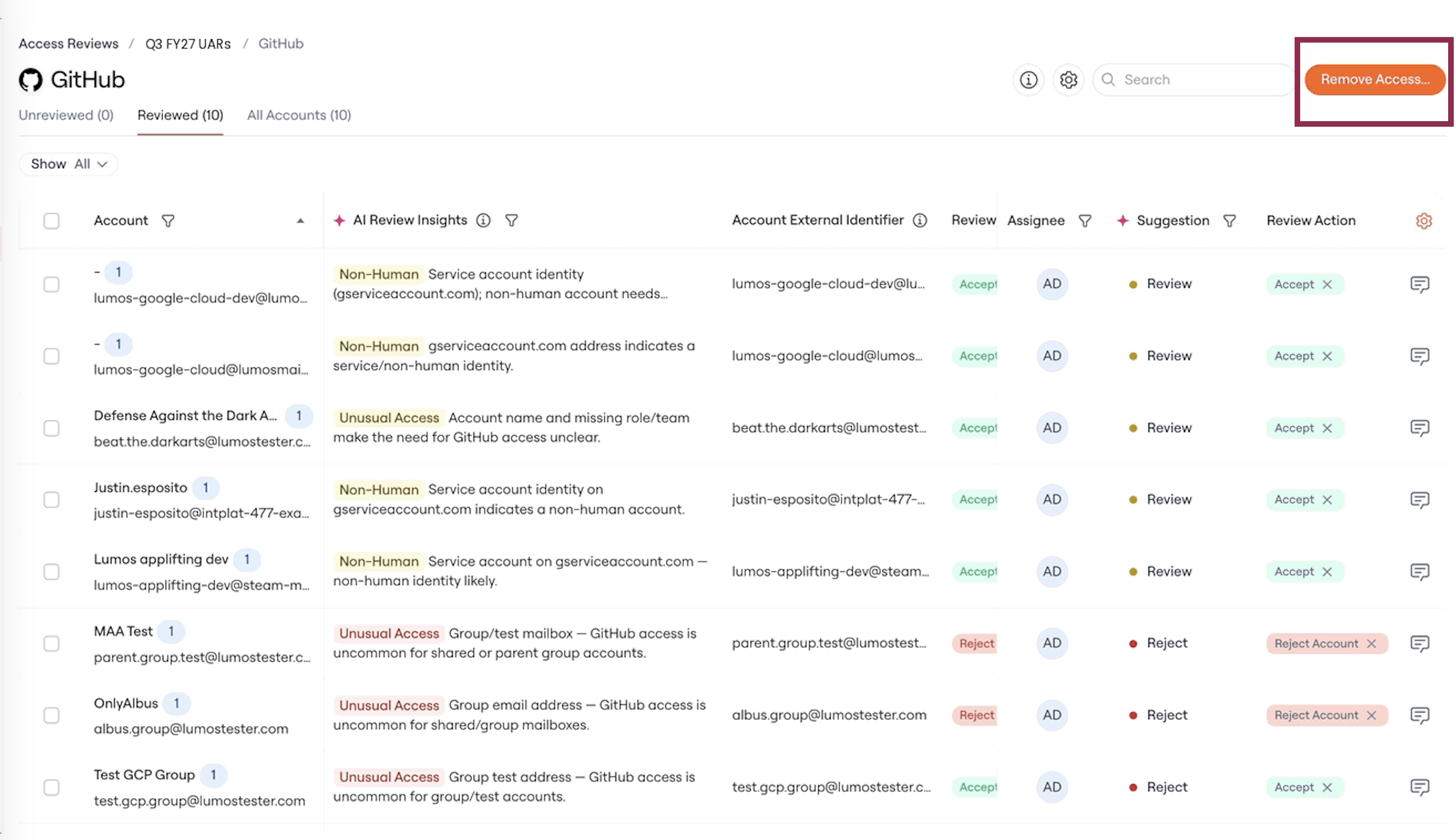
On the app’s review, click the “Remove Access” button.
-
The Remove Access dialog lists every account or permission about to be removed. Check the Action column to see which deprovisioning workflow runs for each account, and change it if needed.
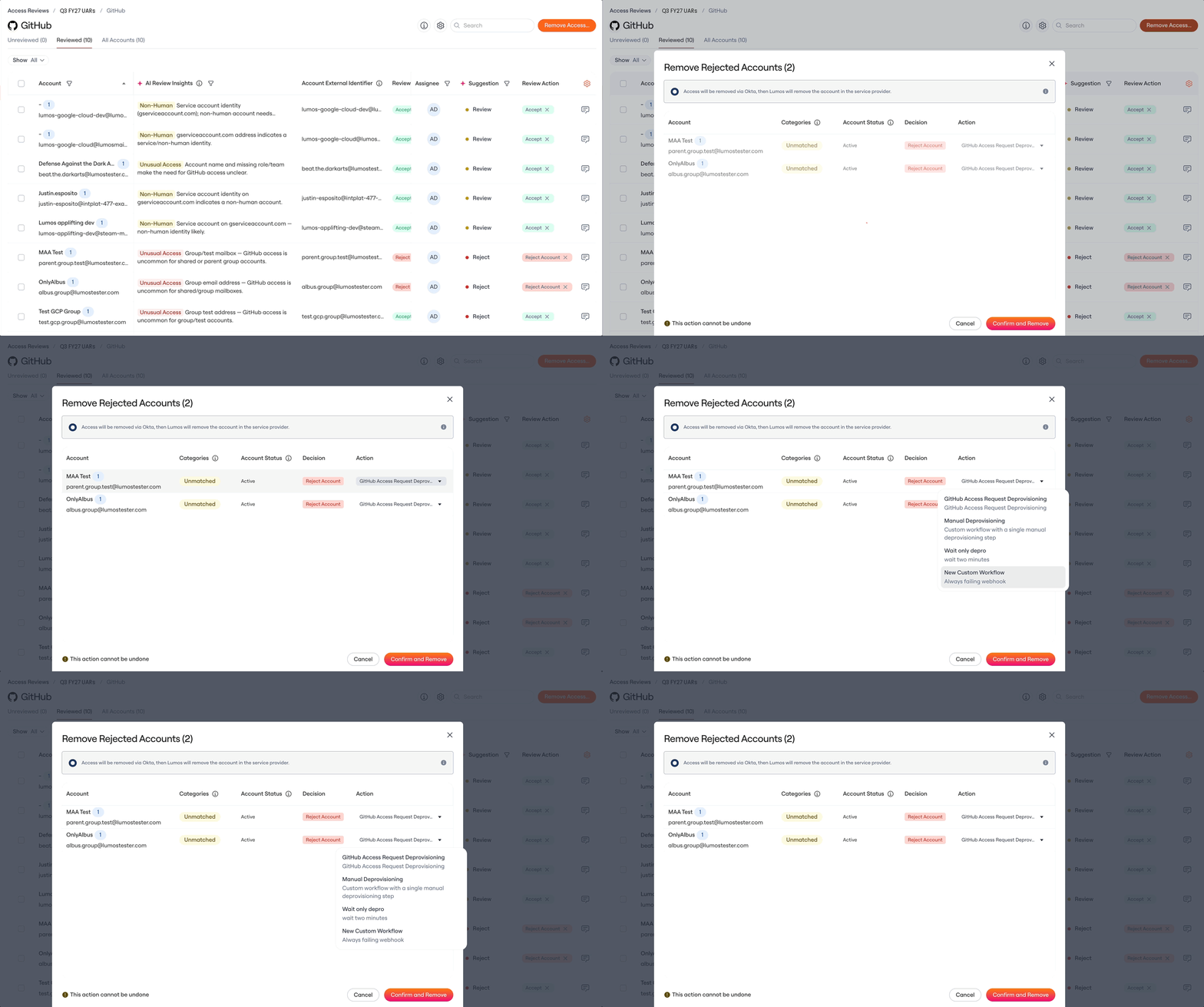
- If a Reviewer kept an account but rejected specific permissions, confirm how each permission is removed: the permission’s default deprovisioning workflow, Webhook, or Manual.
- Click “Confirm and Remove”. You can’t undo this step.
-
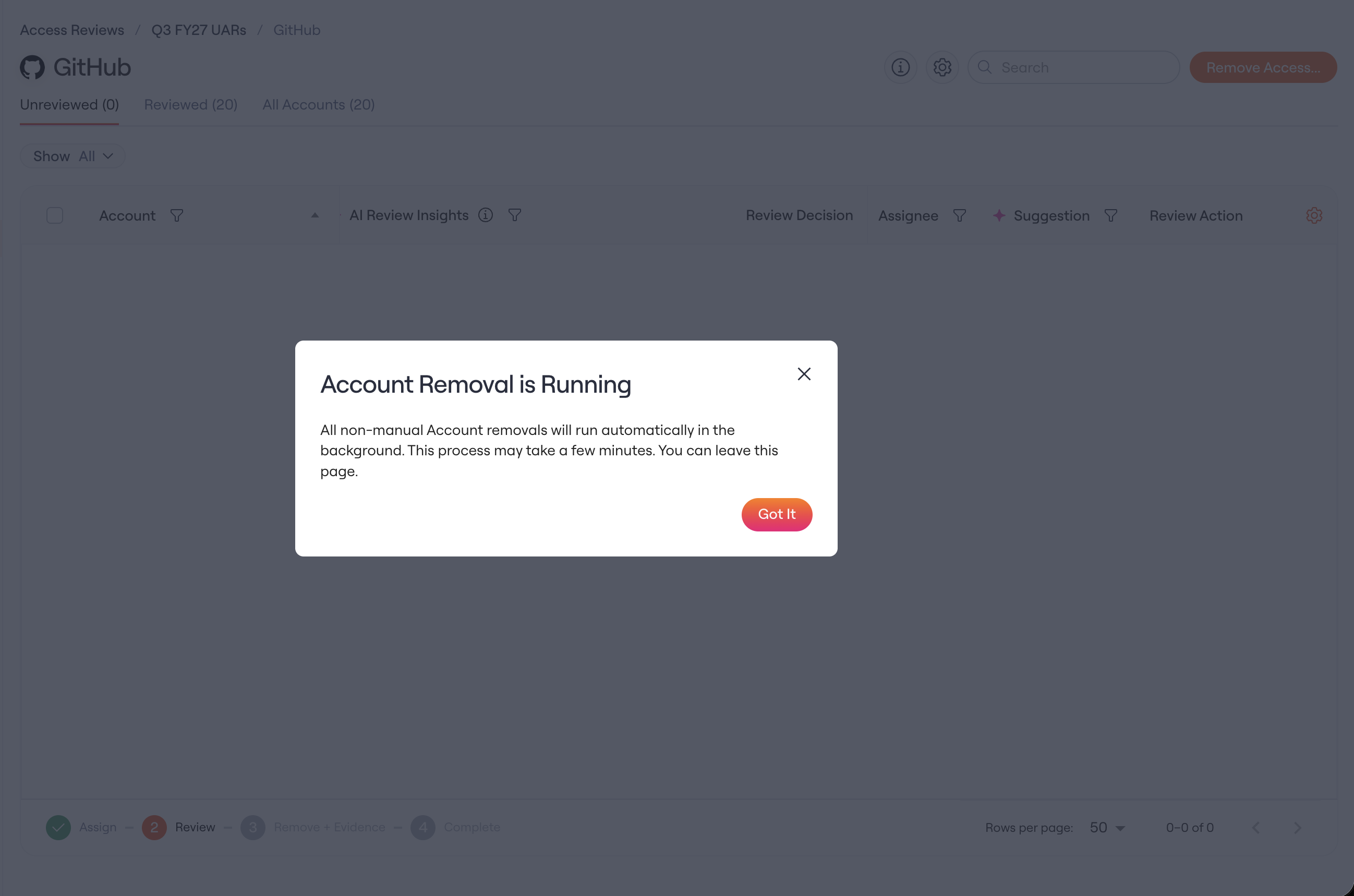
Lumos confirms that the removals have started.
Track automatic removals
-
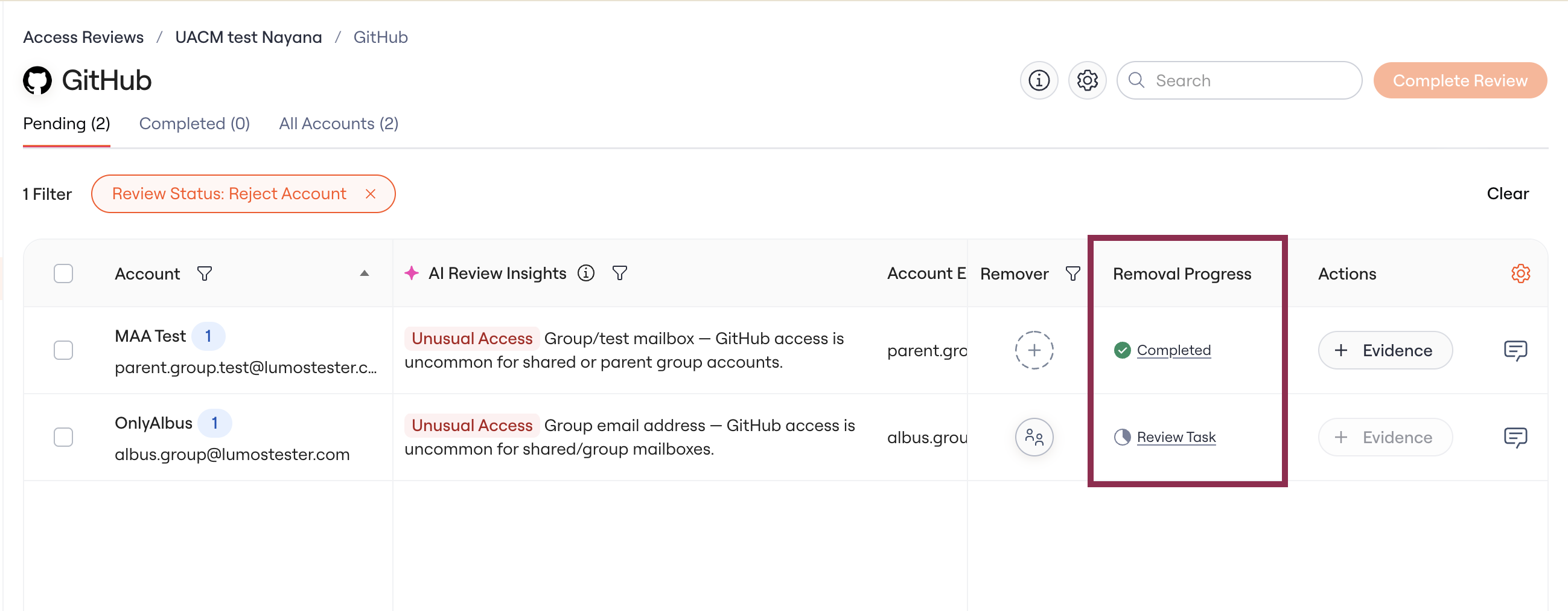
Watch the Removal Progress column on the review.
-
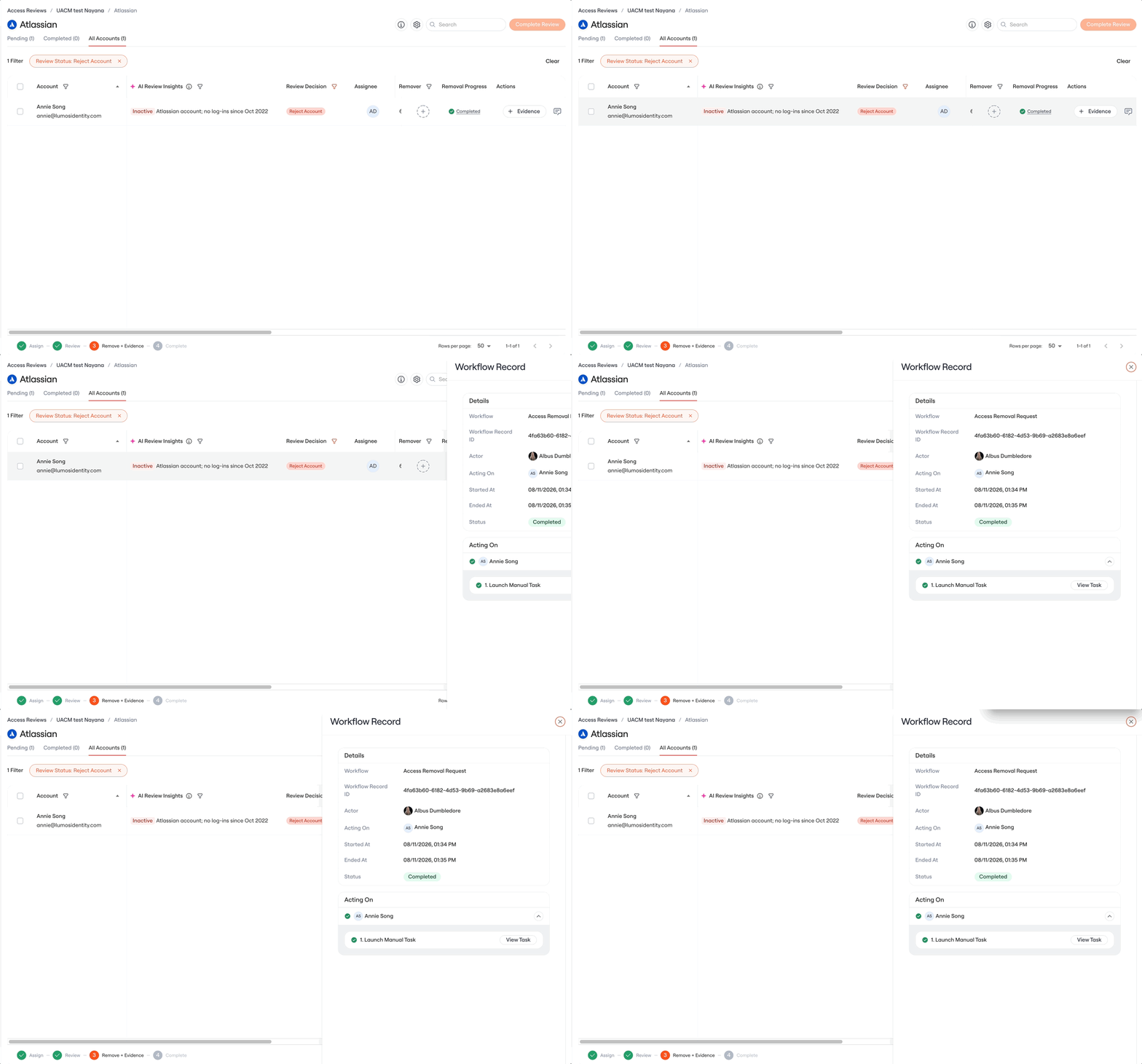
Click the status in that column to open the removal’s workflow record. The record shows each step of the workflow and how far it has progressed.
Complete manual removals
Some removals need a person, for example when the workflow includes a manual step. These removals run through tasks:-
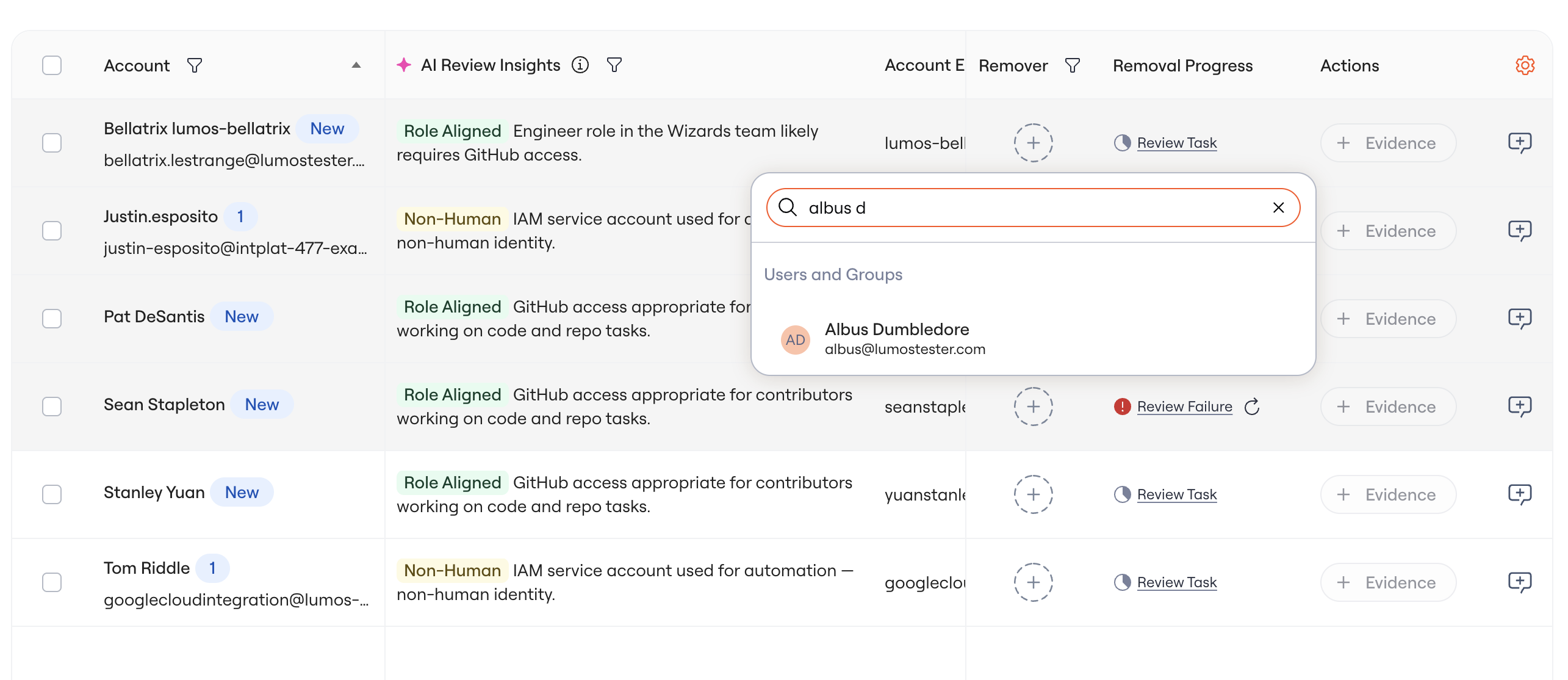
Assign a Remover for the app. The Remover is the person who completes these removals by hand, and Lumos notifies them when removals are waiting. If you don’t assign a Remover, the task goes to the default Task Assignee.
- Lumos creates a task for each manual removal and assigns it to the Remover. If no Remover is assigned, tasks go to the App Review Admin.
-
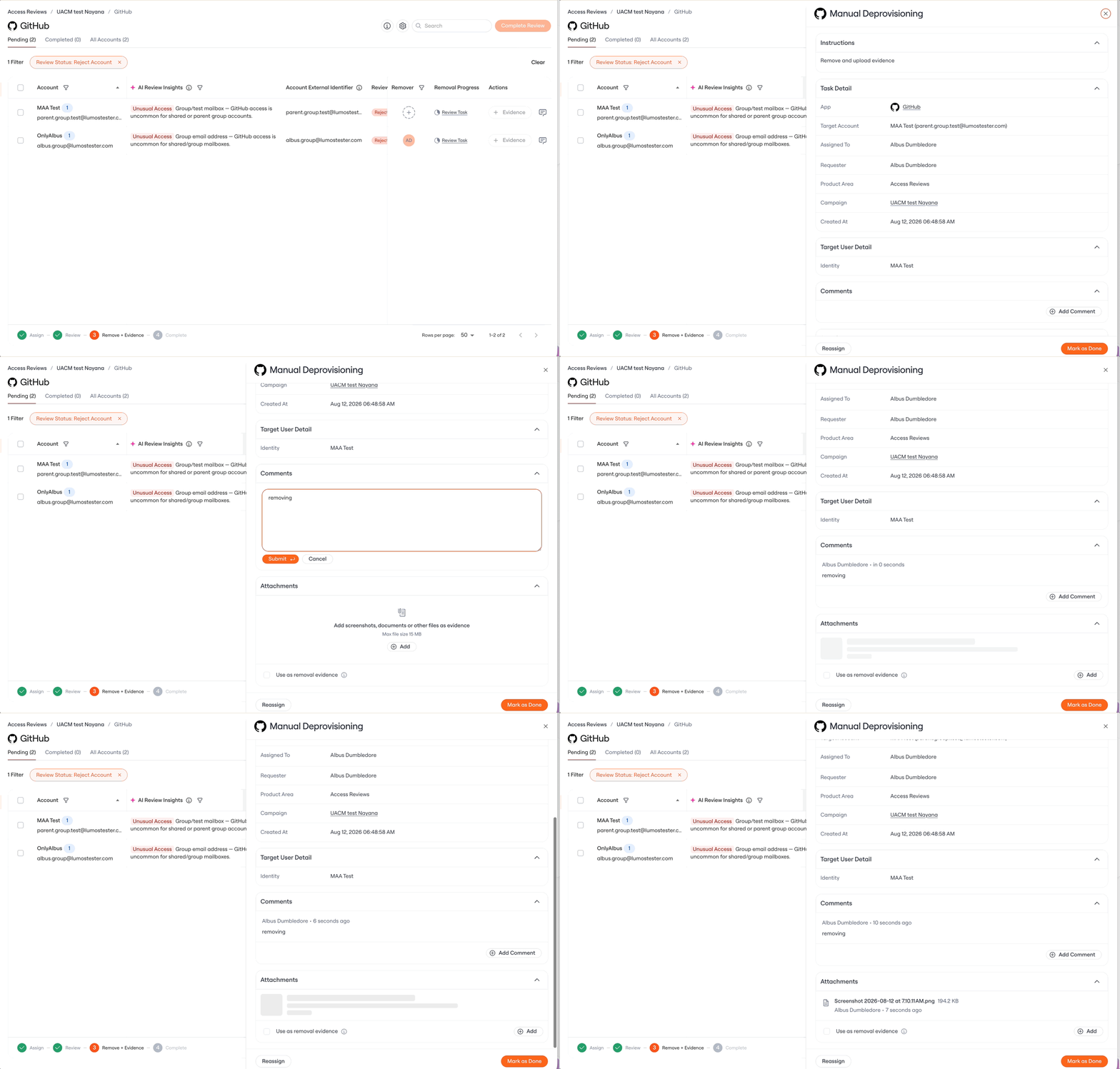
Complete the task from the review or from Task Center. It’s the same task in both places. You can reassign tasks, leave comments, and upload evidence on them.
If a removal fails
If a workflow hits an error while running, Lumos does not skip the removal:-
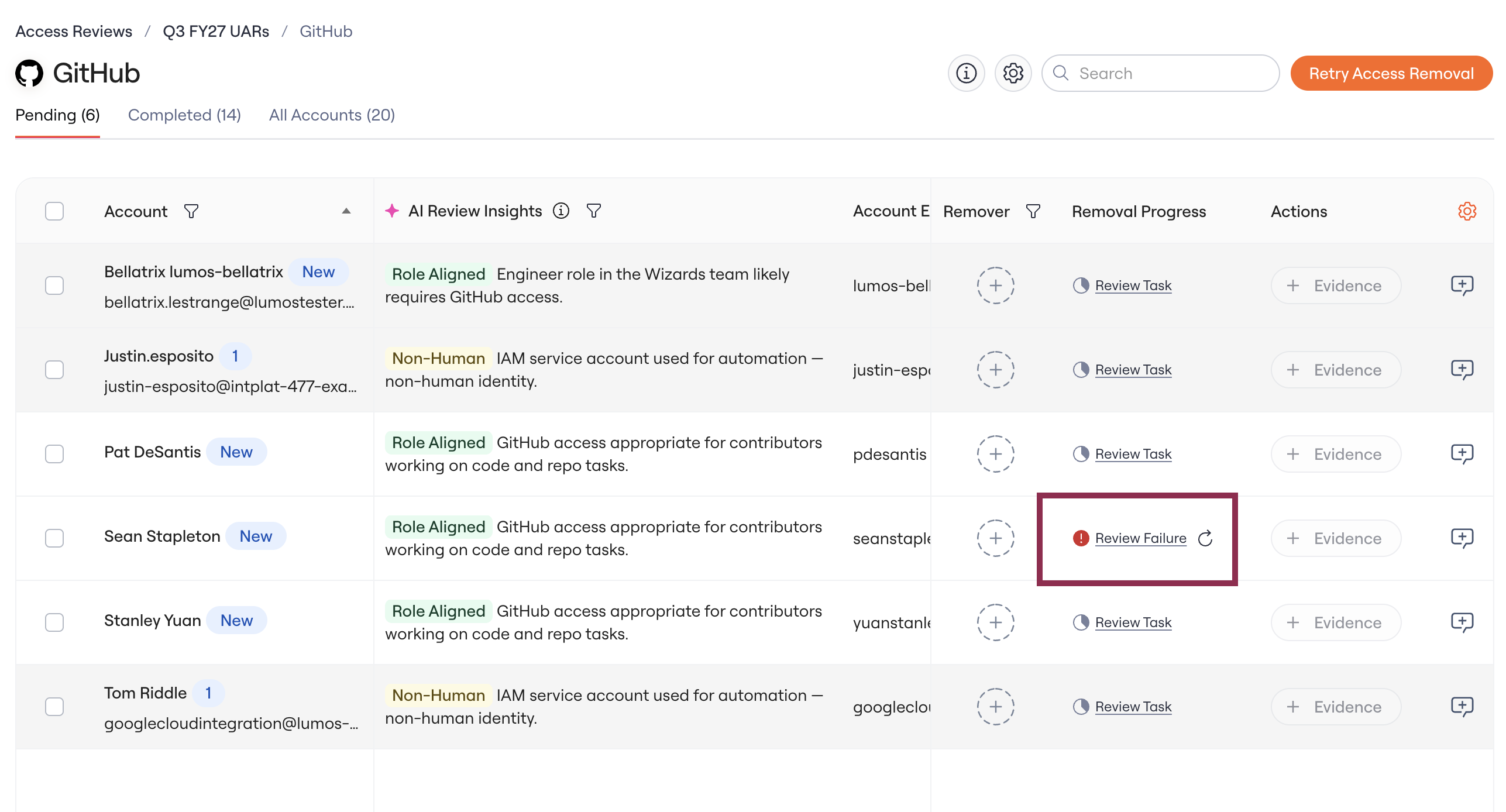
The workflow pauses, and the Removal Progress column shows Review Failure.
-
Lumos creates an error task for the assigned Remover (or App Admin). The task appears on the review and in Task Center.
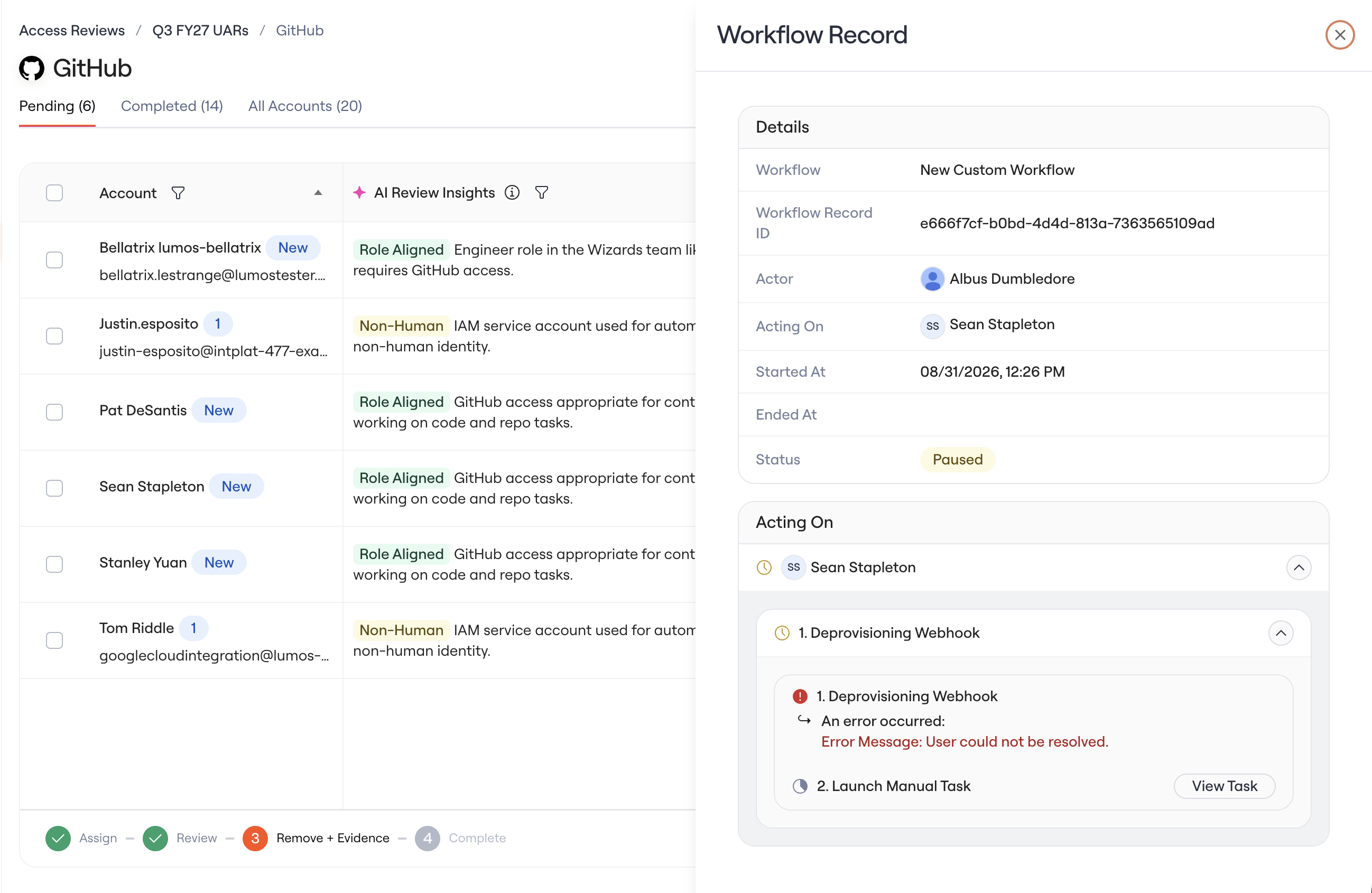
- After someone fixes the problem and completes the error task, the workflow resumes where it paused and continues to its next step.
Add evidence
If your campaign requires evidence (the Evidence Requirements setting), you can add it after a removal completes:-
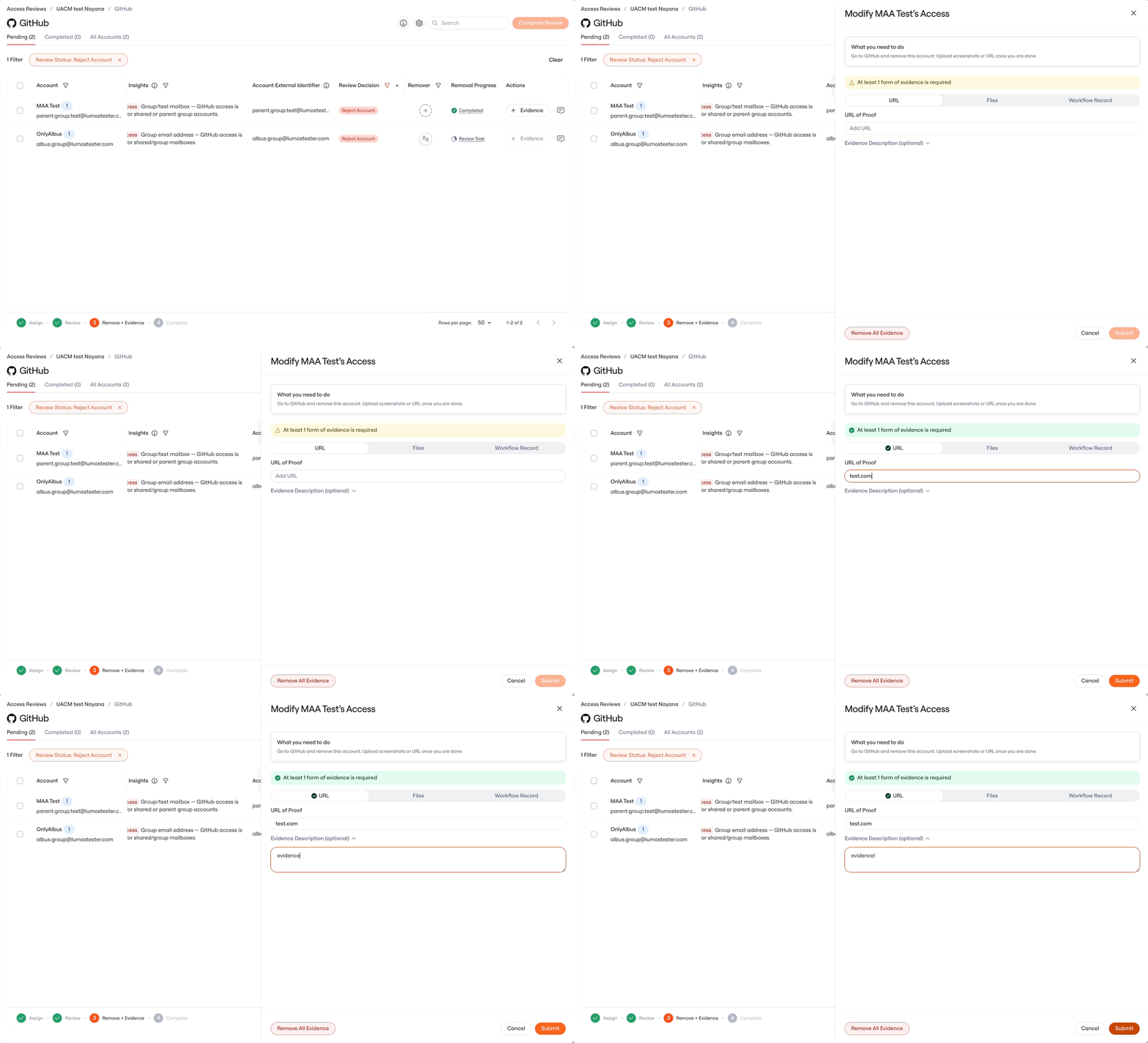
On the review, open the removed account and choose how to attach evidence: add a URL, upload a file, or link the removal’s workflow record.
-
To add the same evidence to many removals at once, select them and add evidence in bulk.
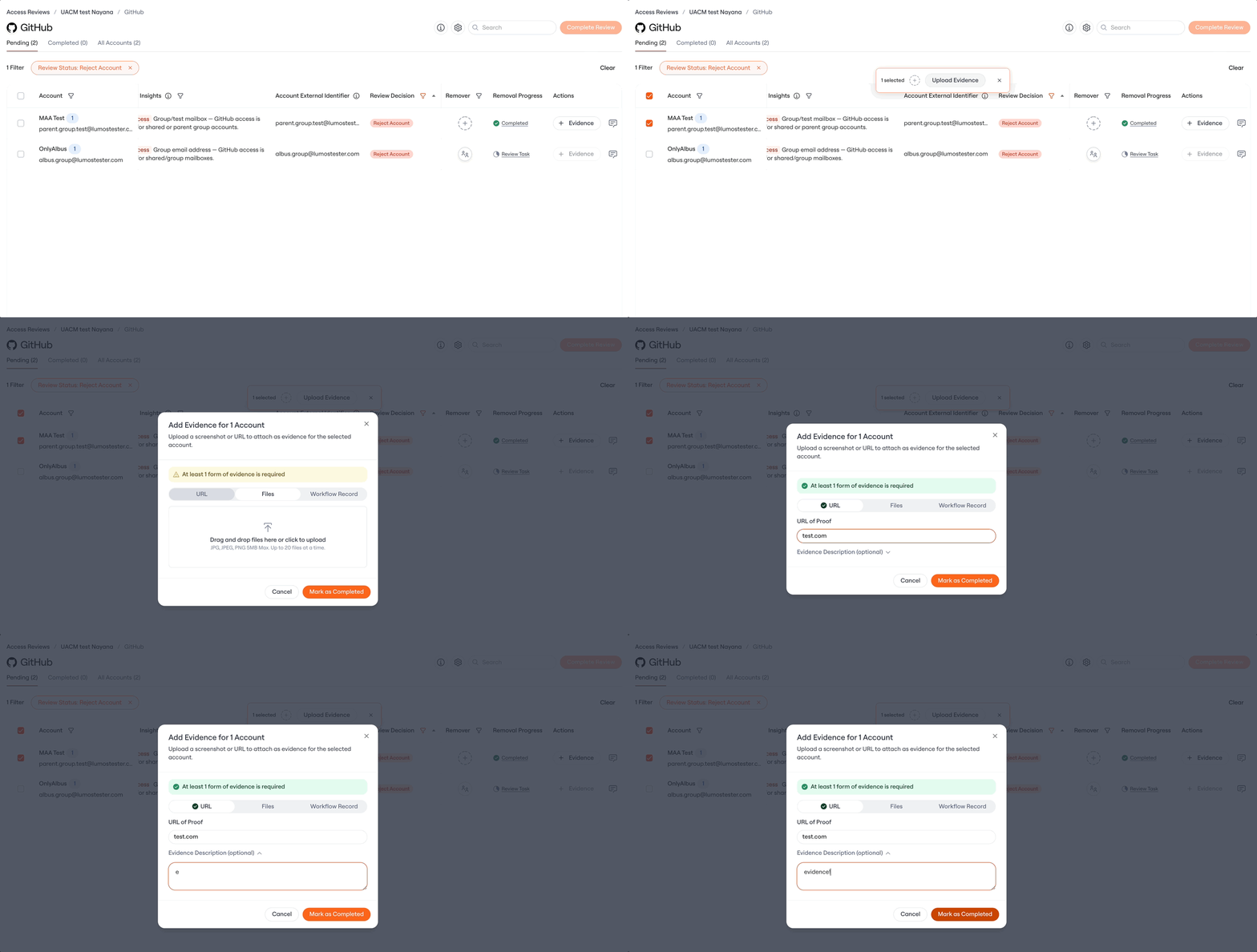
- The evidence appears in the auditor report.
Notifications
- Lumos does not notify the person losing access when their access is removed.
- Lumos notifies Removers when they’re assigned, per app.
- Task notifications arrive as one summary email per app. Evidence upload notifications are summarized the same way.