

Part of Lumos Launchpad: Lifecycle Management, step 2.
Background
The problem
Many organizations can’t provision new employees with all the software access they need automatically. Some organizations live out of spreadsheets, going through checklists one by one to manually provision the new hire days before they start. Some organizations have some of their process automated behind their IdP, but still have to provision user access manually for certain apps that sit outside of their IdP. Some organizations struggle to make sure they get the right approvals for birthright access. Some organizations can’t stay on top of whether the users were provisioned the right access, after they’ve asked their app owners to provision accounts for the new hires.The solution
Lumos New Hire Onboarding applies your access policies so that new employees get the access they need from Day 1, using the apps and self-service access requests you already manage in Lumos.Before you start
To trigger an onboarding, you need at least one access policy. See How-To: Create an Access Policy in Lumos.How does this work?
Upon the creation of a new account in your User Sources (Okta, Google Workspace, etc.), your Lumos Admins will get a notification in Slack alerting them of new users that have been detected (see Importing User Sources)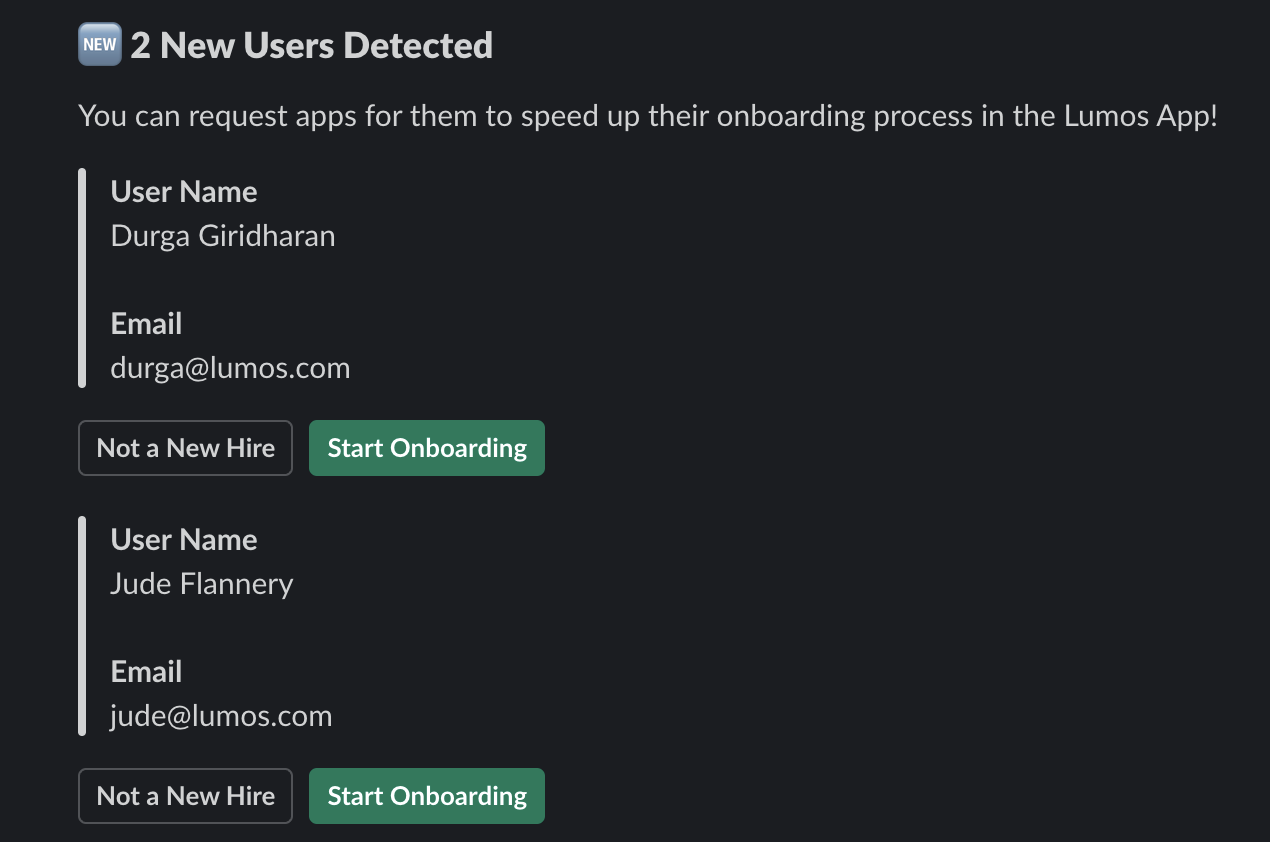

Automated onboarding
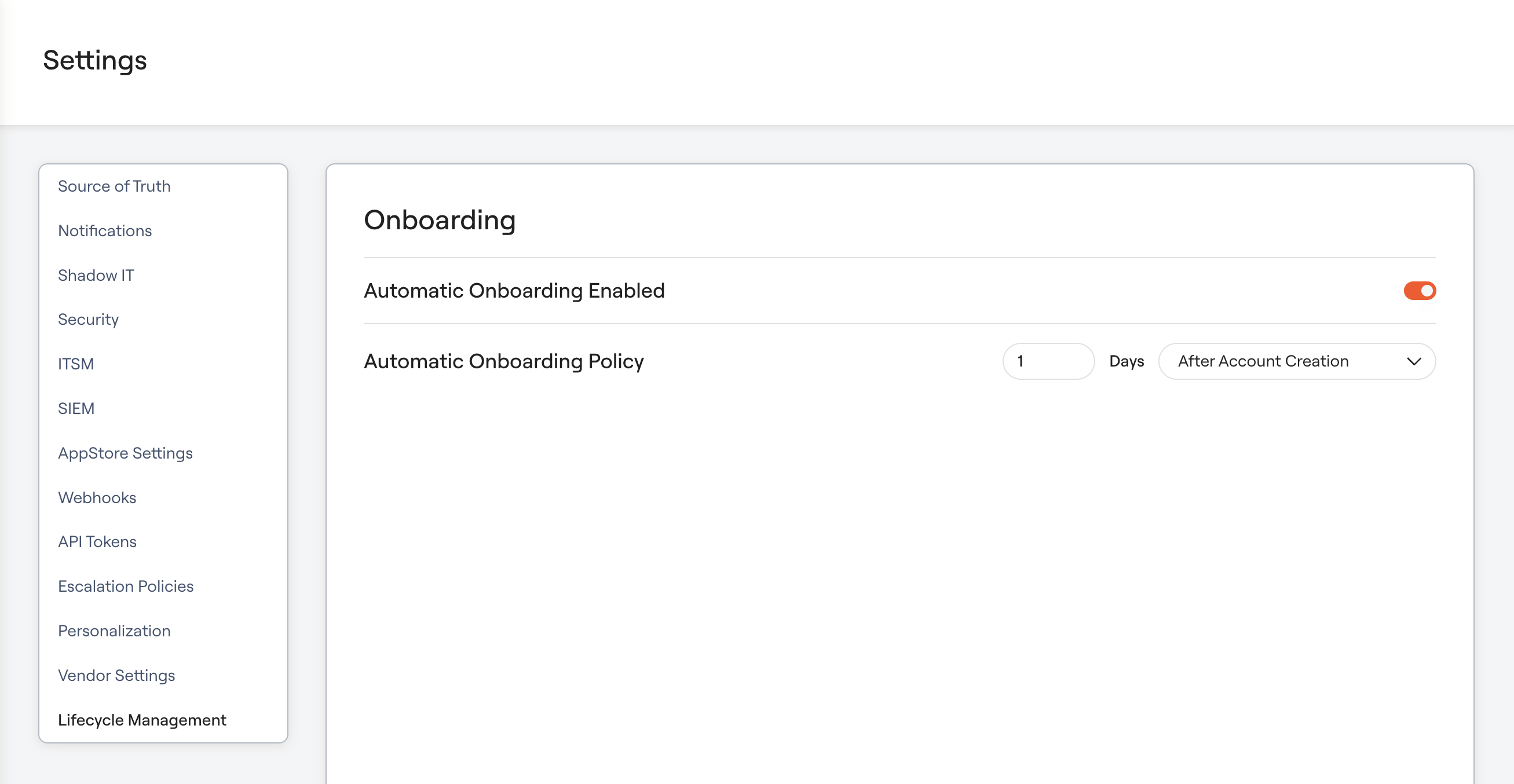
Automated onboarding is off by default. Turn it on in Lumos Settings and choose a trigger:- Account creation: the onboarding runs a set number of days after the account is created in Lumos, at the same time of day the account was created.
- Start date: the onboarding runs a set number of days before the employee’s start date, at the time and timezone you choose. The default is 9:00 AM New York time. This trigger needs Start Date mapped in your Source of Truth settings.
Manual onboarding
You can manually onboard anyone whose account comes from your source of truth. The account’s age doesn’t matter.- Go to the Identities table and search for the user you want to onboard. To see the newest users first, click the “User Created” column twice.
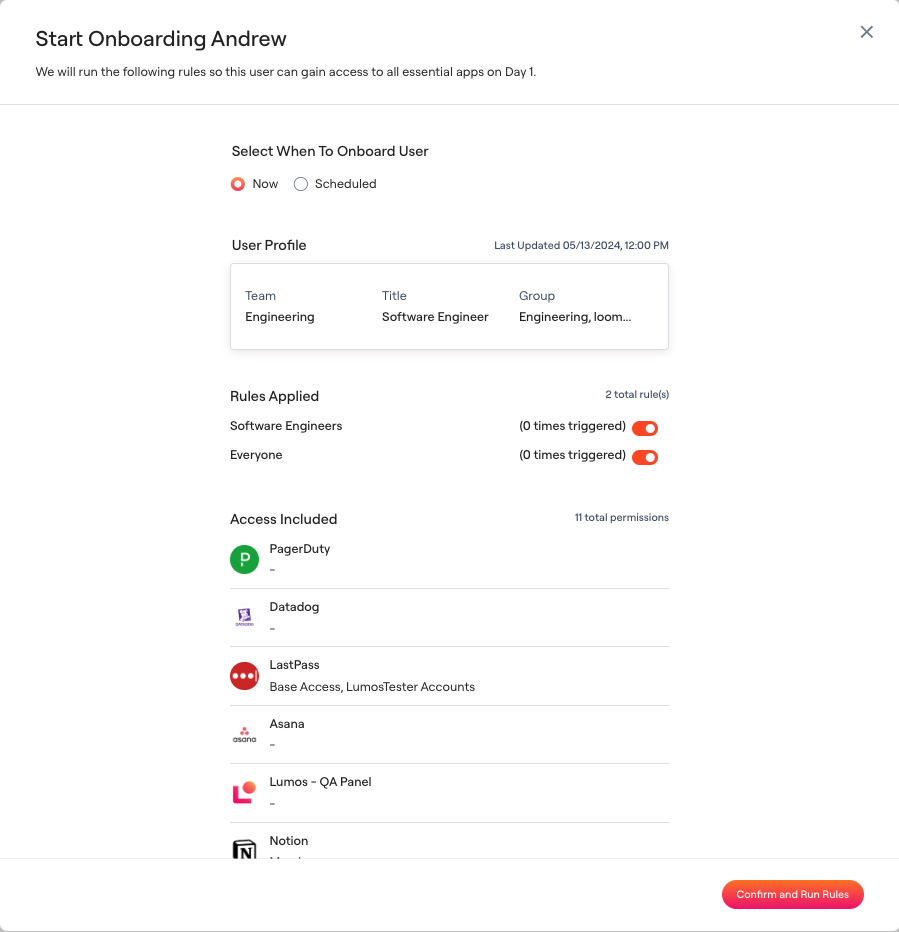
- Click Onboard on that user’s row. A dialog opens with the data Lumos pulled from your Source of Truth settings, the access policies that apply, and the access (apps and permissions) they grant.
- Click Run Onboarding to start now, or pick a date and time and click Schedule Onboarding. Lumos triggers the requests on your behalf.
Track your onboardings
The Onboarding page shows onboardings that are In Progress, Scheduled, and Completed. You can reschedule or cancel scheduled onboardings from this view.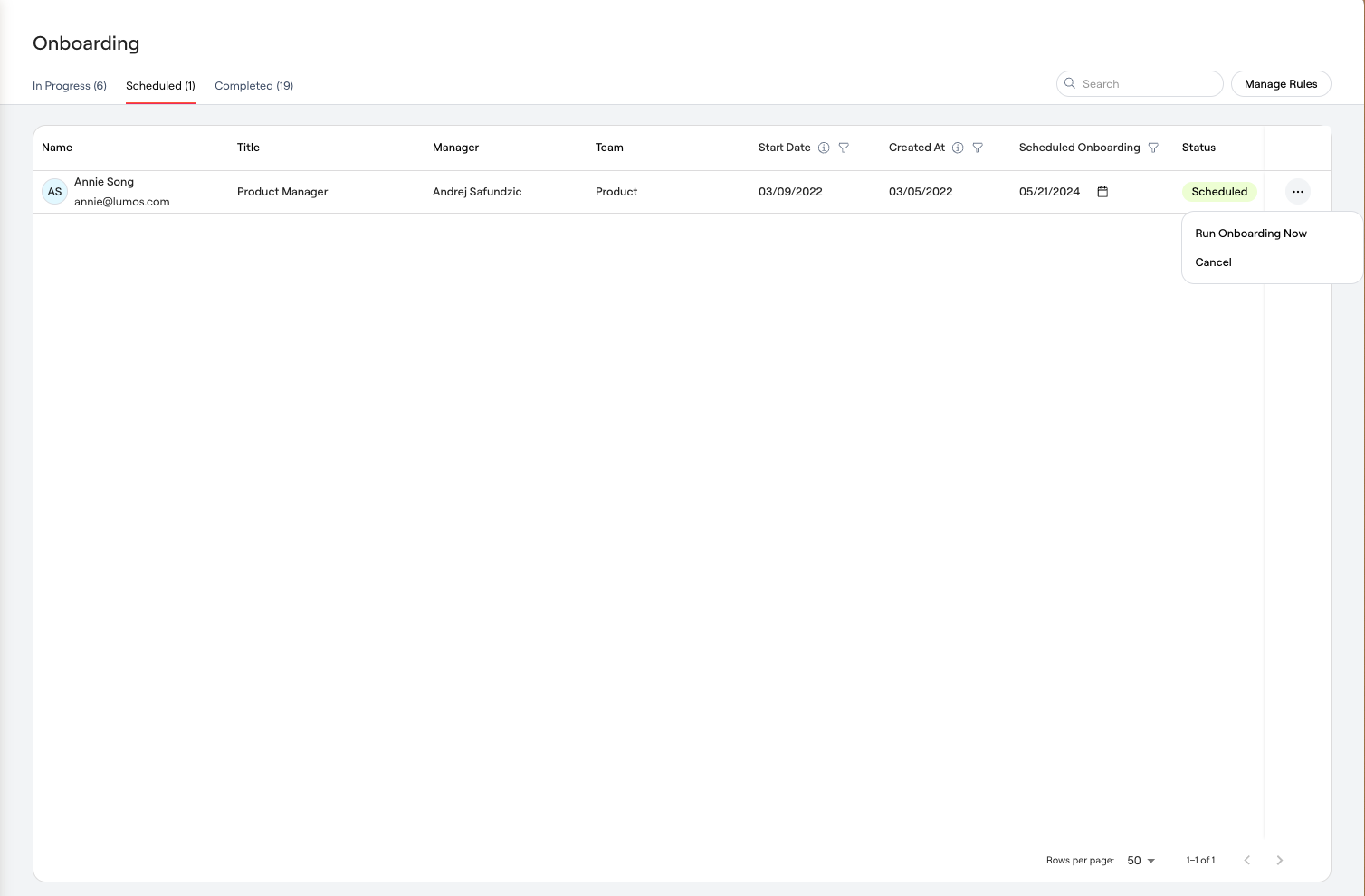
FAQs
Can I trigger onboarding in bulk?
No. Start each onboarding individually. You can cancel onboardings in bulk, though. See How to bulk cancel Onboarding, Offboarding, and Mover workflows.Can more than one access policy apply to a user?
Yes. Every access policy whose conditions match your new hire applies during New Hire Onboarding.Can I be notified when new hires are added to Lumos?
Yes. Lumos pushes a Slack notification to your Lumos Admins about the accounts that have been pulled in, and you can trigger onboarding for those new users from the notification.Will onboardings be logged somewhere?
Yes. Lumos logs the creation and deletion of access policies in the Activity Log, and all triggered access requests will log as usual in the Activity Log/ITSM if you have it configured.I mapped Start Date in my Source of Truth settings, but it’s not populating.
You may still need to sync the data (and wait for it to complete), which you can do by clicking the Refresh button at the top right of the page.