Background
There are times when you need to stop multiple Onboarding, Offboarding, or Mover workflows at once — for example, after a configuration change that triggered workflows you didn’t intend to run, or when you want to stop scheduled workflows before they execute. Instead of cancelling each workflow individually, you can select multiple workflows in the Onboarding, Offboarding, or Movers tables and cancel them in a single action.Steps
1. Go to the Onboarding, Offboarding or Movers table
In your Lumos nav, head to Lifecycle Management > Onboarding or Lifecycle Management > Offboarding or Lifecycle Management > Movers.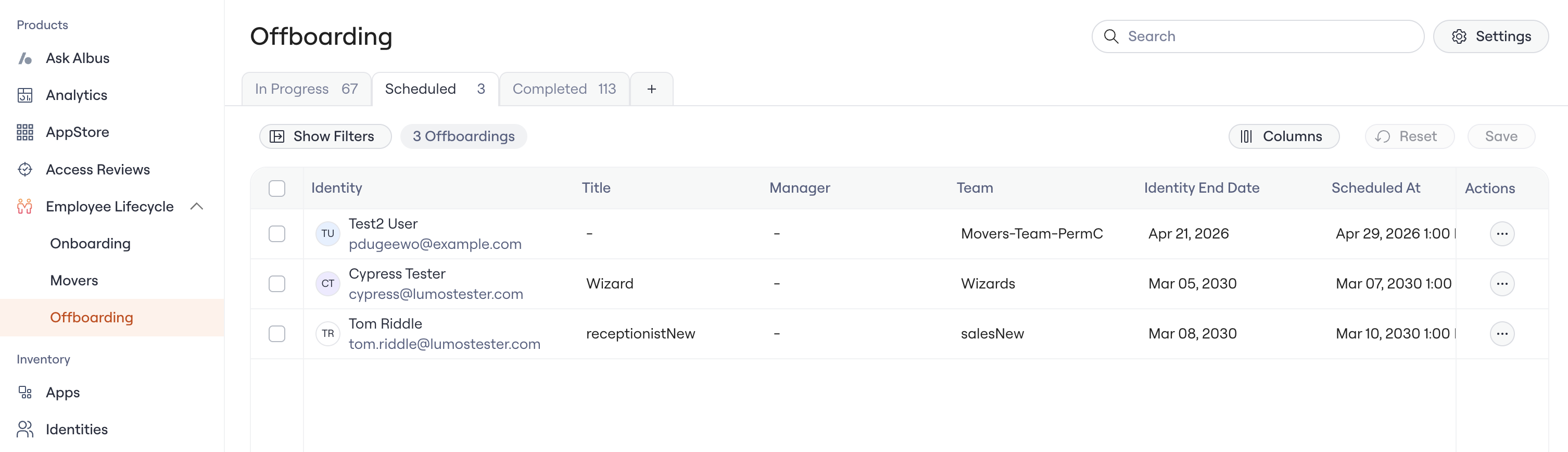
2. Filter to the workflows you want to cancel
Use the status tabs (In Progress / Scheduled / Completed), the filter bar, or a saved custom view to narrow the table down to the workflows you want to act on. Tip: You can save a custom view if you regularly need to review workflows for a specific team, domain, or status.3. Select the rows
Click the checkbox on each row you want to cancel, or use the header checkbox to select all visible rows.4. Click “Cancel Workflows”
Once rows are selected, the bulk action bar appears at the top of the table. Click Cancel Workflows.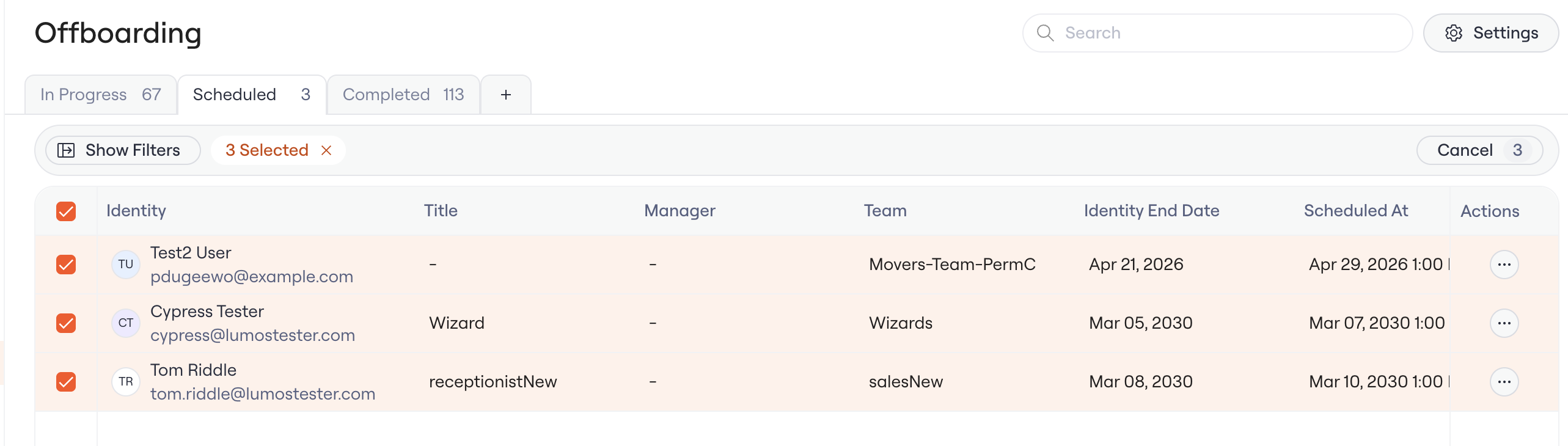
5. Confirm the cancel
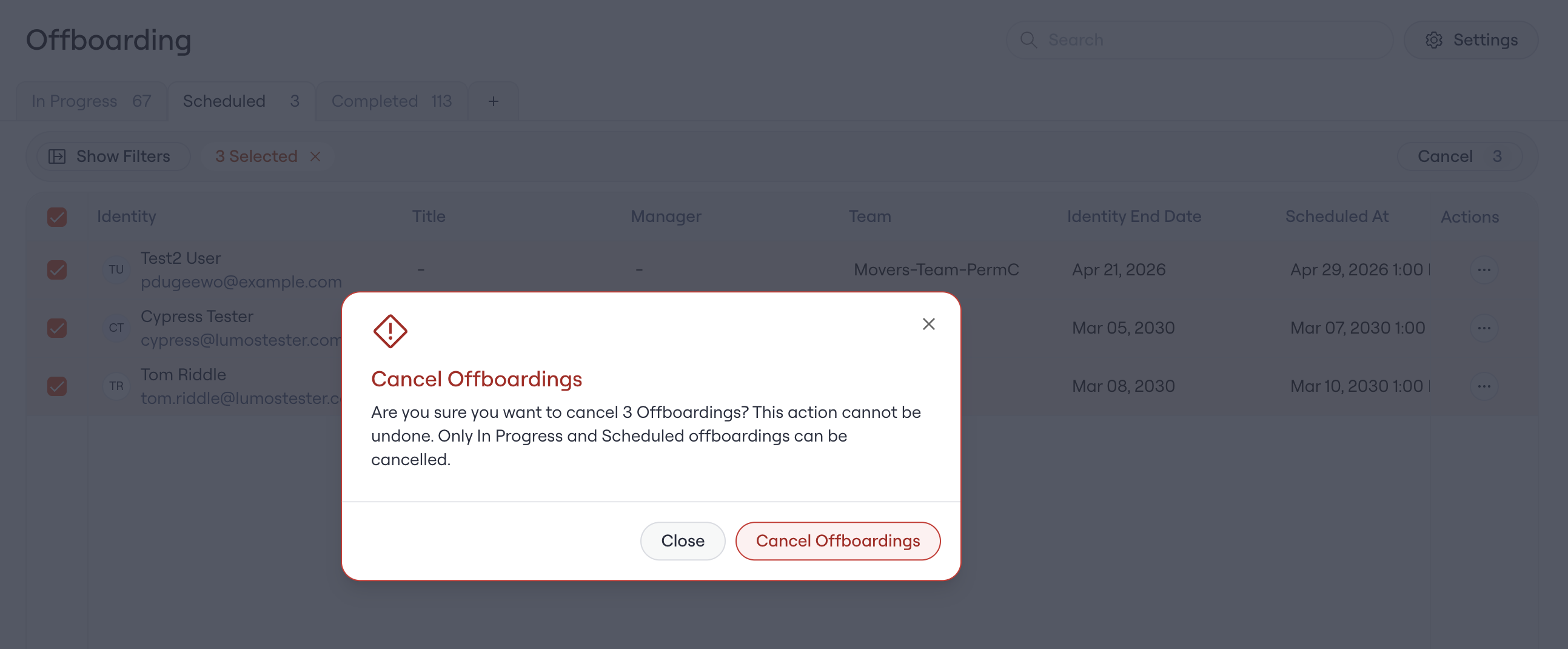
A confirmation modal will appear: Are you sure you want to cancel X workflows? This action cannot be undone. Only in progress and scheduled workflows will be cancelled. Click Cancel Workflows to confirm.