Background
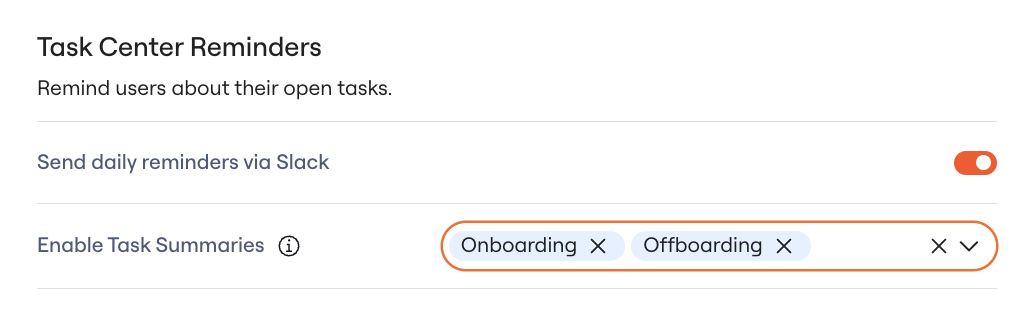
Task summaries reduce the number of notifications Lumos sends for onboarding and offboarding tasks. This article shows you how to enable task summaries by product flow.How does Lumos “Quiet” my Notifications?
When enabled, Lumos will stop sending one notification for each manual task related to Onboarding or Offboarding. Instead, Lumos will send one notification every ~5 minutes to update you on how many more tasks have come in. You will then be routed to the Web UI to address all the tasks pertaining to Onboarding/Offboarding.Steps to Enable
1. Go to Notification settings
Navigate to Notifications and you should see an option to Enable Task Summaries. Within, you’ll see two options, Onboarding and Offboarding.