

Part of Lumos Launchpad: Lifecycle Management, step 1.
Universal settings
All onboardings and offboardings can be set to run automatically at times relevant to your company’s operations. Here’s what to decide on ahead of setup:-
Onboarding, ask yourself:
- Do you want onboardings to be automatically triggered?
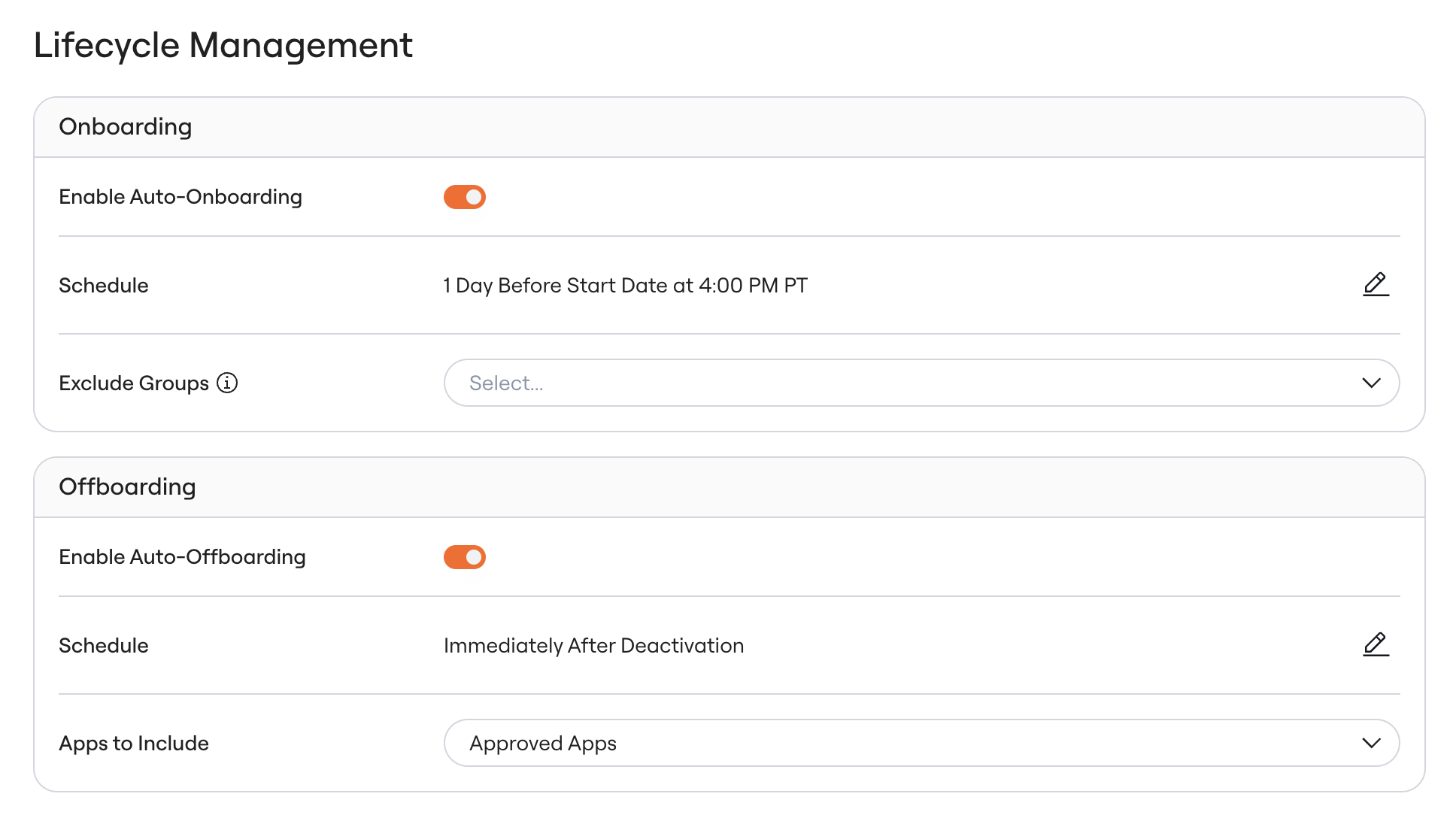
- If so, should onboardings trigger off the account creation date or the employee’s start date? With the start date trigger, you also choose the time of day and how many days before the start date. With the account creation trigger, onboardings run a set number of days after the account is created, at the time it was created.
- Are there any groups of employees you’d like to exclude from this automatic onboarding trigger?
-
Offboarding, ask yourself:
- Do you want offboardings to be automatically triggered?
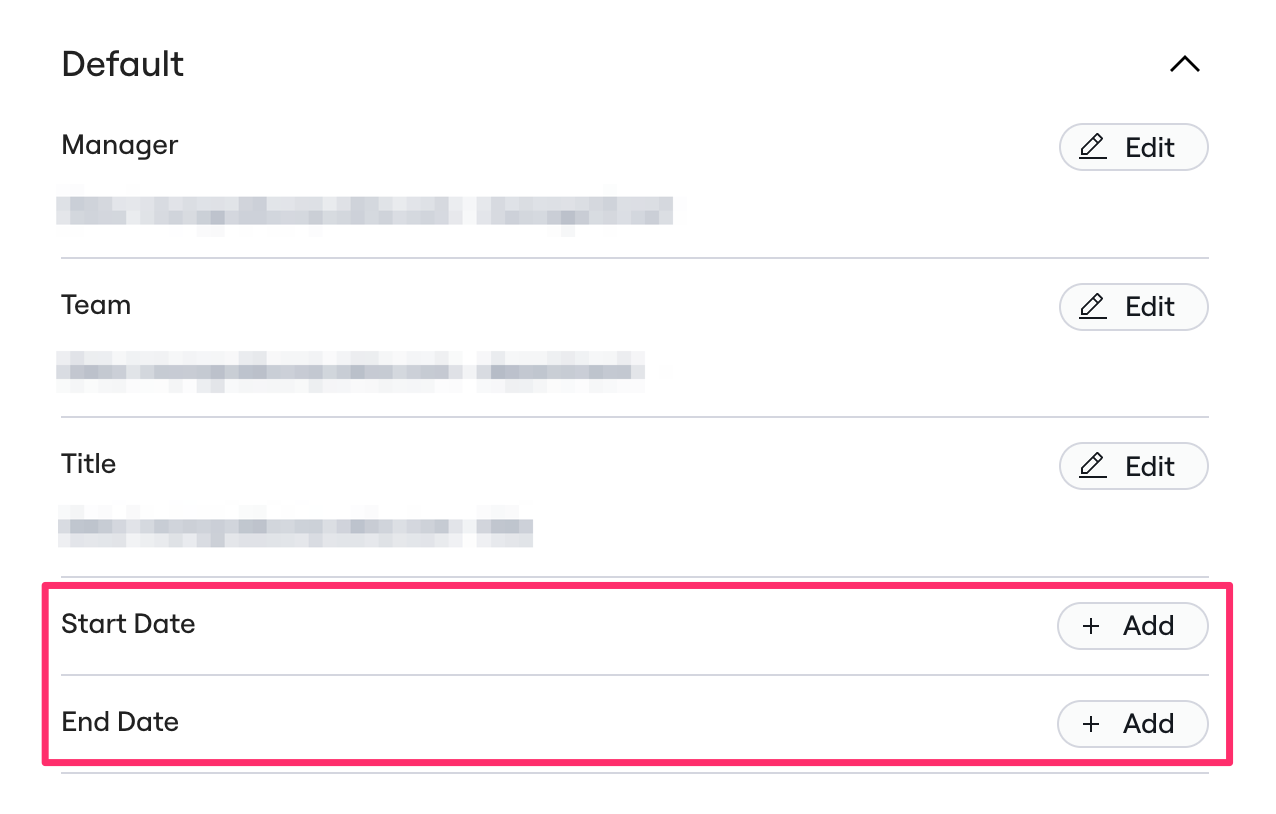
- If so, do you want the offboarding to occur immediately after deactivation or after the employee’s end date?
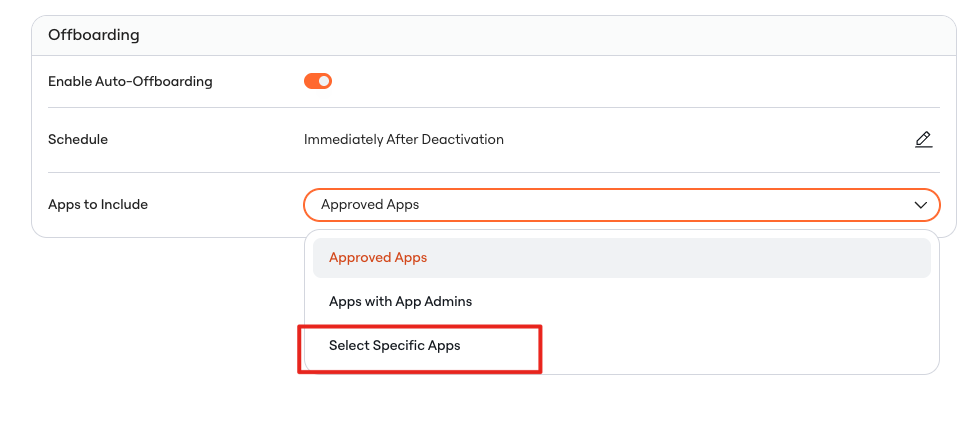
- What apps should always be included in these offboardings?
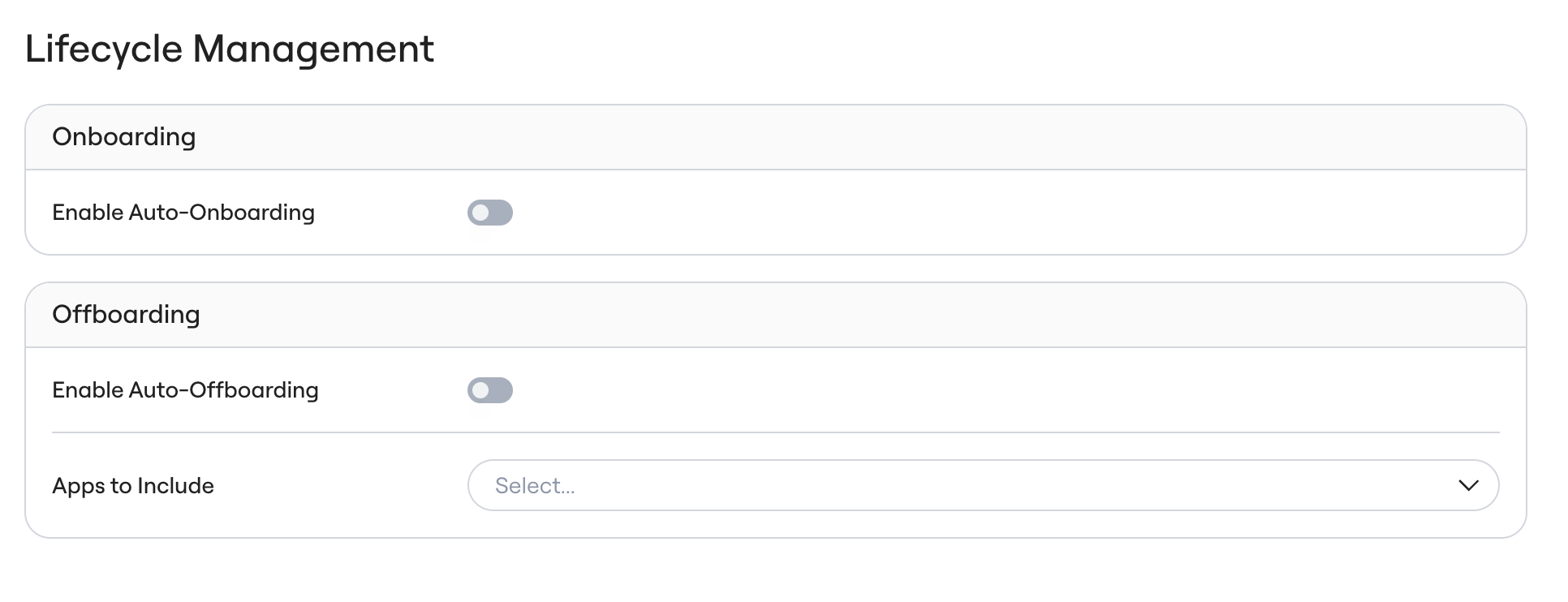
- Go to the Lifecycle Management tab in your UI
- Click on Onboarding or Offboarding depending on which workflow you’re targeting
-
Toggle on Onboarding and/or Offboarding, depending on your team’s preference.
- From there, input your preferences on timing for the onboarding and/or offboarding, and any other specifications surrounding group membership.
- Approved Apps
- Apps with App Admins
- Select Specific Apps < this is best to utilize for testing, not long term offboarding management
- The settings save automatically and apply to your company’s next onboarding or offboarding.
Offboarding triggers
There are two available auto-offboarding triggers, Immediately After Deactivation and After End Date: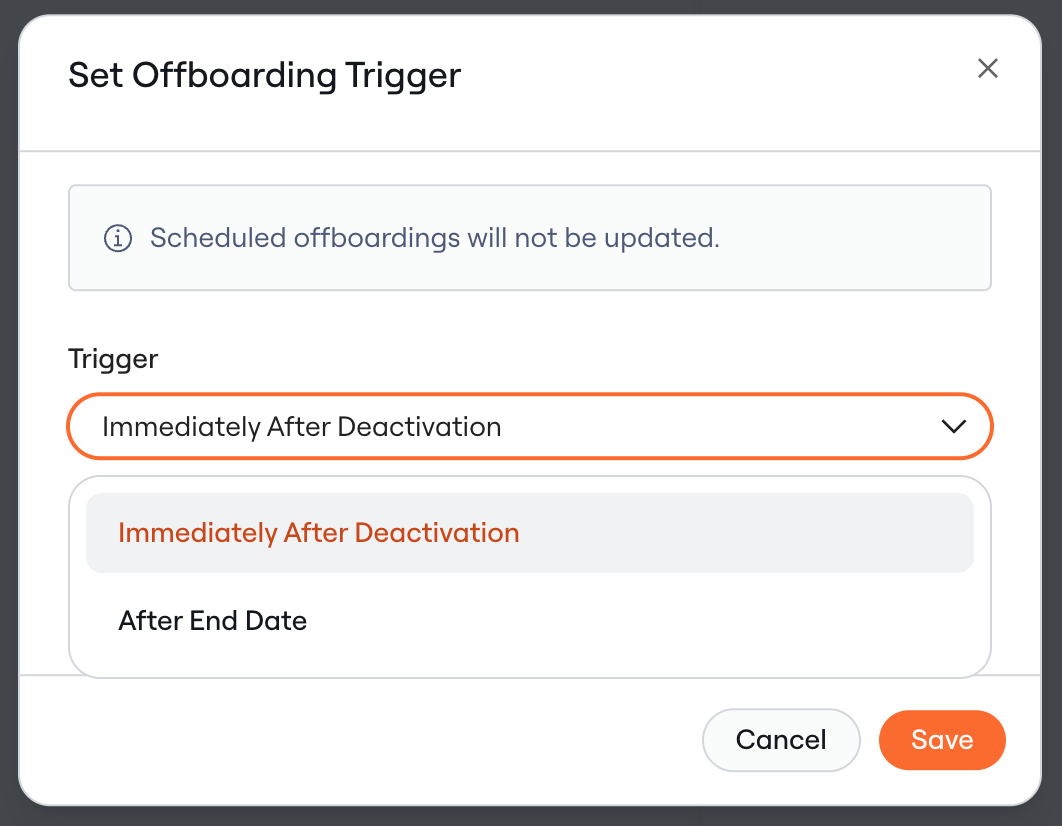
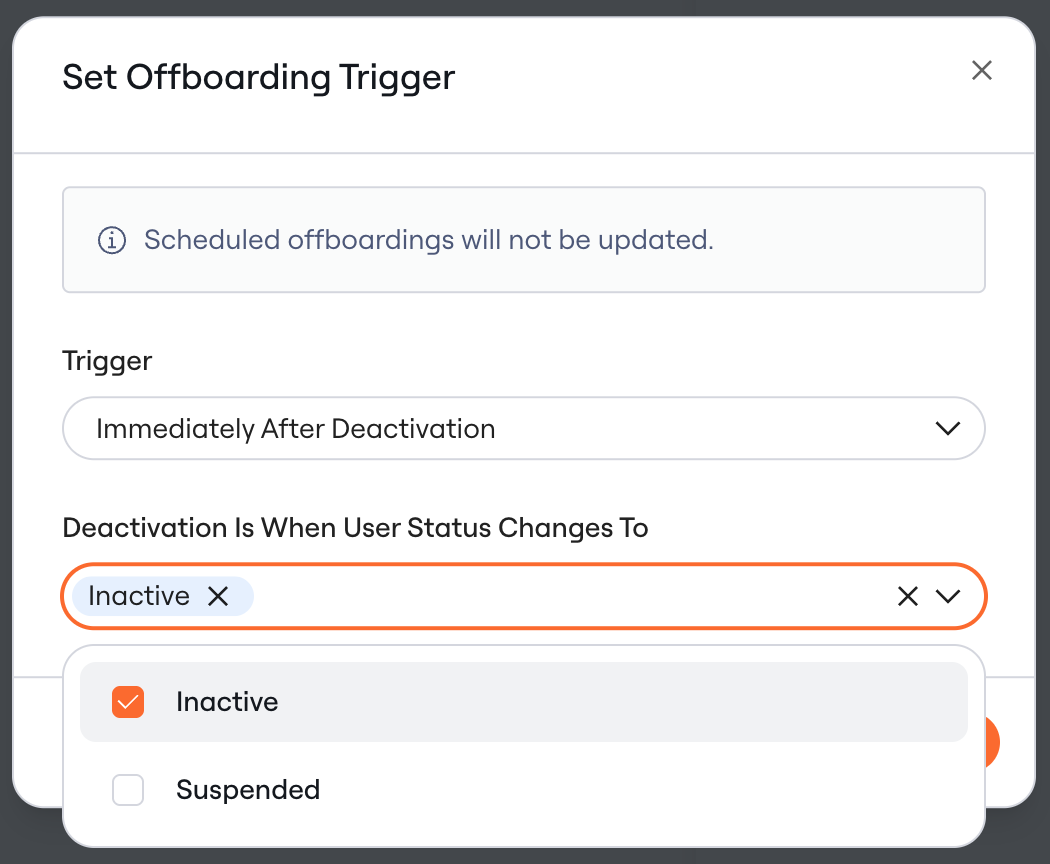
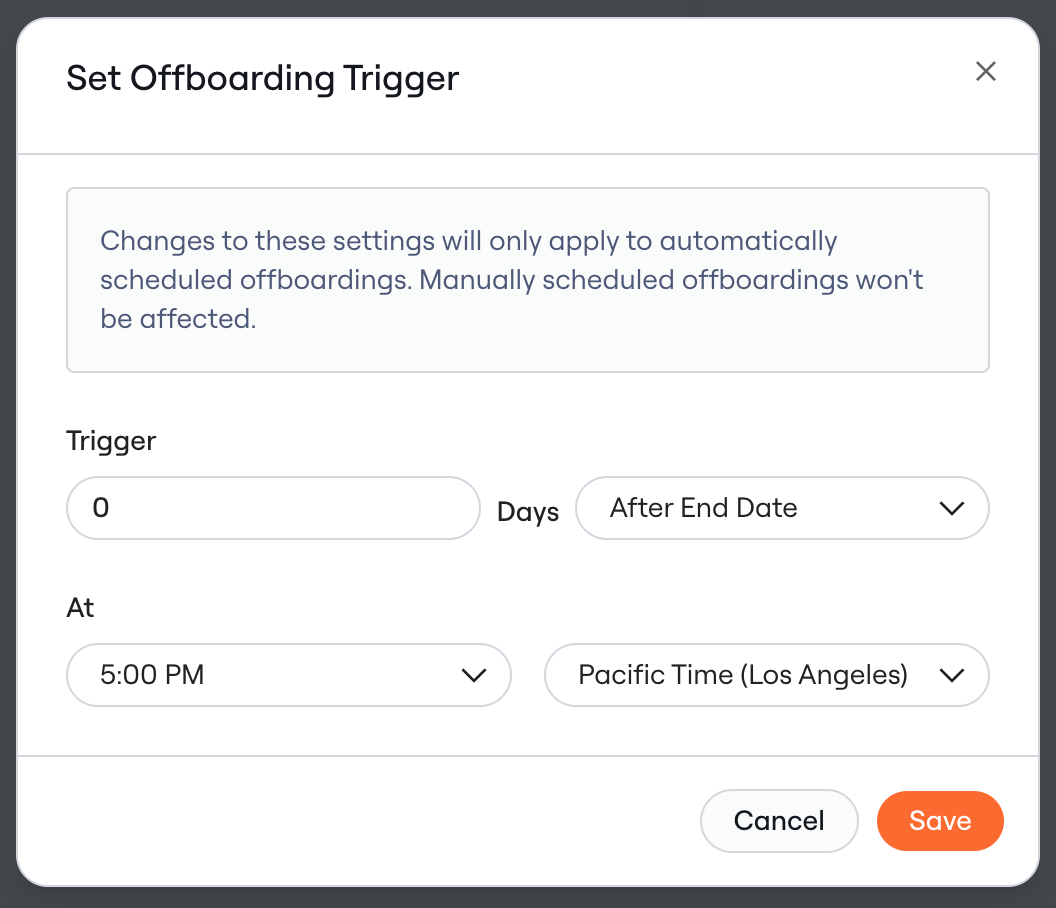
Scheduling onboardings
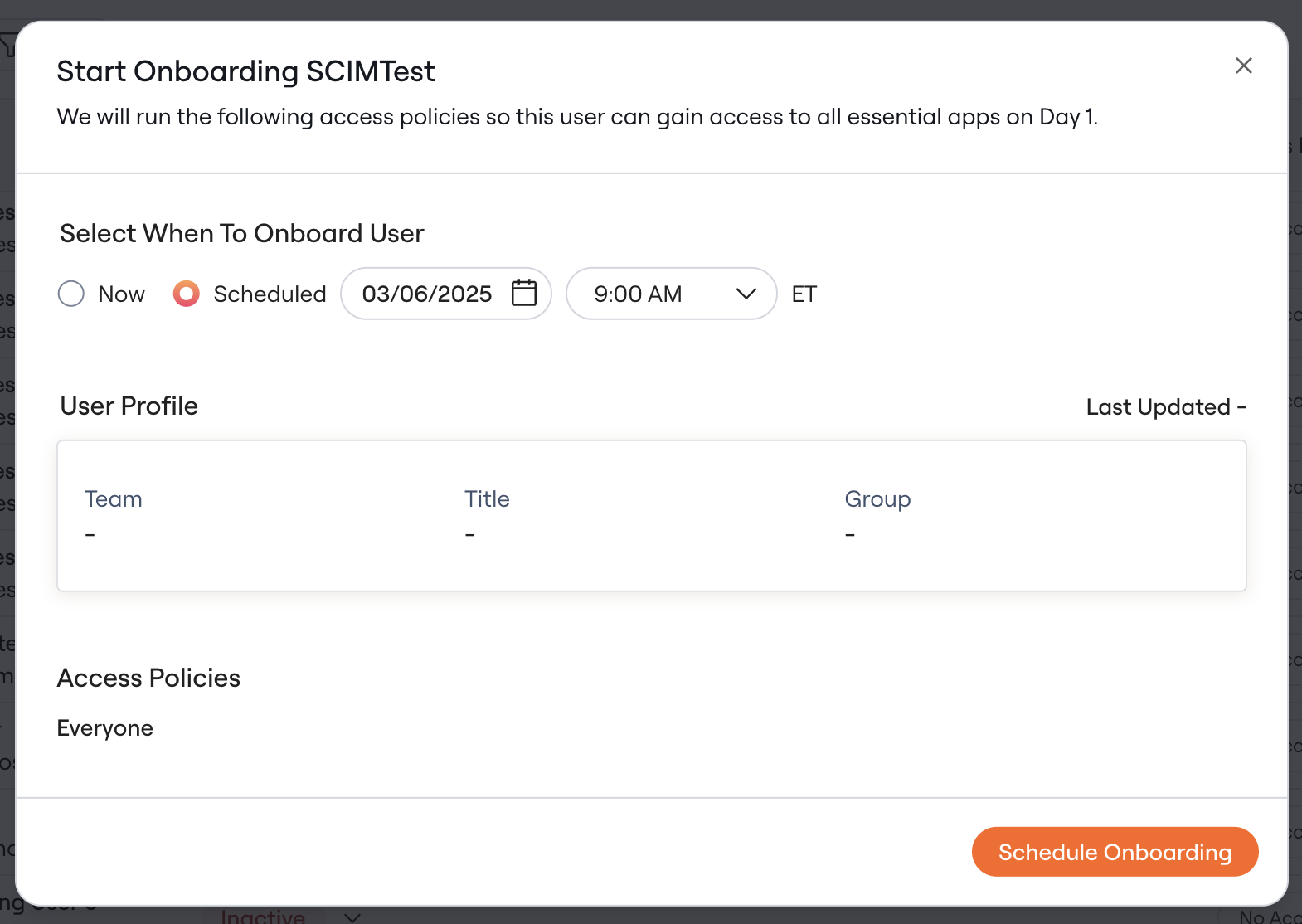
In addition to automatic onboardings, you can schedule user onboardings one-off.- Go to the Identities tab
- Click Onboard on the user’s row
-
You’ll be able to specify a date and time in your (the Admin’s) local timezone
Editing scheduled onboardings
After you click Schedule Onboarding, you can still edit the timing. Follow these steps:- Navigate to the Employee Lifecycle > Onboarding tab
- Click on Scheduled
- Click the 3 dots to the right and then click “Edit Onboarding”
- From there, pick a new time and click Reschedule Onboarding, or click Run Onboarding to run it now.