

After this article
You’ll know how to set up attribute sync workflows that automatically keep account attributes in service providers up-to-date when associated identity attributes change in Lumos.Background
When an employee’s information changes in your HRIS (like their title, department, or manager), those changes need to be reflected in the tools they use. For example, when an employee is promoted from “Engineer” to “Senior Engineer,” this change needs to be updated in your Identity Provider (like Okta or OneLogin) as well as in downstream applications like Salesforce and Slack. Without this synchronization, employees may not receive the access they need, or they might retain sensitive access that violates company policy. Lumos Attribute Sync Workflows allow you to automate this process, ensuring that when an identity attribute changes in Lumos, those changes are automatically propagated to connected applications.Steps to Configure Attribute Sync
1. Navigate to the App You Want to Configure
First, navigate to the Apps page and select the application for which you want to configure attribute sync. Note: you can only configure attribute syncs for applications that are directly integrated with Lumos, and support attribute syncs2. Access Integration Settings
Once you’ve selected your app, click on the “Integrations” tab. If this application supports Attribute Syncs, you will see an Attribute Sync settings section appear.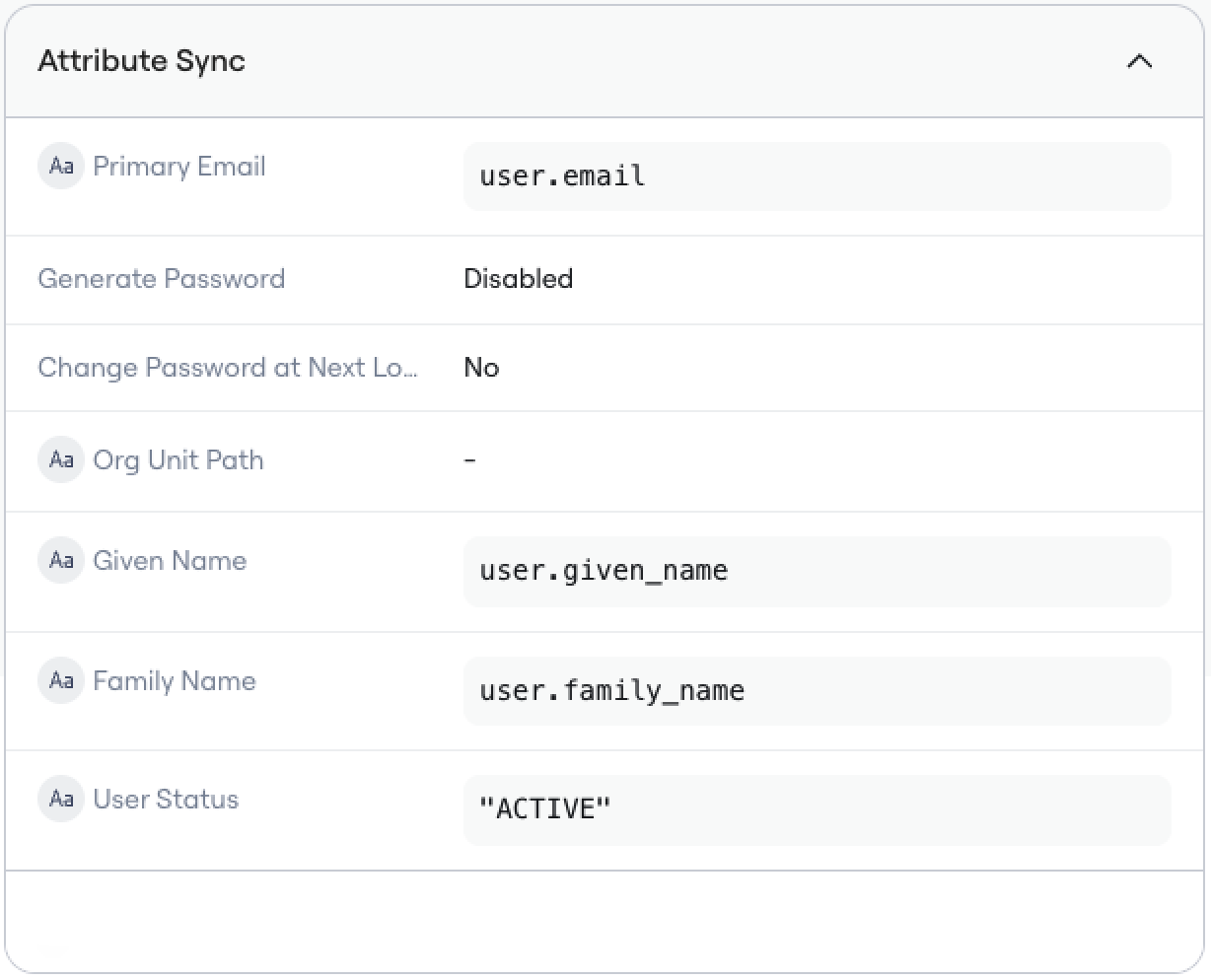
3. Configure Attribute Mapping
Within your attribute settings, you can configure how you want each account’s attributes to be configured. For each attribute made available by the integration, you can use the Lumos Expression Language to define values. For example, you might map:- The applications
firstNamefield touser.given_name - The application’s
usernamefield touser.given_name + "." + user.family_name - The application’s
departmentfield touser.custom_attributes.department
4. Save and Test Your Workflow
Once you’ve configured all your attribute mappings, click “Save Workflow” to save your configuration. Once saved, you can run it for a single test account to verify that it works as expected before enabling it for all accounts. You can do this from the Accounts tab on the App page, or from the Accounts tab on the Identity page.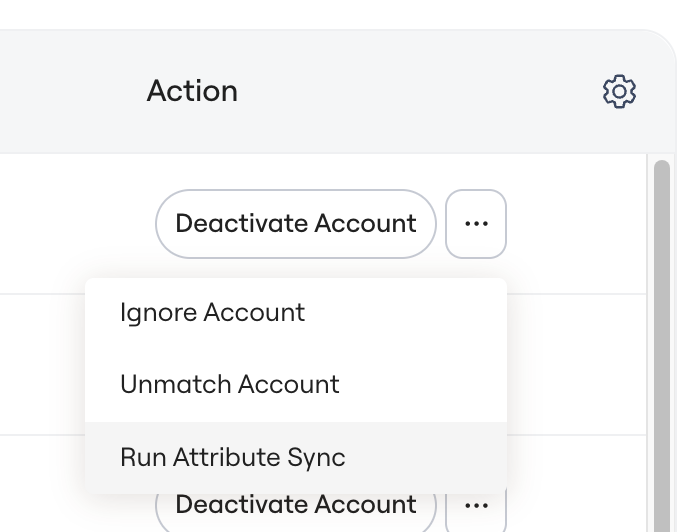
5. Enable your workflow
Once your workflow has been tested on a single account, contact Lumos Support to finalize and enable the auto-syncing behavior. Lumos will then automatically detect which identity attributes are used in your settings, and will update accounts any time a change is detected in those attributes in Lumos.Monitoring and Troubleshooting
View Sync History for an Application
You can view the history of all attribute syncs for an application by clicking on the “Workflow” tab and looking for Workflow Type of “Profile Sync”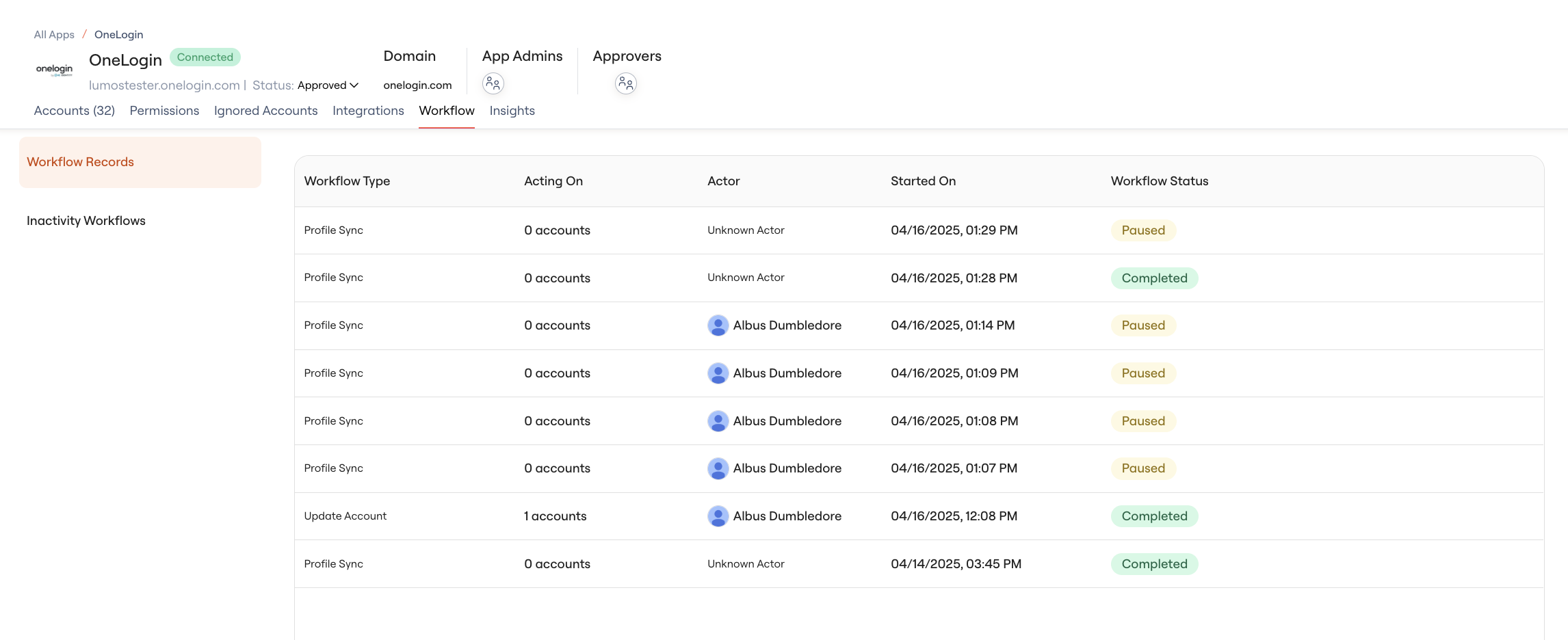
FAQs
Can I create multiple attribute sync workflows for a single application?
No, you can only create one attribute sync workflow per application. This workflow will be responsible for all attribute updates within that application. This ensures that attribute updates are handled consistently.When do attribute syncs run?
Lumos will automatically run an attribute sync whenever it detects a change to the employee’s attributes that require an update. For example, if your attribute sync settings for Okta use the “title” field in Lumos, then Lumos runs an Okta attribute sync for a user as soon as it detects a change to their “title” field in Lumos. Changes made in quick succession are grouped and batched together to reduce requests to your downstream integration.How quickly are changes synchronized?
Attribute sync workflows run automatically within minutes of detecting a change to one of your configured trigger attributes. For time-sensitive updates, you can also manually trigger the workflow for specific accounts.Will attribute syncs update all accounts?
Attribute syncs will only update accounts when Lumos detects a change to an employee’s identity attributes in Lumos. They will not automatically run on accounts created in the past.Can I run this workflow to backfill historical accounts, without having to wait for an attribute change?
Yes. Contact Lumos Support to complete a backfill sync.Can I use conditional logic in my attribute definitions?
Yes, all functionality available in Lumos Expressions are supported in attribute syncs. You can perform concatenate strings, transform data, and handle conditional logic.What happens if a workflow step fails?
If a workflow step fails, Lumos will automatically retry the step up to 5 times before marking it as failed. You can view the error details in the workflow history. Lumos does not create an Error Task, or retry the attempt again if a sync fails 5 times in a row.Can I use custom attributes in my attribute mapping?
Yes. Any custom attributes configured for identities in Lumos can be used in your attribute mapping. Use the template syntaxuser.custom_attributes.<attribute_name> to access them.