

Background
Many organizations use Lumos to automatically assign email addresses for new hires as part of their onboarding workflows. When configured, the platform applies your organization’s naming conventions and generation rules to create accounts consistently. This process is usually reliable, but it can fail due to a number of edge cases. When failures occur, they can block the broader onboarding sequence, leaving employees without access to critical systems on their first day. This guide walks through a structured troubleshooting approach to quickly identify the root cause of email generation issues and get onboardings on track quickly.When to Use This Guide
Use this troubleshooting guide when:- Onboarding workflows are stuck with email generation errors
- Error Tasks appear in the Task Center related to email creation
- HR reports that email addresses weren’t created as expected
- New employees report they haven’t received access to their accounts
Common Email Generation Failure Scenarios
Email generation typically fails for one of these reasons:- Email collisions - The generated email already exists and is used by another user
- Invalid characters - Special characters in names that can’t be used in email addresses
- Generation rule misconfigurations - Incorrect expressions or formatting rules
Troubleshooting Steps
1. Identify the Email Generation Error
Start by locating the specific error that’s preventing email generation. You can do so by visiting the Onboarding page and selecting “Open” on the user that has encountered an error.- Navigate to Workflows > Onboarding
- Look for workflows with an in progress or error status (red indicators)
- Click on the failed workflow to expand details
- Locate the email generation step - it will typically be labeled “Generate Email Address”
- Toggle open the accordion
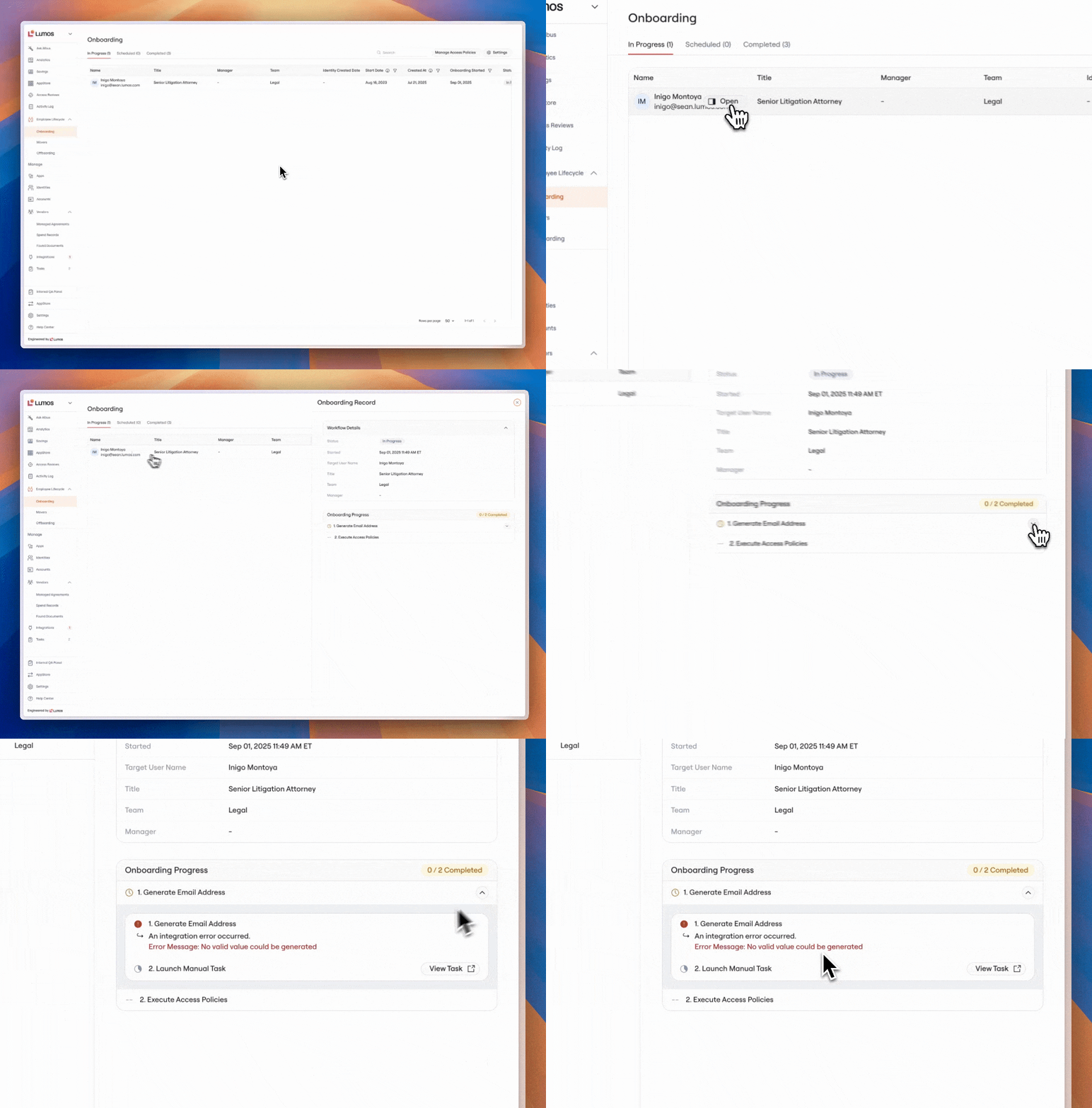
- Read the complete error message
- Note any specific email addresses mentioned in the error
- Look for error codes or technical details that indicate the root cause
2. Check for Email Address Collisions
The most common cause of email generation failure is attempting to create an email that already exists elsewhere. Verify whether this is the issue by performing the following steps: Search for existing email addresses:- Review your email generation rules, and determine the email that should be generated for the employee
- Go to Identities page
- Search for the email address that failed to generate
-
If you find an existing identity with that email:
- Compare the employee details (name, employee ID, start date)
- Determine if it’s the same person or a different employee
firstname.lastname@domain.com.
Resolution
- Fallback Rules. You can add fallback email generation rules to your workflow. When multiple email generation rules are defined, Lumos will attempt to generate an email using each of the rules in order. If there is a collision, Lumos falls back to the next rule (e.g. first try
firstname.lastname@domain.com, then tryfirstname.lastname.employeenumber@domain.com) - Auto-Increment Emails. If you enable the “Auto-increment” flag in the Generate Email step, Lumos will attempt to automatically resolve email conflicts. If there is another user with the same email, Lumos will add a number to the end of the new user’s email until there is no longer a conflict (e.g.
nathan.scott1@domain.com->nathan.scott2@domain.com)
michelle.williams@domain.com, left the company, and another Rebecca Williams joins the company.
Resolution
- Fallback Rules. You can add fallback email generation rules to your workflow. When multiple email generation rules are defined, Lumos will attempt to generate an email using each of the rules in order. If there is a collision, Lumos falls back to the next rule (e.g. first try
firstname.lastname@domain.com, then tryfirstname.lastname.employeenumber@domain.com) - Auto-Increment Emails. If you enable the “Auto-increment” flag in the Generate Email step, Lumos will attempt to automatically resolve email conflicts. If there is another user with the same email, Lumos will add a number to the end of the new user’s email until there is no longer a conflict (e.g.
nathan.scott1@domain.com->nathan.scott2@domain.com)
-
Employee starts in 2021, and is sourced from your Vendor Management system as
steve.mcqueen@domain.comwith employee ID1234, then leaves in 2022 -
Later, that employee rejoins in 2023, but with a new employee number
2345
- Treat as a new Identity. You can choose to treat this scenario exactly the same as a normal name conflict, but auto-incrementing the user’s email, or specifying a fallback rule.
- Modify your HRIS patterns. Instead of treating re-hires as new employees in your HRIS system, if you can keep the user’s employee number/ID the same after a re-hire event, Lumos will treat them as the same Identity, and an email conflict will not be raised.
- Correlate the old -> new Identity. When an employee is re-hired, if you have an attribute that can reliably be used to correlate their new HRIS record to their old one, you can configure a Matching Rule on the HRIS application, which will match the new account to the old account. Lumos will then treat them as the same Identity, and an email conflict will not be raised.
3. Check for Invalid Email Characters
Emails must follow a strict standard for the types of characters that can be included. Lumos automatically validates that generated email addresses meet these standards, before considering the step completed. This validation can lead to failures during onboarding workflows that need to be resolved manually. Identify which attributes are used in email generation:- Go to Employee Lifecycle > Onboarding > Settings
- Review your email generation rules. In particular, identify which employee attributes are used in the rules
-
Common attributes include
- Given Name
- Family Name
- Preferred Name
- Employee Number
- View the status of each of the employee’s attributes. You can do this by going to the Apps table, selecting your HRIS provider, and searching for the employee in question. All of the user’s attributes will be populated as columns on this page
-
For each of the attributes used to generate an email address, look for the following scenarios
- Apostrophes (O’Connor, D’Angelo)
- Accented characters (José, François, Müller)
- Hyphens in compound names (Mary-Jane, Smith-Jones)
- Special symbols or punctuation
- Non-Latin characters (Arabic, Chinese, Cyrillic, etc.)
Restart Onboarding
Once you’ve updated your rules, you can restart an individual user’s onboarding by going to the Identities page, finding the user, and selecting “Start Onboarding”. This will cancel the in-flight workflow and start a new one with the new rules.
FAQs
What happens to the employee while email generation is being fixed? The onboarding workflow will be paused until the email issue is resolved. The employee won’t receive their email address or subsequent access provisioning. It’s important to resolve email generation issues quickly, ideally within a few hours of detection. Can I manually assign an email address instead of using automatic generation? It is not possible to manually assign an email address in the Lumos platform today. Can email generation rules be different for different employee types? Yes, Lumos supports conditional logic in email generation rules. You can create different formats based on department, employee type, location, or other attributes. However, maintain consistency where possible to avoid confusion. See Using the Lumos Expression Language in Workflows for more details on how to handle conditional logic using expressions. What if I need to change an employee’s email address after it’s already been generated? Email address changes after initial generation can be complex since the email might already be provisioned in multiple systems. Contact Lumos support for guidance on post-generation email address modifications.Still Need Help?
If you’ve followed these troubleshooting steps and still can’t resolve the email generation issue, contact Lumos support at support@lumos.com with:- Employee details: Full name (including any special characters), preferred name, department
- Error messages: Complete error text from the failed workflow step
- Screenshots: Images of the error task and any relevant identity information
- Expected email: What email address should have been generated
- Steps attempted: Specific troubleshooting actions you’ve already tried