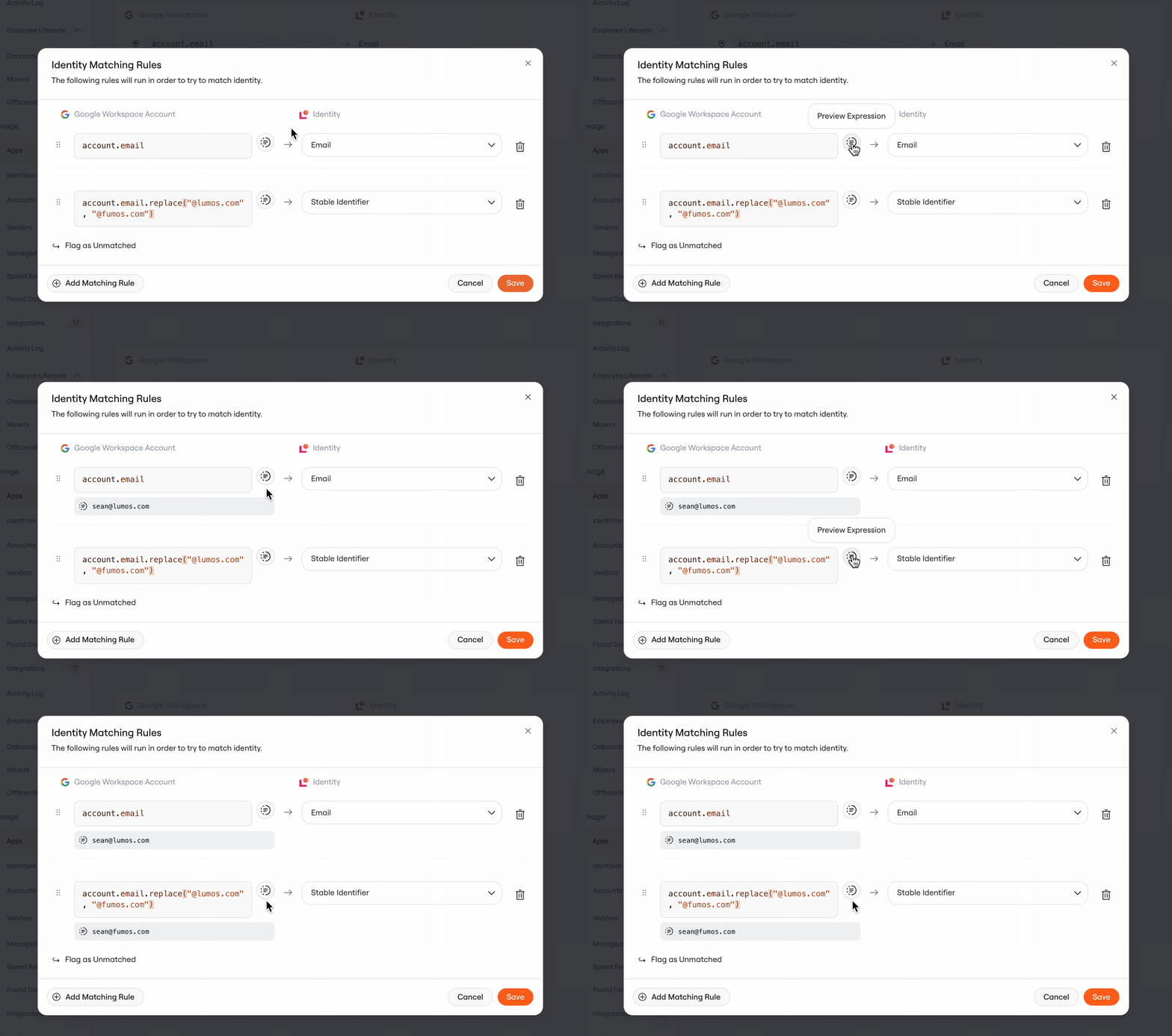
Background
When Lumos discovers new accounts in your applications, it needs to determine which employee owns each account. This process is called identity matching, and it’s crucial for maintaining security and compliance across your organization. By default, Lumos matches accounts to identities by comparing the email address on the account with the email address of your employees. However, this simple approach doesn’t work in many real-world scenarios:- Email format changes: Your company transitioned from
name@oldcompany.comtoname@newcompany.com, but some applications still use the old format - Missing email fields: On-premises systems or platforms like GitHub may not have email addresses for users
- Different identifiers: Some applications use usernames, employee IDs, or other attributes instead of email addresses
Configuring Matching Rules
1. Navigate to Your Application
- Go to the All Apps page
- Click on the application you want to configure
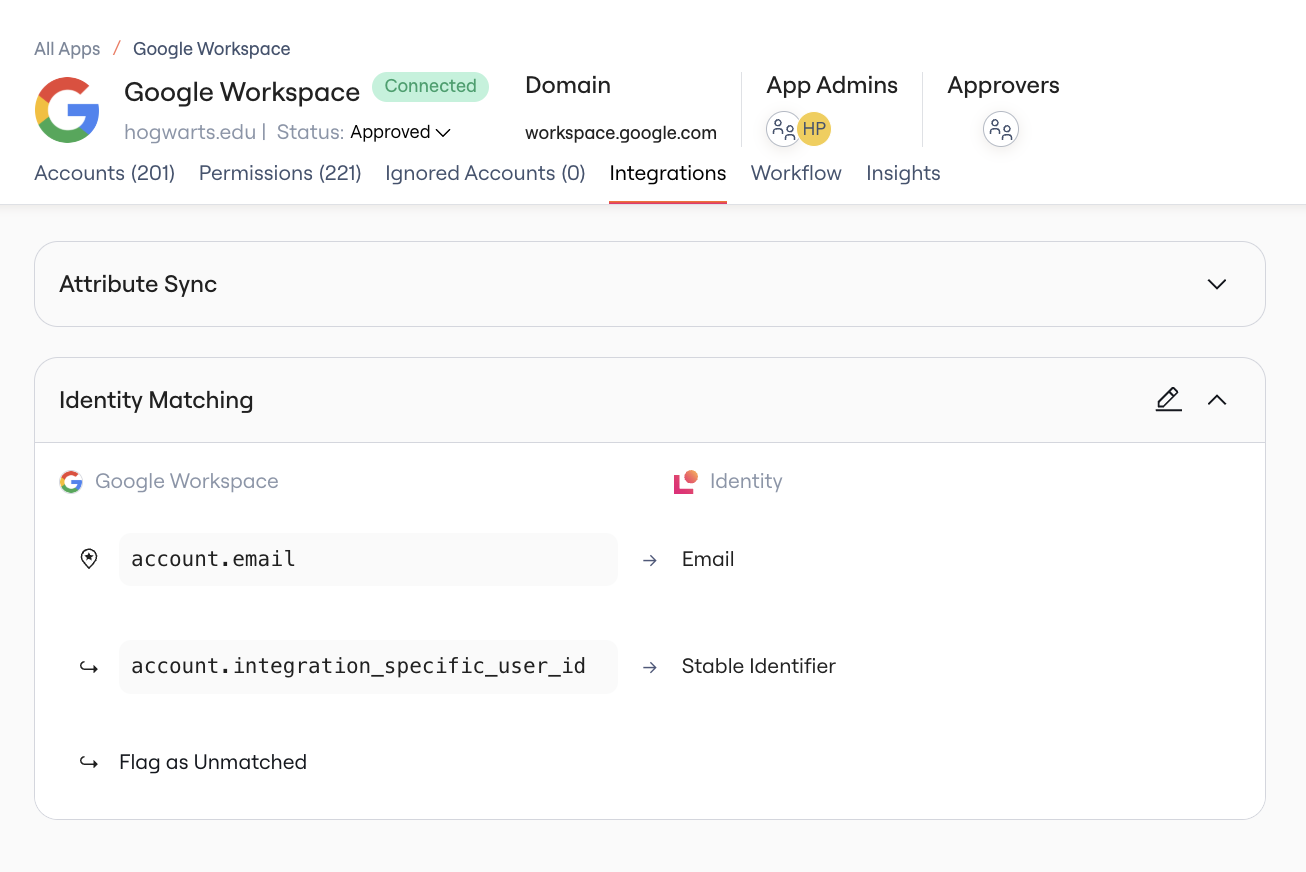
- Navigate to the Integration tab
- Find the Identity Matching section
2. Review Your Default Rules
Every application starts with a default matching rule that compares the account’s email address with the identity’s email address. You’ll see this rule listed as the first rule within the configuration.3. Edit Matching Rules
To create additional matching rules or edit the existing ones, click the pencil icon in the top right. You can configure multiple rules that will be evaluated in priority order until a unique match is found. When adding a rule, you’ll need to specify:- Account Field: Choose which attribute from the discovered account to use for matching. When configuring this field, you can use the Lumos Expression Language to access data and handle any necessary transformations.
- Identity Field: Select which identity attribute to compare against. Supported fields include email, username, given name, family name, and any custom fields configured in your environment
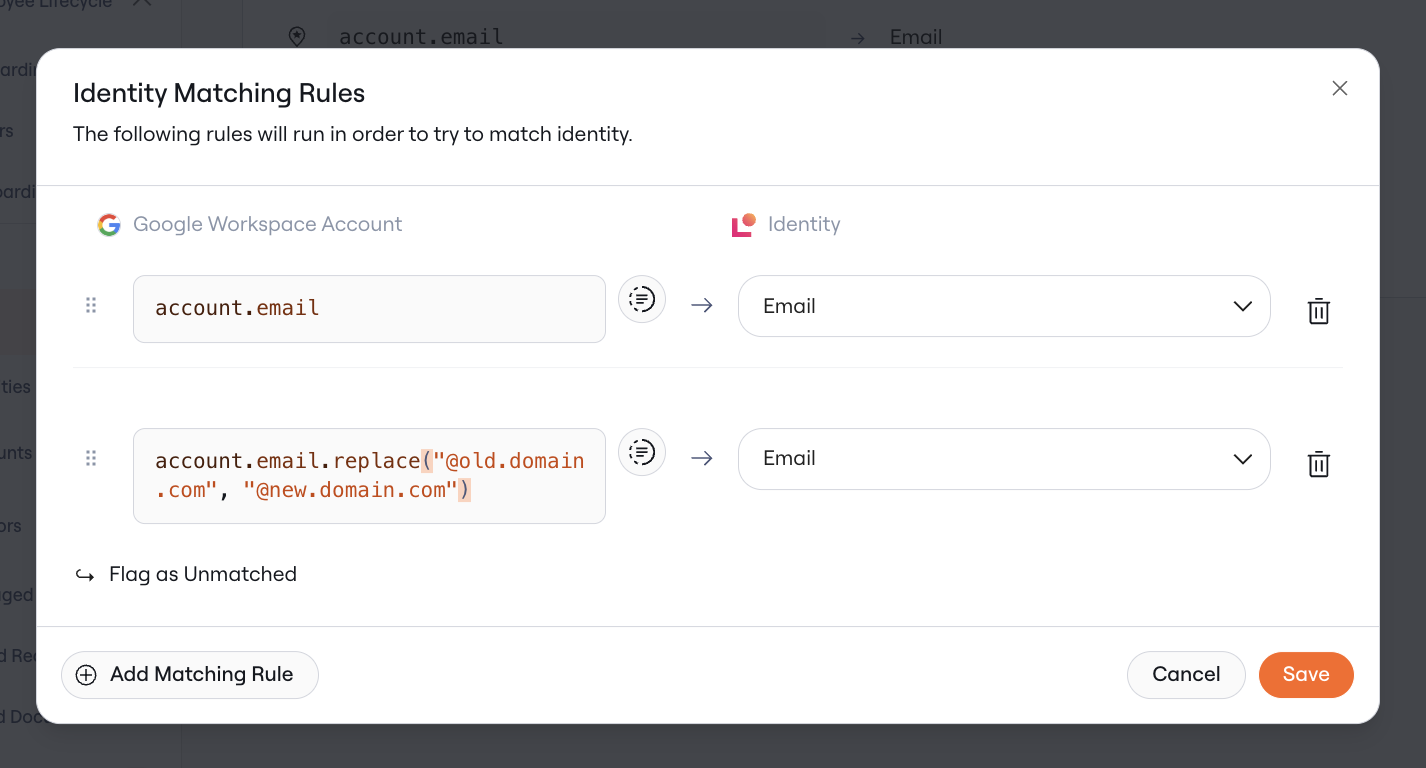
4. Preview Expression Results (Optional)
If you’re using more complex expressions in your matching logic, you will likely want to preview the outputs of the expressions. In order to do that, you can click on the preview button next to each input. This will show you the results for your account, if you have one in the application. If you do not have an account in the application, Lumos will choose an account at random to preview.