After this article
You’ll understand how the AppStore works, and how to manage or resolve common questions that come up when employees use the AppStore.What is the AppStore?
The Lumos AppStore provides a single catalog you can use to request access to approved software you need for your job. Read this article to learn more about how the AppStore works: What is the AppStore? Employees can submit requests through Lumos or Slack. Four roles take part in an AppStore request:- Requesters ask for access to an app in Lumos or Slack.
- Approvers get each request by email and Slack, and can approve it right from Slack.
- App Admins provision access for apps that aren’t automated, then confirm in Slack or Lumos once it’s done.
- Lumos Admins can unblock requests that have no approver and act on approvals assigned to someone else from the Task Center.
How does the AppStore manage approvals?
If an app has an approver in Lumos, Lumos sends app requests to the approver through email and Slack immediately after they’re submitted. As an approver, you can approve app requests right from Slack. To see the approval process in action, check out the article below. Approving Access RequestsHow does the AppStore manage provisioning?
If it’s an Okta app, Lumos automatically adds the Okta tile for the requester after approval. If there are “Groups” selected, Lumos adds the employee to the Okta groups. If Okta automatically creates an account for the requester after adding the tile (i.e. SCIM provisioning), nothing else is needed. Lumos and Okta automate the entire process. For non-automated apps (Okta or non-Okta), Lumos notifies the App Admin(s) and asks them to provision the employee’s account and confirm in Slack or Lumos once it’s done. Remember – If it’s an Okta app, Lumos always adds the Okta tile after approval. To see how to confirm provisioning for manual apps, check out the short reference article below. Confirming Provisioning For Access RequestsRequesting apps
Your employees ask these questions when they request apps. Answer them directly, or share the linked articles.How do I request an app in the AppStore?
Follow the steps here: Requesting Access to an AppHow do I request an app from Slack?
Follow the steps here: Requesting Access to an App from SlackI can’t find the app I need in the AppStore
Search for the app using the search bar in the upper left-hand corner of the page.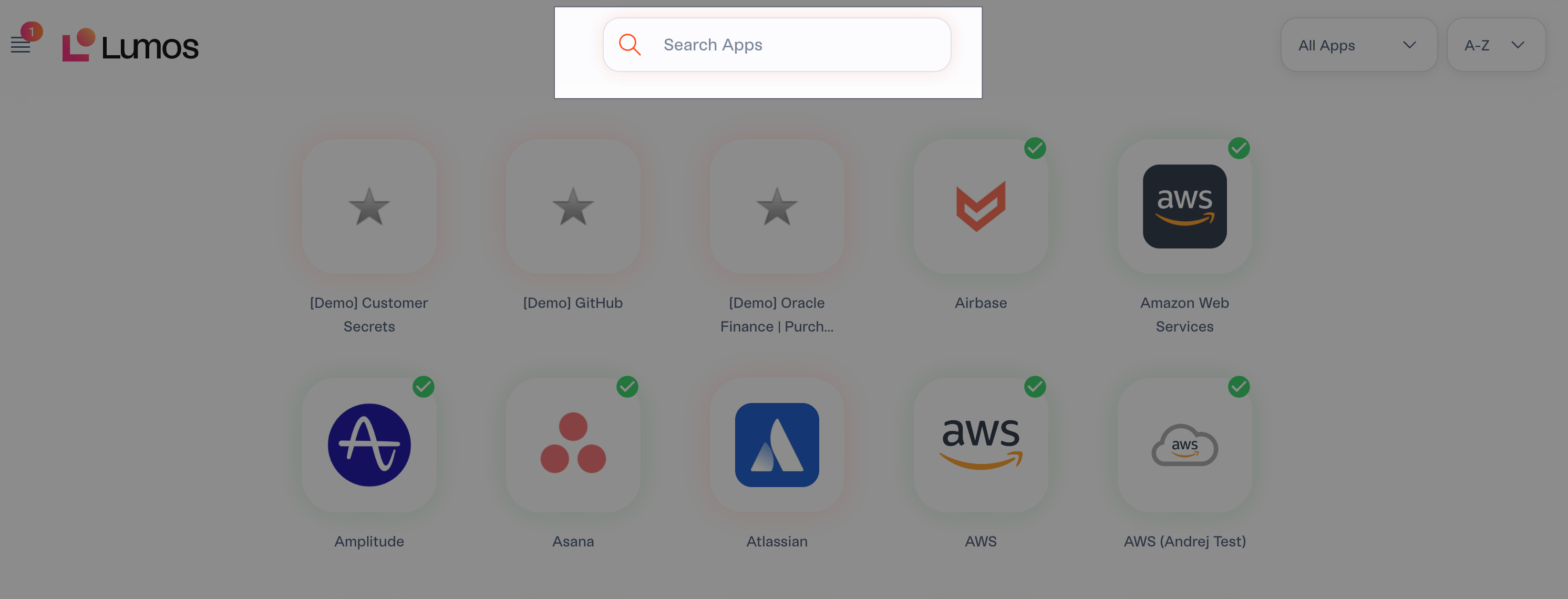
- Airbase
- airbase
- air
- Airb
- Air base
- Airbaseeee
How do I know if my app request was finished?
Lumos sends an automatic email or Slack message that tells you when your request is done.What if I need to add a message for the approvers?
Leave a comment in the “Business Justification/Comments” section when you make an app request.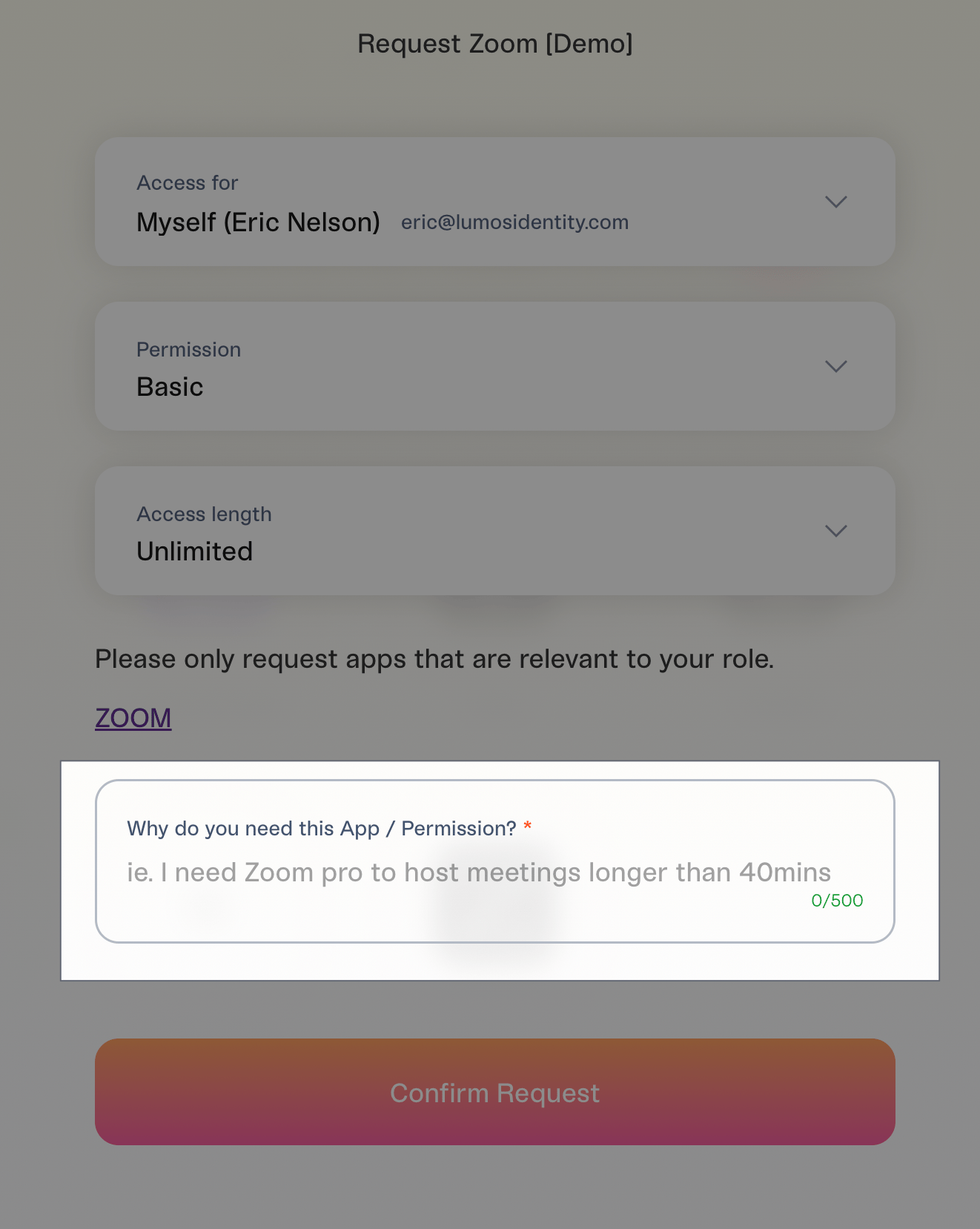
How do I cancel my request?
Click Cancel Request in the Slack message that was posted when you submitted your request. If you’re not using Slack, find the app in the AppStore and click Cancel Request in your request history.Approving app requests
These questions come from approvers and Lumos Admins.How do I approve an app request?
Follow the steps here: Approving Access RequestsA request is stuck because an approver isn’t assigned. How do I unblock it?
Lumos Admins can unblock requests without an approver assigned by going to the Task Center and reviewing the “Blocked Requests” area. As an Admin, you can approve or deny the request to move it to the next step.An Approver is out-of-office. Can a Lumos Admin overwrite a pending approval?
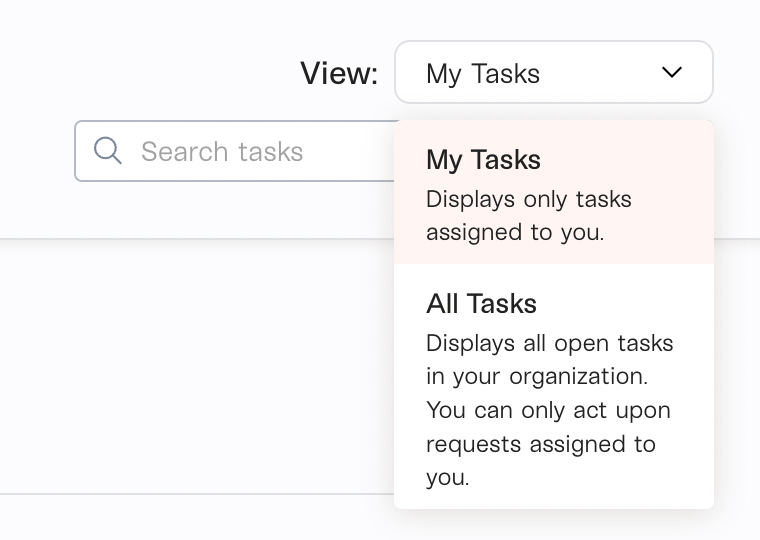
Yes, if you have the Admin role. Go to the Task Center and switch the view selector to All Tasks, which shows every open task, including requests assigned to other approvers. Open the request, then click Override Approval to approve it or Override Deny to end it. For the full steps, see How do I approve an access request on someone’s behalf? To send the request to a different approver instead, see Reassigning Access Requests.