

Background
Sometimes an access request needs to go to a different set of approvers, for example when an approver is out of office or the app is misconfigured. You can route the approval to the right user(s) without having the requester cancel the request and start over.Steps
1. Go to the Task Center and navigate to the task - (If you’re a Lumos Admin, you may need to go to All Open Tasks).
2. Select the request you are looking to reassign.
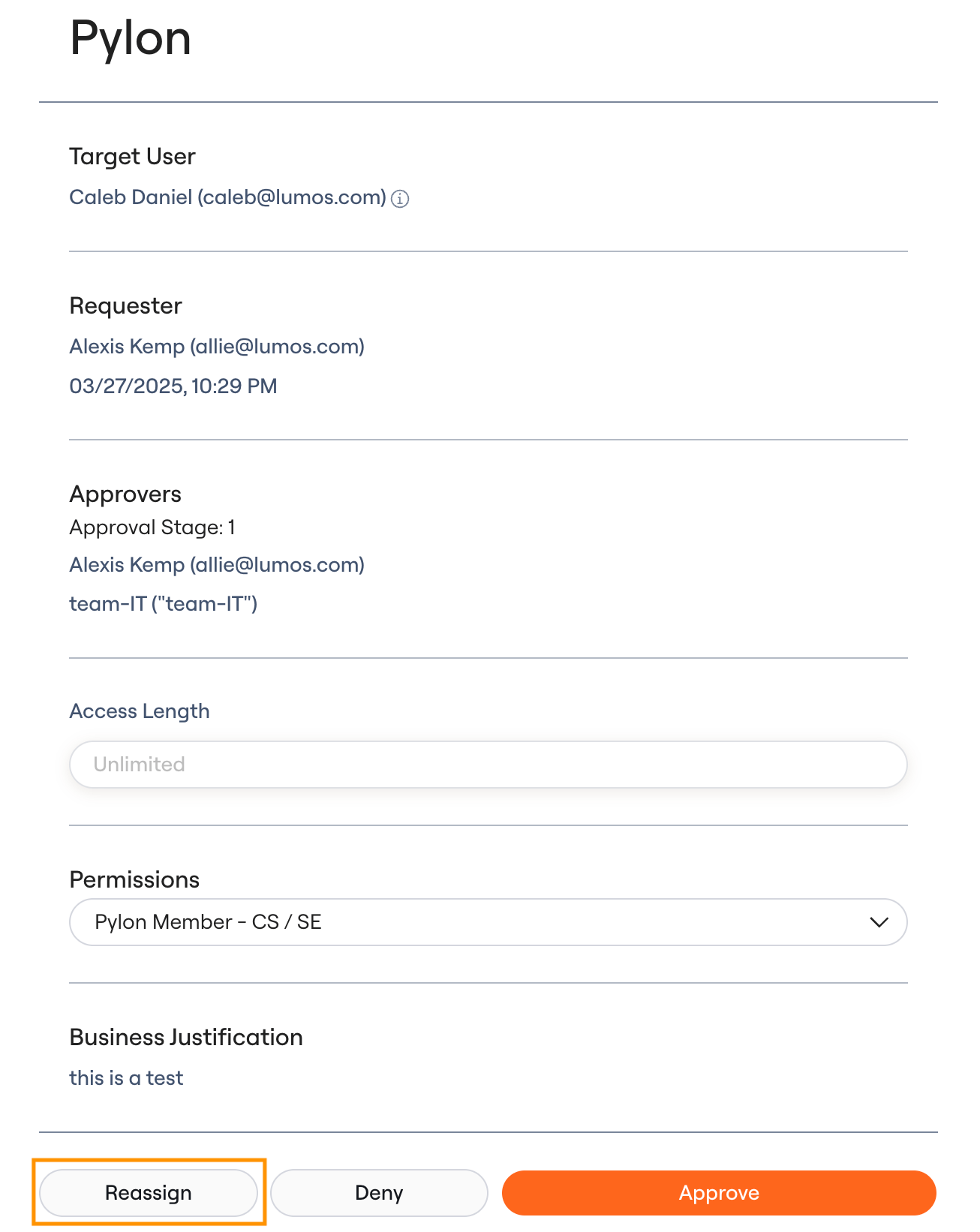
3. Click Reassign, then add the user or groups you’re looking to reroute to.
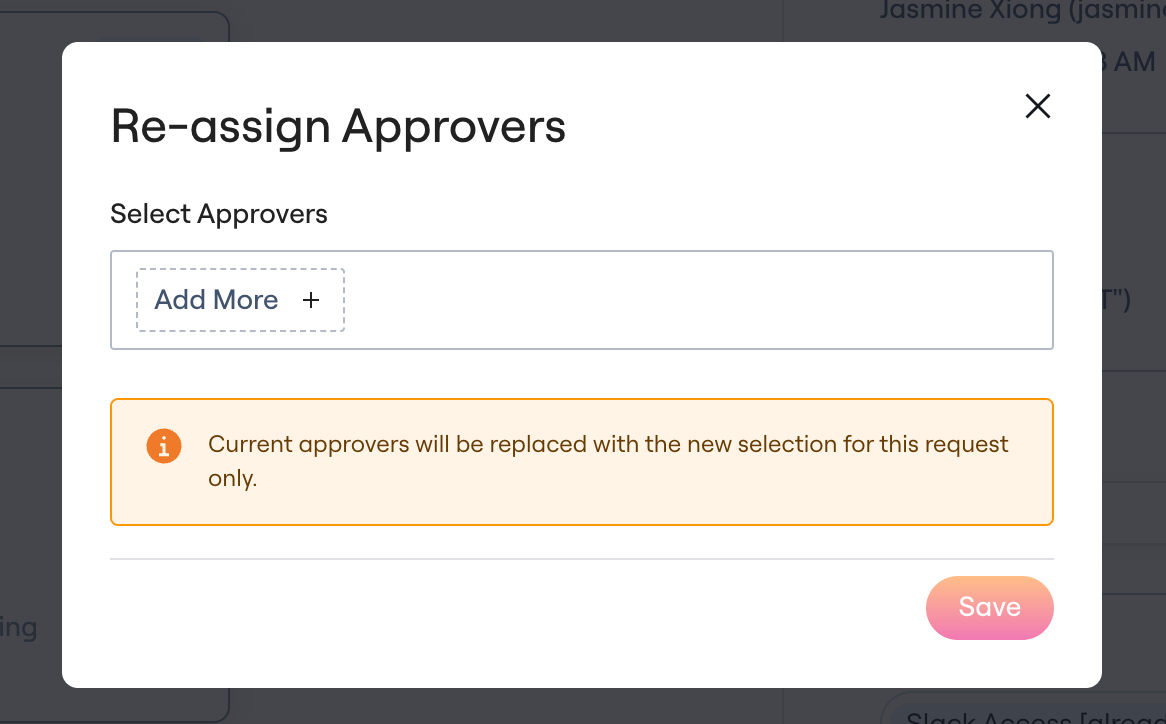
4. Reassignment complete. The new approvers now handle the request.
FAQ
-
Who is allowed to reassign requests?
- Lumos Admins and approvers currently assigned to the request.
-
Can the original approvers still approve the old request once it’s been reassigned?
-
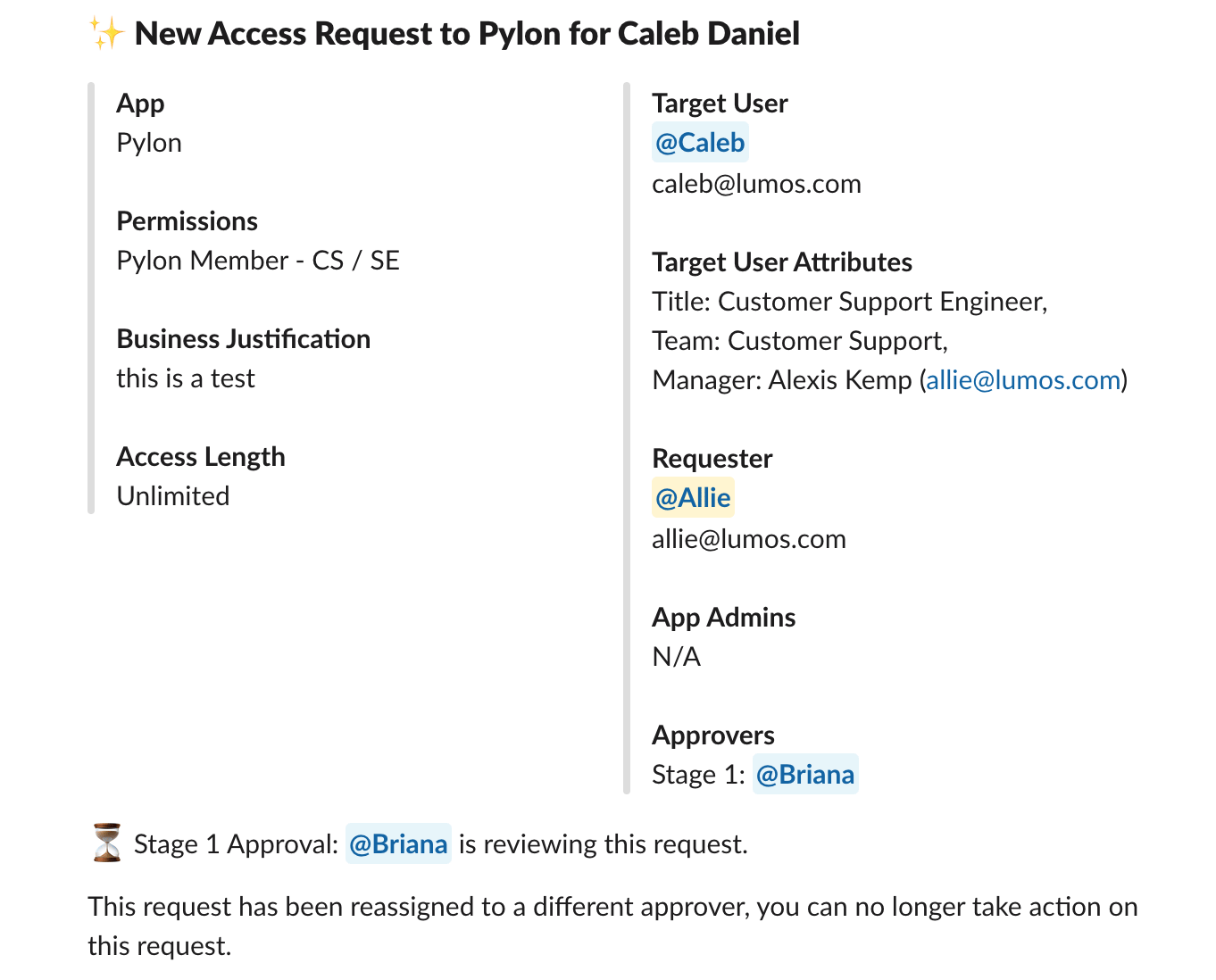
No. The original request will update to show that the approval has been reassigned.
-
No. The original request will update to show that the approval has been reassigned.
-
Are reassigned access requests tracked in the Activity Log?
- Yes. The respective access request notes this update.
-
Can you reassign approvals at any stage (manager, Stage 1, Stage 2)?
- Not by default. To turn this feature on, contact support@lumos.com.
-
Can you reassign the provisioning tasks after the approval step if there are manual steps required?
- No, today only approvals can be reassigned. This is because app admins are usually a specific set of individuals that doesn’t change, so reassigning the provisioning task rarely makes sense.