

Background
Your company uses the Lumos AppStore for software access requests. This article shows you how to approve or deny an app request after you get an alert from the AppStore. To see how to request an app, see Requesting Access to an AppSteps
There are two ways to approve app requests.-
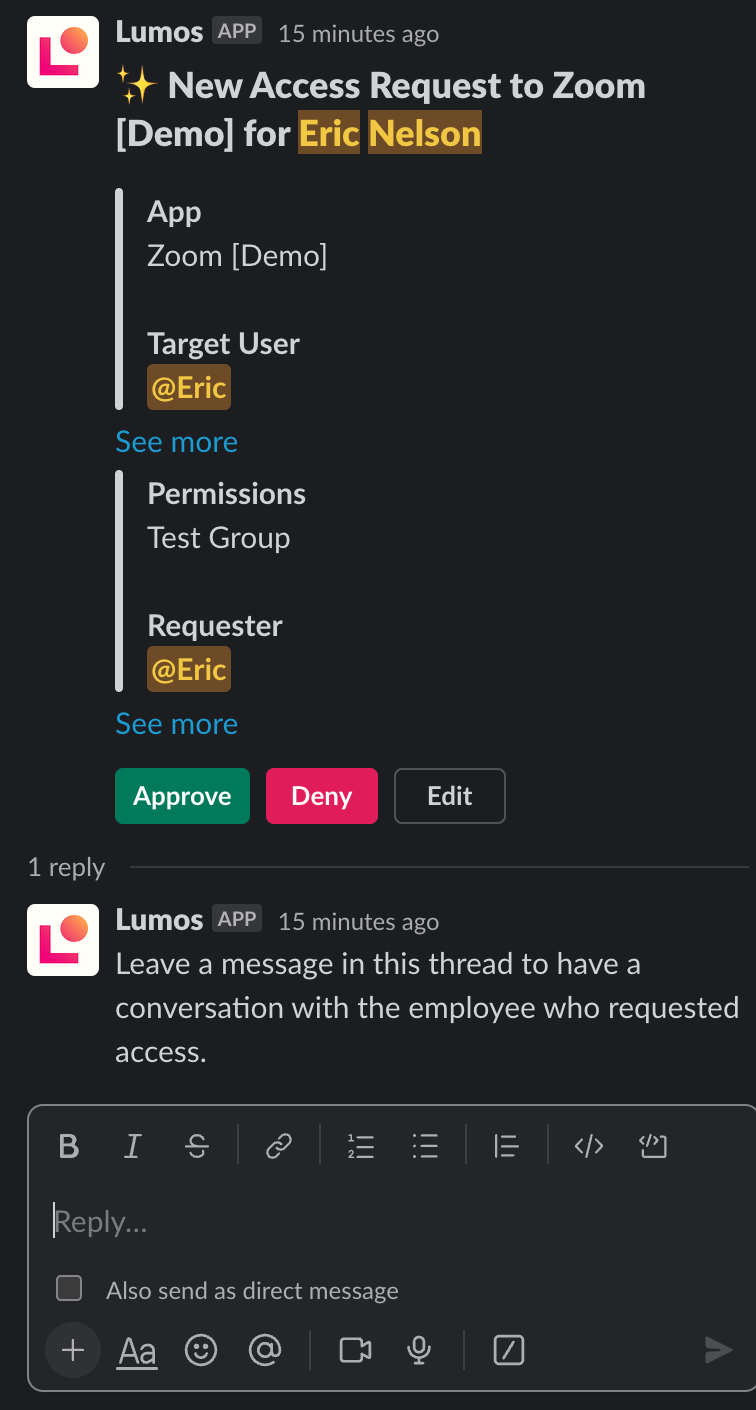
Approving in Slack (Fastest)
1. Open Slack
2. Find the AppStore app in your “Apps” list
3. Approve or deny the request
If you’re not sure what to do, follow this guide: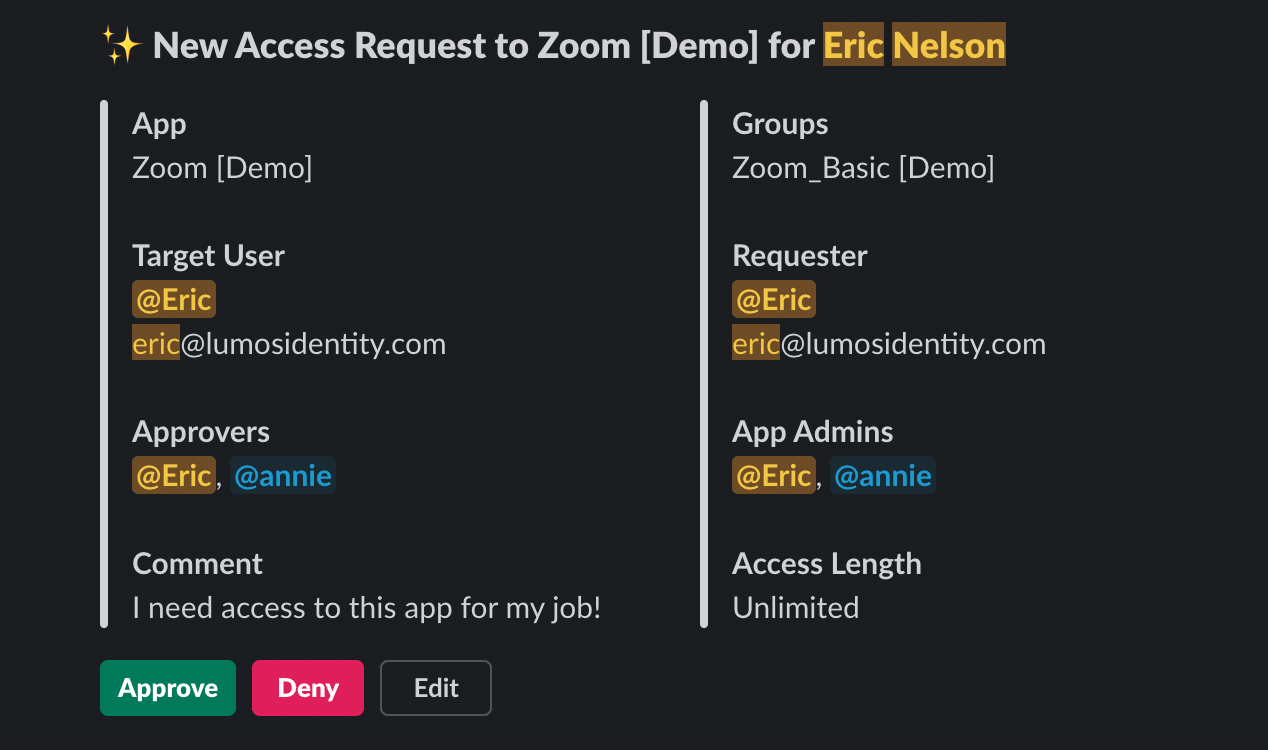
- Approve - Click this if everything looks good.
- Deny - Click this if this person should not have this app.
- Edit - If the person can have this app, but not the level of access requested, click on the tile to change it. The access level is below the requester’s name in the tile.
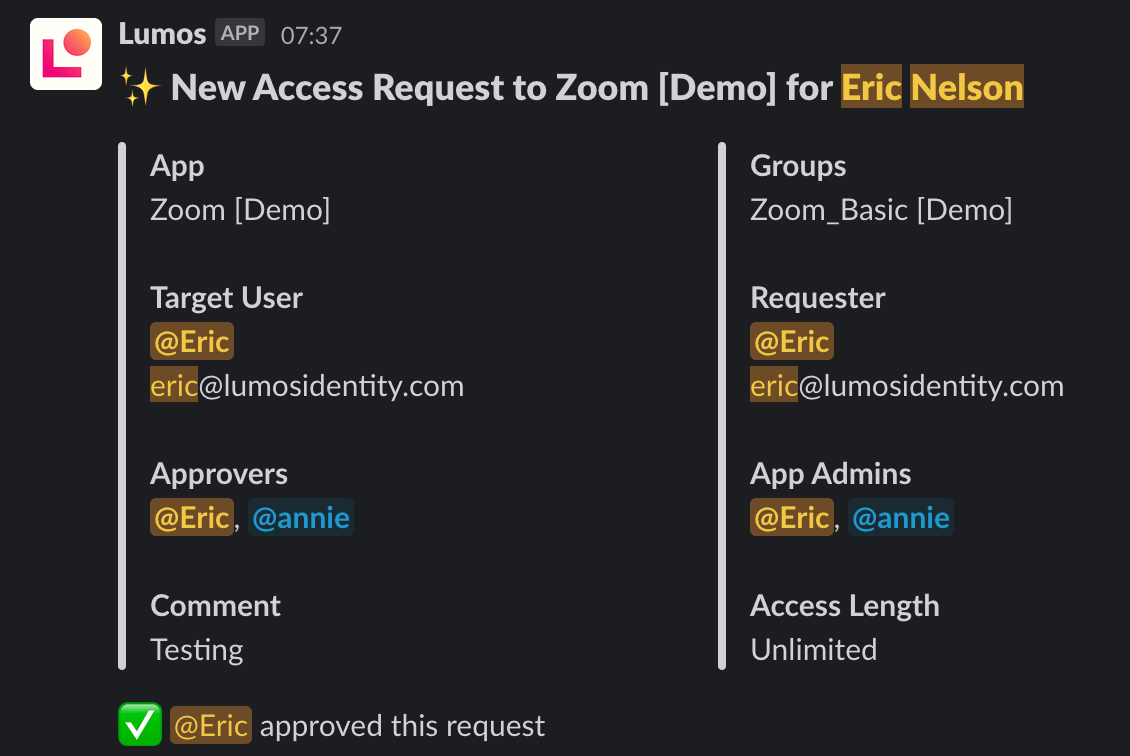
4. Approval complete
[Optional] Leave feedback for denied requests
If you deny a request, you can let the requester know why. Click the link at the bottom of the request and you can send feedback explaining why the request was denied.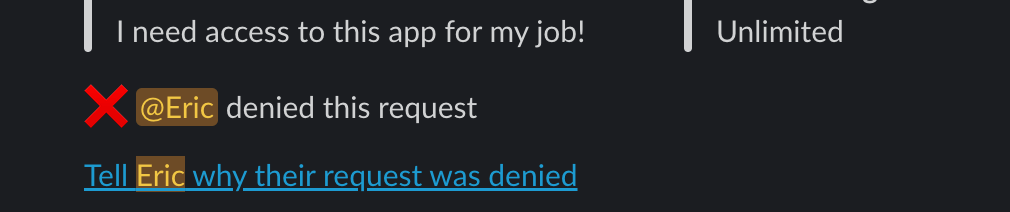
-
Approving in the AppStore
1. Go to your Lumos Task Center and find the request
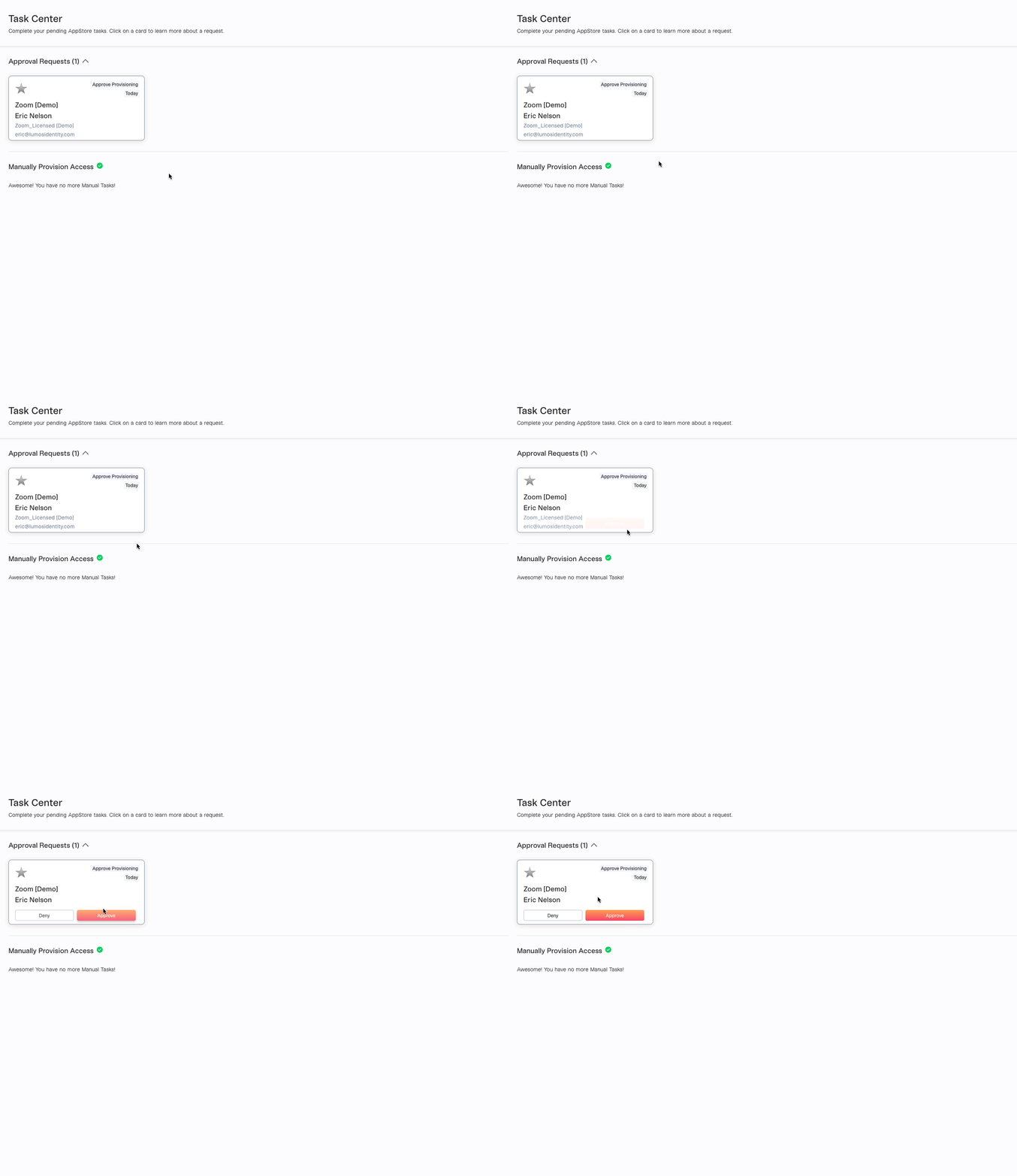
2. Approve or deny it
If you’re not sure what to do, follow this guide:- Approve - Click this if everything looks good.
- Deny - Click this if this person should not have this app.
- Edit - If the person can have this app, but not the level of access requested, click on the tile to change it. The access level is below the requester’s name in the tile.
FAQ
-
What do the fields in the app request message mean?
- App: The app being requested
- Target User: The employee who will get access to the app
- Approvers: The people responsible for approving the request at its current approval stage. Any one of them can approve the stage. If any one of them denies it, the whole request is denied.
- Comment: The business justification submitted by the requester
- Permissions: The level of access being requested for the app.
- Requester: The employee who submitted the request.
- App Admins: The owners of the app at your company. They’ll create an account for the requester, if needed.
- Access Length: The amount of time the requester will have the app. “Unlimited” means they’ll keep it until someone chooses to revoke it. If there’s a different timeframe, Lumos will remove the access automatically once the time is up.
- Can I edit an app request before approving it? Yes. If you click the “Edit” button in Slack, or you click on the app request in Lumos, you can change the permissions to which the user is being added after approval. Do this if someone is being added to an “admin” permission and shouldn’t be. If the requester shouldn’t have access at all, deny the request.
-
Can I ask the requester for more info before I approve?
Yes. When you’re asked to approve a request, you can start a thread with the requester right in Slack. This conversation is logged and is visible to all of the approvers, as well as the requester. For email requests, you’ll need to reply to the email sent by Lumos and cc the requester.
- Do pending Access Requests expire? Yes. Access requests auto-expire after 14 days of inactivity while they’re in the Approval stage. “Inactivity” means no action at the current approval step (Manager, Stage 1, or Stage 2). The 14-day clock resets at the start of each step, so as long as each step is completed within 14 days, the request stays open.