

What is the AppStore?
The AppStore is where you request access to software that you need for your job. In the AppStore, you can browse your company’s approved apps and request access to them. Your requests are sent for approval and can be tracked at any time via Slack or email. Follow the steps below to submit your first access request.Video
Watch this video to see how to request an app via the AppStore.Steps
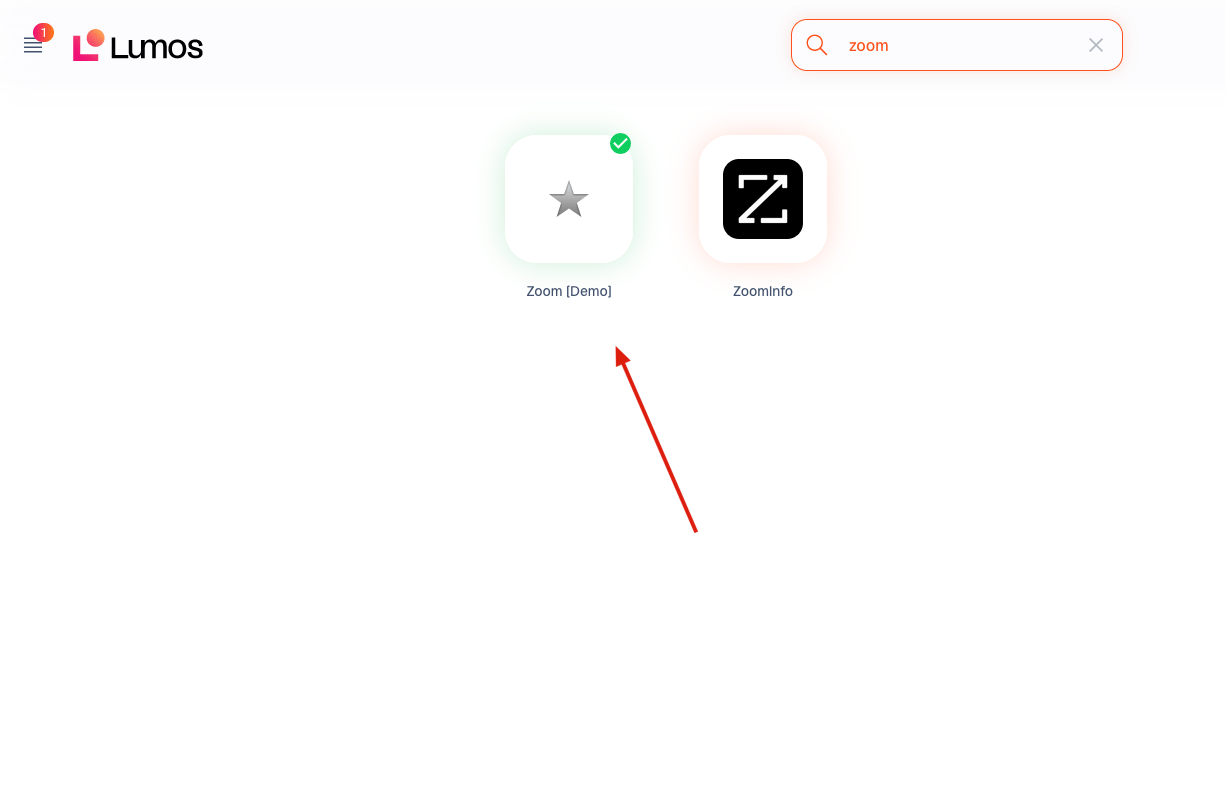
1. Find your app in the AppStore and click on the tile.
-
Making a custom request
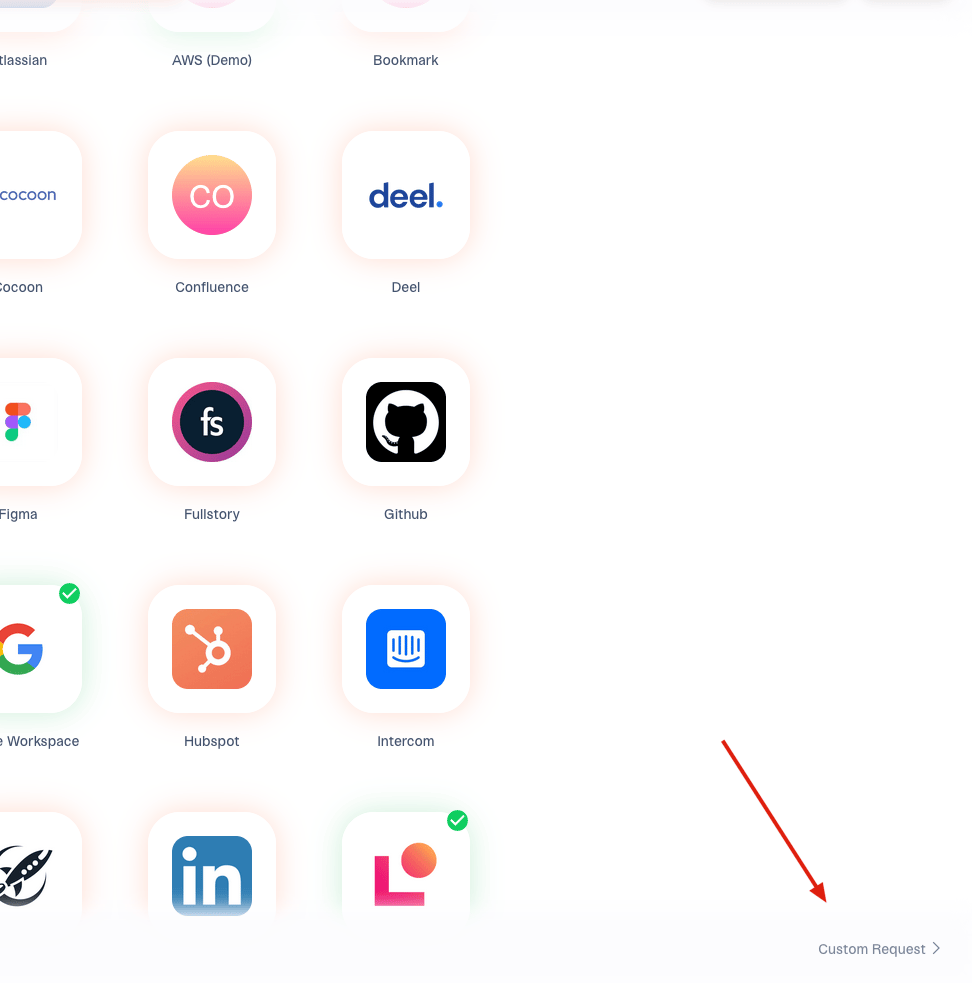
- Click the “Custom Request” button.
- Search for the app. If you can’t find it, choose the first dropdown option “Request…”
- Enter your justification (optional)
- Click “Confirm Request”.
-
Wait for your IT team to respond.
- NOTE: You must configure an ITSM integration to enable custom requests
2. Fill out the required fields and click “Confirm Request”.
Different apps ask for different info. Fill out everything and include a comment so that the approvers know why you need the app.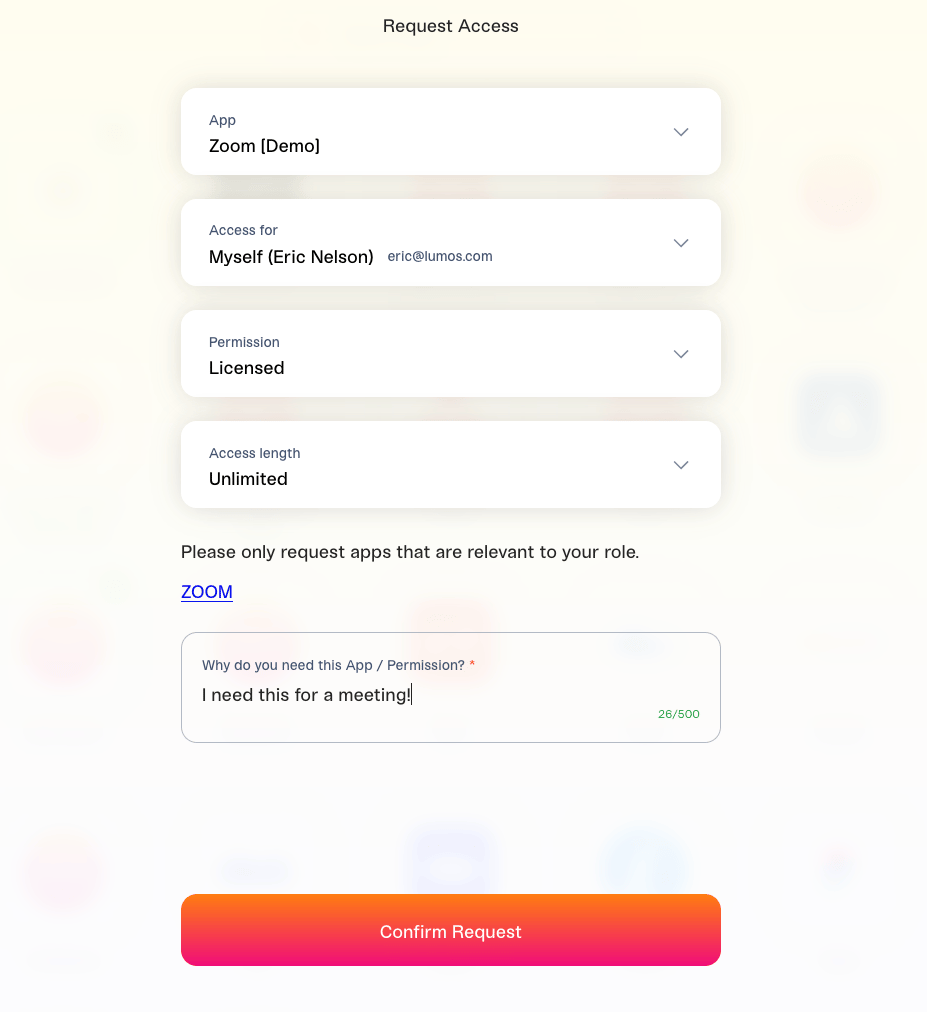
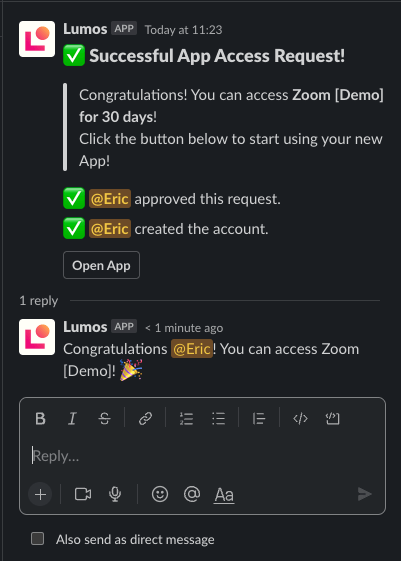
3. Wait for approval
Lumos sends your request to the right approver for review.
FAQs
- What if I can’t find the app I need? Make a custom request. This will create a ticket for your IT team. SeeRequesting Access to an App
-
Can I cancel my request?
In Slack, there’s a “Cancel Request” button you can click to cancel your AppStore request.
If you’re not using Slack, you can find the app in the AppStore and click Cancel Request in your request history.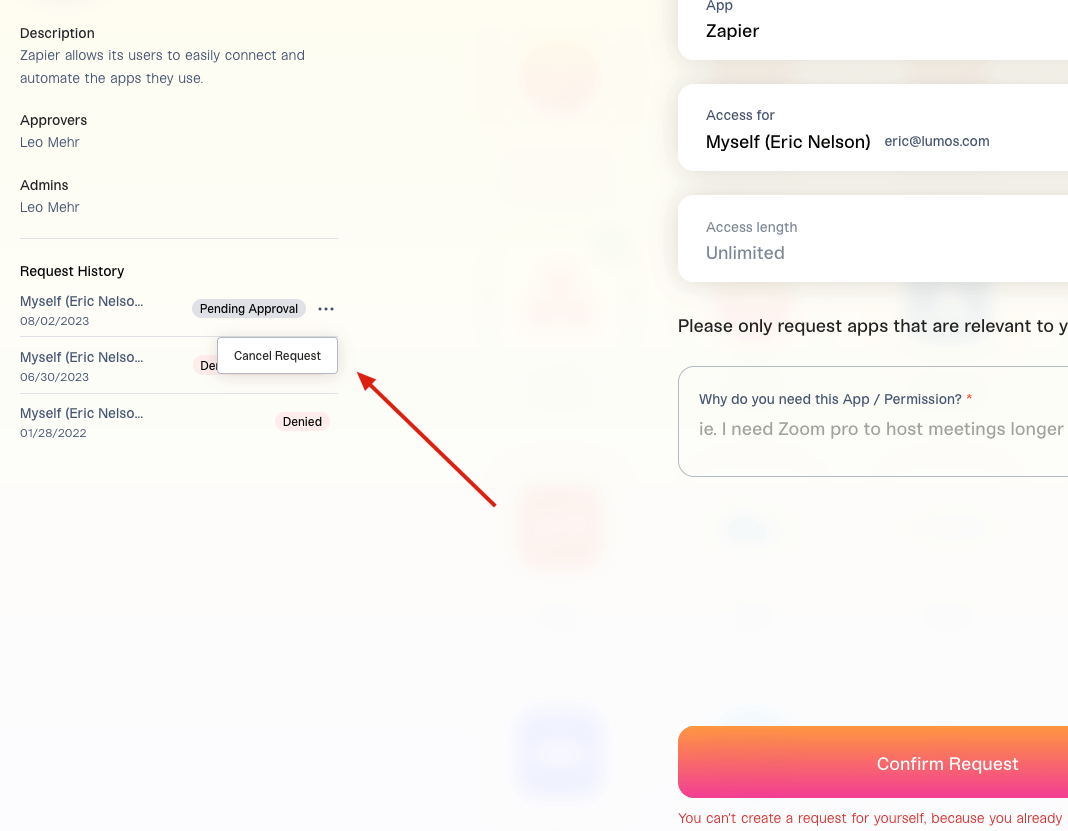
-
Where can I view my pending access requests?
You can check the status of your pending requests in two ways:
- On the app request page – Open the app request page and look for the Request History section on the left side of the screen. This section shows the status of your requests. On Slack – If Slack notifications are enabled, a new thread is automatically created each time you submit an access request. You can open the thread to review updates.
- Can I follow up on my request with the approvers? In Slack, if you click Reply in thread on the notification created by the AppStore, any messages you send will get sent to the approvers. Via email, there isn’t currently a way to discuss the request with the approvers, so you’ll need to email the approvers directly.
- Why did an Access Request expire? Access Requests are expired when there have been 14 days of inactivity (this could be Manager approval, Stage 1 or Stage 2 approval). This expiration time limit is reset for each approval stage, so as long as each stage is completed 14 days after it began, the Access Request will remain open. Access Requests can only expire while they are in the Approval Stage.
- Is there a notification sent before an Access Request expires? Yes, the user who requested time-based access will receive an email and/or a Slack message notifying them their access expiration once 70% of the time has elapsed. This will take them to the AppStore to request access for that same permission again, which creates a new Access Request. The newly selected Access Length will overwrite the existing one.
- What happens if I make an Access Request for the same permission again? If you request access to the same app / permission that you already have requested (for example, you request “Prod DB Access” again), your previous Access Request for the permission will be overwritten, and your new request will take effect with the new access length you selected. Important: For your previous Access Length to be replaced, all the details of the permission must be exactly the same (other than the Access Length selection) in your new request. This means the approval, provisioning, and deprovisioning steps must all be unchanged. If any of these settings are different (for example, if the group or approvers have changed), your previous access will not be overwritten, and both Access Length periods may remain active. Custom Field values are not part of this uniqueness check. Multiple Permissions: If you make a new Access Request that includes multiple permissions (for example, “Prod DB Access” and “S3 Admin Access” together), this will not overwrite the previous Access Request you had for just a single permission (like “Prod DB Access” alone). Examples: If you had access to “Prod DB Access” for 4 hours, and you request it again for 12 hours (and the permission configuration is unchanged), your old 4 hour access will be replaced by the new 12 hour access. But if you request “Prod DB Access” together with “S3 Admin Access” in a single request, your previous access for just “Prod DB Access” will not be replaced.