Steps
1. Go to your Slack app
2. Type /appstore and press the “Return” or “Enter” key.
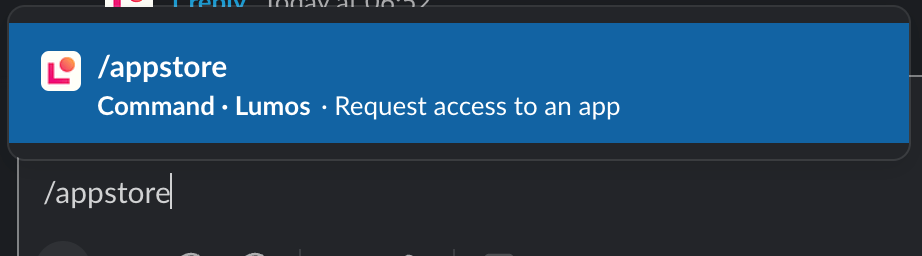
/access [app] directly in Slack. Lumos checks your access policies and either auto-approves the request or routes it for one-click approval, and IT still gets the audit trail.
3. Fill out the access request details and click “Request Access”
Different apps ask for different information. Fill out everything and include a comment so that the approver knows why you need the app. [NOTE] You may see permissions populate when you select a particular app. Generally, if there are fewer than 100 options, Lumos shows them in a scrollable list for you to select from. However, if you only see an option to search, that means there are over 100 permissions. If you don’t know which permission to search for, go to the AppStore Web UI to see the full dropdown.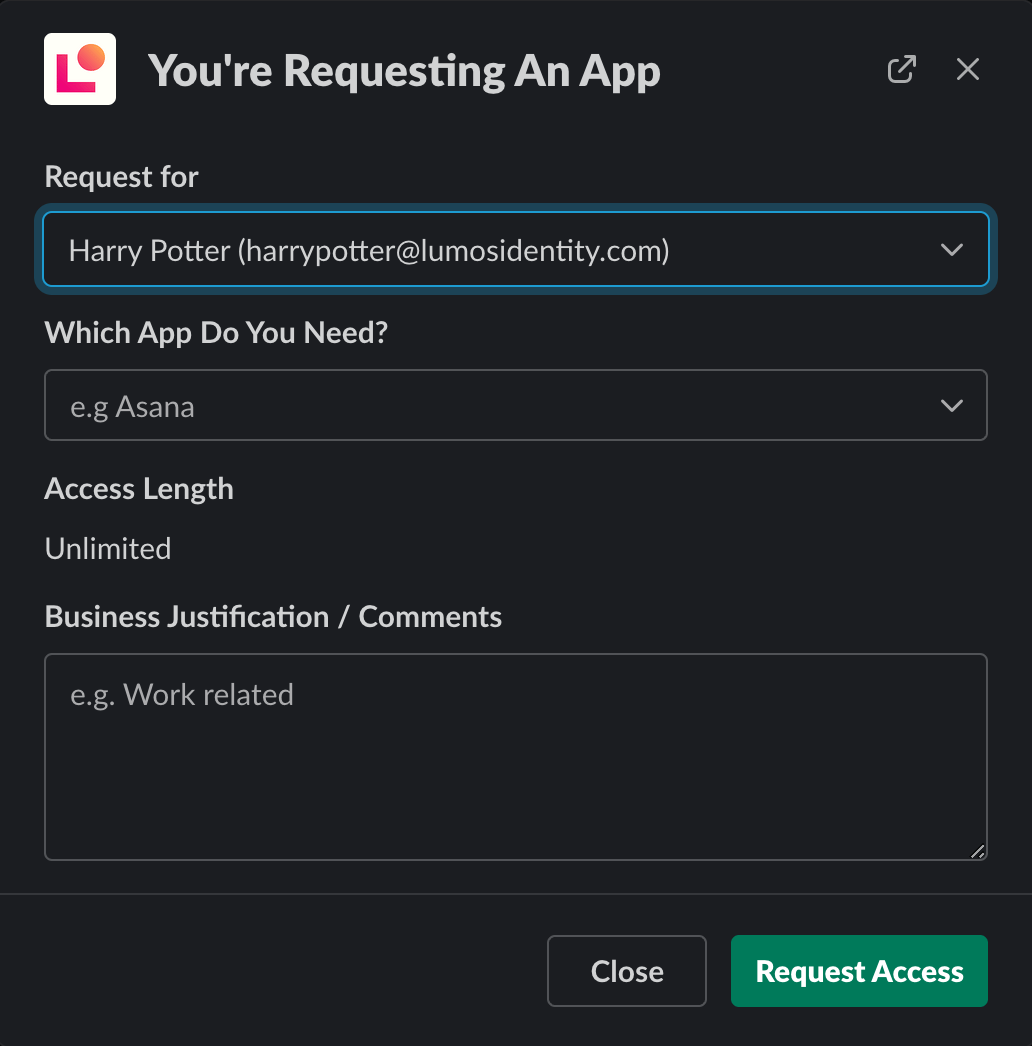
4. Check the AppStore app in Slack to view the progress of your request
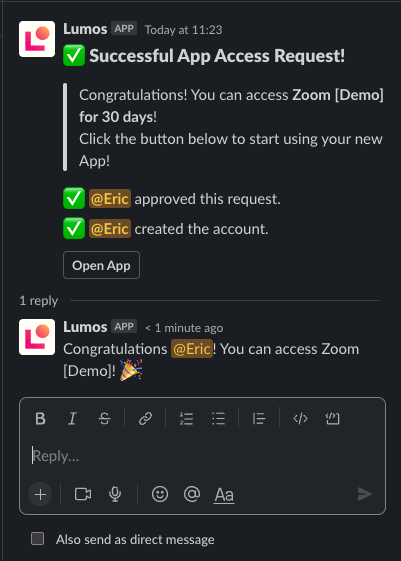
Once you make your request, you’ll get notifications from the AppStore app to keep you up-to-date on the progress of your request.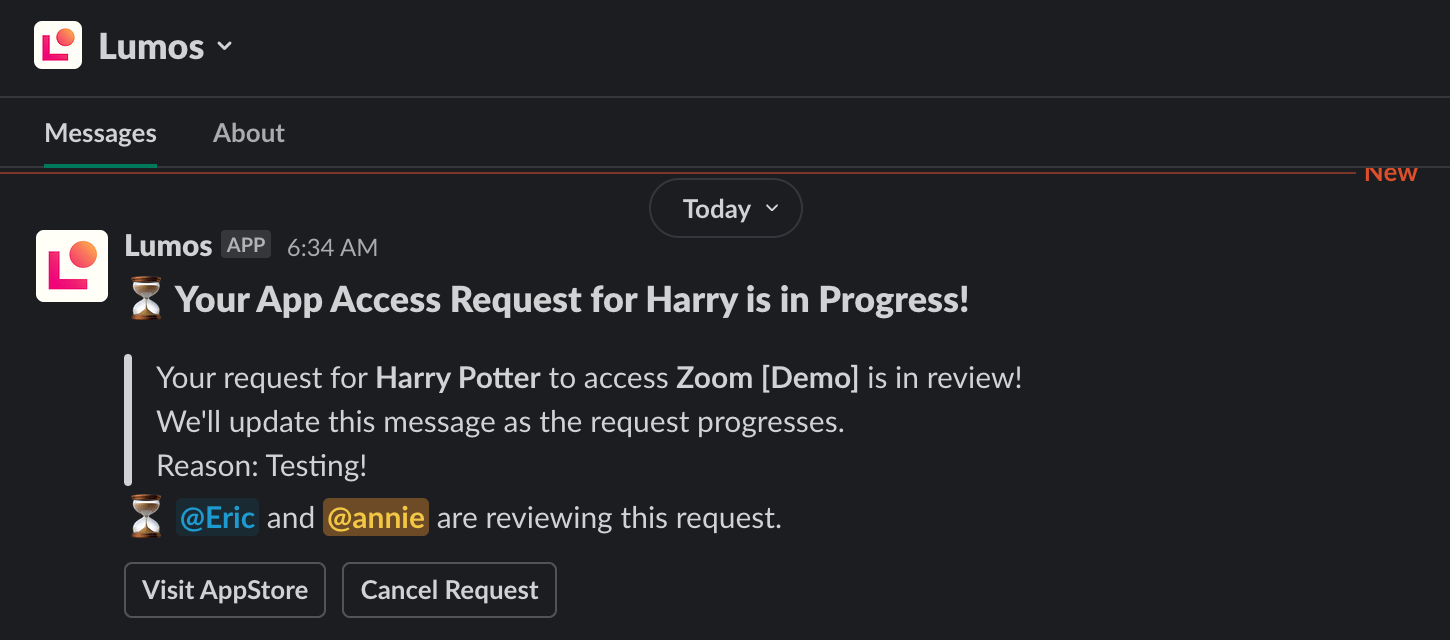
FAQs
- Why is the permissions dropdown requiring that I enter in 3 characters to search? Slack has a limit of 100 dropdown options. Because there are more than 100 options for this app, Lumos requires the end user to search for their permission. To see the full dropdown, go to the AppStore Web UI.
-
Can I cancel my request?
In Slack, there’s a “Cancel Request” button you can click to cancel your AppStore request.
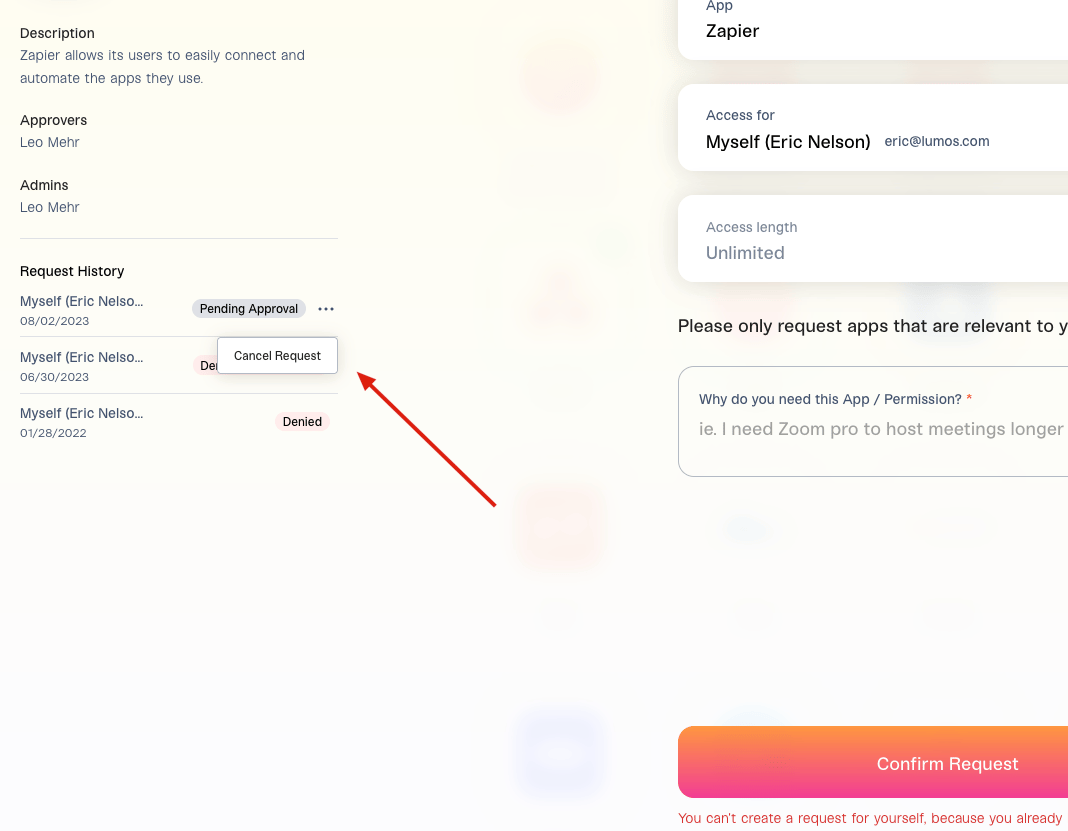
If you’re not using Slack, you can find the app in the AppStore and click Cancel Request in your request history.
-
Can I follow up on my request with the approvers?
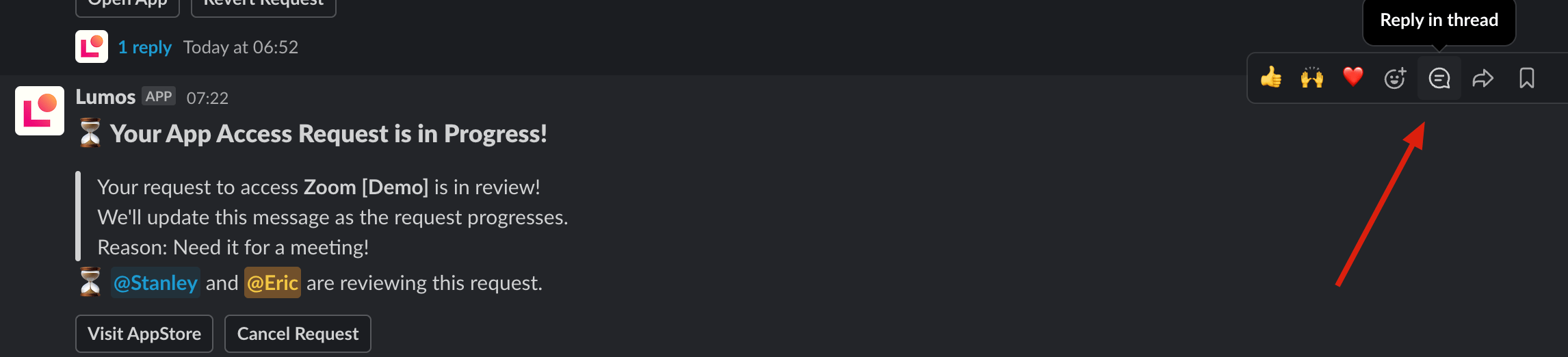
In Slack, if you click Reply in thread on the notification created by the AppStore, any messages you send will get sent to the approvers.