Background
Lumos Analytics for AppStore Reporting shows how quickly employees get access, which apps take the longest to approve, and how your AppStore rollout is progressing. Use it to report to leadership and identify opportunities to improve your AppStore. To open these reports, click Analytics in the left sidebar, then select the AppStore tab. If Analytics opens to your custom dashboards instead, click the settings icon next to the Analytics heading and select Legacy Analytics under Version first. For more on the two versions, see Get Started with Customizable Dashboards.AppStore Adoption Trends
View your AppStore’s overall adoption trends to understand your progress toward rolling out the AppStore to your entire organization and how quickly people are getting access.Overall Adoption Trends
The Overall Adoption metrics are defined as follows. Use them to track uptake and ensure people are getting access quickly.- AppStore Adoption — Calculated by comparing your total IT service management (ITSM) ticket volume with tickets logged in Lumos to show where employees go to make their access requests. If your AppStore is not connected to an ITSM, this datapoint will not be available. If you have ITSM logging turned on [in ITSM Settings], this number should reflect that.
- Resolved Requests — Number of successfully provisioned requests
- Median Time to Resolution — Time taken for users to get provisioned access
- Median Time to Approval — Time taken to get approvals for access requests
Request Volume Trend
As you roll out your AppStore, Lumos shows the breakdown of ticket volume between access request tickets in your ITSM and tickets provisioned in Lumos. Use it to show employee adoption of the AppStore and how many tickets are orchestrated and automated through Lumos.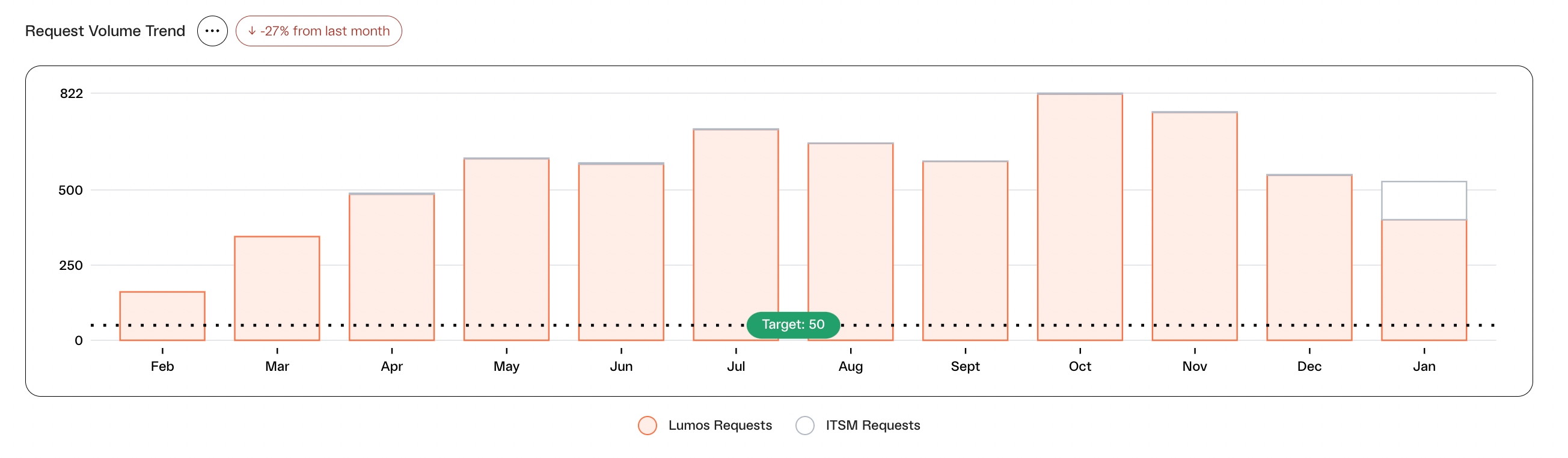
Time to Resolution (TTR) Trend
Track how long it takes users to get access. Use this trend to confirm that users get access faster through Lumos than through your previous process.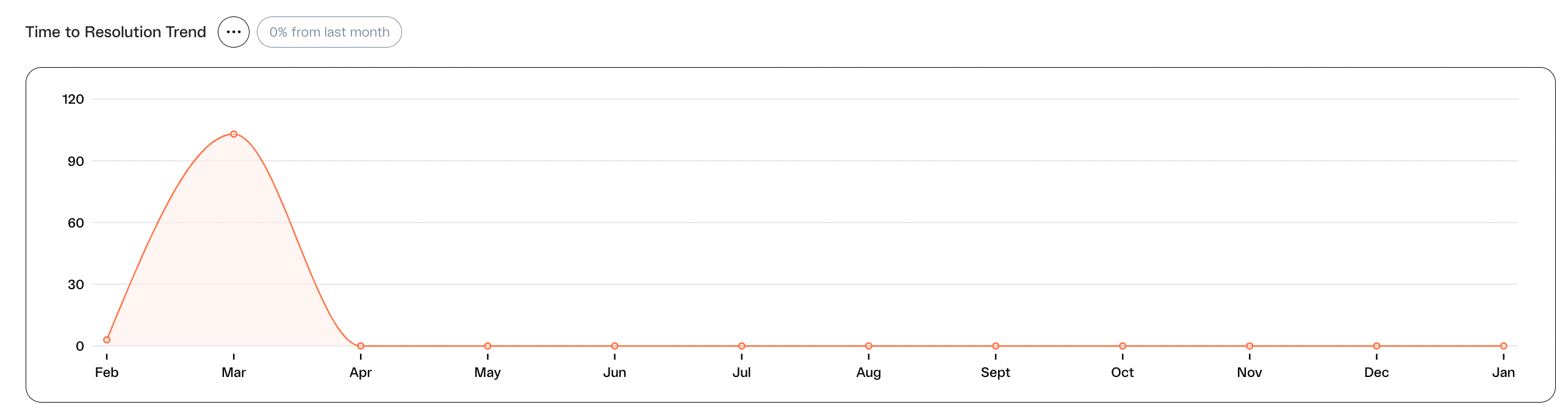
Automated Ticket Trend
Report to your leadership on how much access request traffic you automated. See the breakdown of access requests that were fully automated, partially automated, or manual. A request is automated when it has a provisioning group attached or triggers a webhook, so that the user can be provisioned automatically.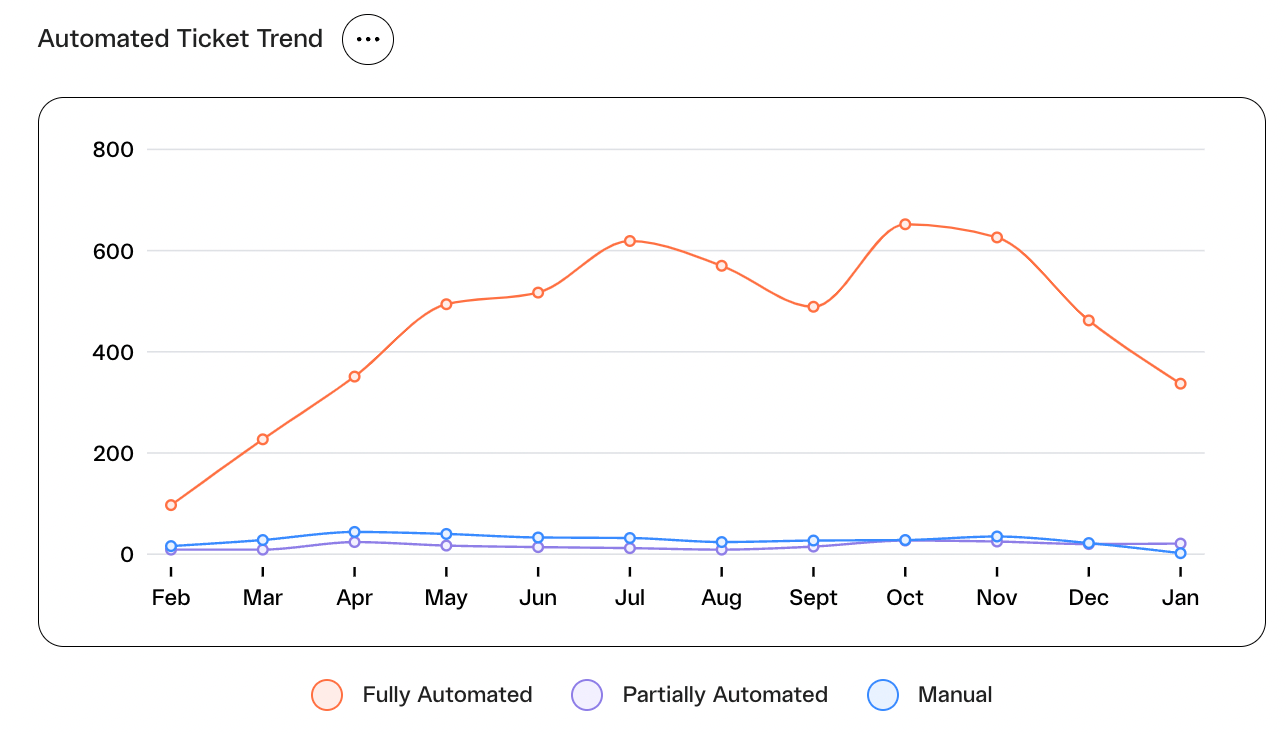
Software Access Bottlenecks
Identify where to improve your Time to Resolution and service level agreements (SLAs). See which apps are approval or provisioning bottlenecks for your organization. Use this view to find apps that slow down access for your end users and to decide where to automate or set up pre-approval rules.Request Traffic by Team
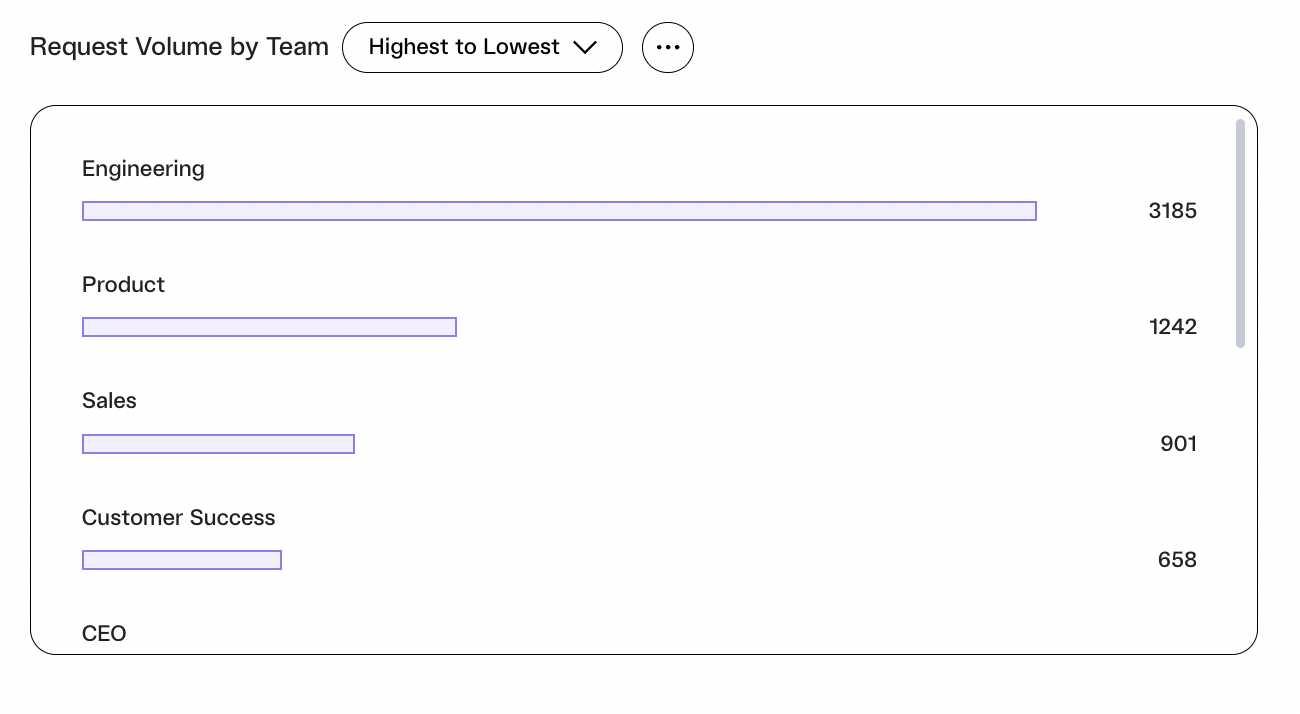
See request traffic by team so you can share accurate numbers with department heads and understand company-wide adoption of your AppStore.