

Overview
AI-Powered Fields is a capability in the Apps table that lets you automatically classify all your applications using AI. Instead of manually reviewing and tagging each app, you define classification criteria and Lumos processes your entire portfolio. With AI-Powered Fields, you can:- Reduce manual categorization work — Classify all of your apps in a single run
- Apply consistent criteria — AI applies the same logic across all apps
- Improve downstream AI features — Clean app data directly improves the policy mining recommendations and answers you get from Albus
- Keep classifications current — Regenerate anytime as your app portfolio changes
Setting Up an AI-Powered Field
Step 1: Navigate to the Apps Table
Go to Apps in the main navigation.Step 2: Add a New Column
- Click Column in the table toolbar
- Select Create new column or choose an existing column to enhance
- Enable AI Autofill for the column
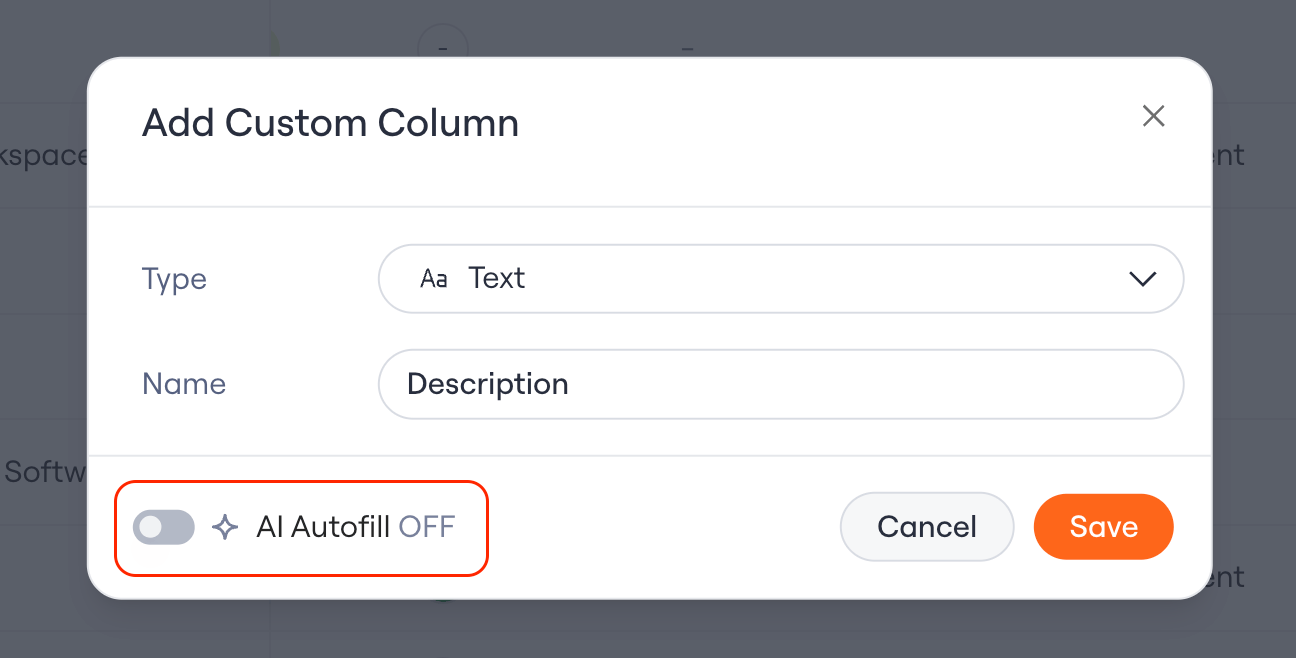
Step 3: Configure Your Field
1. Choose a field type:- Single-select — One value per app (e.g., Essential / Not Essential / Unknown)
- Multi-select — Multiple values per app (e.g., Use Cases like HR, Finance, Engineering)
- Text — Free-form AI-generated descriptions
- Add the possible values the AI can assign
- Include an “Unknown” option for apps where AI lacks confidence
- Use one of the templates below, or write your own
- Be specific about your criteria for each classification
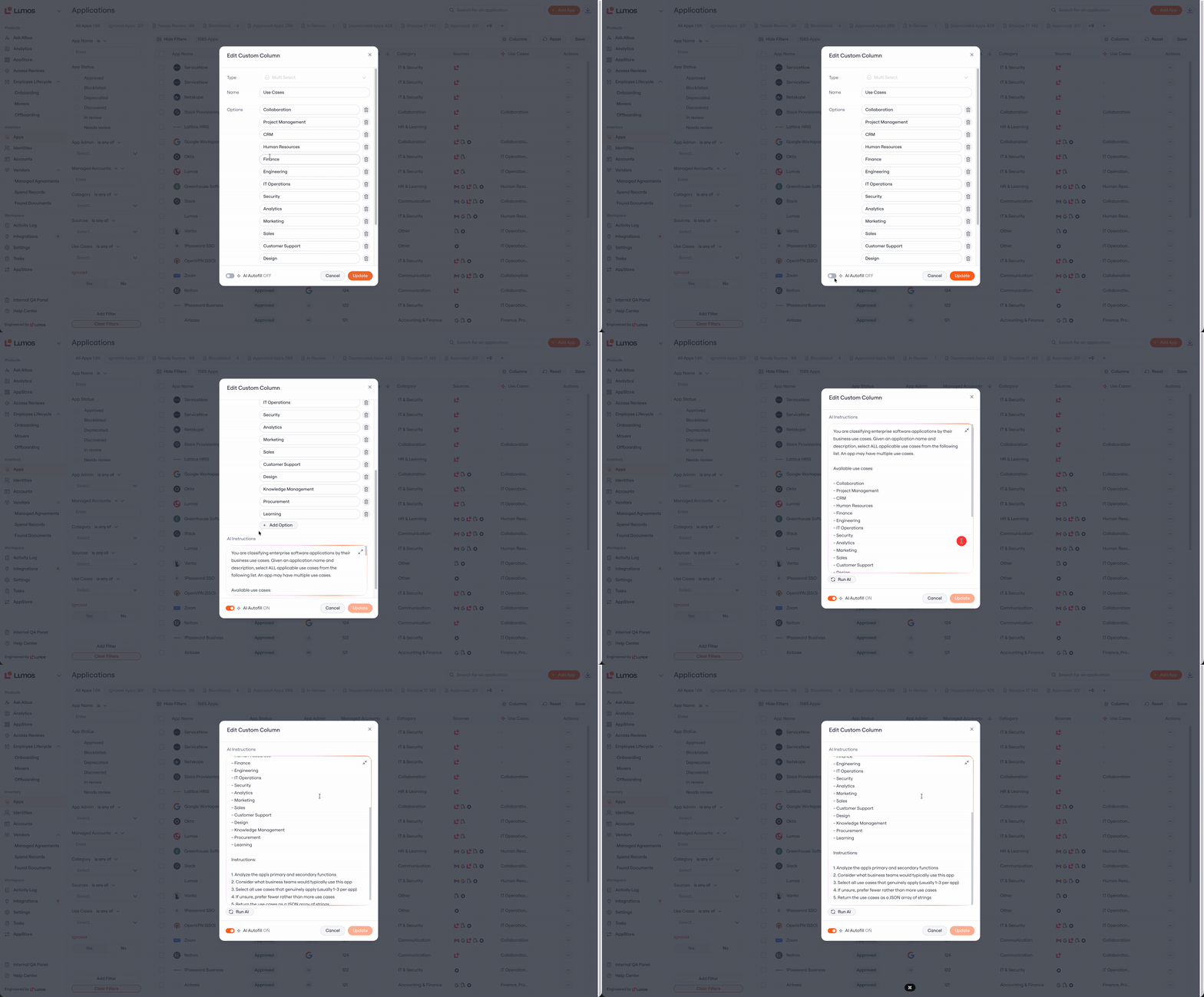
Step 4: Generate Classifications
- Click Run AI
- Wait approximately 4 minutes for processing to complete
- Continue working in Lumos while generation runs in the background
Step 5: Review and Refine
- Sort or filter by your new column to review results
- Pay special attention to apps marked “Unknown”. These need manual classification
- Manually edit any incorrect values by clicking directly on the cell
Prompt Library
Copy these templates to get started quickly. Customize the criteria to match your organization’s definitions. Essential Apps Classification Field type: Single-select Options:Essential, Not Essential, Unknown
Prompt:
Engineering, Sales, Marketing, HR, Finance, IT, Security, Operations, Customer Support, General Productivity, Unknown
Prompt:
Creating Custom Prompts
When writing your own classification prompts:- Be explicit about criteria — Define exactly what qualifies for each classification
- Include edge case guidance — Tell the AI what to do when information is ambiguous
- Reference available data — The AI can use the data listed in What data does the AI use? below
- Add an “Unknown” option — Gives the AI a safe fallback instead of guessing