

Background
You can now share an access policy with the people who know the access best, like app admins and permission owners, and collect their feedback as comments directly on the policy. Until now, policy review happened in ad-hoc Slack threads and email, invisible to everyone who came later. Sharing and commenting go together: sharing gives your reviewers view access to the policy in every state, and the comment section is where they leave their feedback, while you keep control of edits, publishing, and activation. To delegate editing rather than reviewing, assign an owner instead Assigning Access Policy Owners.When to share a policy
- You want a review before publishing. Share a draft with the app admins and permission owners whose apps it grants, and collect their feedback in one place before the policy goes live.
- You want feedback on a live policy. Share a published policy with stakeholders so proposed changes get input from the people closest to the access.
- You want the conversation on the record. Reviewers comment right on the policy, with author and timestamp, so decisions stay visible and traceable instead of scattered across Slack threads.
What someone you share with can and can’t do
Someone you share a policy with can:- View the policy, both drafts and published versions.
- Leave comments and resolve them.
- Edit the access, name, business justification, or conditions.
- Publish a policy or make it active.
- Share the policy with others or change owners.
Share a single policy
- Navigate Access Policies.
- Click into the Policy you want to Share
-
Click Share
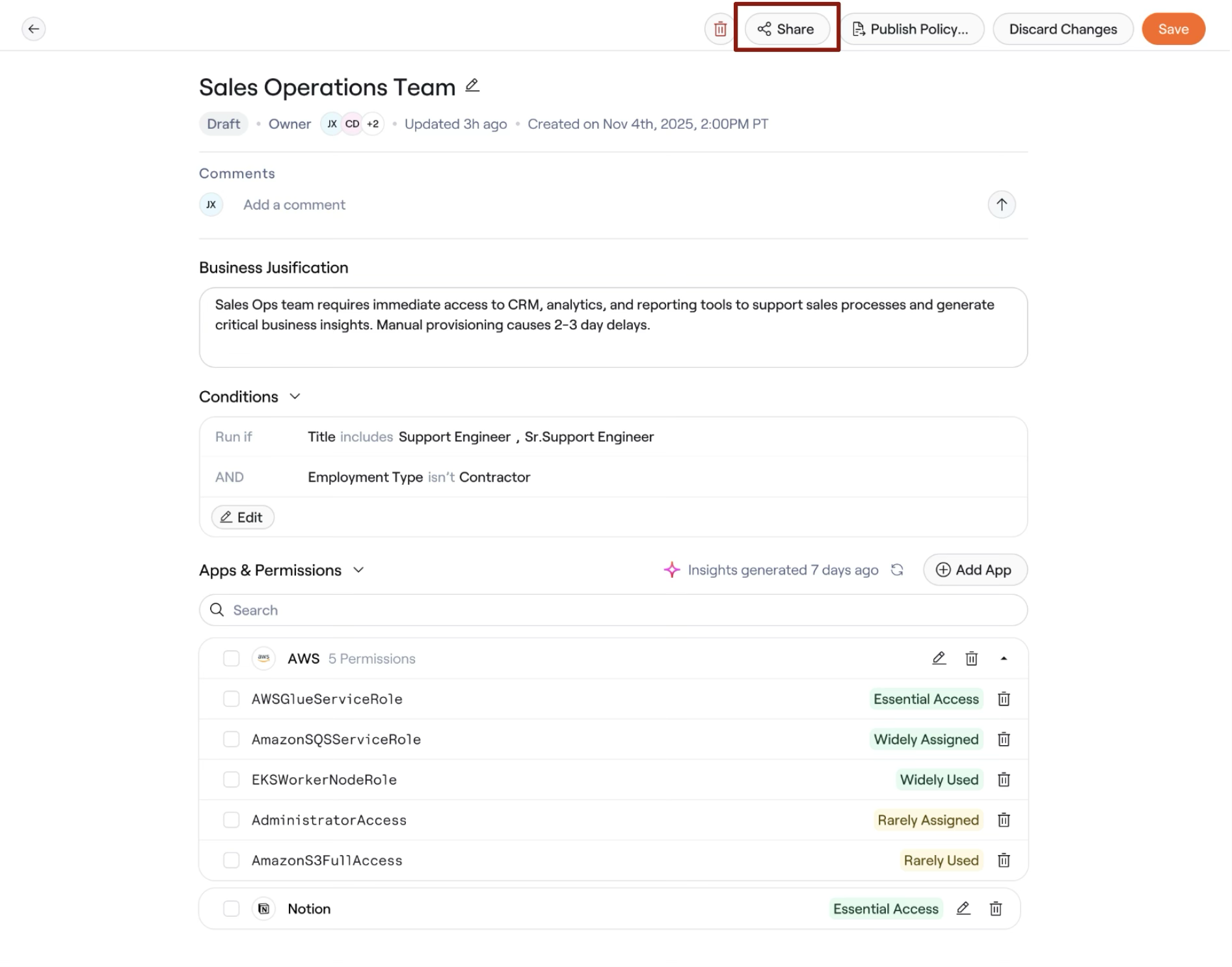
- Search for and select the users or groups you want to share with, such as an app admin or the group that owns a permission.
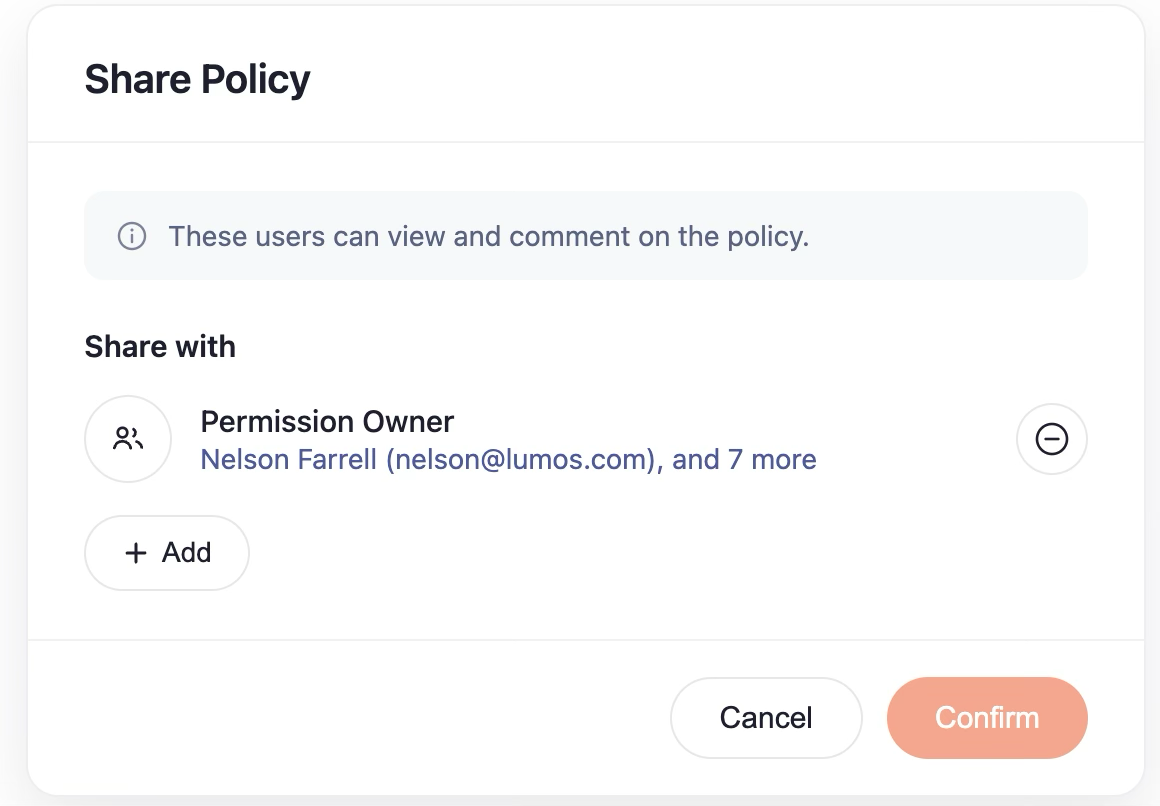
- Click Confirm.
Comment on a policy
Commenting is how you collaborate on an Access Policy. Anyone with access to the policy, including admins, owners, and people it’s shared with, can use the comment section on the policy page.Leave a comment
- Open the policy and go to the comment section.
- Type your comment and submit it. Comments can be up to
10,000characters.
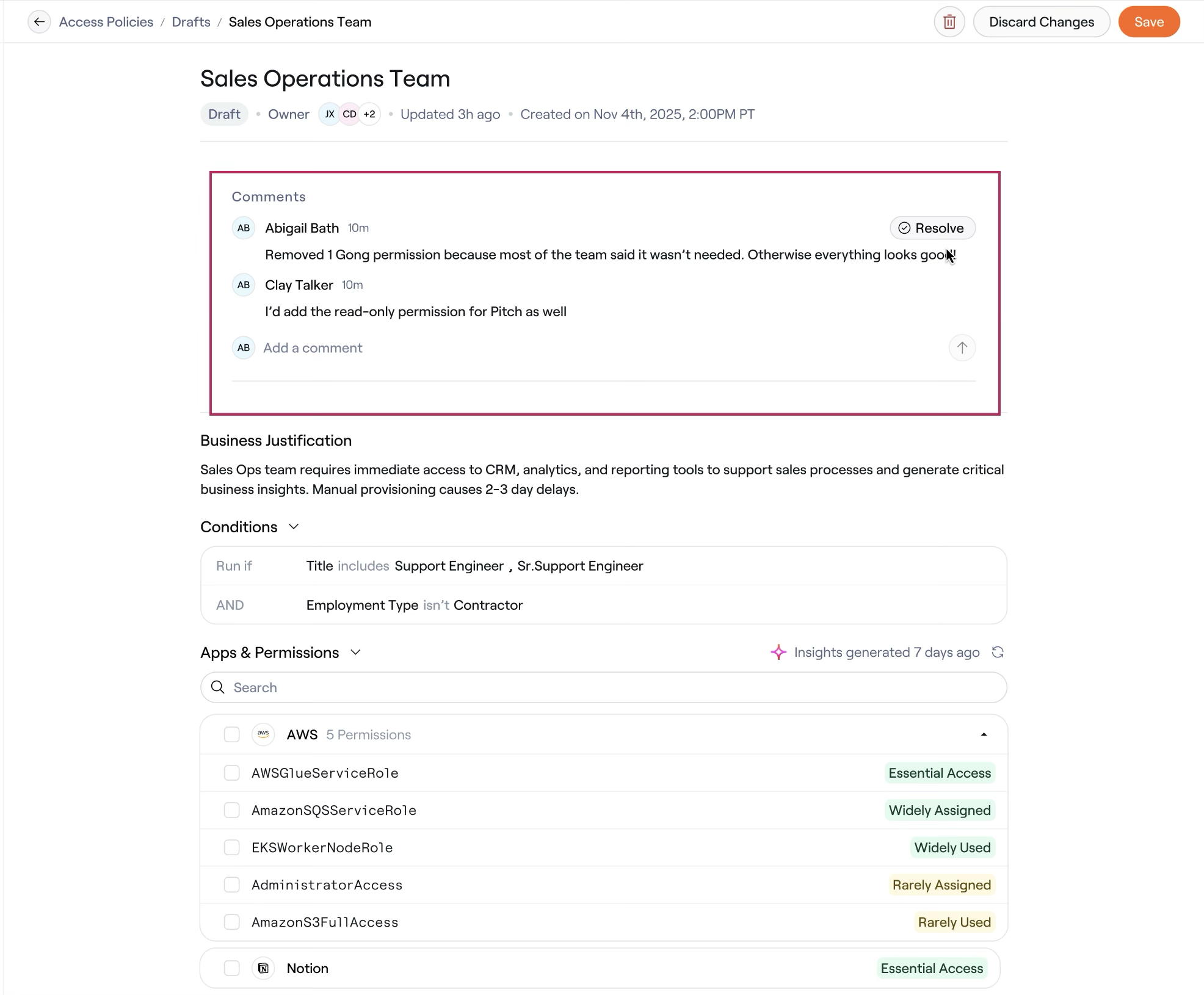
Resolve a comment
- Hover over the comment you want to mark as addressed.
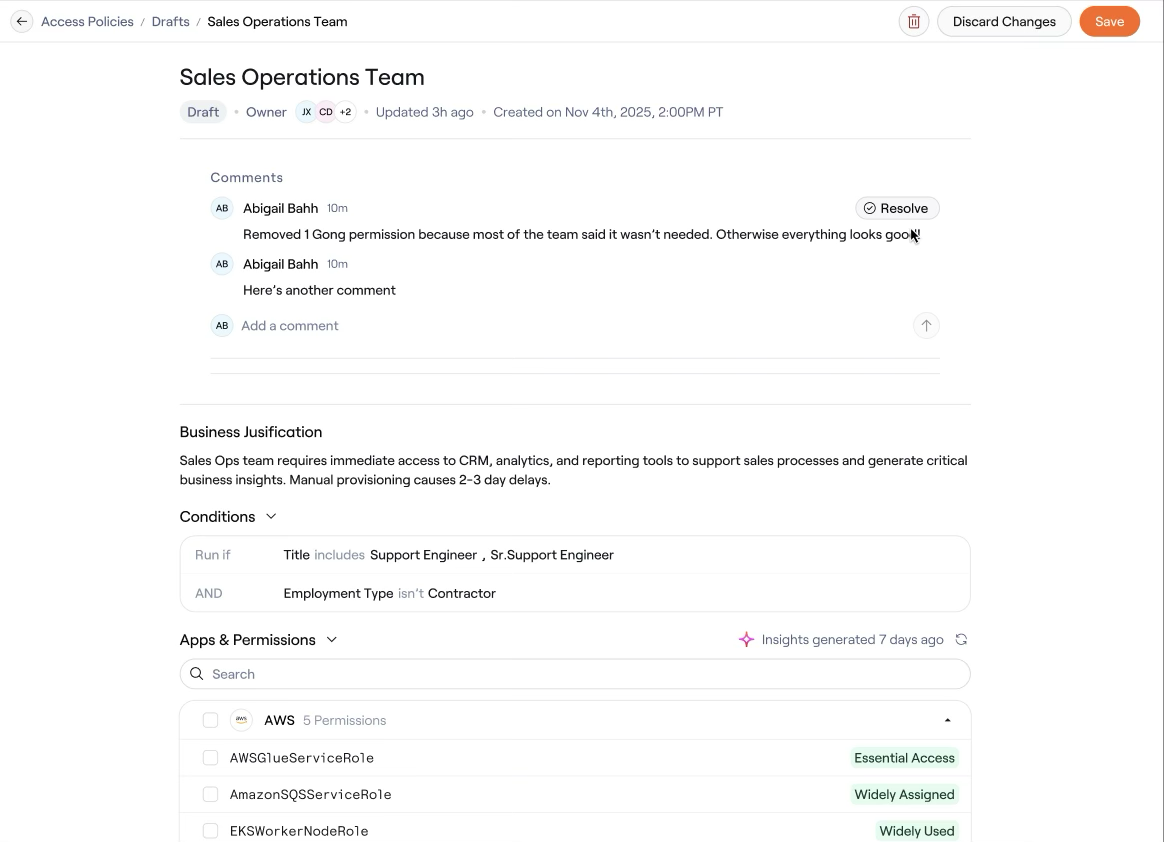
- Click Resolve.