

Background
Policies in Lumos let admins automate employee onboardings — for example, defining which apps a new hire on a given team should automatically receive on day one. There are times when you want to draft a policy without it running yet, pause a policy temporarily, or stop a policy from triggering on future onboardings altogether. Each policy has a status — Active or Inactive — that controls whether it applies to future onboardings. Active policies run on any new onboarding that matches their criteria while enabled. Inactive policies sit paused: they remain in Lumos and you can keep editing them, but they won’t trigger on any onboarding until you reactivate them. This provides time to edit and finalize a policy before it actually takes effect.Steps
1. Go to Access Policies Table
In your Lumos nav, head to Access Policies under Inventory.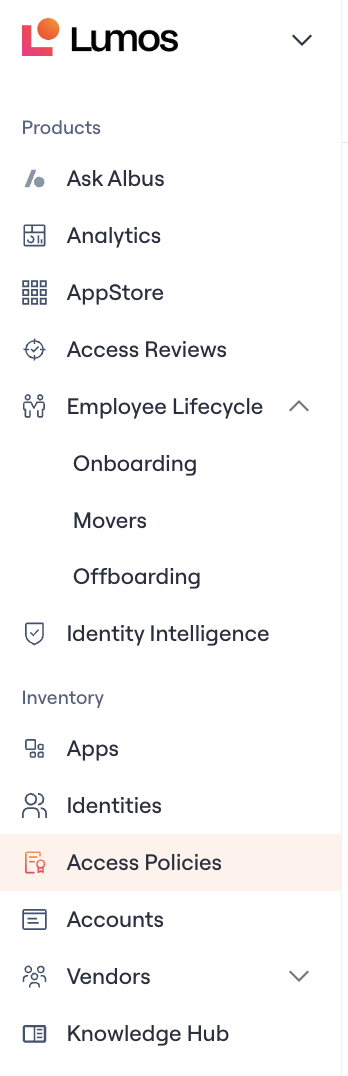
Tip: Use the tabs at the top of the table (All Policies, Active Policies, etc.) or the filter bar to narrow down to the policies you want to act on. You can save a custom view if you regularly need to review a specific subset.
2. Toggle a single policy to make it active/inactive
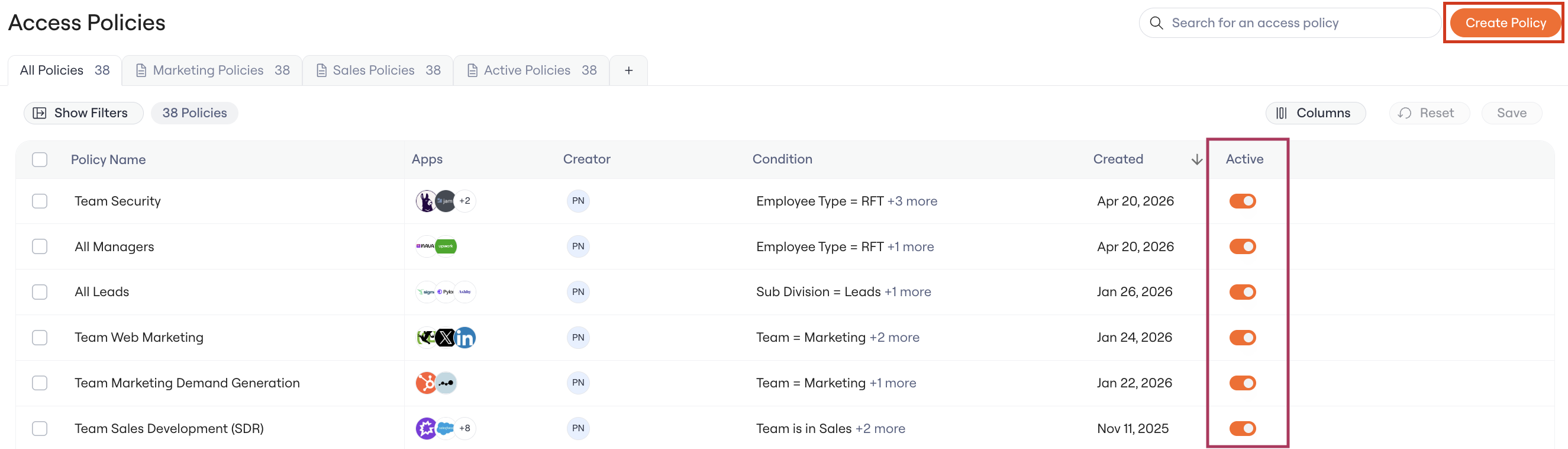
Click the Active toggle in the rightmost column of any row to flip the policy on or off. The change takes effect immediately.- Active (toggle on) — The policy applies to future onboardings that match its criteria.
- Inactive (toggle off) — The policy does not apply to any future onboardings.
3. Activate/deactivate policies in bulk
If you want to update several policies in a single action:-
Click the checkbox on each row you want to update, or use the header checkbox to select all visible rows.
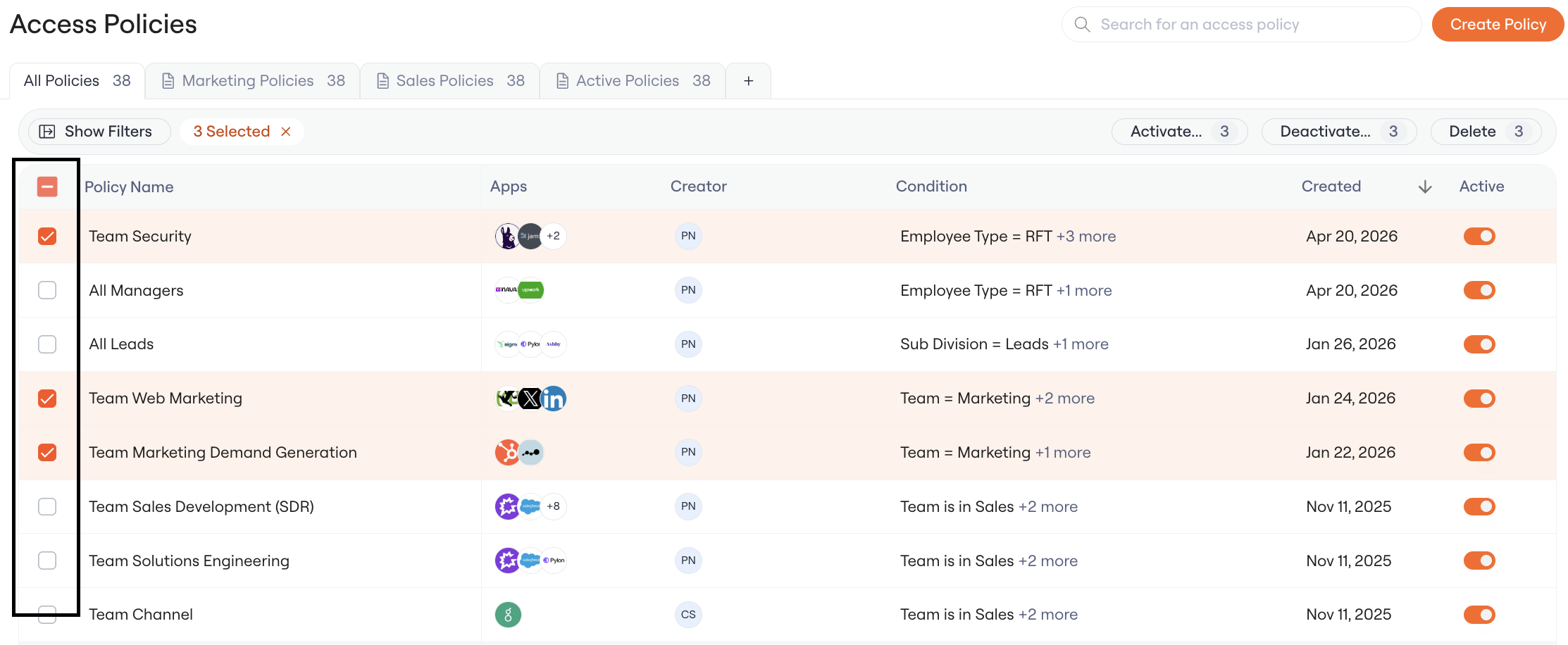
- Once rows are selected, the bulk action bar appears at the top of the table.
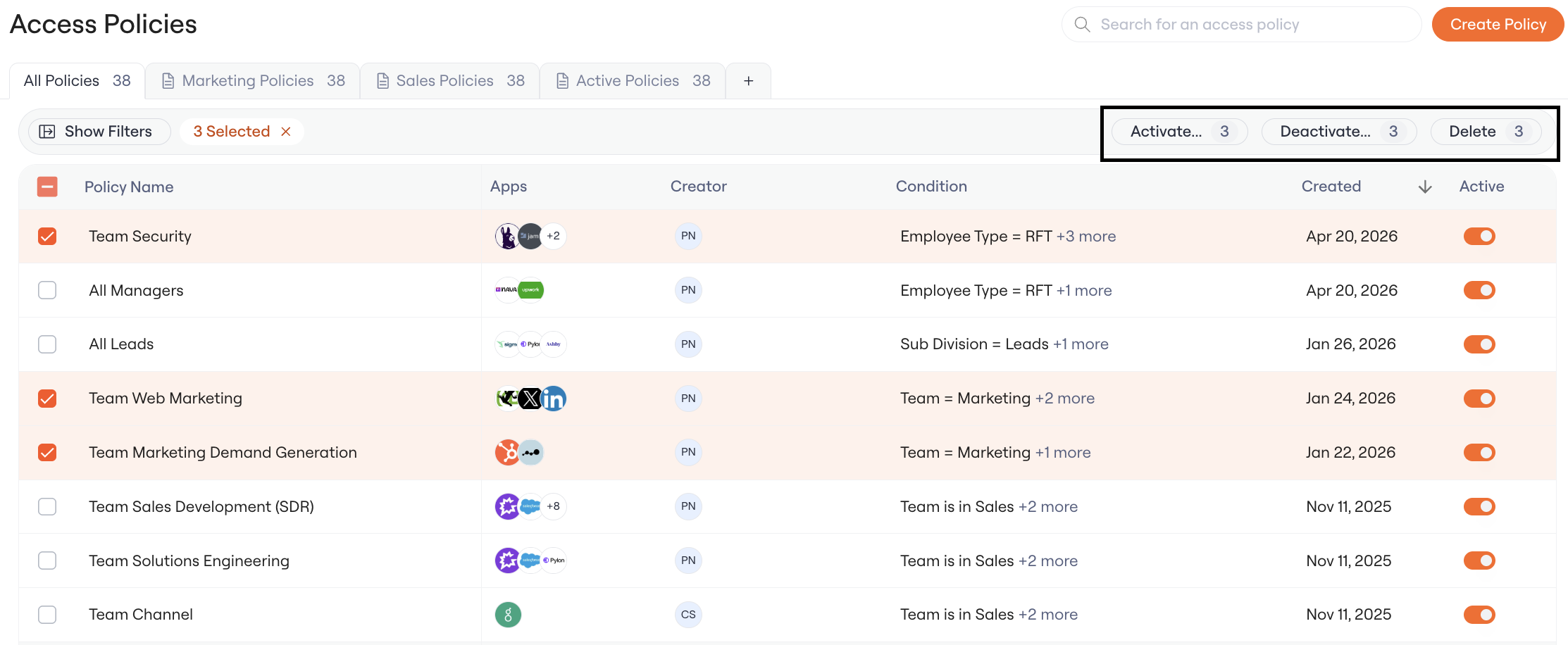
-
Click Activate or Deactivate to update all selected policies.
-
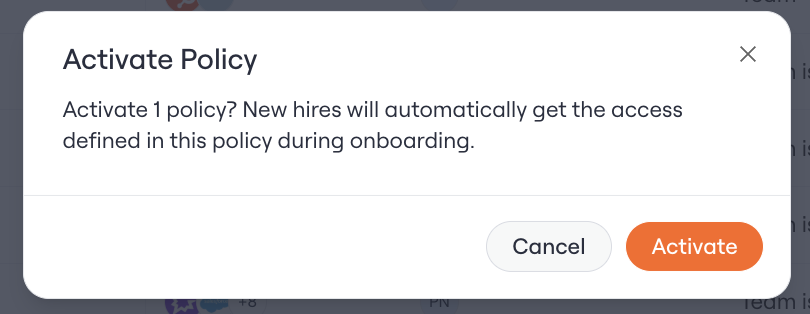
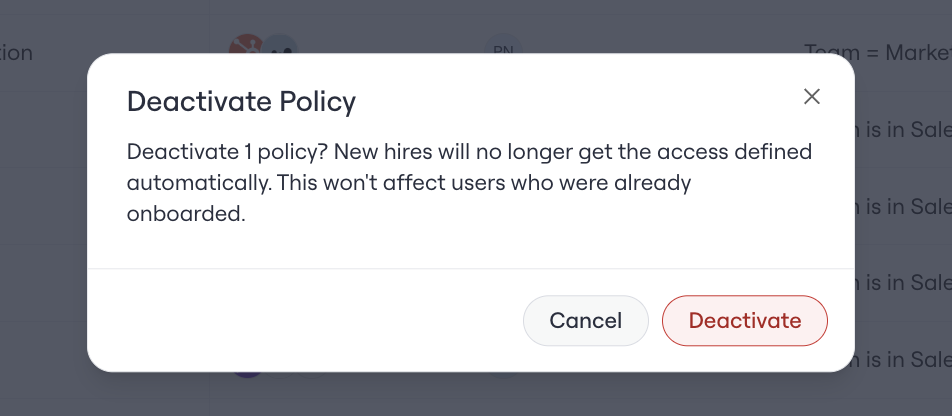
A confirmation modal appears with a summary of what will happen:
-
Activate: “New hires will automatically get the access defined in these policies during onboarding.”
-
Deactivate: “New hires will no longer get the access defined automatically. This won’t affect users who were already onboarded.”
-
Activate: “New hires will automatically get the access defined in these policies during onboarding.”
- Click Activate or Deactivate to confirm. The selected policies update immediately.
Defaults and behavior
- Existing policies default to
Active. Any policy that already existed before this feature shipped remains Active so current onboarding behavior is preserved — no action needed. - Newly created policies default to
Inactive. New policies start paused so you can review and finalize them before they begin applying. Set the policy to Active when you’re ready. - Activating or deactivating a policy is not retroactive. Status changes only affect onboardings that happen after the change. Activating a policy will not grant access to users who were onboarded before, and deactivating a policy will not remove access from users who were already onboarded under it.