When to assign an owner
- You want the person who knows the team to own and maintain the access. A team lead or manager knows best what access their group needs. Hand them the policy that covers their people while admins keep ownership of conditions, publishing and activation.
- You want fewer back-and-forths. Owners can edit the access in their policy and read the insights right on the page, instead of routing every change through Admins.
What an owner can and can’t do
An owner can:- View and edit the access (apps and permissions) in policies they own, on both drafts and published policies.
- Edit the Conditions when an Access Policy applies
- Publish a policy or make it active.
- Rename a policy, or change its business justification.
- Reassign ownership.
Assign an owner to a single policy
- Open the policy from Access Policies.
- Click on the Policy you want to Assign an Owner to
-
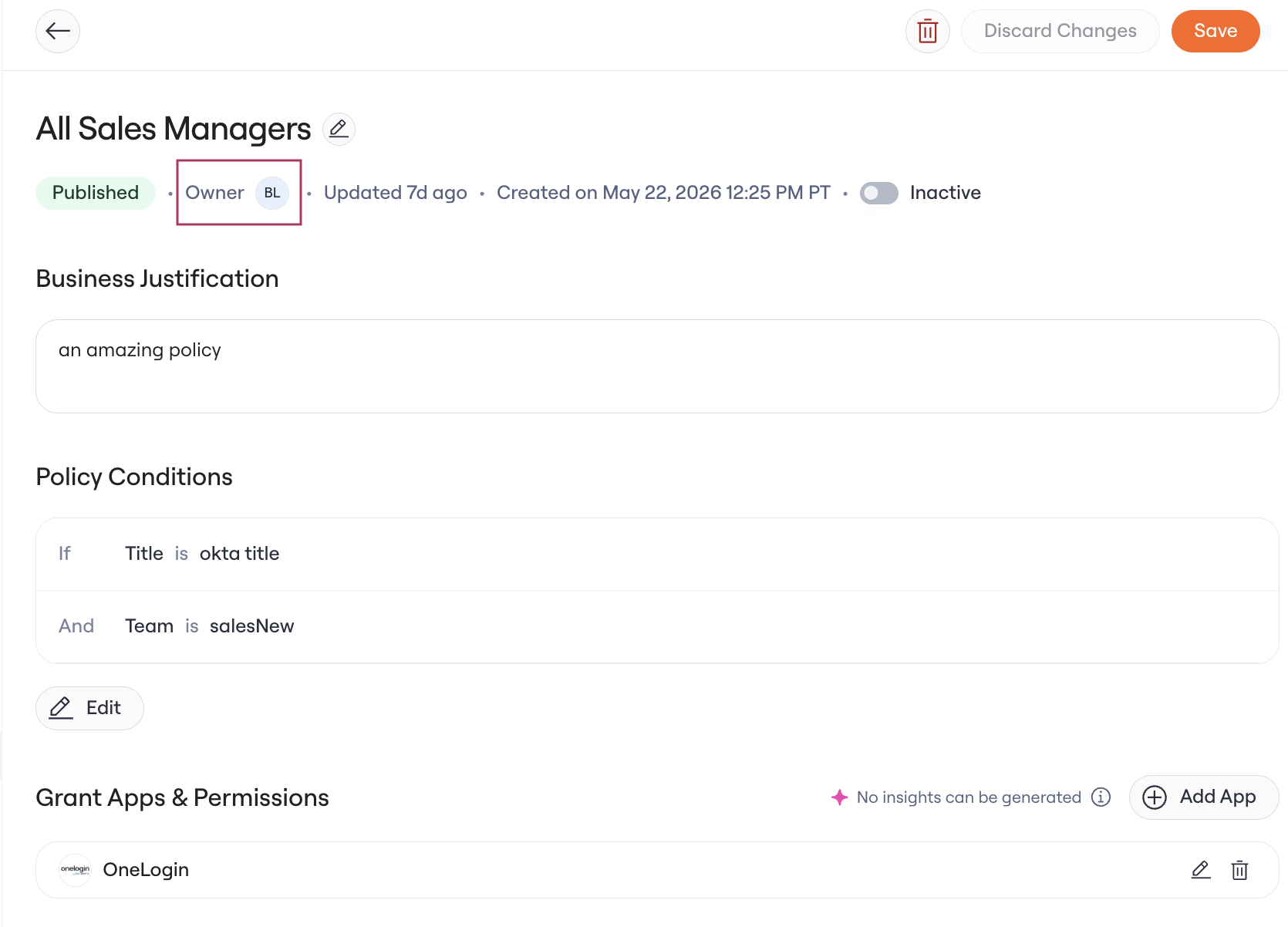
You’ll see the Policy Owner pre-populated with the Creator of the Policy
-
Click on the Owner to see a dropdown of options for Policy Owner
-
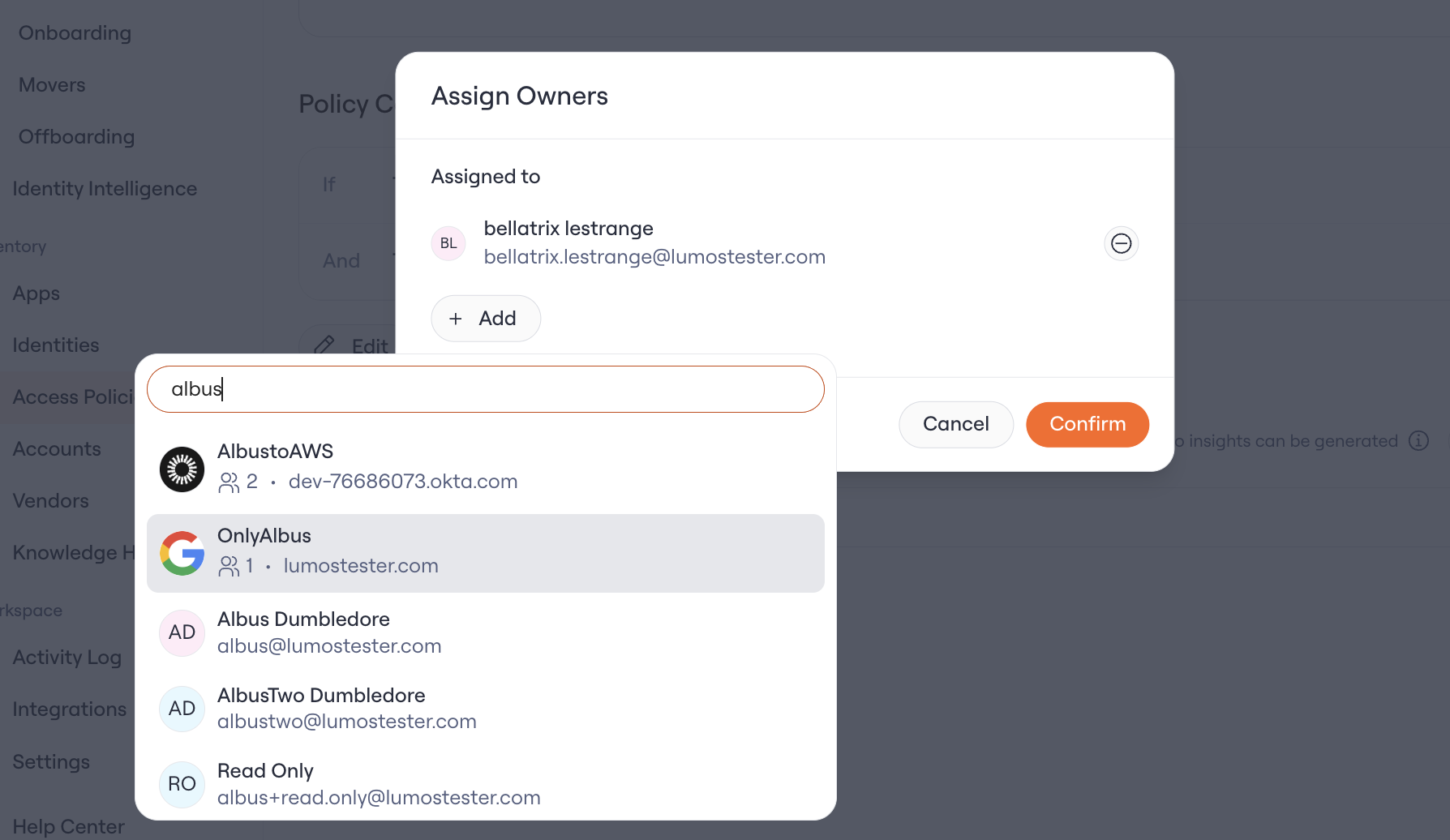
Add one or more users or groups as the owner. The owner field accepts individual users (one or more) and groups. You can set or change the owner both in the Draft and Published state of the Policy.
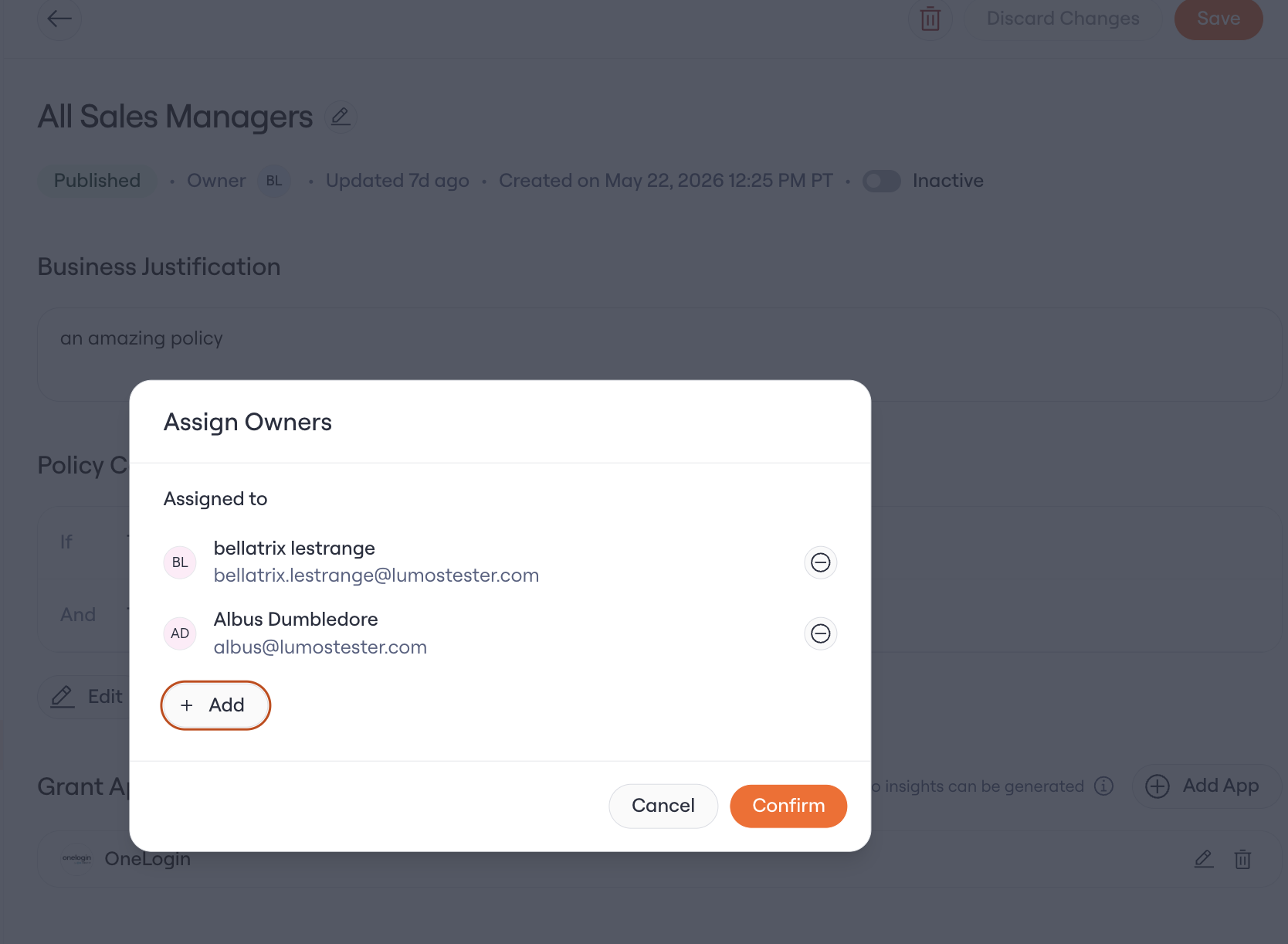
- Click Confirm.
- Save the Policy.
Assign owners in bulk
- Go to Access Policies and open the Published or Drafts tab.
-
Select the checkboxes next to the policies you want to update.
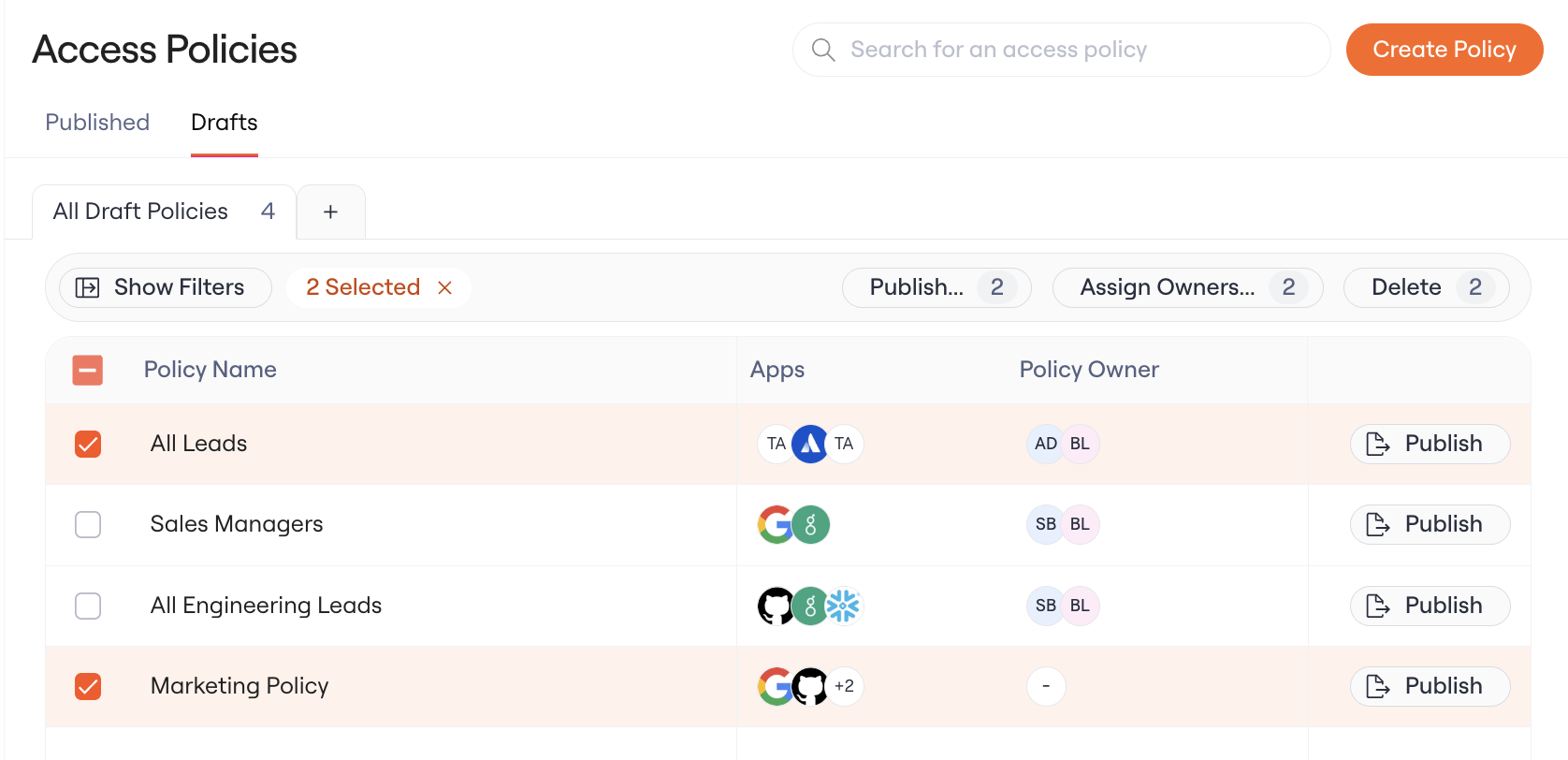
-
Click Assign Owners in the action bar.
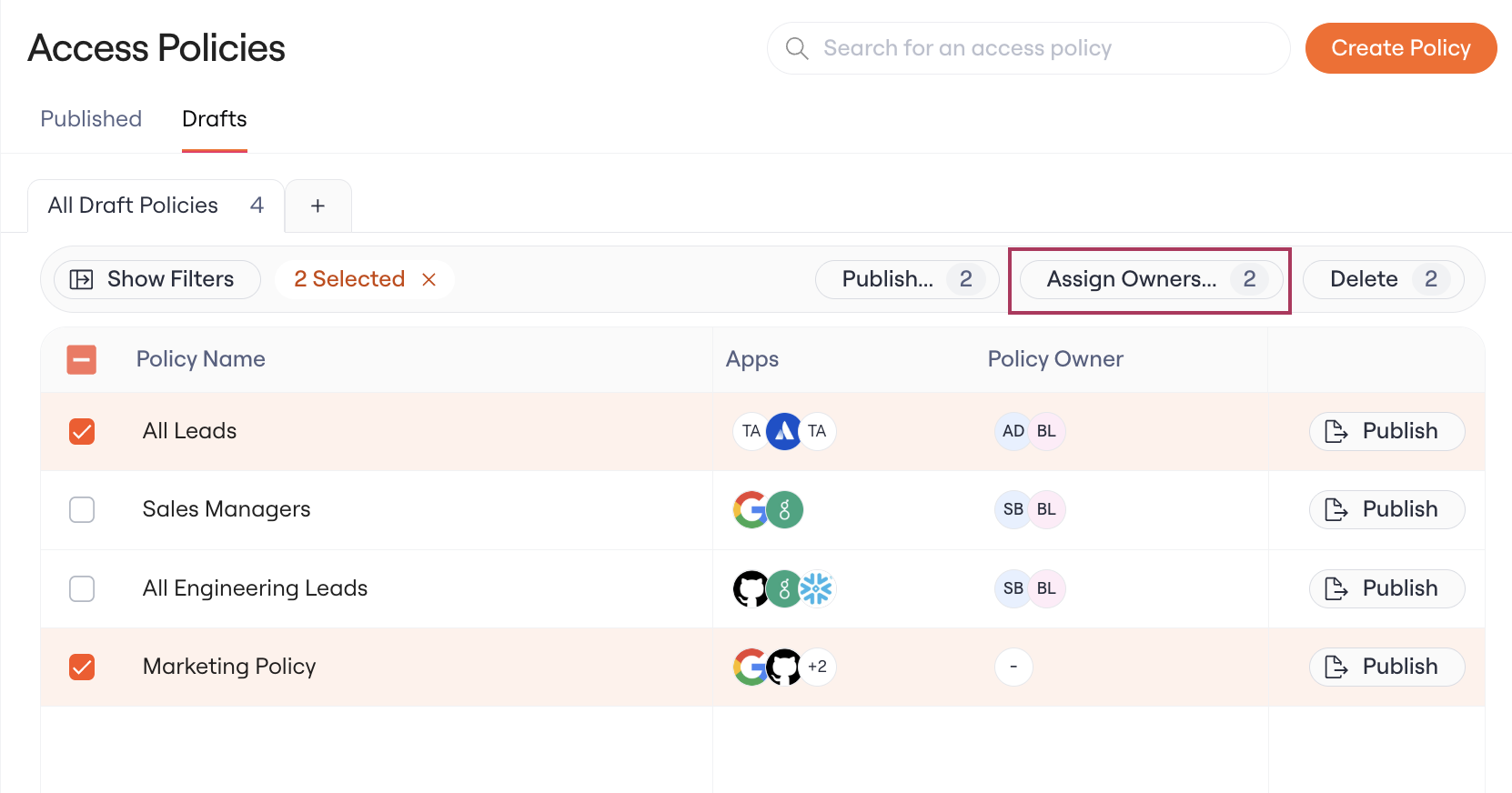
-
Choose the users or groups to assign, then confirm.
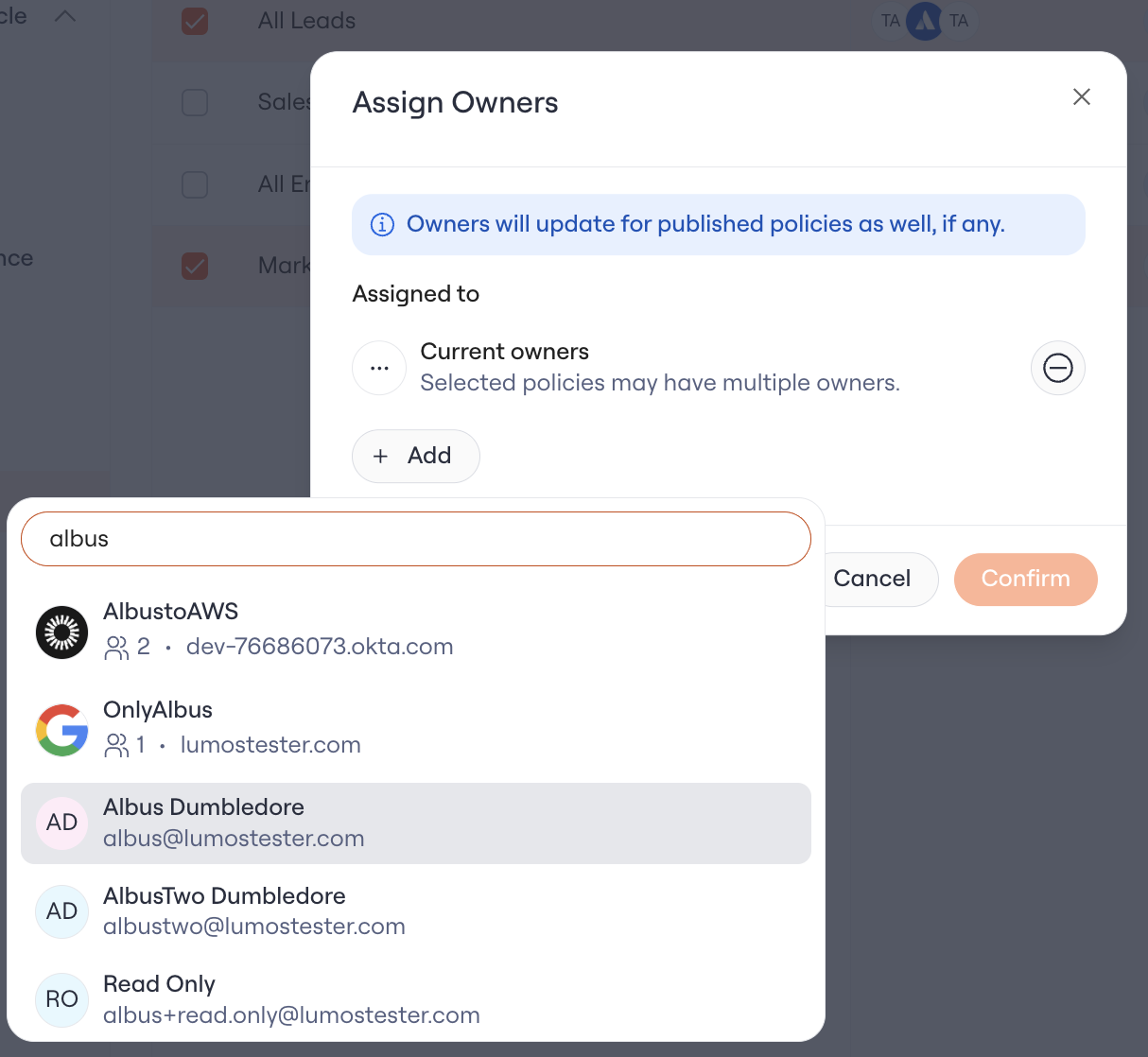
- Confirm
Existing policies and defaults
You don’t need to migrate anything. New and existing policies default to their creator as the owner, so nothing starts unowned. Reassign any of them whenever you like.Track owner changes
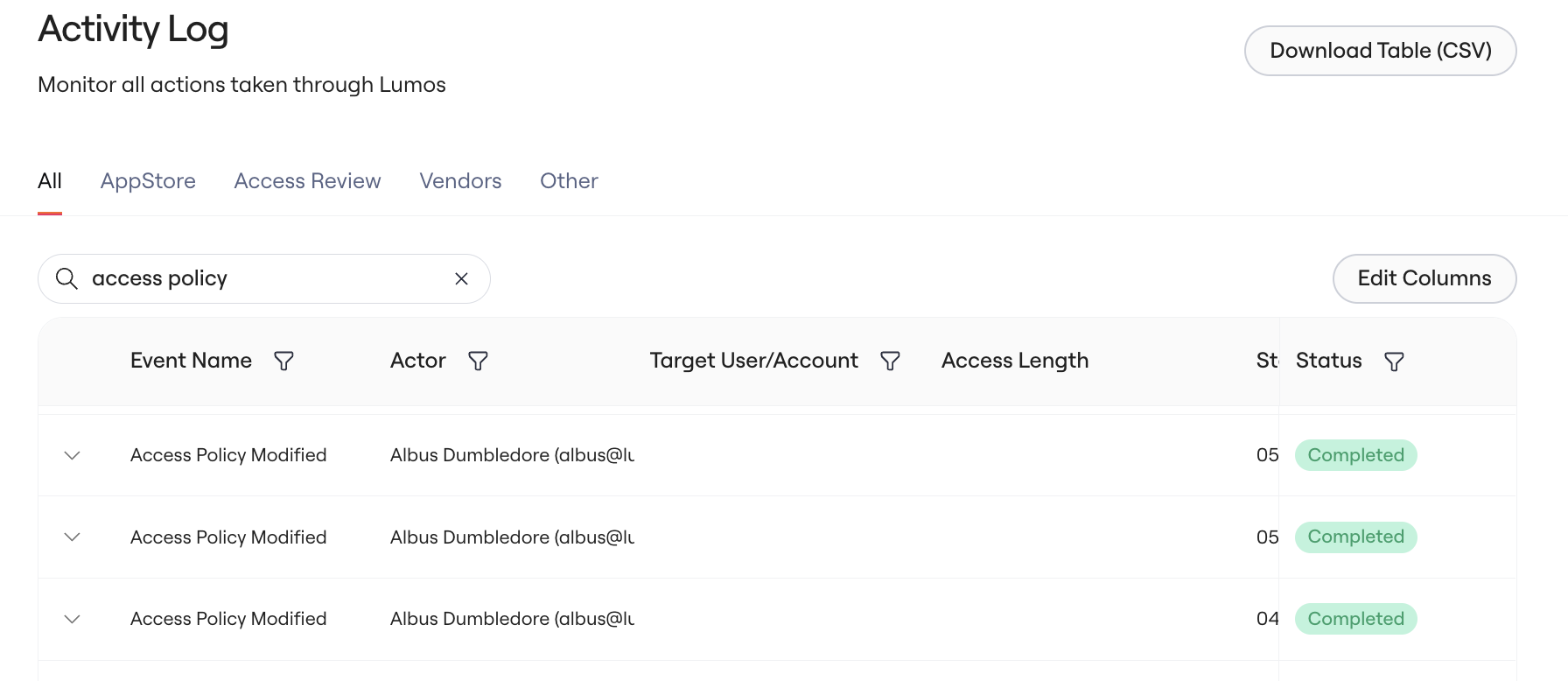
Lumos writes every ownership change to the Activity Log, and updates the policy’s updated-at date when the owner changes.