

Background
Access Policies control who gets access to what, so changes to a live policy carry risk. You can create a draft from any published Access Policy, change it, and publish it when it is ready. The published version stays in effect the whole time. Published policies can’t be edited in place. Every change goes through a draft first.When to use a draft
- Rework conditions on a live policy. Change who a policy applies to (job title, department, employment type) without a half-finished condition set going live.
- Add or remove apps and permissions. Stage the new app list, review it with the app owner, then publish once.
- Get a review before a change takes effect. The policy owner builds the draft and moves it to Ready to Publish. An Admin reviews and publishes it.
- Collaborate on a change. Comment on the draft and share it with stakeholders while the current version keeps running.
Prerequisites
- You are an Admin or the owner of the policy.
- The policy is already published. New policies start as drafts on their own.
- Only Admins can publish a draft.
Create a draft
- Go to Access Policies and open the published policy you want to change.
-
Click the “Create Draft” button in the top right.
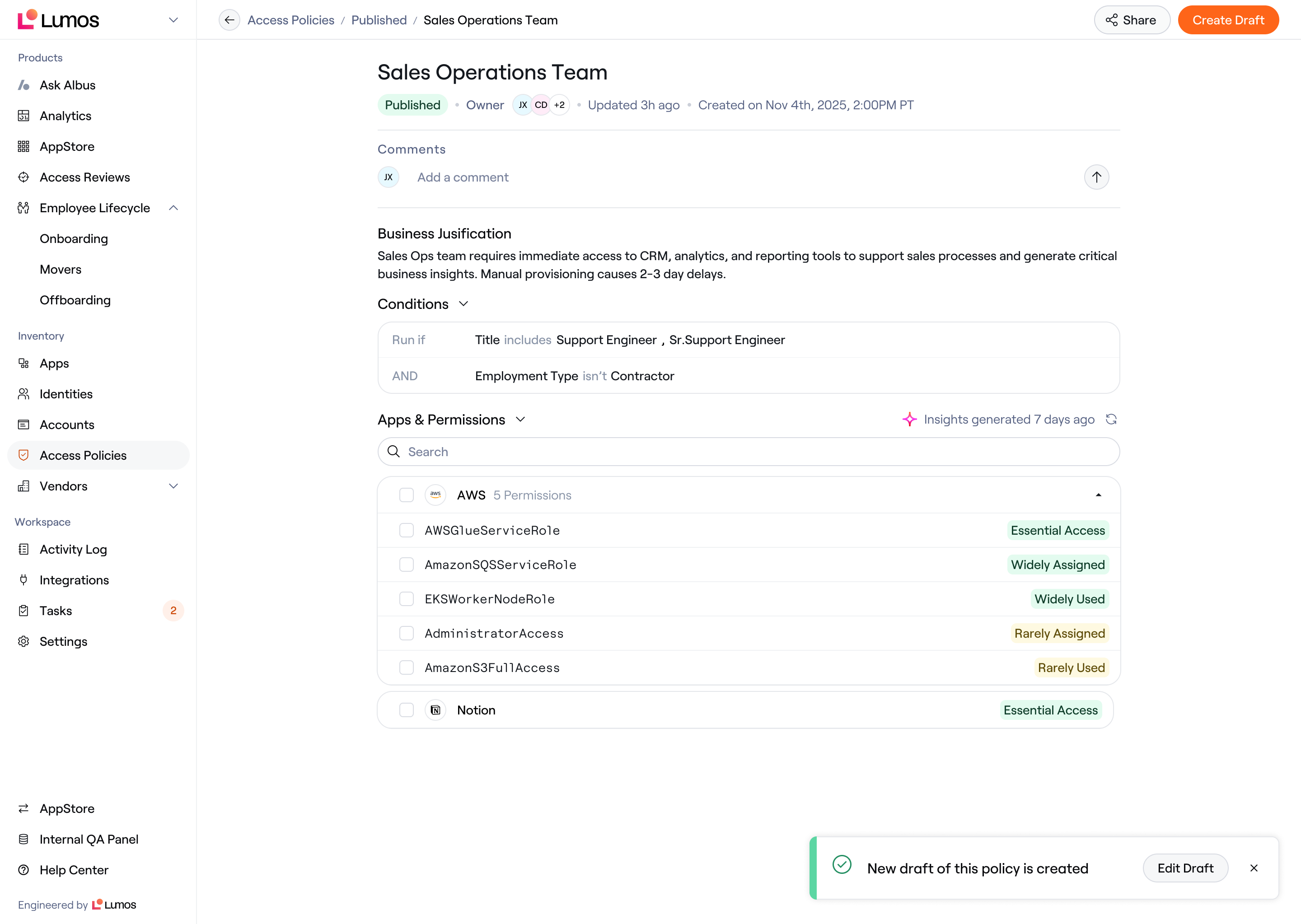
-
Lumos opens the draft. A banner at the top reads
This is a draft of an existing policy.with a View Published link back to the live version.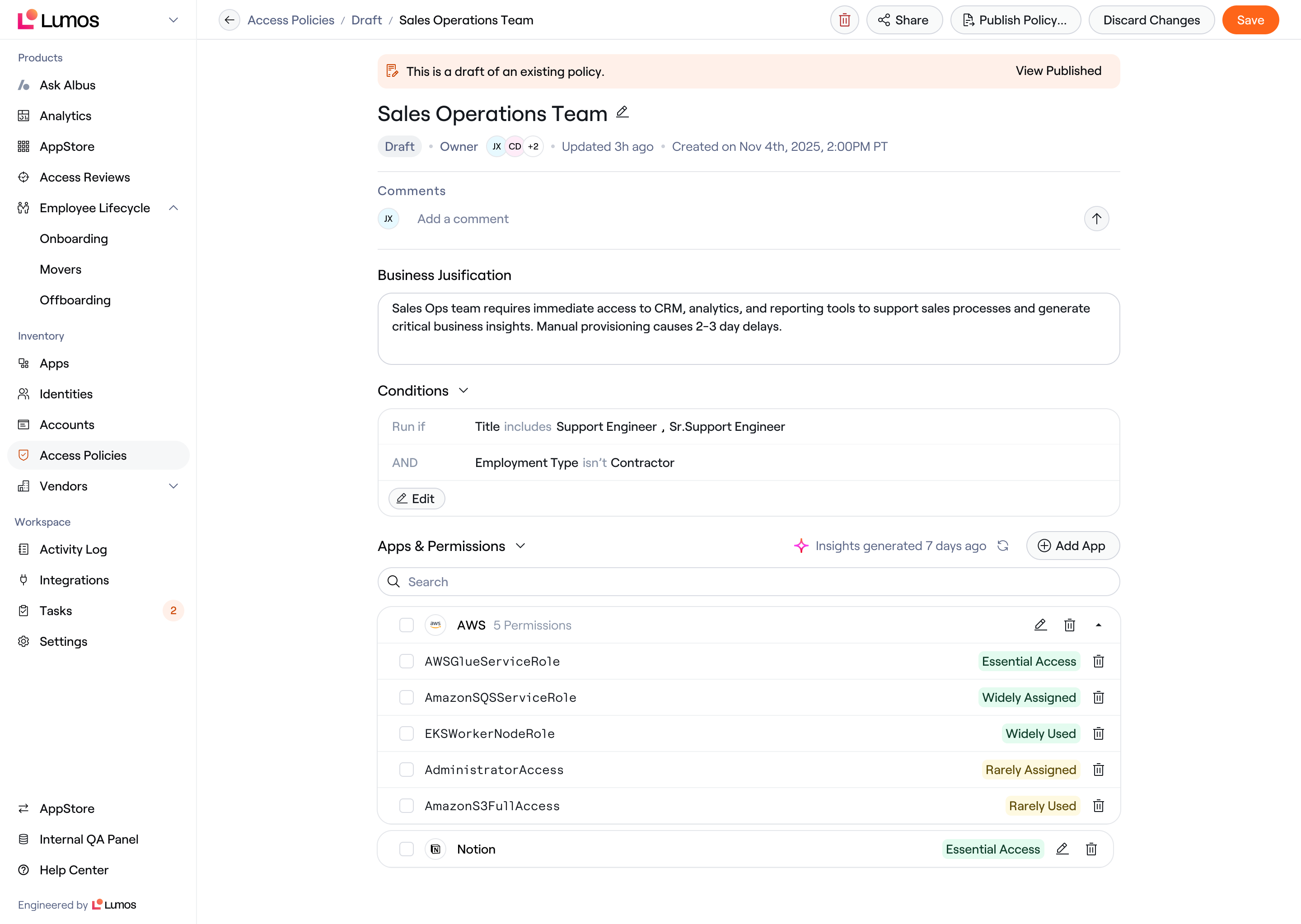
- Edit the draft. You can rename it, update the “Business Justification” field, edit Conditions, or add and remove apps under Apps & Permissions.
- Click “Save”.
Publish a draft
-
As an Admin, open the draft and click the “Publish Policy” button.
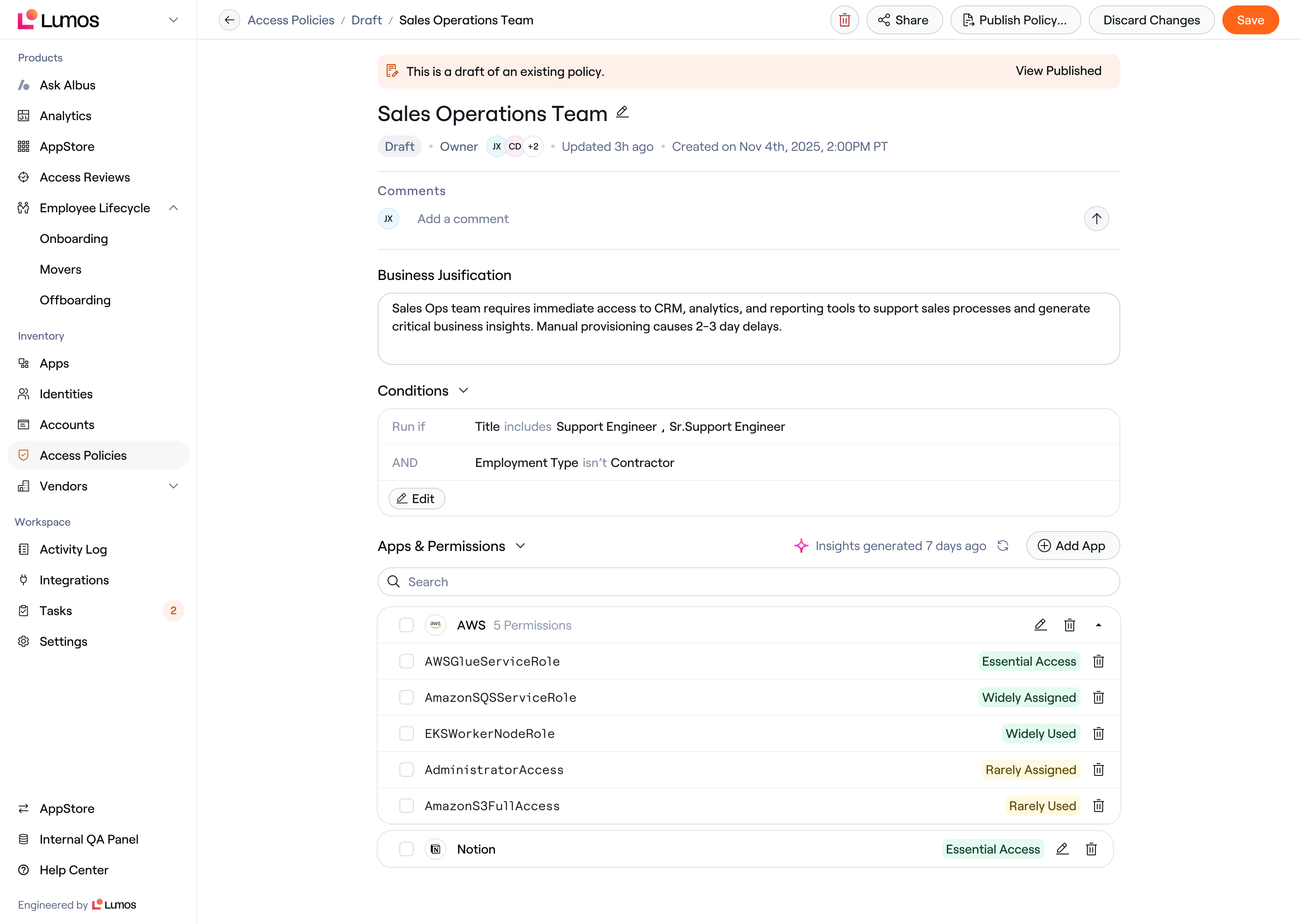
- Lumos checks the draft’s conditions for uniqueness against other published policies. It then replaces the published version with the draft.