

Situation
Employees can have name / email changes from time to time. This can be a disruptive event in terms of access to applications and For example, let’s say Albus’s email is albus@lumostester.com. His email then changes to albus.dumbledore@lumostester.com.Solution
It’s much easier to handle user name updates if only one account exists. Lumos recommends the following process for updating:- First, edit the existing employee user profile in the admin panel of your User Source (Google Workspace, Okta, Microsoft Entra ID, etc.). See Importing User Sources
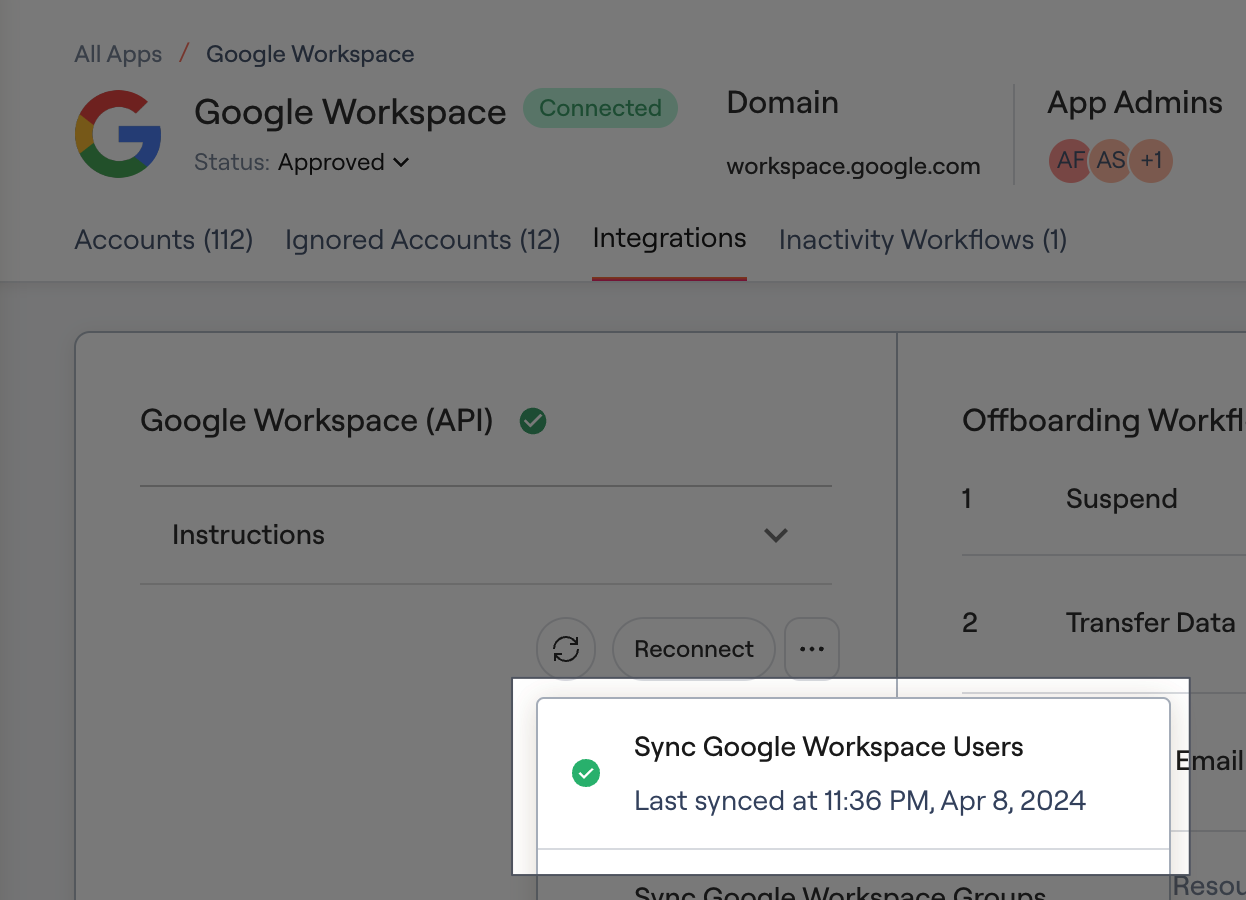
- Click on the corresponding app in Lumos that maps to your User Source from the All Apps tab. See Importing User Sources
- Under the Integrations tab, click on the circular arrow button, then click Sync
<App Name>Users. See How Lumos Syncs Your Integrations for more info.
- Once that completes, you’ll see the updated user in the Users Tab.
- You can go to the user profile and un-match the account from the old email/name, and then re-match by going to the Accounts tab > Unmatched > filter by email/name > click 3 dots > Match Account.
- Have the new user log into Lumos with their new email.