

Background
Lumos supports managing access for all of your different types of identities and users. In order to create workflows based on user type (e.g. auditing service accounts in an access review), you can review the Identity Types defined in Lumos from the Identities tab. SeeUsing Lumos for Access ReviewsExploring the Identities table
The Identities tab is a full table you can filter, sort, and arrange to focus on the identities you care about. The custom attributes Lumos syncs from your connected apps appear here as columns you can show and filter on.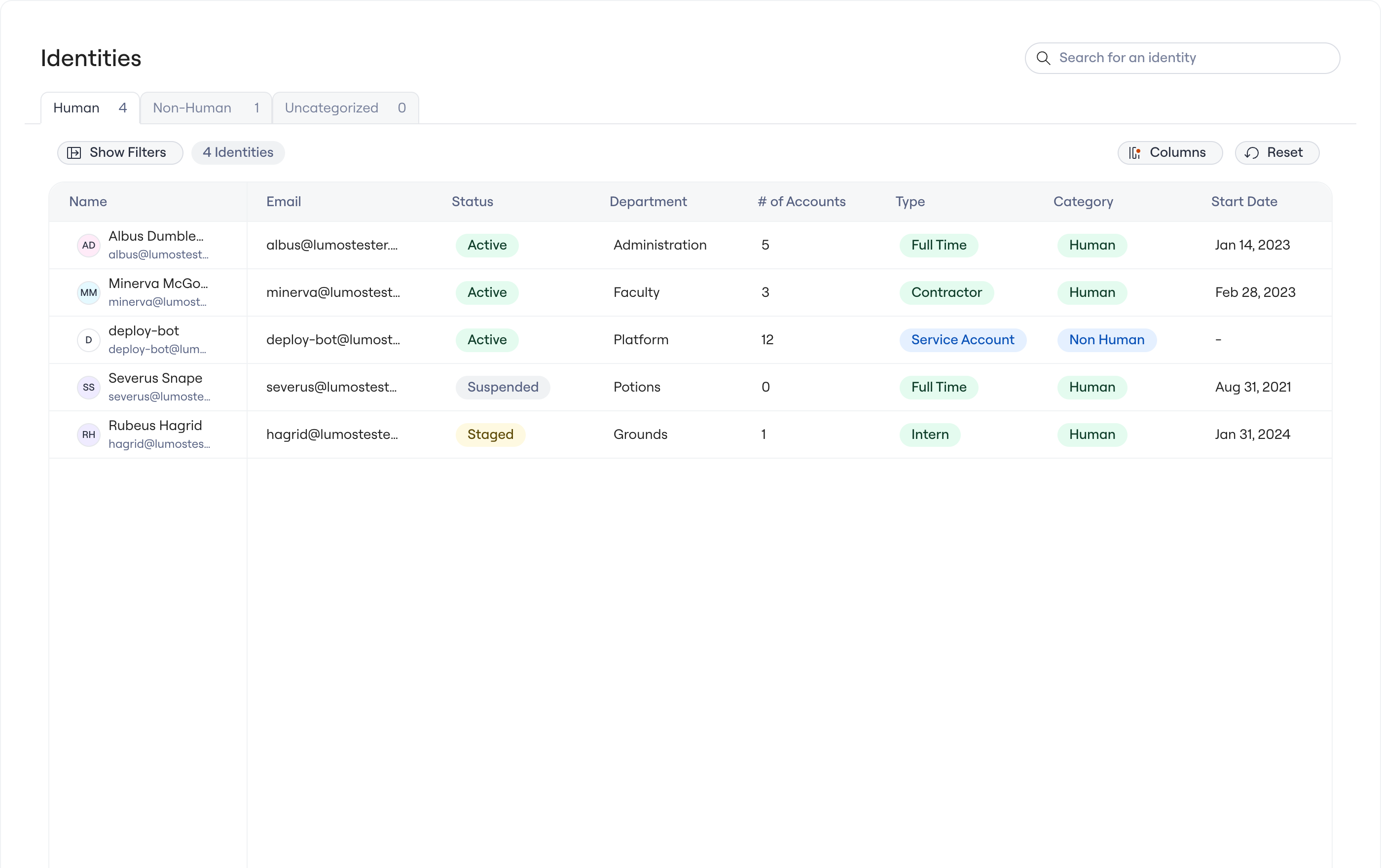
The Identities table, with filter, column, and sort controls and the synced Department column.
Filter and sort identities
Use the filter controls in the table header to narrow the list to the identities you care about. You can filter on standard fields such as Status, Type, and Created date, and on the custom attributes synced from your connected apps. Click any column header to sort by that column. Use the search box at the top of the page to jump to a specific identity by name or email.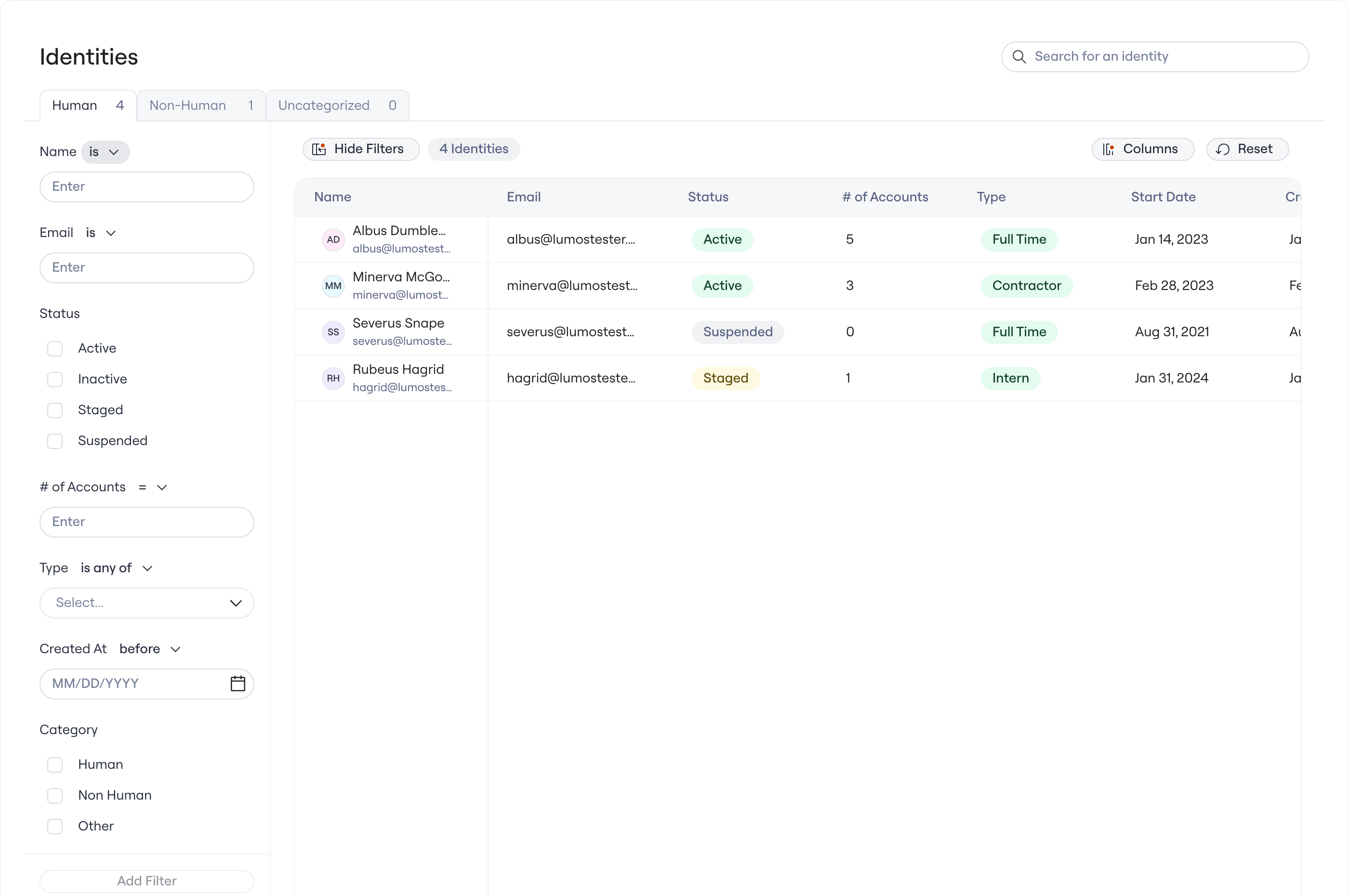
The filter panel, where you can filter identities on standard fields and on synced attributes.
Show, hide, and reorder columns
Open the column controls to choose which columns appear and in what order, and to adjust column width. Your column layout is saved per user, so the table stays the way you set it between sessions.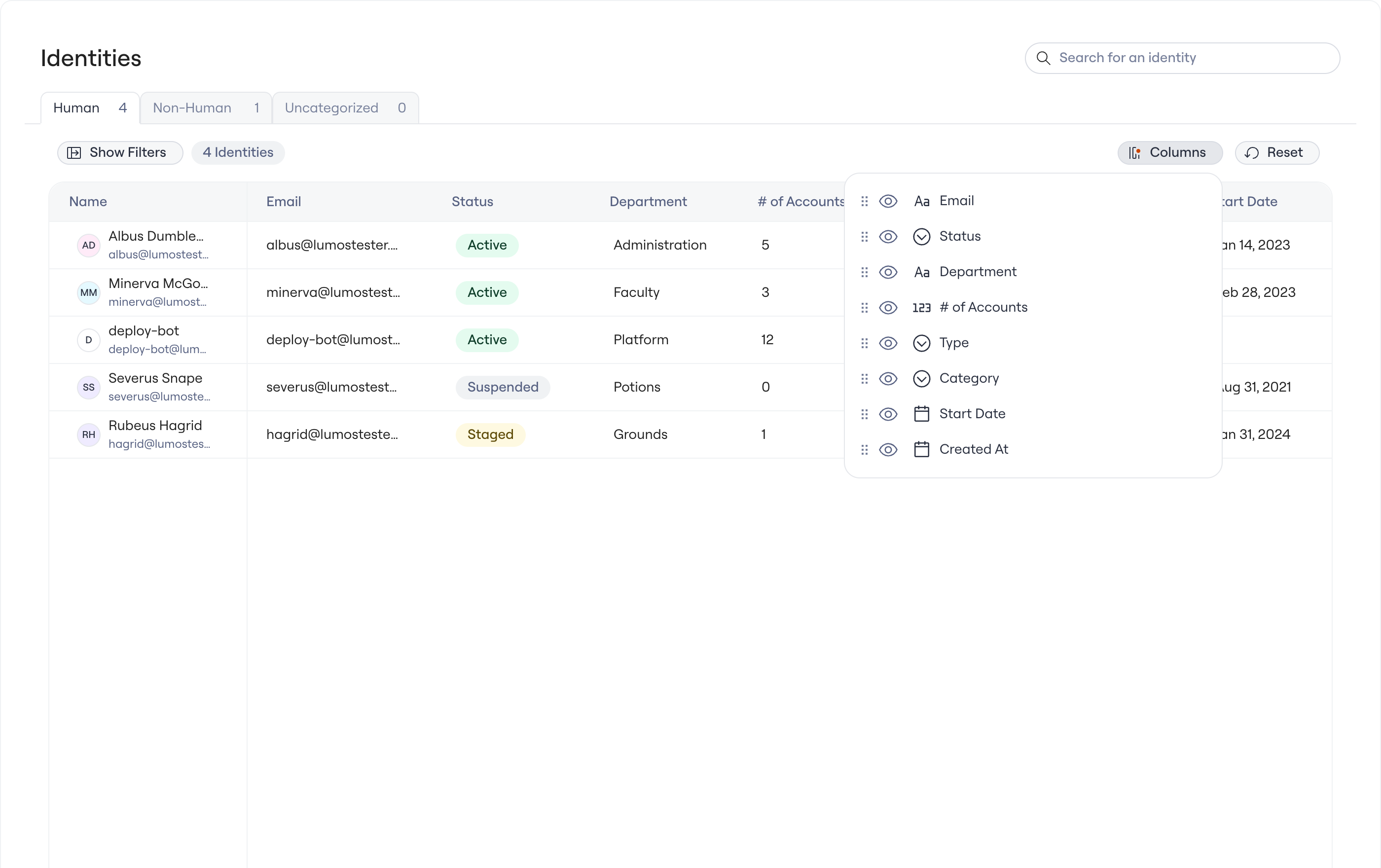
The column configuration menu, where you show, hide, and reorder columns.
Synced custom attributes
The custom attributes Lumos syncs from Okta and your other connected apps (for example a Department attribute) appear as columns in the table. You can show them, hide them, and filter on them like any other column, without opening each connected app to find them. Note: creating your own identity attributes by hand (native custom attributes) is not yet available. The table shows the attributes Lumos syncs from your connected apps. Native custom attributes are planned for a future release.Saved views
Save a set of filters and a column layout as a view, then switch between views or share one with your team. This lets you keep a ready-made “Service accounts” or “Ex-employees” view instead of rebuilding filters each time.Human identities
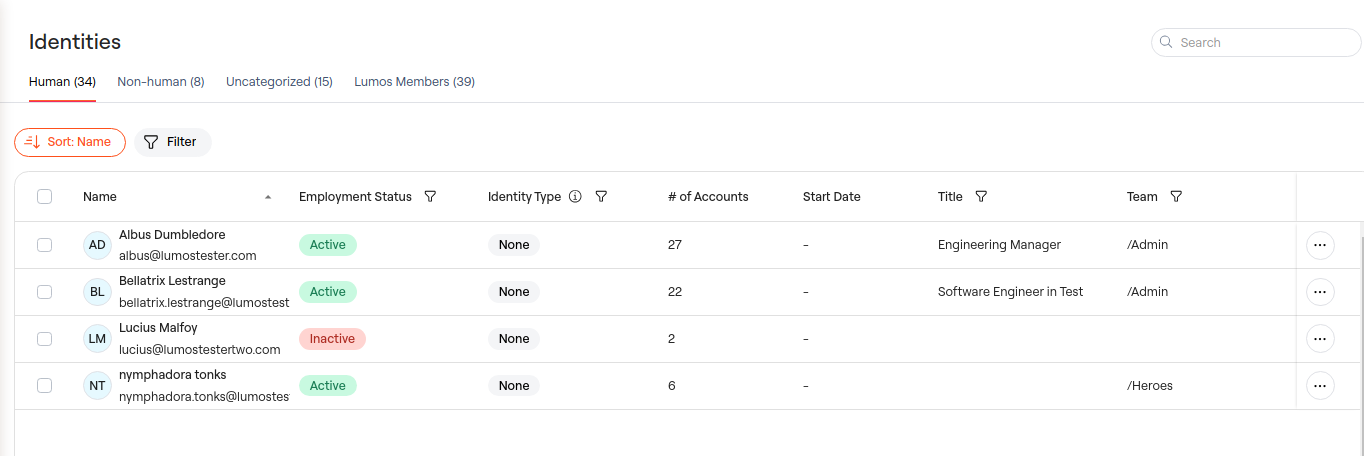
What does Lumos categorize as a human identity?
-
A user pulled from any integration(s) that you have set as a User Source is categorized as a Human Identity by default (seeImporting User Sources). Human identities can be normalized to the following types:
- Full Time
- Part Time
- Contractor
- Intern
- Freelance
- Other (human)
- Lumos determines the normalized identity type based on keyword matching to the value returned from the integration’s standard identity type field.
-
Your Identities table displays the Identity Type as named directly in your user source. SeeImporting User Sources
- Note: if there is no value defined for identity type either because the field is unpopulated or Lumos does not know the appropriate standard field, the Identity Type in the table is displayed as “Other”.
What exact field does Lumos use to determine Identity Type from a source of truth integration?
Non-Human identities
Looking for the full non-human identity inventory? This tab labels accounts from your existing integrations as service accounts. The NHI Inventory is a separate page that lists every non-human identity from your NHI connectors, with its type, owner, accounts, and permissions.
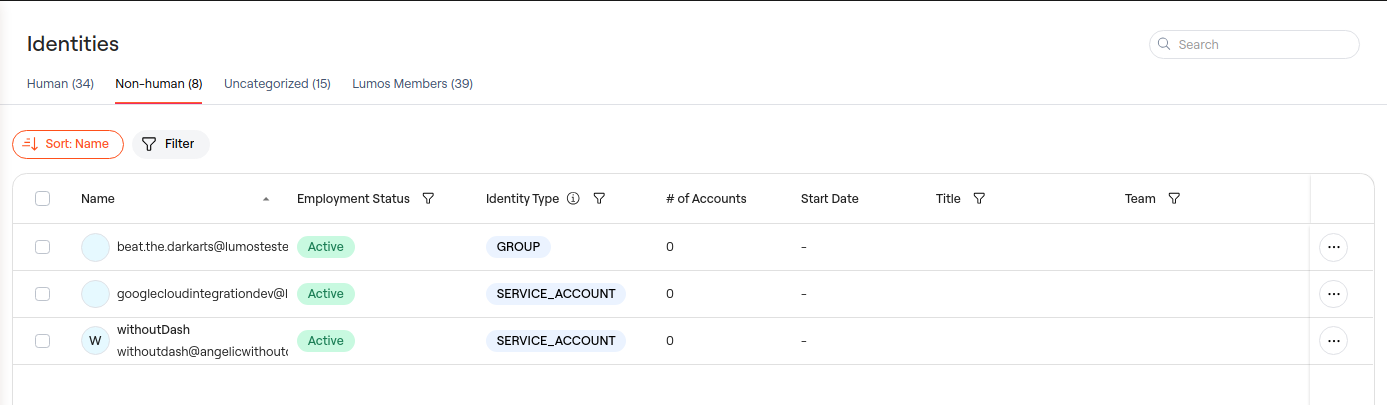
What does Lumos categorize as a Non-human identity?
-
Lumos also categorizes identities as Non-human based on the integration’s standard identity type field. Non-human identities can originate from both Source of Truth apps and other integrations, and are normalized to the following types:
- Service Account - Automated accounts used for programmatic access, system operations, and API integrations
- Other (Non-human) - Resources, and other non-user entities
- API keys and automated access accounts
- System users for automated processes
- CI/CD pipeline accounts
- Application service accounts
- Distribution lists and security groups
- Shared mailboxes and resource accounts
- Organizational domains
- Third-party resource accounts
How to label a non-human identity?
- From any tab (human, non-human and uncategorized), you can mark a single account as a service account.
- You can also bulk-select a set of accounts as service accounts.
Uncategorized identities
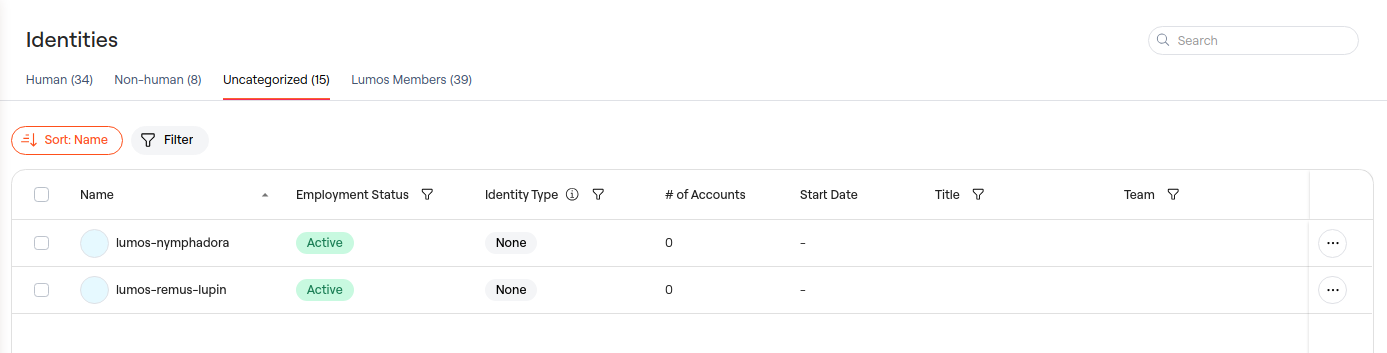
What does Lumos consider uncategorized?
- Uncategorized is a catch-all for any remaining identities. That is, any identity that is not auto-identified as a human or non-human identity.
How to move something from the Uncategorized tab?
- Currently, the only way to move an identity from the Uncategorized tab to another tab is to mark as a service account.