

Background
When a new employee joins your organization, their identity should automatically appear in Lumos. However, sometimes identities don’t sync properly, which can prevent onboarding workflows from starting and leave new hires without the access they need. This guide shows you how to diagnose why an identity might be missing from Lumos and provides step-by-step solutions to resolve sync issues.When to Use This Guide
Use this troubleshooting guide when:- A new employee doesn’t appear in your Lumos identities list
- HR confirms an employee was added to your HRIS system, but they’re not showing up in Lumos
- Onboarding workflows aren’t triggering for new hires
- You suspect there’s a sync issue between your HRIS and Lumos
Troubleshooting Steps
1. Verify the Identity is Actually Missing
Before diving into sync diagnostics, confirm that the identity truly doesn’t exist in Lumos. Search thoroughly in the Identities page:- Navigate to Identities in the main Lumos navigation
-
Try searching by multiple criteria:
- Full name (first and last)
- First name only
- Last name only
- Email address (if known)
2. Check Your HRIS Integration Status
If the identity is confirmed missing, the next step is to verify that your HRIS integration is working properly. Identify your source of truth systems:- Go to Settings > Source of Truth > User Sources
- Review which applications are allowed to create identities
- Note the priority order - the system at the top takes precedence for identity creation
3. Inspect the Integration Sync Status
Now that you know which system should be creating the identity, check on the status of it’s latest sync.- Navigate to Integrations > Connectedpage
- Click on the application that is responsible for creating this user’s Identity (e.g. HRIS)
- Click on the sync icon (⟲) to view detailed sync information
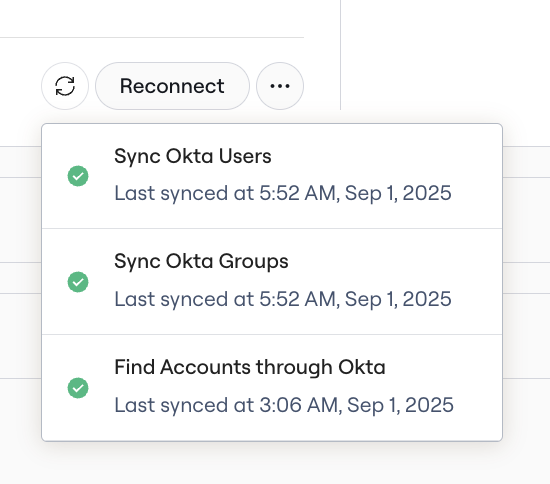
4. Resolve Sync Errors
If you found sync errors in the previous step, here’s how to address them: For failed syncs:- Click on the failed sync entry to expand error details
-
Common error types and solutions:
- Authentication errors: Re-connect the integration
- Permission errors: Verify the Lumos service account has proper access in your HRIS
- Timeout errors: Large data sets may need sync optimization - contact support
- Data format errors: Check for invalid characters or missing required fields in HRIS records
- In the sync details modal (screenshot from Troubleshooting Step #3), click “Sync [App] Users”
-
Monitor the sync progress
- For applications with <1,000 users, the sync can complete in <1h
- For applications with more users, syncs may take up to 3h to complete
- Once the sync is complete, check if the missing identity now appears in your Identities list
5. Validate HRIS Timing and Data
Even if syncs are working, timing issues can cause identities to be missed. Critical questions to ask your HR team:- When was the employee actually added to the HRIS system?
- Was their start date added at the same time, or on a later date?
- Were all required fields populated in the HRIS record? (name, email, department, manager, start date)
FAQs
How long does it typically take for new identities to appear in Lumos after being added to HRIS? This depends on the sync schedule of your user sources, and the size of the applications. Lumos syncs application data every 24 hours by default, and the maximum amount of time a sync of Identity and attribute data should take is around 3 hours. What if the employee appears in Lumos but with incorrect information? If the identity exists but has wrong data (name, email, department), the issue may be with how Lumos is ingesting the information from your HRIS system. Verify that the data is correct in your HRIS system and contact support if you have any concerns. The sync shows as successful but the employee still doesn’t appear. What’s wrong? This usually indicates that the Identity was added to your HRIS system after the sync began. Verify with your HR team exactly when the Identity was added to your HRIS. How do I know if this is a widespread sync issue vs. a single employee problem? Check if other recent hires are also missing. If multiple employees from the same time period are missing, it’s likely a broader sync issue. If it’s just one employee, focus on their specific HRIS record data.Still Need Help?
If you’ve worked through these troubleshooting steps and the identity still doesn’t appear in Lumos, contact Lumos support at support@lumos.com with:- Employee details: Name, expected email, department, start date
- HRIS system: Which system they should be syncing from
- Timing information: When the employee was added to HRIS vs. when you expected them in Lumos
- Steps tried: Specific troubleshooting steps you’ve already attempted from this guide