Background
Roles (Access Levels) in Lumos support delegated administration, so department heads and managers with the most context can manage their own IT and SaaS software instead of routing all requests through the IT department.
Lumos provides three layers of roles:
- Built-in roles (described below) with fixed permissions that cover the most common access patterns.
- Org Roles that let you compose your own organization-wide role from a granular permission catalog.
- App Resource Roles that let you customize what an App Admin can do for a specific app (for example, allow approvals and editing entitlement descriptions, but not editing provisioning workflows or approval workflow steps).
See Getting Started with Custom Lumos Roles for how to create, configure, and assign Org Roles and App Resource Roles.
Admin
This is the most privileged role in Lumos. Users with the Admin role can see and do anything in Lumos. Only Admins can connect integrations. Assign the Admin role sparingly.
Read Only Admin
Read Only Admins can view every page an Admin can view, but they cannot adjust any admin settings.
AppStore Read Only Admin
This role can view the AppStore tab of the Activity Log, review all tasks in the Task Center, and view all AppStore configuration settings, but cannot act on tasks not assigned to them.
Auditor
Auditors can view all Access Reviews, whether in progress or completed, and export PDF reports for Access Reviews. In addition, they can view the Access Reviews tab of the Activity Log.
App Admin
If the user is a named App Admin for an app and has this role assigned to them, they can view and configure any of that app’s settings in the AppStore (including approval/provisioning settings), as well as launch Access Reviews for that app.
If you want to give a user App Admin permissions only for some of an app’s settings (for example, approvals only, not provisioning workflows), use an App Resource Role. See Getting Started with Custom Lumos Roles for the step-by-step.
Vendor Owner
Vendor owners have the ability to read and write to all spend data in Lumos. They can:
- View the Vendor Agreements page
- View the Spend Analytics page
- View Orders, Invoices, and Expenses
- Edit Vendor Agreement details, such as Renewal Owners and custom attributes
- Create, update, and delete Orders
Note that invoices and expenses cannot be altered directly in Lumos.
Vendor Agreement Owner
Vendor Agreement owners have the ability to view the Vendors tab and view/manage vendor records and agreements for only Agreements they are assigned to as a Renewal Owner. This role will give users just enough permissions to manage their Vendor Agreements without giving them access to every other Agreement inside Lumos. Today, the analytics page is unavailable to users with only this role.
User
If given this role, a user can only view the AppStore and any accounts that have been assigned or delegated to them in an Access Review.
This is the default role for most users, and is required unless the user has “No Access”.
No Access
If given this role, the user will not be able to log into Lumos, request apps, have app requests submitted on their behalf, or be assigned to access reviews.
Custom Roles
In addition to the built-in roles above, Lumos supports Custom Roles, which let admins define their own role with a specific combination of permissions. Custom Roles come in two types:
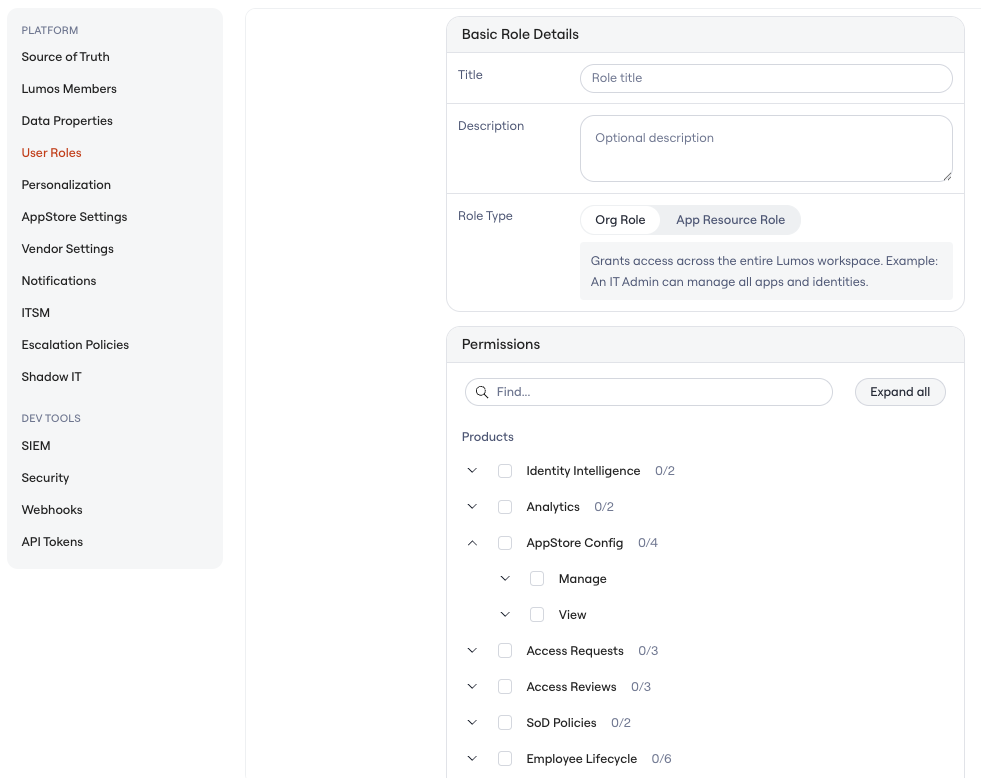
- Org Roles apply organization-wide. Useful when you want to give a user (or group) a tailored set of permissions across all of Lumos.
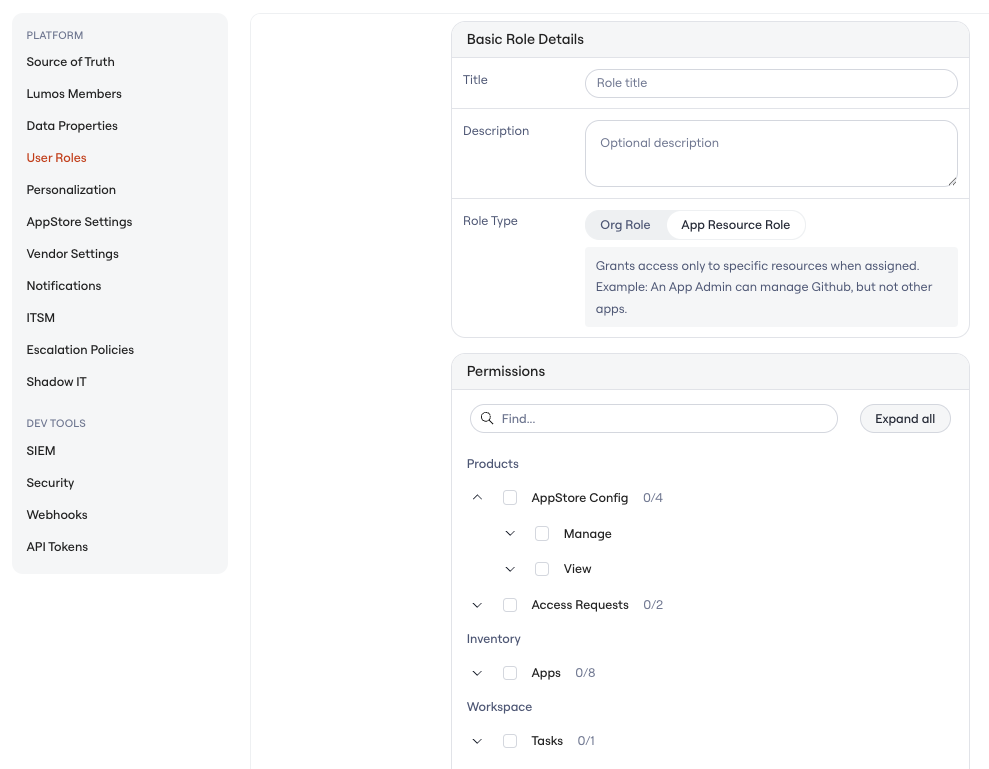
- App Resource Roles apply to one or more specific applications when assigned. Useful when you want to give a user App Admin–style permissions on a specific app but customize which App Admin capabilities they actually get.
The permission catalog is the same source of truth for both types, with the App Resource Role catalog scoped to only those permissions that make sense at the per-app level.
For step-by-step guidance on creating and assigning Custom Roles, see Getting Started with Custom Lumos Roles.
When to use an Org Role
Use an Org Role when you want a user to have a unique combination of organization-wide permissions that no built-in role covers. Common examples:
- A Compliance Reviewer who can view all access reviews, generate review reports, and view audit logs, but cannot manage anything else.
- A Procurement Partner who can view vendor agreements, manage spend records, and view dashboards, but has no access to AppStore configuration.
- A Helpdesk Lead who can view applications, manage access requests, and view activity logs, but cannot edit integrations or org settings.
When to use an App Resource Role
Use an App Resource Role when you want to delegate a subset of App Admin capabilities for a specific app. Common examples:
- A team lead who should approve access requests for a single app but should not be able to change that app’s provisioning workflows.
- A finance team member who should view all accounts and entitlements in a single app but not change anything.
- An app owner who should manage entitlement names and descriptions but not the integration settings.
App Resource Roles are assigned per app. The same Resource Role can be assigned to different users on different apps independently.
Permission catalog
The Custom Role permission catalog is organized into three sections, mirroring the layout in Settings → User Roles → Create Role.
Org Role catalog
Products
- Identity Intelligence — Manage, View
- Analytics — Manage, View
- AppStore Config — Manage (Approvals, General), View (Approvals, General)
- Access Requests — Create, Manage, View
- Access Reviews — Create, Manage, View
- SoD Policies — Manage, View
- Employee Lifecycle — Manage (Movers, Offboardings, Onboardings), View (Movers, Offboardings, Onboardings)
Inventory
- Apps — Create; Manage (Accounts, Basic Details, Integration Settings, Permissions, Table Views, Workflows); View (Accounts, Basic Details, Permissions, Table Views, Workflows)
- Identities — Manage (Basic Details, Table Views), View (Basic Details, Table Views)
- Non-Human Identities — Manage (Basic Details, Table Views), View (Basic Details, Table Views)
- Vendor Agreements — Manage (Basic Details, Table Views), View (Basic Details, Table Views)
- Spend Records — Manage, View
- Found Documents — Manage, View
- Access Policies — Manage, View
- Knowledge Hub — Manage (Context, Skills, Table Views), View (Context, Skills, Table Views)
Workspace
-
Activity Logs — View
-
MCP Governance — Manage (Table Views, Tool Usage), View (Table Views, Tool Usage)
-
On-Prem Agents — Manage, View
-
Org Settings — Manage and View across Platform (Source of Truth, Data Properties, User Roles, Personalization, AppStore Settings, Vendor Settings, Notifications, ITSM, Escalation Policies, Shadow IT, Circuit Breakers) and Dev Tools (SIEM, Security, Webhooks, API Tokens)
-
Custom Attributes — Manage
-
Tasks — View
App Resource Role catalog
The App Resource Role catalog is intentionally narrower. It includes only the permissions that make sense at a per-app scope.
Products
- AppStore Config — Manage (Approvals, General), View (Approvals, General)
- Access Requests — Create, Manage
Inventory
- Apps — Manage (Accounts, Basic Details, Integration Settings, Permissions, Workflows), View (Accounts, Basic Details, Workflows)
Workspace
At the bottom of the permission picker, the UI shows: “Additional permissions are not supported for this role.”
Role lifecycle
- Creation: Admin only. Created in Settings → User Roles → Create Role.
- Editing: Permission changes take effect on each assigned user’s next session.
- Deletion: Allowed. Any user assigned to a Custom Role will be unassigned before it is deleted
- Limits: No limit on the number of Custom Roles per tenant today.
- API: Custom Role creation and editing are not yet available via the public API. Custom Org Role assignments can be granted and revoked through the existing
POST /users/{user_id}/roles/{role_name} and DELETE /users/{user_id}/roles/{role_name} endpoints, the same way as built-in roles, and are included in the GET /users/{user_id}/roles response. App Resource Role assignments are not yet supported via the API.
Full Lumos Roles and Permissions Matrix
Role Definitions
The matrix below describes the built-in roles. For Custom Roles, the permission catalog in the previous section is the source of truth for composable permissions.
Capabilities Matrix
Legend:
- Yes = Full access
- Read-only = Read-only access
- Limited = Conditional or limited access
- No = No access
This matrix reflects the built-in roles. For composable permissions, see the Custom Role catalog above.
Important Notes
- Organization Admin: Has unrestricted access to all features and capabilities within their organization. This is the highest privilege level.
- Read Only Admin: Can view all data but cannot make any modifications. Useful for auditors or analysts who need visibility without edit rights.
- Auditor: Specifically designed for compliance auditing with read-only access to access review data, activity logs, and the ability to generate compliance reports.
- App Admin: Scoped permissions — only has access to manage applications they are explicitly assigned to administer. They can view organization-wide app data but can only modify their assigned apps. Use an App Resource Role to customize which App Admin capabilities a user has for a given app.
- AppStore Read Only Admin: Limited to viewing AppStore, support requests, and related activity logs. Useful for help desk or support teams.
- Vendor Owner: Full access to vendor management features for the entire organization. Can manage all vendor agreements, contracts, and spend data.
- Vendor Agreement Owner: Limited to specific vendor agreements they are assigned to own. Can only view and modify their assigned agreements.
- Vendor QA User: Special role for Lumos internal QA testing of vendor features. Not intended for customer use.
- User: Standard end-user role with minimal permissions — can create access requests, participate in access reviews when assigned, and manage their own delegations.
- Lumos Internal User: Reserved for Lumos employees. Cannot be assigned to external users.
Role Assignment Rules
- A user can have multiple roles simultaneously (e.g., USER + APP_ADMIN, USER + an Org Role, USER + an App Resource Role on a specific app).
- Permissions are additive — having multiple roles grants the union of all permissions from those roles.
- App Admin assignments are app-specific and controlled separately from role assignments.
- Vendor Agreement Owner assignments are agreement-specific.
- Custom Org Role assignments behave like built-in roles — assigned from Settings → Lumos Members in the Access Level column.
- App Resource Role assignments are made per-app from the resource page (for example, the Apps page). The same Resource Role can be assigned to different users on different apps.
Zone-Based Authorization
Lumos uses a zone-based authorization model where permissions are evaluated within specific “zones”:
- Domain Zone: Organization-wide permissions
- Domain App Administration Zone: Permissions for apps the user administers
- Access Review Zones: Permissions for reviews the user owns or participates in
- Vendor Zones: Permissions for vendor agreements the user owns
- Lumos User Zone: Self-service permissions for the user’s own account
This ensures that even with elevated roles like App Admin, users can only act on resources they’re explicitly authorized to manage.
Custom Org Roles operate in the Domain Zone. App Resource Roles operate in the Domain App Administration Zone for the specific apps to which they are assigned. Other resource types (for example, policies and identities) will be added as additional resource scopes are introduced.
FAQs
Accessing your current user roles
You can view your users and their roles in Lumos under Settings → Lumos Members in the Access Level column.
You can also view or edit roles via the Lumos API, granted you have the proper permissions. The API supports viewing, granting, and revoking both built-in roles and Custom Org Roles. Custom Role creation and editing, and App Resource Role assignments, are not yet available via the public API.
Default roles
- The user used to create your Lumos tenant will be made an Admin (though this can be changed later).
- All users created, except for the first user that creates your tenant, will be set as a User.
- All inactive or suspended users in your Source of Truth will be set to “No Access”.
- When a Custom Role is deleted, users no longer have that assignment. Any other roles they have assigned will remain.
If you see this error message: You are not allowed to perform this action, it means you do not have the correct Lumos Role or Access Review Role to perform the action.