

Background
Some auditors require SOX organizations to guarantee that rejected access is removed within 24-48 hours of the review decision. To support this requirement, Lumos can run review decisions and access removals in parallel.Enabling Automated Removals
Start Automated Removals isn’t available for every organization. If you don’t see it in Default Reviews Settings, contact your Lumos account team. You need the Lumos Admin role, or a custom role that can manage Access Reviews, to change these settings. See Lumos Roles.- On the Access Reviews page, click Default Reviews Settings.\

- Turn on Start Automated Removals.\
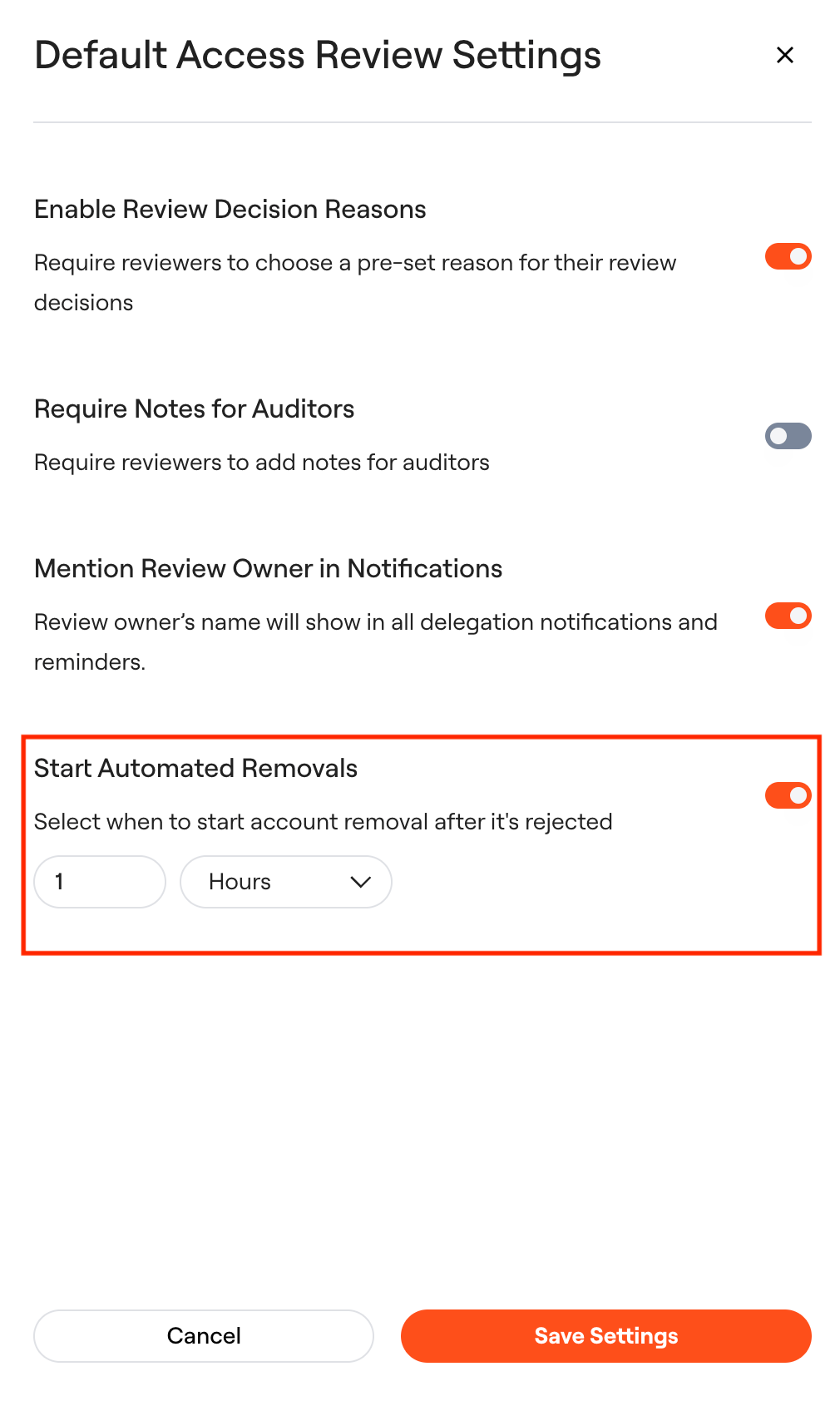
- Choose how long after a rejection Lumos starts the removal, in hours or days. The timer starts the moment a reviewer submits their review decision.\
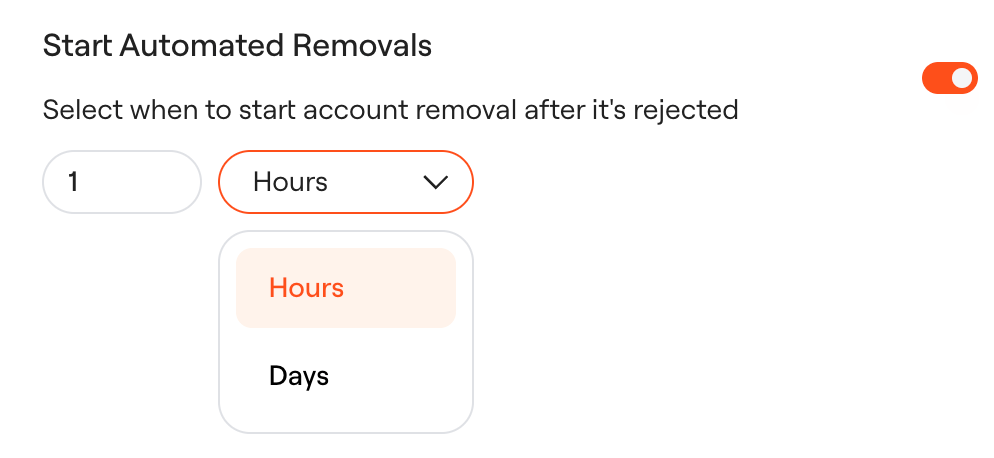
- Click Save Settings.
How the workflow works
Admin Experience
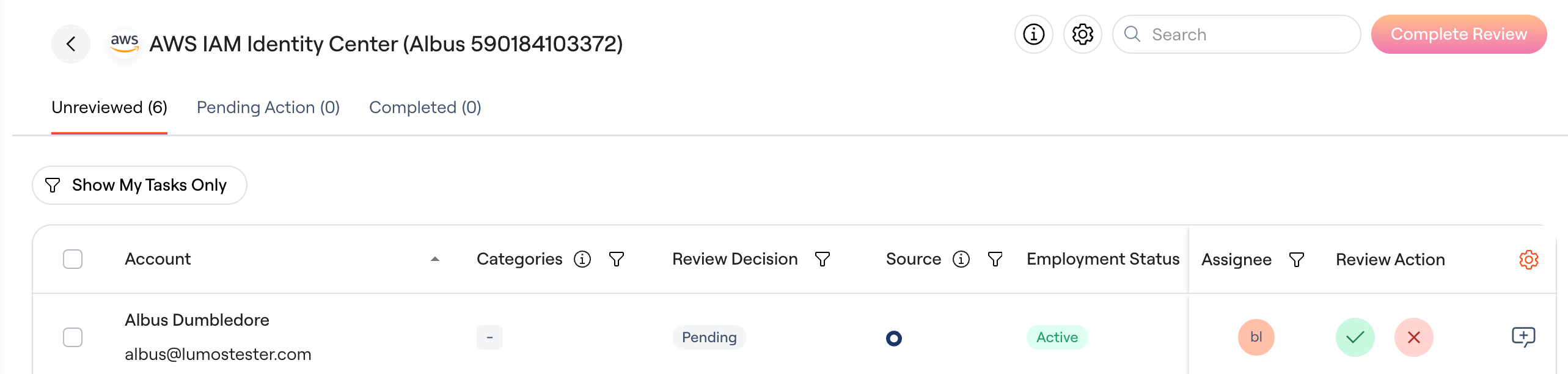
- After you launch the review, admins see the tabs: Unreviewed, Pending Action, and All Accounts.
- Unreviewed shows all unreviewed accounts across all reviewers. The admin can select the Show My Tasks Only filter to see only their pending review decisions.
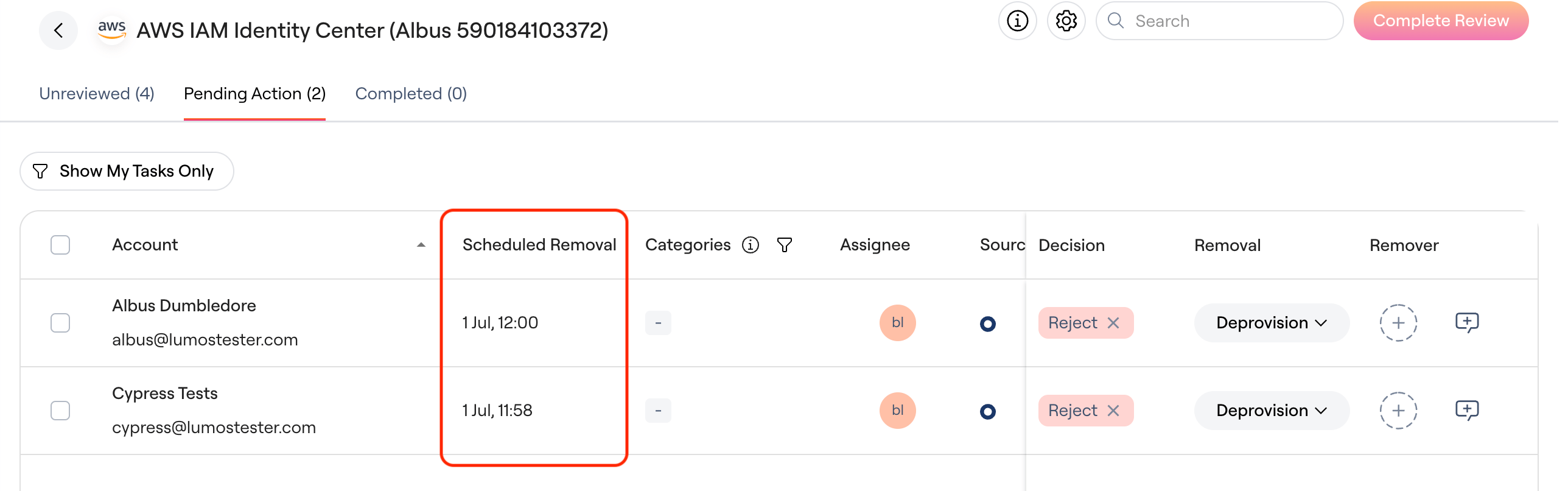
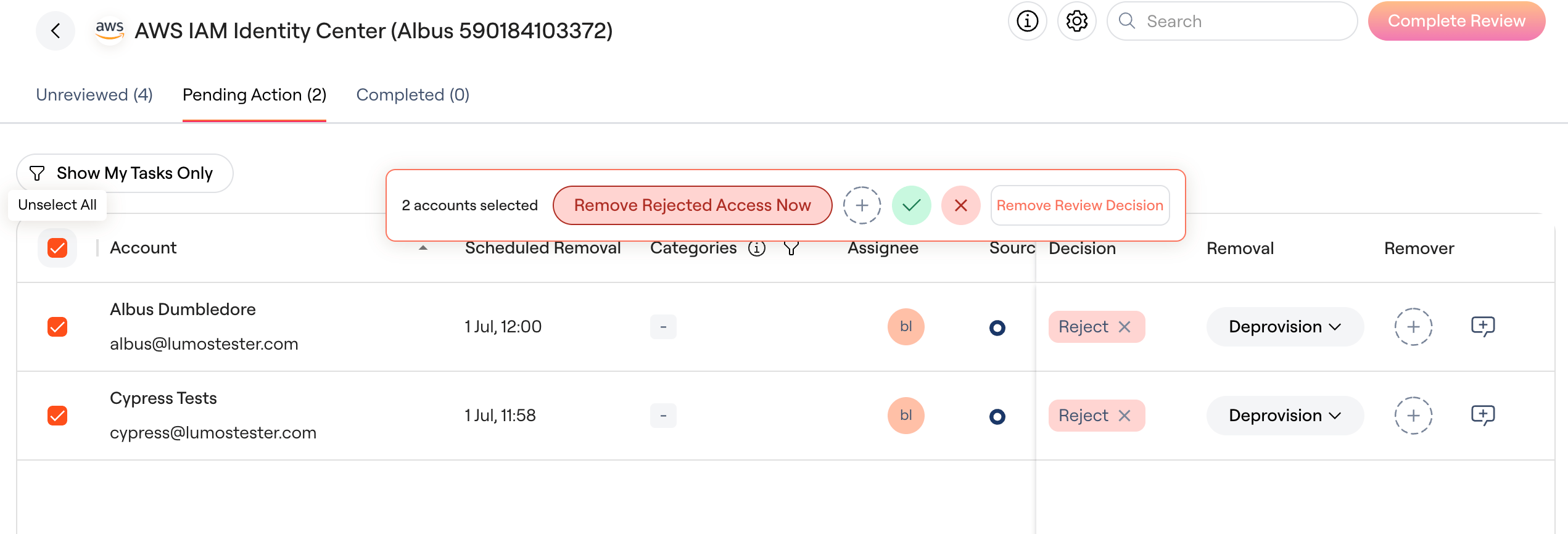
- Pending Action shows any accounts with pending auto-removals and/or requiring manual evidence upload.
-
Admins can view the date and time of the scheduled removal.
-
- The bulk removal method is the default removal method defined on the main Apps to review page.
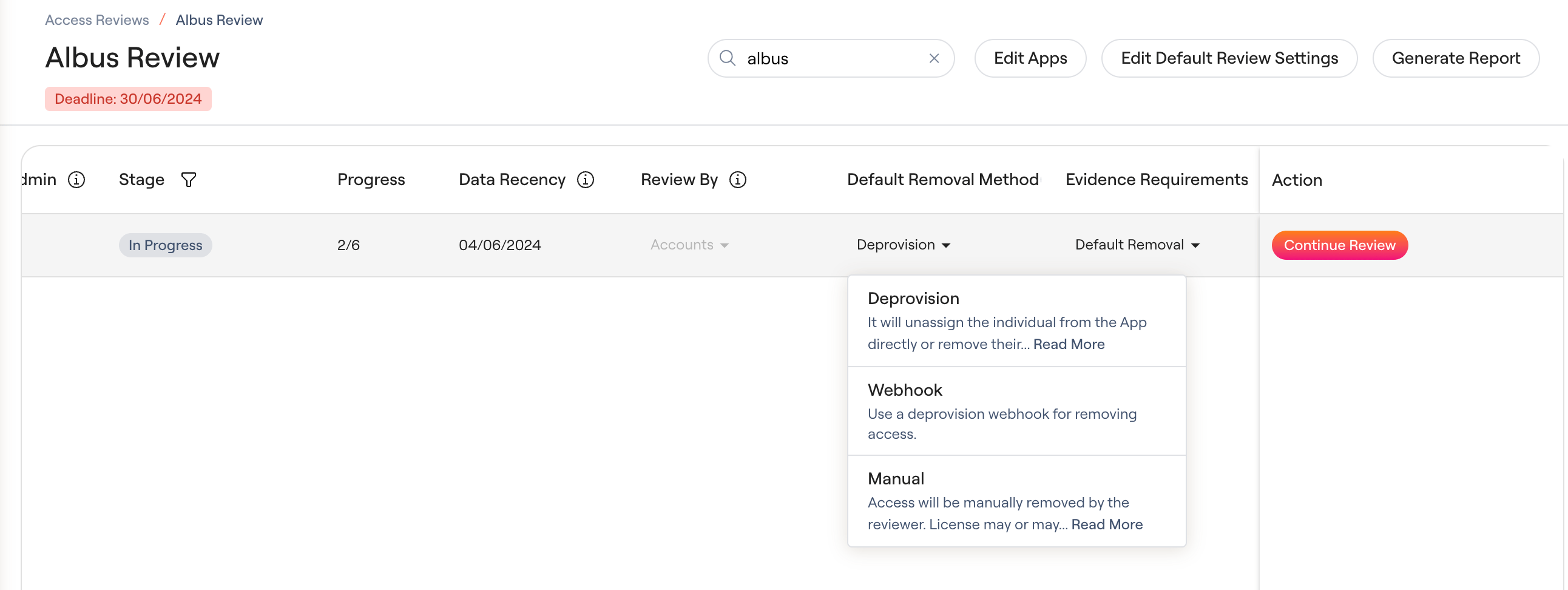
- The bulk removal method is the default removal method defined on the main Apps to review page.
-
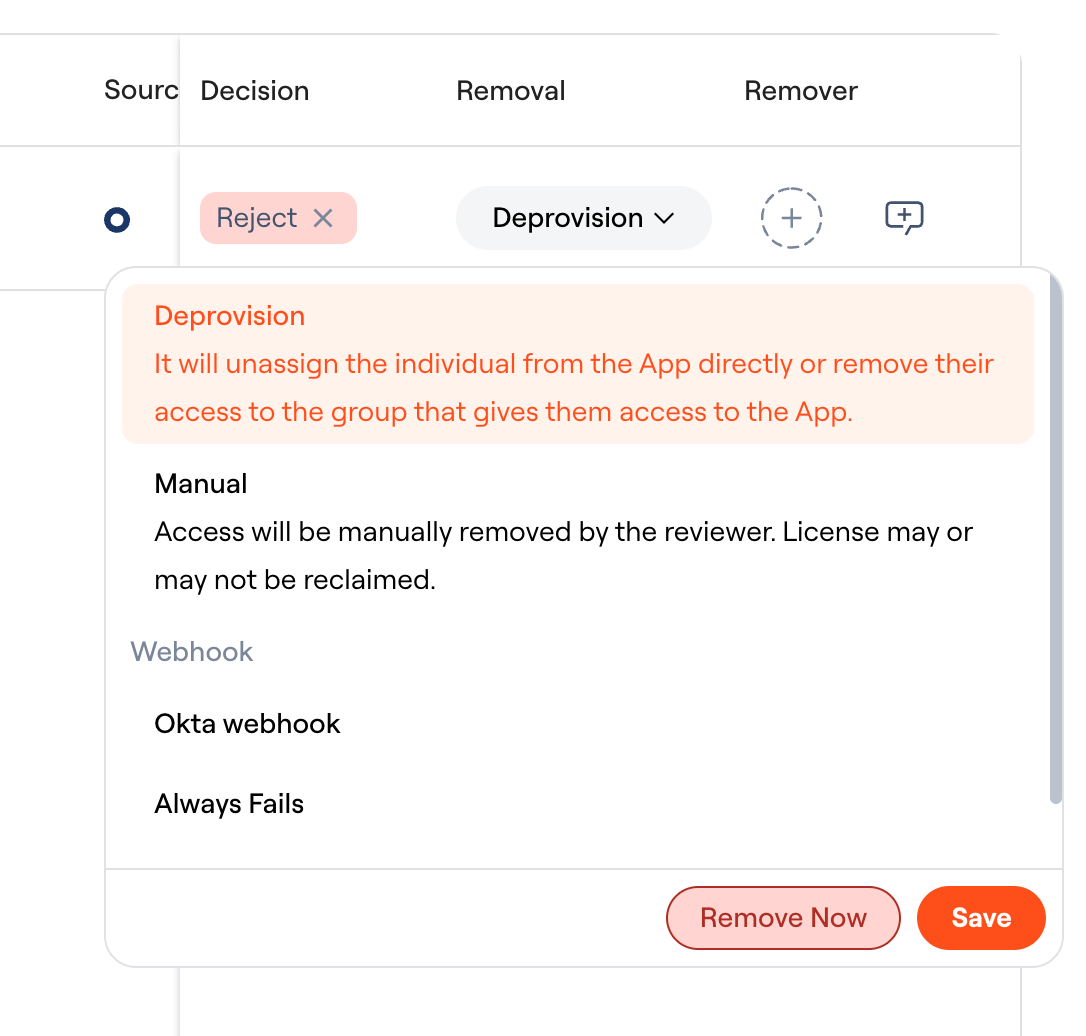
Admins can also update the removal method for an individual account.
-
Admins can also choose to immediately remove any rejected accounts instead of waiting for the auto-removal timer.\
Reviewer Experience
- Non-admin reviewers see the review tabs: Unreviewed, Reviewed, and All Accounts.
- Upon completing their assigned review decisions, reviewers have all accounts moved from the Unreviewed tab to the Reviewed tab.
- The status of their review is also updated to Completed.
- Reviewers see only the review status (Approved, Rejected, or Modified) after their review decisions are completed.
- Reviewers are not prompted to select removal options or upload evidence unless they are a Lumos Admin or are assigned as a remover.
Remover Experience
- Users and/or groups can be assigned as removers in the review for manual apps, meaning apps whose removals need a person, for example because the workflow includes a manual step. See Complete manual removals for how to assign a Remover.
- Removers see the tabs: Unreviewed (if also a reviewer), Pending Action, and All Accounts.
- Removers are prompted to upload evidence.
Automated Removals vs Manual Removals
- When you enable Start Automated Removals, all rejected accounts are immediately moved to the Pending Action tab.
- Each automated removal starts once the set time has passed since the rejection. To stop a pending removal, clear or change the decision before the timer ends.
- Lumos prompts manual removals immediately after the rejection decision. The same applies to generating ITSM tickets.
Audit Reporting
- Lumos provides the timestamp for the review decision in the Reviewed on column and the timestamp for the removal in the Removal Method column.
