

Background
This feature is available for permission-based Access Reviews only. See Choosing Account or Entitlement Access Reviews. With admin-configured table views, you set the columns reviewers see by default for each app in an Access Review, so every reviewer starts from the same view. Configuring views for reviewers lets you:- Cut down on noise. Hide columns that aren’t relevant to the decision (e.g., system identifiers, fields used elsewhere in Lumos but not in reviews).
- Surface what matters. Lead with the columns reviewers rely on, such as AI Insights, Last Login, or Manager.
- Standardize the reviewer experience. Every reviewer working on a given app sees the same default columns in the same order, across every campaign.
- Stay flexible. Reviewers can still tailor their own view and reset back to your default at any time.
Who can configure views
The people who can configure views are:- People who have the Manage permission for Access Reviews through a custom role
- Campaign owners, for any Access Review app within campaigns they own
- App Review Admins, for the Access Review apps they own
How to configure a view
1. Open the Access Review and select the app
From Access Reviews, open the campaign and select the app whose view you want to configure.2. Open the Columns menu
In the top right of the entitlements table, click Columns. You’ll see the full list of available columns with toggles for visibility, and handles to drag and reorder them.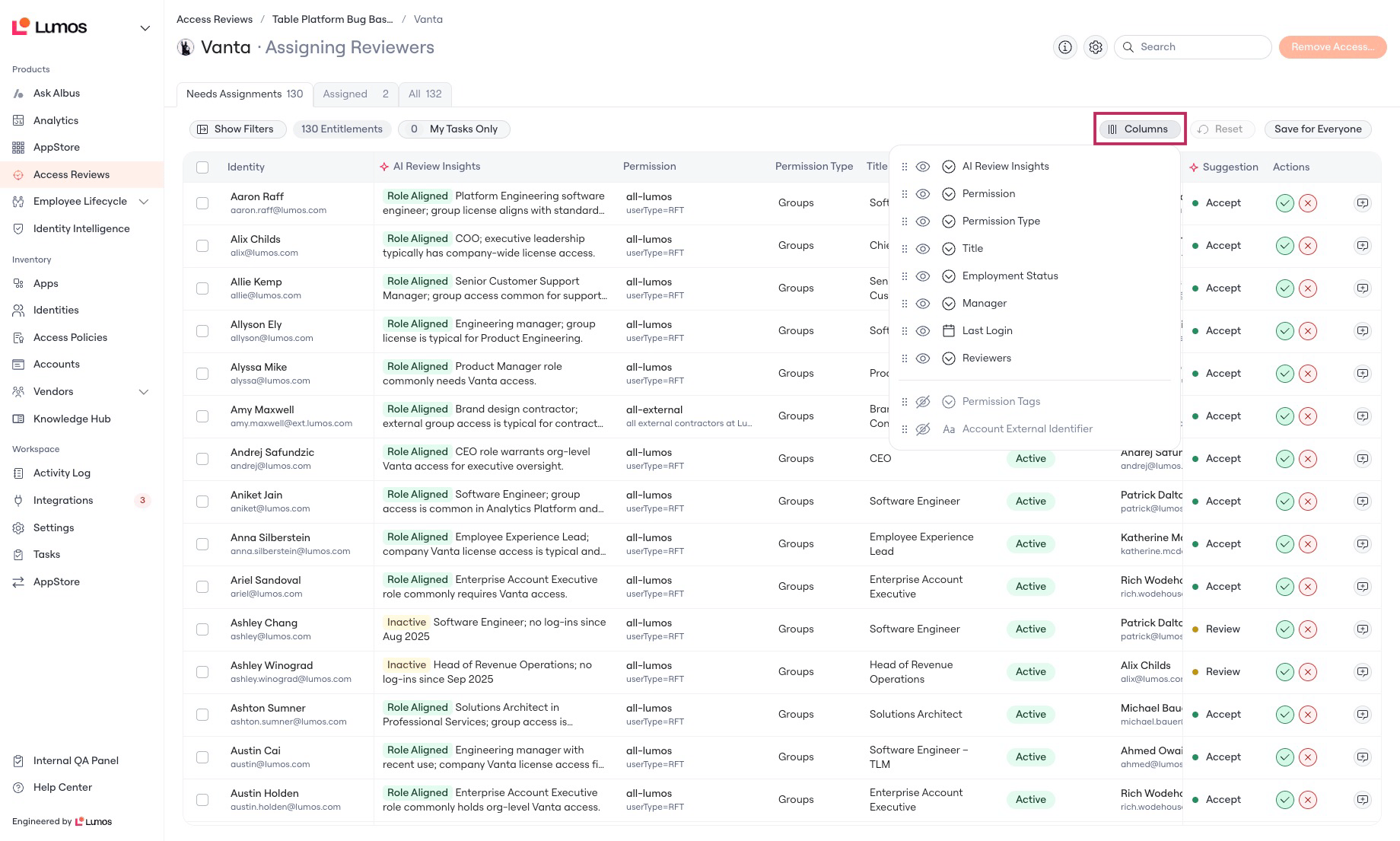
3. Show, hide, and reorder columns
Show/Hide columns to show data that’s most relevant to the Review decision and hide everything else.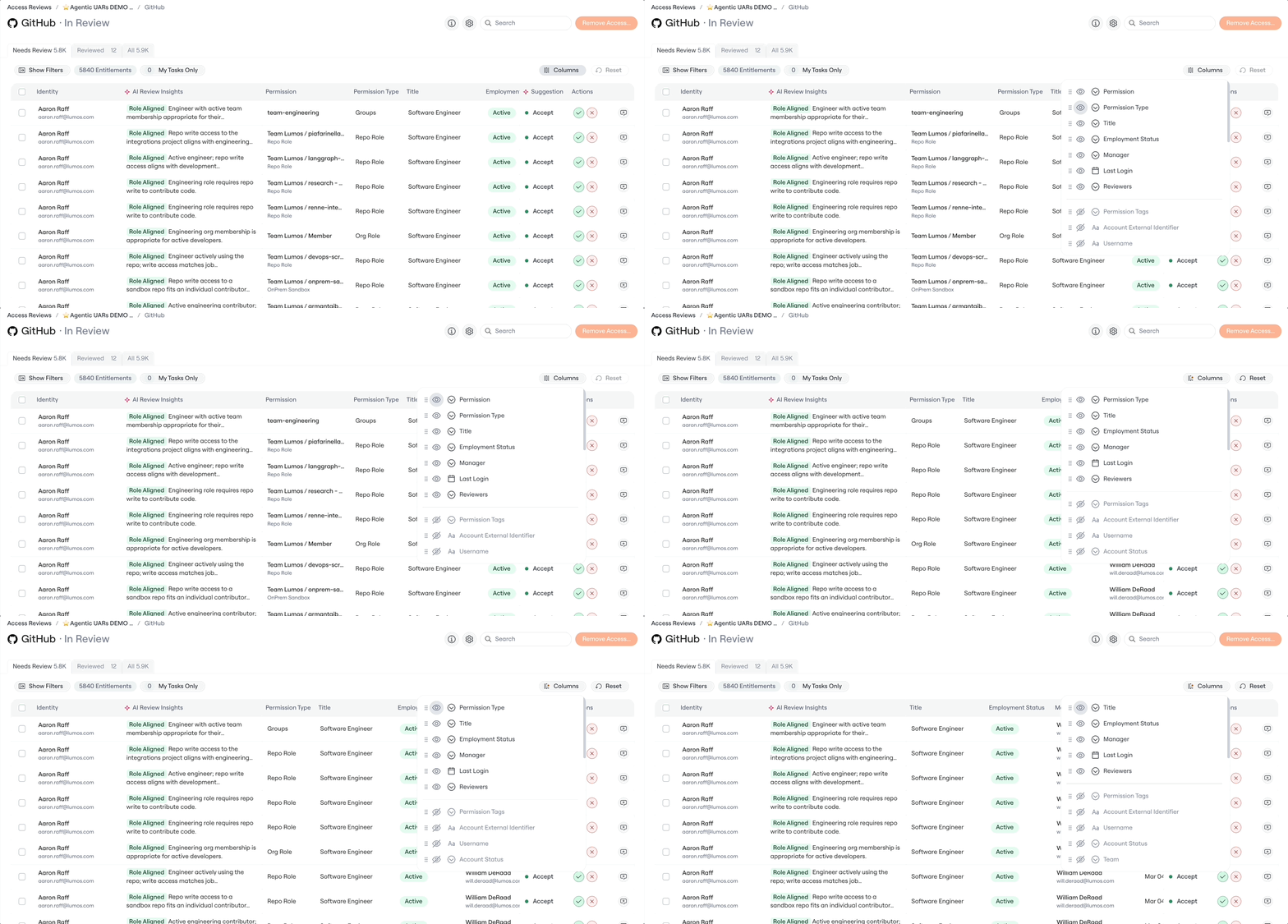
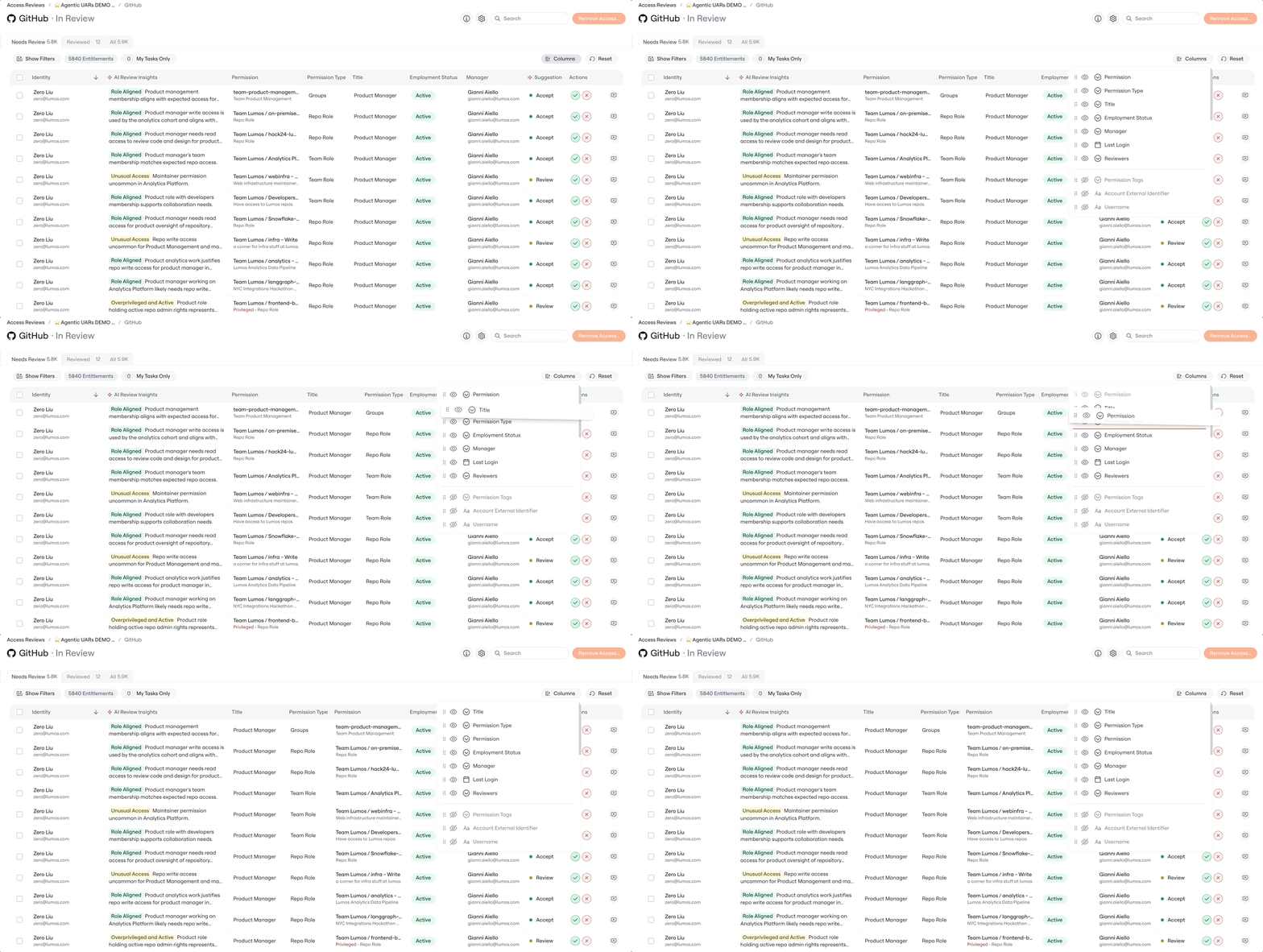
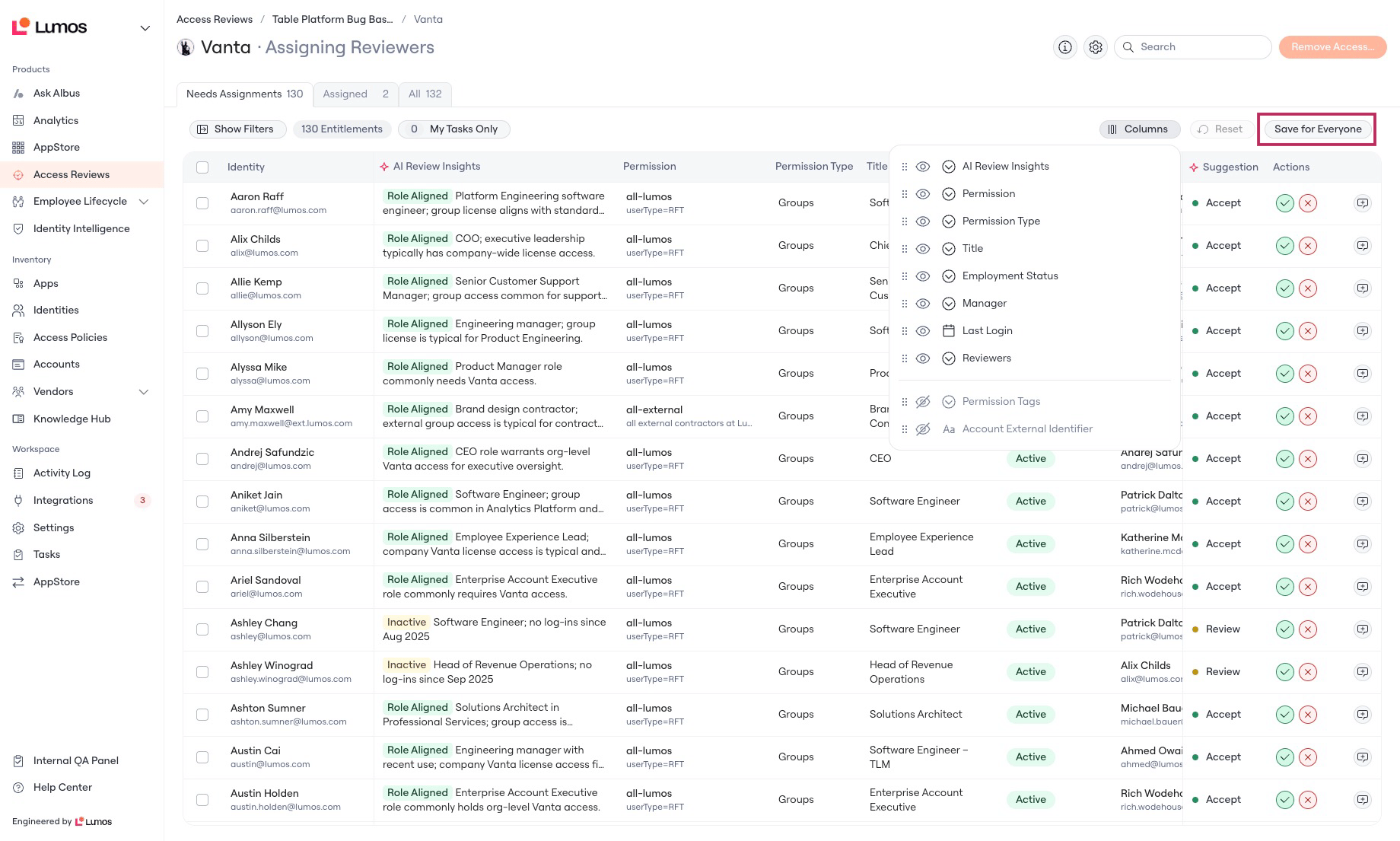
4. Click Save Layout
Click Save Layout, choose an option, and click Apply. This saves the configuration as the default view for every reviewer working on this app, so everyone viewing a review of this app sees the same columns in the same order.- Unrestricted lets reviewers see all columns, including the ones you hid.
- Restricted limits reviewers to the columns you set as visible.
5. Use Reset to undo local changes
If you’ve been experimenting and want to return to the saved default, click Reset.What gets saved (and what doesn’t)
- Saved on click: column visibility and column order.
- Not saved: filters and sorts. Filters and sorts stay local to whoever applied them.
Where the saved view applies
Admin-configured views are persisted per app, not per campaign. That means:- The saved view applies to every review of that app, across past, current, and future campaigns.
- The saved view applies across all stages of the review (Assigning Reviewers, Reviewing, etc.) and all tabs within a stage (Needs Assignments, Assigned, All).
- Lumos keeps a layout for each stage of the review. When a review moves to the next stage, the columns from the most recently changed stage carry over to the other stages.
How reviewers experience the view
Reviewers open the app and see the default view you configured. With an Unrestricted layout, they can still:- Show or hide columns locally for their own session.
- Reorder columns locally for their own session.
- Apply filters and sorts as they work.
- Click Reset at any time to return to the admin-configured default.