Add apps to an Access Review, scope each app by role, team, IdP group, or permission tag, set the Reviewer, and remove apps you no longer need.
Background
This article shows you how to add the apps you need to audit to an Access Review that you’ve already created (seeCreating a New Access Review).
How to add apps
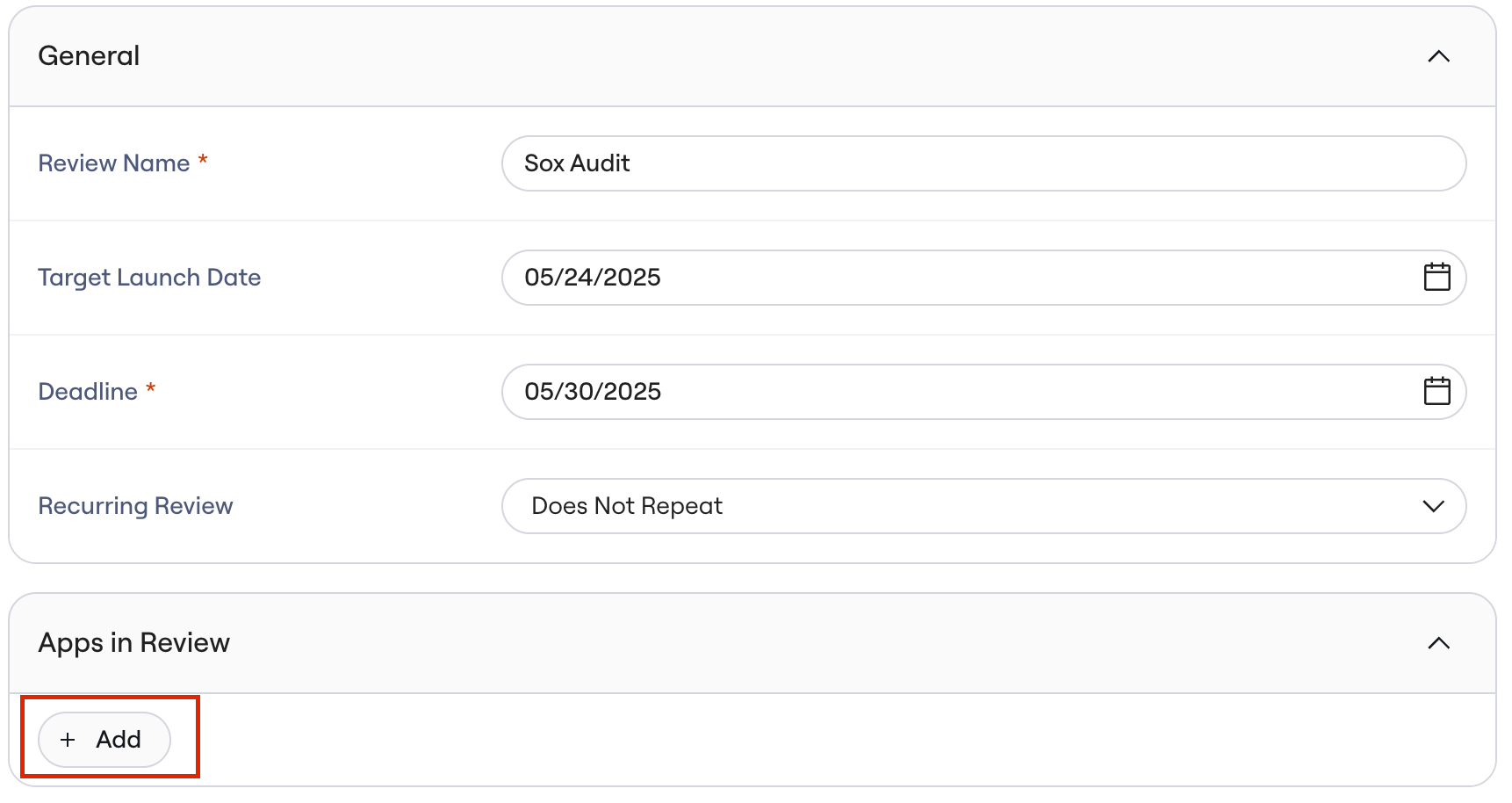
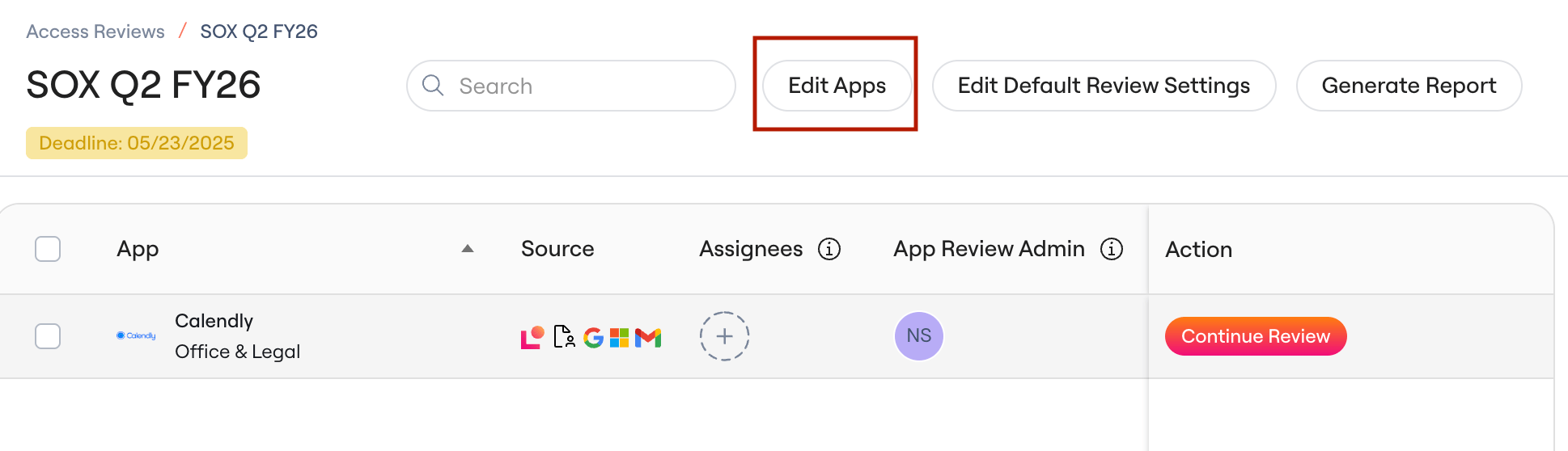
1. Add appsOn your new Access Review, click Add under Apps in Review. On a review that already has apps, click Edit Apps instead. Search the list of apps and select any apps you want to include.
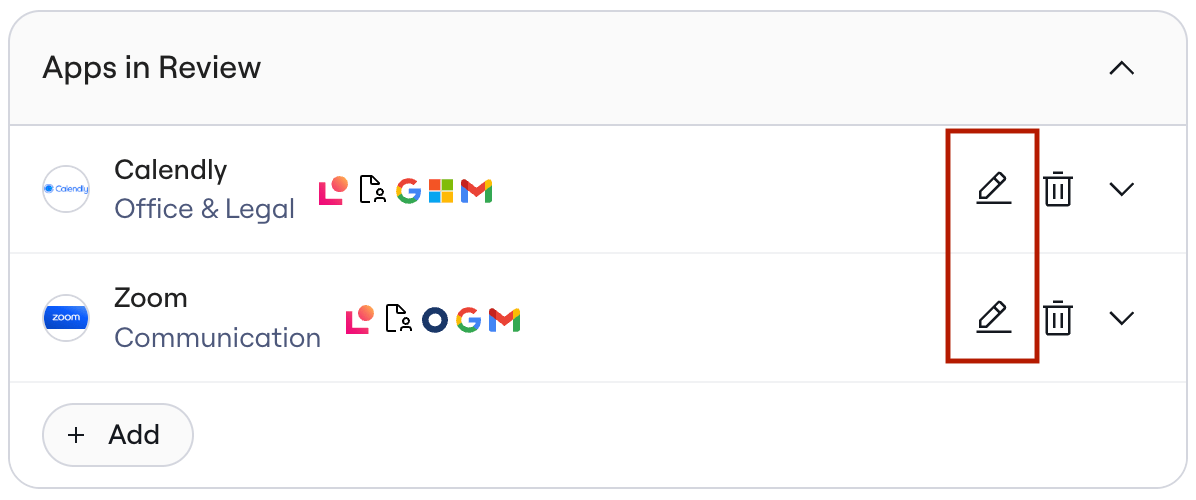
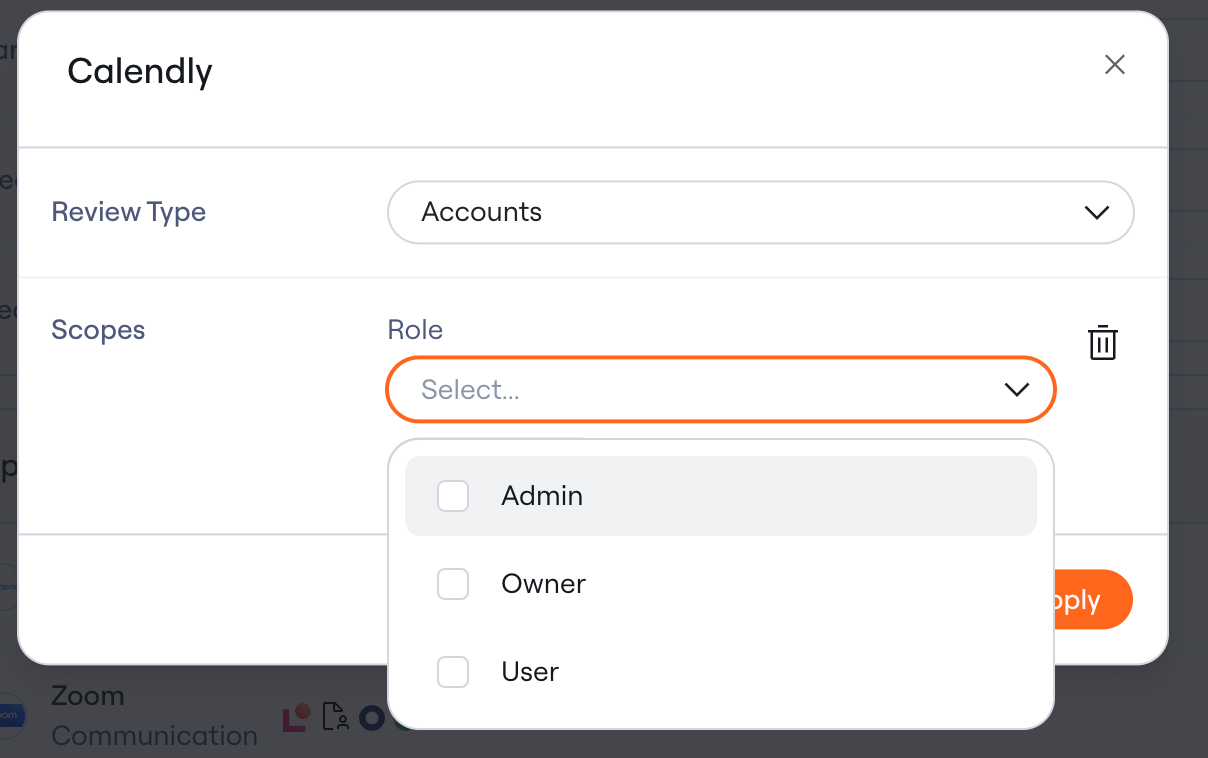
If you can’t find the app you’re looking for, you can import a custom app. SeeAdding a Custom App.2. Scope your ReviewsYou don’t always need to review every account or permission. To narrow your review to admins, people on a particular team, or a particular entitlement, scope the Access Review. Scoping narrows down the number of accounts or permissions that need to be reviewed for your audit.Click Edit to specify the scope of each selected app.
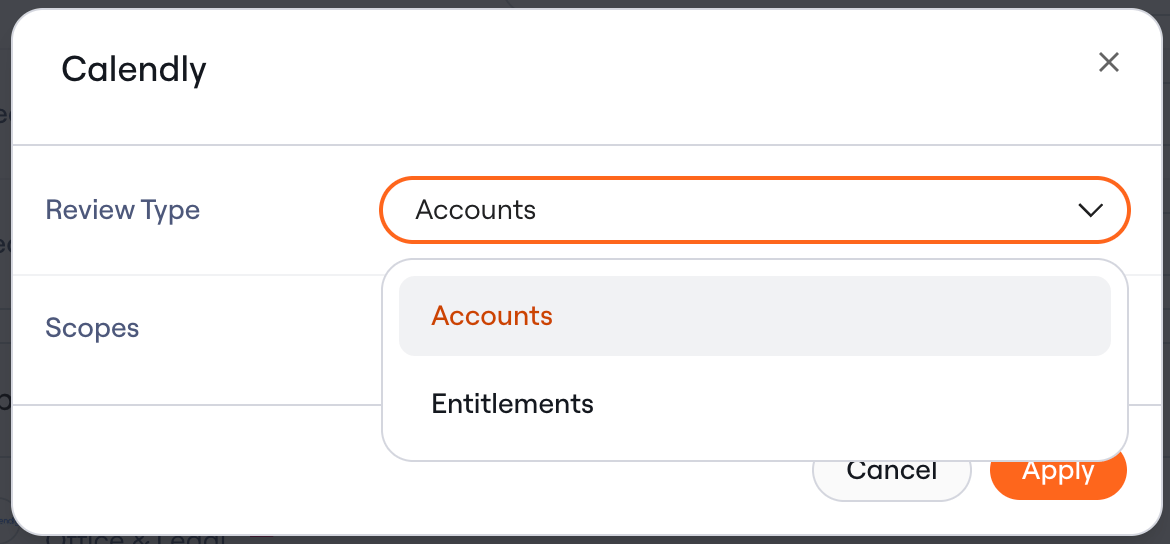
Set Review Type to Accounts for an Account-First review or Permissions for a Permission-First review. To decide which one to choose, see Choosing Account or Entitlement Access Reviews.
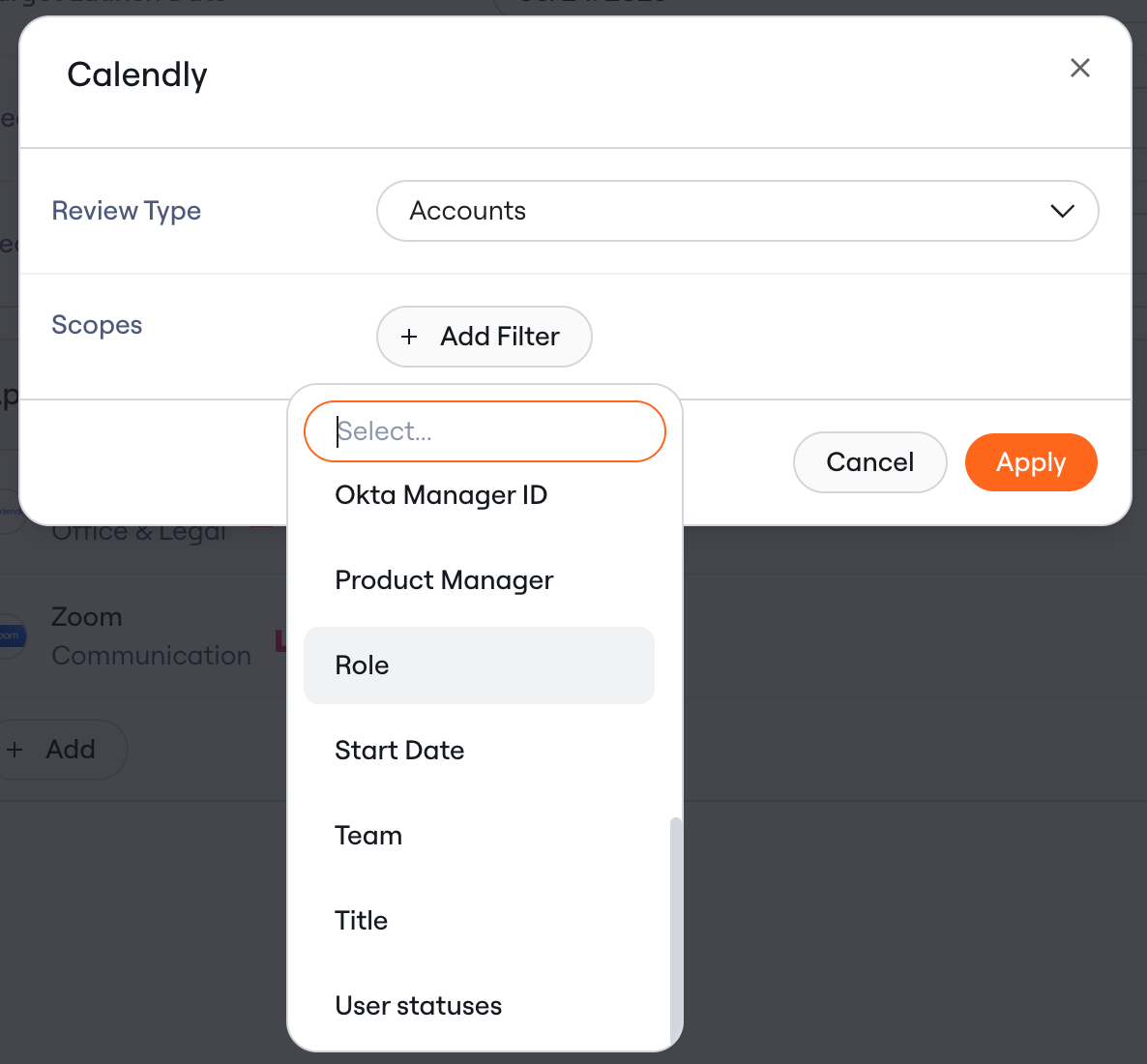
3. Scope by certain attributesBased on your app, you’ll see a list of possible attributes to scope down by.This may include:
Data from direct Lumos integrations (for example, Role)
Click Add Filter to select the attributes you want to scope your review on.
For each attribute, select the values you want to include in your review.
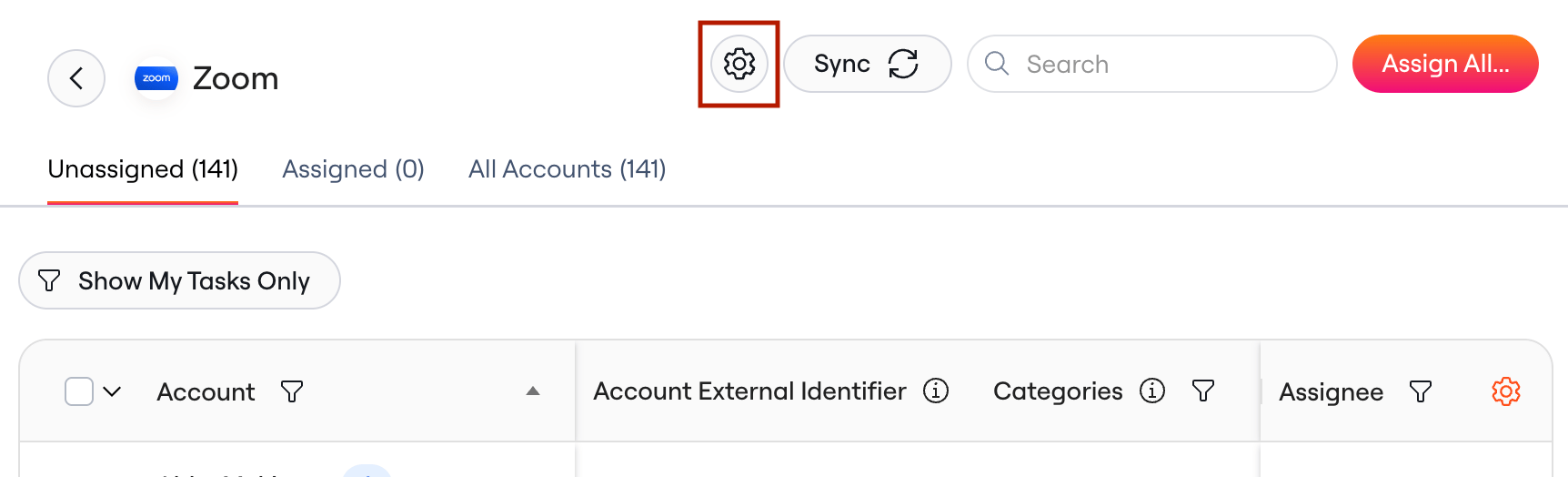
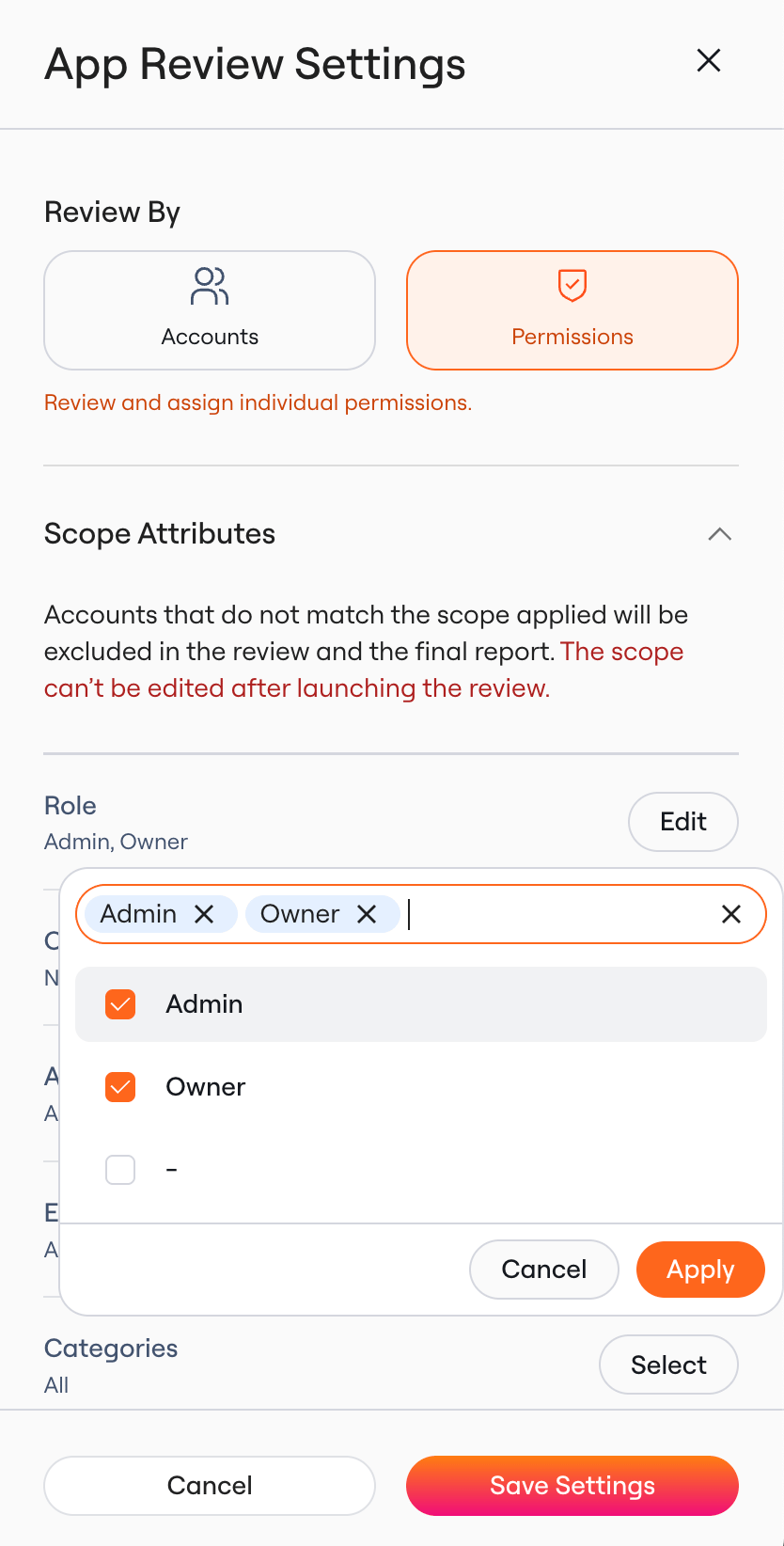
When you’re done, click Apply.4. Click Save to continueYou’ll see the apps you selected with the configured scope included in the Access Review.You’ll notice that you’re added as the Reviewer by default. To change this now, click your initials in the “Reviewer” column. You can also change it later.The Reviewer will be the App Review Admin. SeeAccess Review Roles.5. Click “Continue Review” for each app.This opens the app’s review.6. Review and edit scoping for each app.To check or change an app’s scope after you’ve saved it, click the gear icon to view your scoping selections.
View your selections and make changes to further refine the scope for your review.
You’ll notice that the options for each attribute are narrowed down to only those that represent (1) the data at the time it was snapshotted for this review and (2) the scope of this review. For example, if you scope the review to certain Roles, and then filter on Department, you’ll only see options for Departments that have accounts with the scoped roles.To refresh the data in your Access Review, see Update Access Review Snapshot.Once your apps are scoped, assign reviewers. SeeAssigning Reviewers and Launching Your Access Review.
How to remove apps
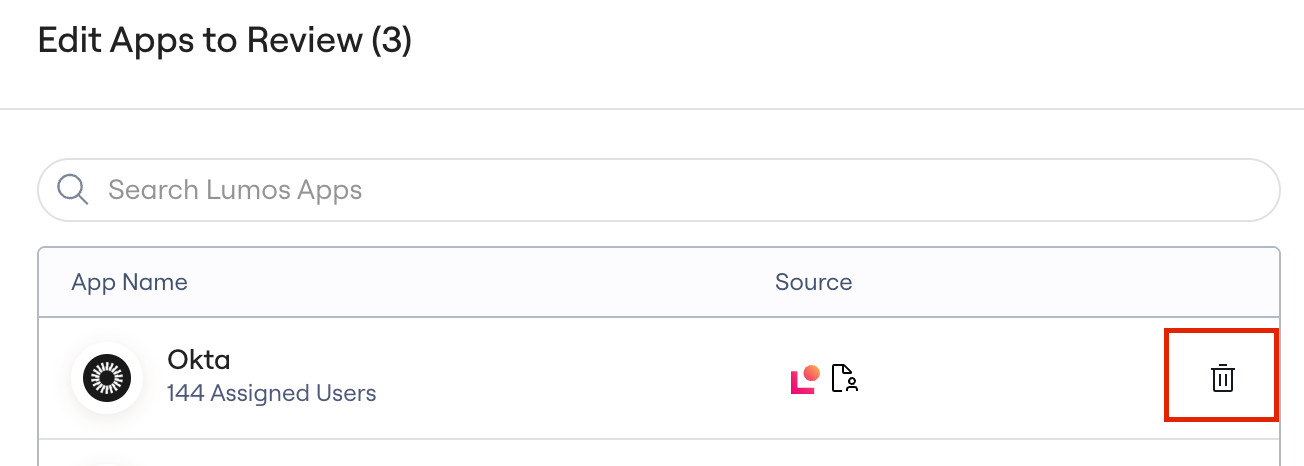
To remove an app from the review, follow the steps below.1. Click “Edit Apps”.
2. Click the trash can icon next to the app name.
This completely removes the app from your review, including any decisions and notes added by reviewers. Lumos doesn’t ask you to confirm, so make sure you don’t need this information before you click Save Changes.
3. Click “Save Changes”.
Was this page helpful?
Assistant
Responses are generated using AI and may contain mistakes.