Background
After all accounts in your Access Review are approved or rejected, handle the rejected accounts and generate a report to send to your auditor. This article shows you how.Steps
1. Handle the rejected accounts
After you and your delegators approve or reject access for all users, an orange button becomes clickable on the top right, depending on the type of app. In a previous step, you configured the default removal method for the app. If that was Manual, Lumos assumes you are conducting the removal yourself and does not automate removal. If that was a deprovisioning webhook, Lumos runs the deprovisioning webhook for all the accounts you rejected. For Suspend/Deprovision, this will depend on the source(s) on the app:-
Automatic Removals
For Okta delegated apps and direct integrations, you’ll see a button that says “Start Account Removal”. This is because Lumos can use your IdP and/or the direct Lumos integration to revoke access for rejected users.
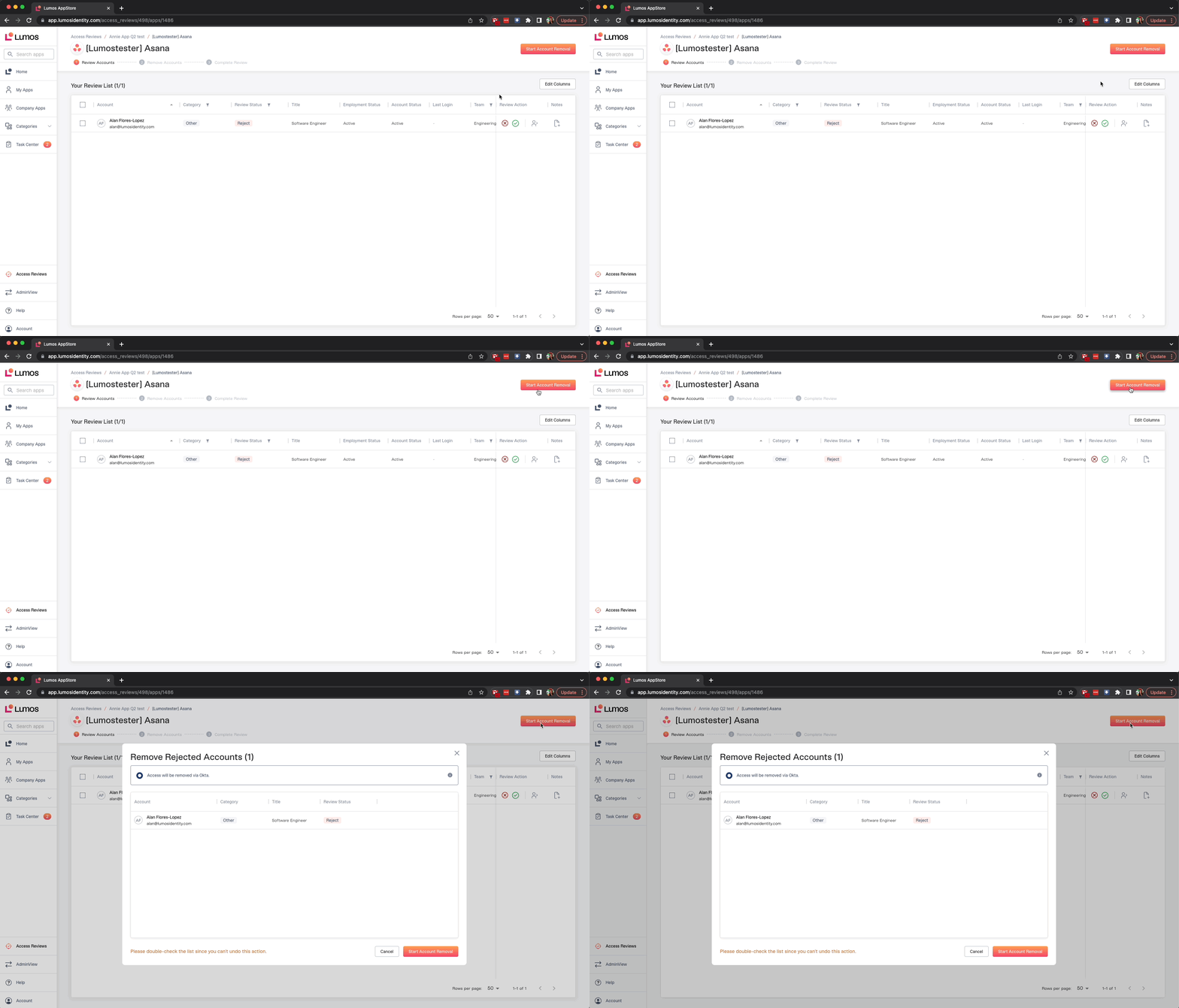
This process will abide by the removal method configured for that app in your Access Review. Modify Access: For accounts marked as “Modify Access”, Lumos will prompt you to upload evidence, similar to the Manual Removal workflow below. - Manual Removals For manual/custom apps, you’ll see a button that says “Start Manual Evidence Upload”. This is because Lumos cannot use your IdP or the direct Lumos integration to revoke access, so you’ll have to do this manually. You’ll then be prompted to upload evidence, such as a screenshot. Afterwards, you’ll be prompted to “Complete Review”.
2. Generate your report
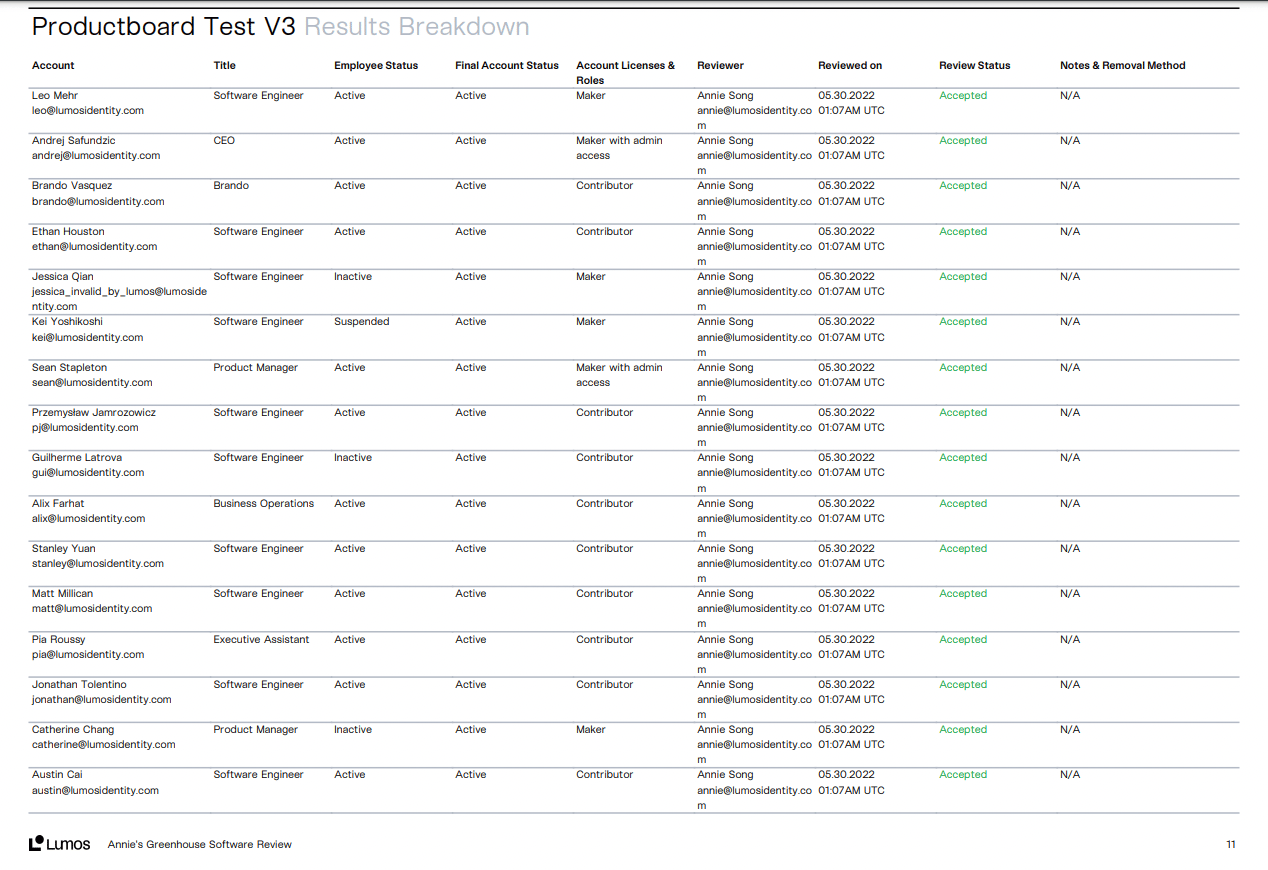
Note: You can generate this report even if your Access Review isn’t completed yet. This generates a PDF that includes all necessary timestamps and approvers, mark automated removals, and include the evidence you attached. Navigate to the top level review and click “Generate Report” at the top right. Once generated, you’ll see a button that appears that says “View Report”. The generated report will have a line-by-line breakdown of all approvals and rejections, and timestamps of when it was reviewed and when access was automatically removed. If you uploaded evidence, you’ll see it attached at the end of the report.