Background
This article breaks down User Sources in your Source of Truth, including how and why you set them, the impact of making changes to them, and common questions or issues.Purpose and function
User Sources impact many critical workflows and data points in Lumos.Creating and updating Lumos Users
For every user account in your User Sources, Lumos creates a Lumos User. This happens when you first set the user sources and when Lumos automatically syncs them. See How Lumos Syncs Your Integrations. If that user’s name or email changes in your User Sources, Lumos updates it on the employee’s Lumos User record the next time the integration is synced. To add another user source, click Edit in the User Sources section, then Add Source. The order of the list is the priority, top first. To move a source, remove it with the trash icon and add it back with Add Source, which adds it at the bottom. If an account is present in more than one user source, the user source listed first takes priority and updates the employee’s Lumos User, as shown below.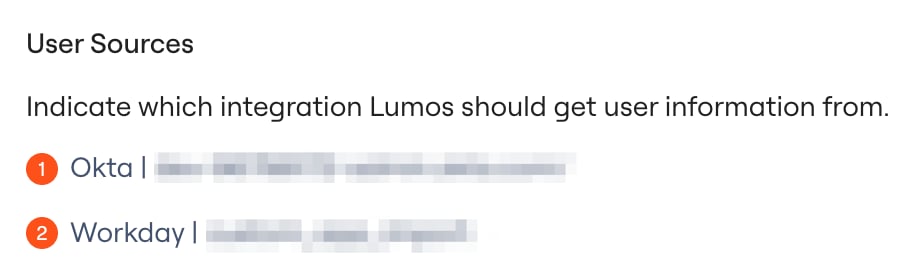
Employee Status
Lumos uses the status of an employee’s account in your User Sources (Active, Suspended, etc.) to set the value of the Employee Status for that User. This shows up anywhere you see an Employee Status column in Lumos (Access Reviews, terminated accounts, etc.). Inactive or Suspended Lumos Users will not be able to log in to Lumos.Editing your User Sources
You can find and edit your User Sources if you’re a Lumos Admin. See Lumos Roles.1. Go to your Source of Truth settings.
2. Find the User Sources section.
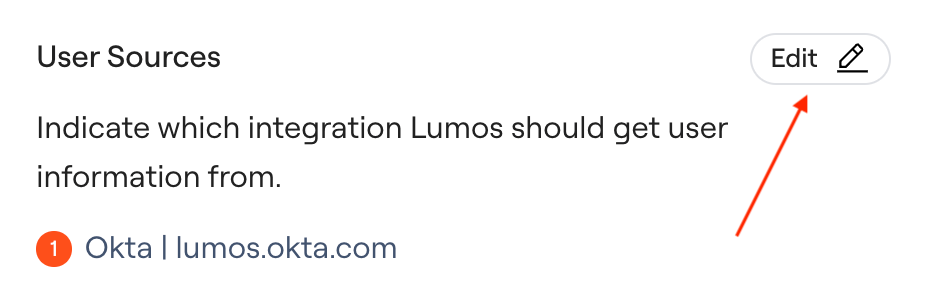
3. Click Edit, choose the app from the dropdown or click Add Source to add a new source, then click Save

4. If a banner about un-synced changes appears, click Sync, then Sync All User Sources.