

After this article…
You’ll know how to handle an employee’s name or email change in Lumos, from updating your User Source to re-matching app accounts that don’t update on their own. The steps apply to both name and email changes.Situation
Employees can have name or email changes from time to time. This can be a disruptive event for access to applications. For example, Albus’s email is albus@lumostester.com. His email then changes to albus.dumbledore@lumostester.com.Solution
Before you start, make sure you can edit user profiles in your User Source’s admin panel, and that your Lumos role can sync integration data and manage accounts. Admins can do both, and App Admins can for their own apps. See Lumos Roles. It’s much easier to handle user name updates if only one account exists. Lumos recommends the following process for updating:- Edit the existing employee user profile in the admin panel of your User Source (Google Workspace, Okta, Microsoft Entra ID, etc.). See Importing User Sources
- Click the corresponding app in Lumos that maps to your User Source from the All Apps tab. See Importing User Sources
- On the app’s Integrations tab, under Sync Settings, click Sync next to Full Sync, then click Sync
<App Name>Users. See How Lumos Syncs Your Integrations for more info.
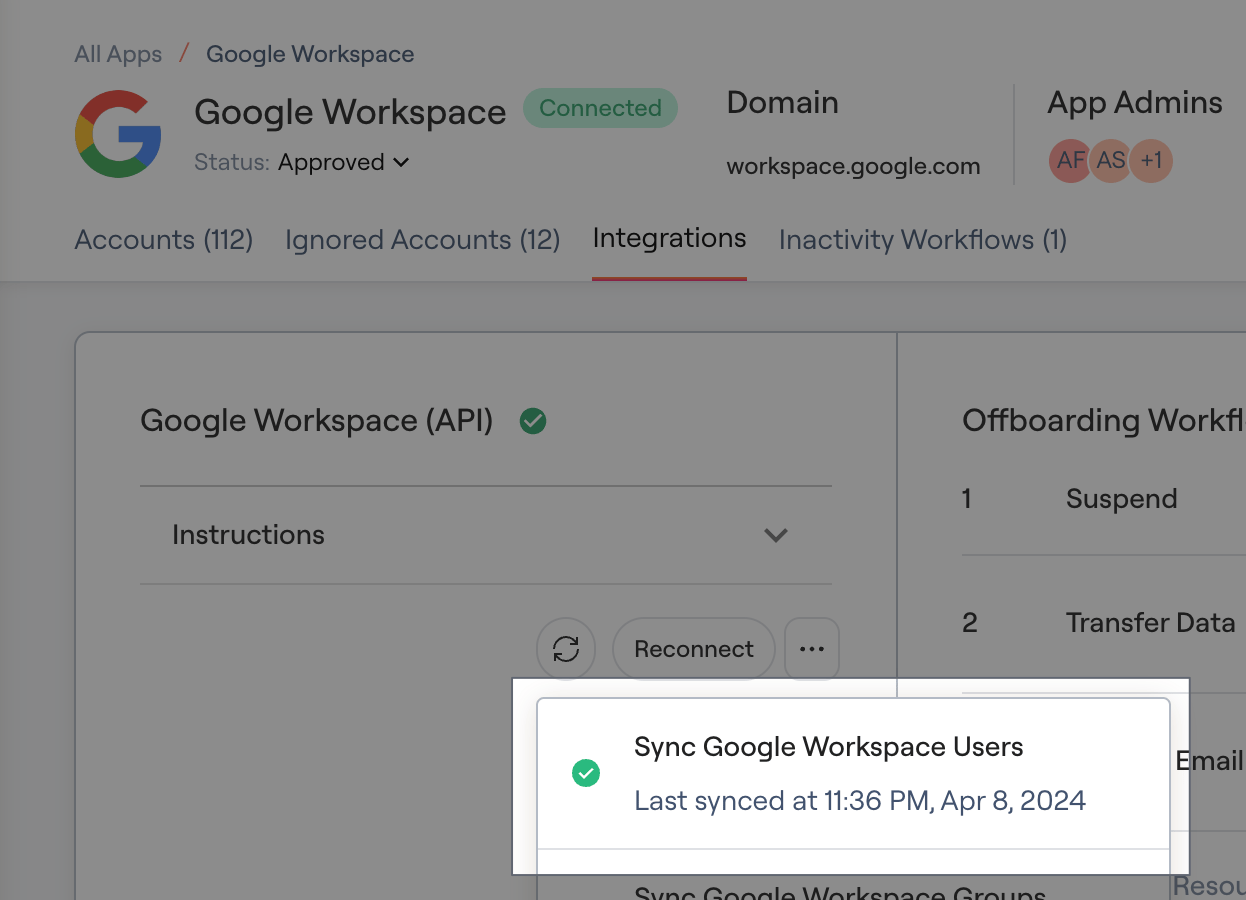
- Once the sync completes, the person’s identity on the Identities page shows the new email or name.
- Have the new user log in to Lumos with their new email.
If the identity doesn’t show the new email after the sync
Check these causes, most likely first:- The email was edited in Lumos earlier. Lumos never overwrites an email that was edited in Lumos or set by a Generate Email Address step. On the Identities page, click the person’s Email cell. If the popover says “Email overridden in Lumos”, edit the email there.
- A higher-priority User Source still has the old email. In Settings → Source of Truth → User Sources, check each source above the one you changed, and update the email there too.
- The person or their account isn’t active. Check that the identity is Active or Staged, and that their User Source account is active rather than, for example, on leave or suspended.
- Another identity already holds the new email. If you can’t find it, contact Lumos Support, since a deleted identity can also hold it.
- The User Source created a new user record. That gives the person a second identity. See If a duplicate identity appears.
- Processing hasn’t finished. Lumos keeps processing after the sync itself completes, so wait and check again.
- The app only discovers accounts through your IdP or SSO. Those apps never change identity details such as the email.
If a duplicate identity appears
Renaming someone in your IdP or HR system doesn’t create a duplicate, because Lumos matches accounts on the source’s stable ID before the email. A duplicate appears when the User Source sends a new user record, for example after the account is deleted and recreated, or after a rehire.- On the Identities page, search for the person by name and find both identities. Keep the one that holds the current User Source account with the new email.
- On the old identity, unmatch each app account, then match it to the identity you’re keeping. See How-To: Unmatch Accounts and How-To: Match Accounts. Unmatching alone isn’t enough, because the next sync can match the account back.
- Don’t type the new email into the old identity. Two active identities with the same email block that person’s SSO login.
- Once the old identity holds no accounts, the next full sync of the User Source removes it.
If an app account doesn’t update on its own
App logins will update dynamically if the apps are managed by IdP groups. However, if the employee’s account is managed outside of your IdP, you will need to manually re-match their login credentials to adjust to their new email/name.- On the app’s page, open the Accounts tab, click ⋯ on the account’s row, then click Unmatch Account. See How-To: Unmatch Accounts.
- Match the account to the user again, following How-To: Match Accounts.