

Background
This article breaks down the Manager field in your Source of Truth, including how and why you set it, the impact of making changes to it, and common questions or issues.Purpose and function
Manager information drives important automation across Lumos. For example, Lumos uses an employee’s manager to automate the following workflows:- Manager-based approvals in the AppStore. See Approving Access Requests
- Manager-delegated Access Reviews. See Assigning Reviewers and Launching Your Access Review
- Transferring account data to a manager during an Inactivity Workflow. See Creating An Inactivity Workflow
Editing Manager settings
1. Go to your Source of Truth settings.
2. Find the Manager section and click “Edit”.

3. Choose the Source App that holds the most accurate user data.
Below the fields, select the This is a user type. checkbox. It tells Lumos that the field defines a relationship between users, such as a manager. If you leave it unchecked, Lumos doesn’t parse the manager data correctly.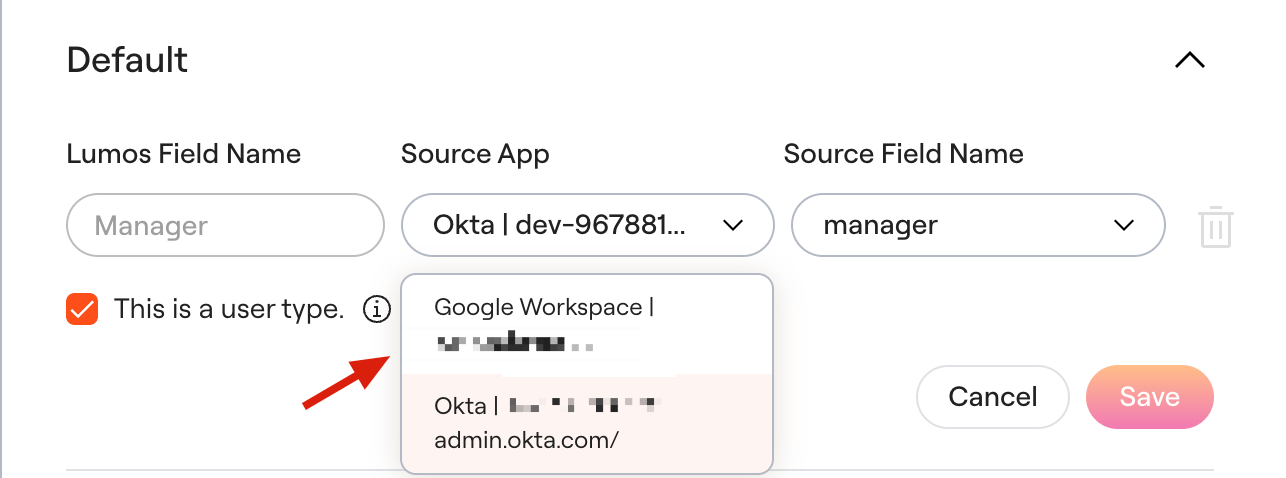
4. In the Source Field Name, choose the name of the field that holds the manager data and click “Save”.
Below you can find more context around which fields are supported, and how Lumos parses the data. Make sure you choose a supported field. See From which apps and fields can Lumos source manager data? and How does Lumos parse and match my manager data?What happens after you change these settings
Changes to the Source Field Name or Source App take effect on the next sync of the source app. That can be the daily sync, or a manual sync from the app’s “Integrations” tab using “Sync” → “Sync [App] Users”. Both update managers the same way, and a manual sync applies the change sooner.- If you change only the Source Field Name, managers stay as they are until the next sync, then update from the new field.
- If you change the Source App, Lumos removes the managers that came from the old app. Managers from the new app appear after the new app syncs, so run a manual sync on the new app right after you save.
Access requests waiting on a manager
Lumos doesn’t reassign approvals that are already waiting on a manager.- After a Source Field Name change, each waiting approval moves to the person’s new manager once the sync finishes.
- After a Source App change, approvals that were already waiting lose their approver, even after the new app syncs.
- If a person ends up with no manager, their waiting approval loses its approver too.
Access Reviews
Access Reviews that are already running keep their reviewers. Lumos sets each manager reviewer when reviewers are assigned, so later manager changes don’t move them. Reviews you assign after the sync use the new managers.FAQs
From which apps and fields can Lumos source manager data?
The mapping of fields from which Lumos can source manager data is below.How does Lumos parse and match my manager data?
Lumos uses the algorithm below to first detect and parse the format of the data stored in your manager Source Field Name. If the format returns a match at any stage, but Lumos can’t find a matching Lumos User after doing a lookup, Lumos will not find a manager for that User.- First, Lumos checks whether the data is stored as an email address. If so, Lumos checks if there’s a Lumos User associated with that email address.
- Next, Lumos checks whether the data is stored in Last Name, First Name format. If so, Lumos looks up the Lumos User associated with that name.
- Next, Lumos checks whether the data is stored in First Name-Last Name format. If so, Lumos looks up the Lumos User associated with that name.
- Next, Lumos checks whether the data is stored in First Name.Last Name format.
-
Next, Lumos converts the data to lowercase, appends your company’s email domain to the end of that data, and checks if there is a user with a matching email address.
- Example: If the data coming from your app was
PeterParkerand your company’s email domain wascyberdyne.com, Lumos checks ifpeterparker@cyberdyne.comwas tied to a Lumos User.
- Example: If the data coming from your app was
- Finally, Lumos checks whether the data is stored in First Name Last Name (ex: “Peter Parker”) format. If so, Lumos looks up the Lumos User associated with that name.
My manager information is stored in a format Lumos can’t parse.
Contact Lumos support to discuss potential options.Can I manually override the manager field for individual users?
No, Lumos doesn’t provide an in-app way to manually override the manager field on individual users. The Manager field is always derived from your synced user sources, and there is no per‑user override capability outside of the source sync process. For edge cases where you need to set a manager that differs from what’s in your source systems, update the manager attribute in the source system itself.The manager changed in my source system, but the person has no manager in Lumos. Why?
Lumos links a manager only when the new value matches an active account. If the new manager’s account is disabled, or the value doesn’t match anyone, Lumos clears the manager instead of keeping the previous one. The manager fills in on the next sync once the new manager’s account is active, or the source system points to an active user.I have an employee with no manager in Lumos, but they have one in my User Sources.
There are several possible reasons this could happen.- The “This is a user type.” checkbox is unchecked. - If you don’t check this box when setting the field (see the “Editing Manager settings” section in this article), Lumos will not parse the data correctly.
- Lumos couldn’t find a match - The matching logic above failed to find a matching Lumos User (“How does Lumos parse and match my manager data?” section in this article)
- The Manager attribute points at an old app instance or field name - If you replaced or reconnected the source integration, or renamed the manager field in the source app, re-select the current instance and field. See Troubleshooting attribute sources
- The manager was updated within the last 24 hours - Lumos syncs users from your User Sources once a day. If the information changed since then, Lumos doesn’t reflect it yet. You can trigger a refresh of your User Sources by following these instructions: How Lumos Syncs Your Integrations
- The manager from the User Sources is mapped to multiple Lumos users - This usually happens when your User Source stores manager information in a “First Name Last Name”, rather than email, format. If you have multiple managers with the same first and last name, Lumos will leave the manager unset, since it can’t tell which manager to choose. If this creates challenges for you, contact Lumos support.