

Background
Your company’s Lumos User accounts (which your employees use to log in) are managed automatically from your User Sources. When you integrate your sources of truth and connect them as User Sources, Lumos User accounts are automatically created and updated through automated syncs. This article provides a playbook for configuring custom apps as User Sources so you can create Lumos Users without requiring a direct integration with that app.Prerequisites
- A properly-formatted CSV with the users you want to add to Lumos. Lumos strongly recommends adding columns for each employee’s first name, last name, email, and status. Optionally, you can add more columns to map attributes like Department, Job Title, etc.
- A custom app that will hold the accounts you want to create in Lumos.
- Lumos Users created via the CSV import will need to have active accounts in your login provider and an email domain managed by your company to access Lumos.
Steps
1. Create a custom app.
2. Set that app as a User Source.
3. Import the user data into your custom app.
If you’ve already imported users into your app, any new file you upload must include the existing users or they’ll be marked as Deprovisioned in Lumos. If this isn’t the first time you’re importing user data for this app, Lumos strongly recommends downloading the user accounts from the app in Lumos (using theDownload Table (CSV) button in the screenshot below), adding the new accounts, and re-uploading the entire list of users.
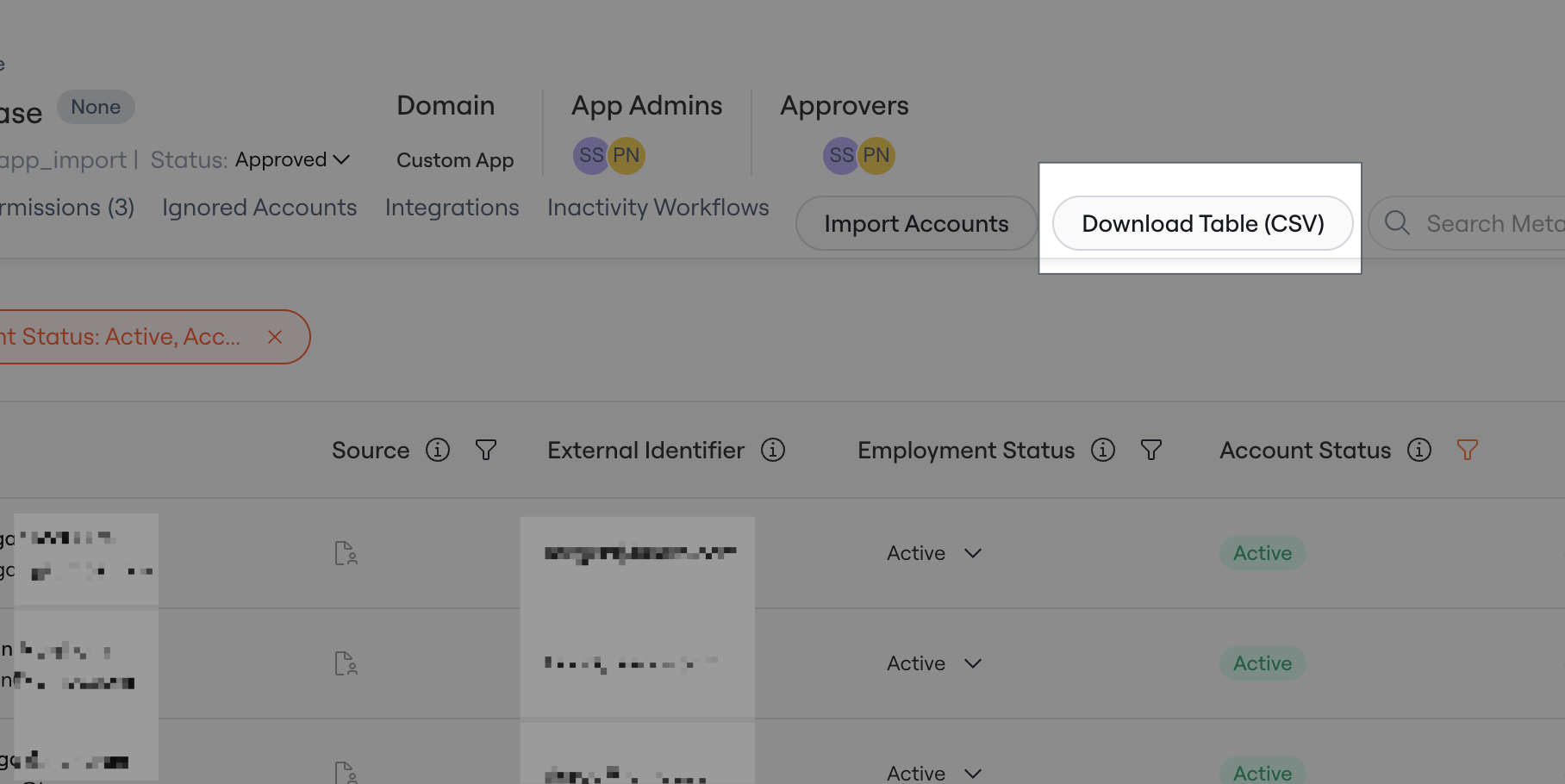
ACTIVE and SUSPENDED.
For the columns and Status values Lumos accepts, see Custom Data (CSV) Formatting Requirements.
4. Wait for the sync to finish.
Once the sync finishes, new Lumos Members imported from the custom app appear, and you can configure theirAccess Level accordingly. Accounts can take up to 15 minutes to appear after the import finishes.
Limitations
- Users created via CSV import will remain active in Lumos until you manually change their
Access LeveltoNo Accessin Settings → Lumos Members. - If you’re mapping a custom attribute for the first time, you may need to upload your CSV twice: once so that Lumos can detect the new attributes, and again for Lumos to ingest them.