Background
This article breaks down the Team field in your Source of Truth, including how and why you set it, and common questions or issues.Purpose and function
The Team field helps inform many important workflows in Lumos. You’ll see the Team value show up:- As a column in your Access Reviews to help reviewers understand more about the employee when making decisions.
- In access requests made from the AppStore to provide useful context during approvals. See Approving Access Requests.
- When targeting the scope of an Access Review to specific teams. See Scoping Your Access Review.
- When viewing the list of user accounts discovered for an individual application.
- For segmenting spend in the Lumos analytics dashboard.
Editing Team settings
To edit Source of Truth settings, you need the Lumos Admin role, or a custom role with Source Of Truth under Org Settings set to both View and Manage. See Lumos Roles.1. Go to your Source of Truth settings.
2. Find the Team section and click “Edit”.

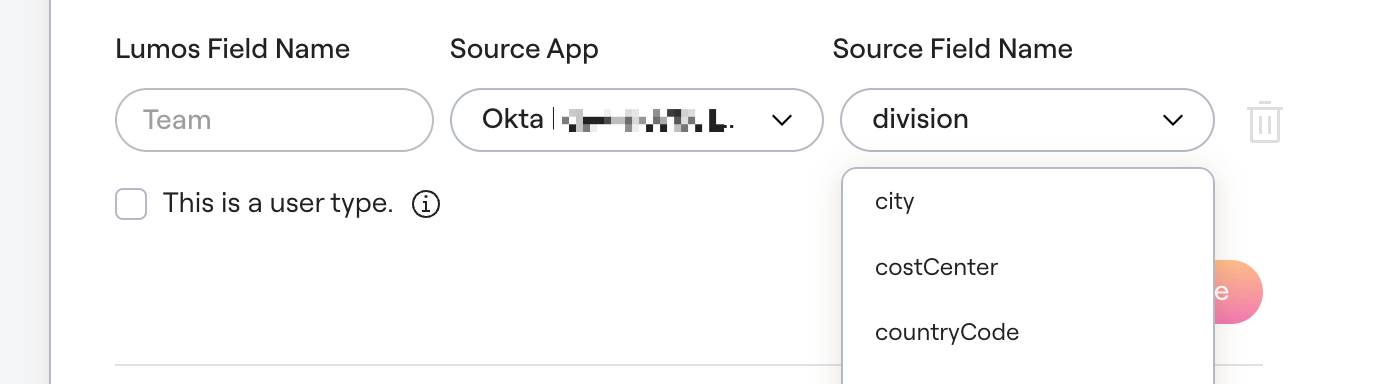
3. Choose the Source App that holds the most accurate user data.
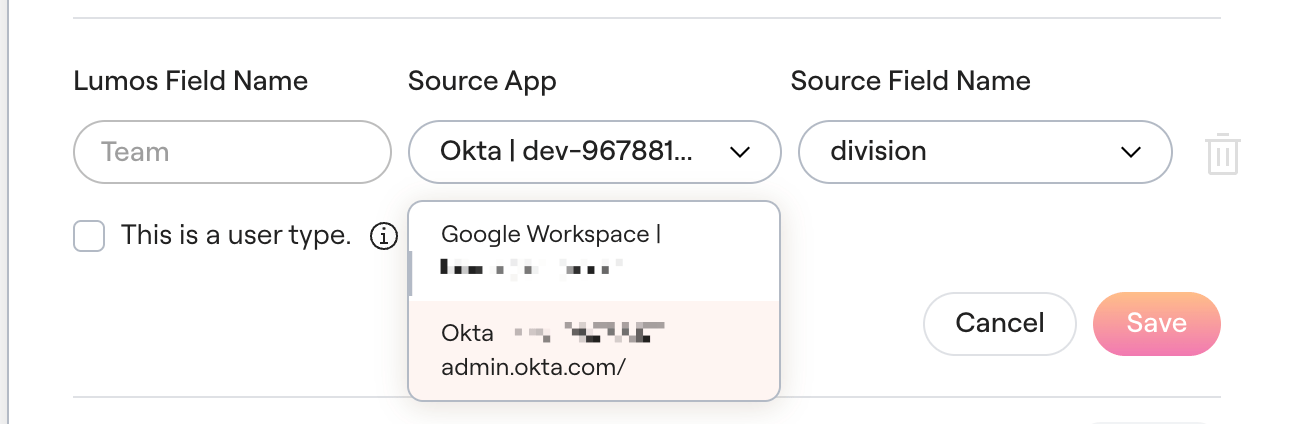
4. In the Source Field Name, choose the name of the field that holds the team data and click “Save”.