Problem
I need to approve an access request for someone, and I’m not the assigned approver for that request. How can I approve it on their behalf?Solution
If you’re a Lumos Admin, you can override the approval from the Task Center. SeeLumos Roles The Task Center opens to the My Tasks view, which shows only tasks assigned to you. An approval request assigned to someone else will not appear there, so switch to All Tasks first.- Go to the Task Center and switch the view selector to All Tasks. You can also use this direct link: All Tasks in the Lumos Task Center
- Locate the approval request you want to act on. To narrow a long list, filter by Task Type and select Approval Request.
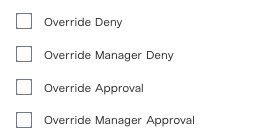
- Select the request’s row to open the task detail panel, then click Override Approval at the bottom of the panel. To end the request instead, click Override Deny. The Action column on each row also carries icon shortcuts for the same actions.
Notes
The My Tasks and All Tasks selector sits at the top of the Task Center filter sidebar. If you do not see it, click Show Filters to expand the sidebar. The selected view resets to My Tasks each time you return to the Task Center. Bookmark the All Tasks link above if you use this regularly. Override actions require the Admin role. A Read-Only Admin can open the All Tasks view but will not see the override buttons. Approve and Override Approval are mutually exclusive. If you are yourself an assigned approver on a request, you will see Approve and Deny on it rather than the override actions.FAQ
How is an approval override audited in Lumos?
Lumos records every override in the Lumos Activity Log. There are multiple types of “override” events that you can filter on in the Event column (examples are in the screenshot below).