

What is a custom intake field?
A custom intake field is a question you add to an AppStore app. The requester answers it when they ask for access, and the answer travels with the request to approvers, provisioners, and your provisioning workflows. Each field has:- A type: text or dropdown (called Single Selection in the admin console).
- A prompt: the question the requester sees, such as “Please enter your GitHub username”.
- A description (optional): extra guidance shown with the prompt.
- Required or Optional: whether the requester must answer before they can submit.
- A reference key: a short identifier that lets workflows and the API refer to the answer.
The Access Request Agent collects these fields in the Employee AppStore and Slack. MCP-compatible AI assistants collect them too, when employees request access through those assistants.
Common use cases
- Account identifiers. Ask for the GitHub username so the provisioner, or a workflow step, knows which account to invite.
- Where the access lands. Ask which workspace, team, or region the requester belongs to, so the right group or tenant is assigned.
- Data sensitivity. Ask “Will you access customer data?” with Yes and No options, so approvers see the answer before they decide.
- Project or ticket context. Ask for the project name or ticket number that justifies the request.
Why are custom intake fields important?
Approvers and provisioners can only act on what is on the request. Without intake fields, they message the requester to ask for a username, a region, or a reason, and the request waits. With intake fields:- Requesters give the details up front, so approvers and provisioners don’t need to ask for them.
- The answers appear wherever the request appears: Slack and email notifications, the Lumos Task Center, ITSM tickets, SIEM events, and the Activity Log.
- Answers are available to provisioning workflows and webhooks, so provisioning can use what the requester said instead of relying on a manual step.
How are custom intake fields configured?
You can configure fields in the Lumos admin console or with the V1 settings API.In the admin console
1. Open the app’s AppStore settings
Go to the app’s AppStore settings. You’ll find a section called Custom Fields.2. Click Add and choose a type
Text: enter the prompt (for example, “Please enter your GitHub username”) and an optional description. A text response can be up to 500 characters. Single Selection: enter the prompt and an optional description, then click Next. In the Edit Choices modal, enter one choice per line. A dropdown supports up to 100 choices.3. Mark the field Required or Optional
Requesters must answer Required fields before they can submit the request. Requesters can skip Optional fields.4. Set a reference key
The reference key identifies the field in Lumos Expression Language (LEL) and in the API. Lumos fills in a reference key from the prompt. Change it now if you want a different one, since it locks when you save. Reset restores the generated key.- The reference key must be unique within the app.
- Use lowercase letters, digits, and
_. Start with a letter, stay within 50 characters, and avoid reserved words. - After you first save the field, the key is locked, so expressions that use it keep working.
5. Save
When employees request this app, they’re asked for the values you configured.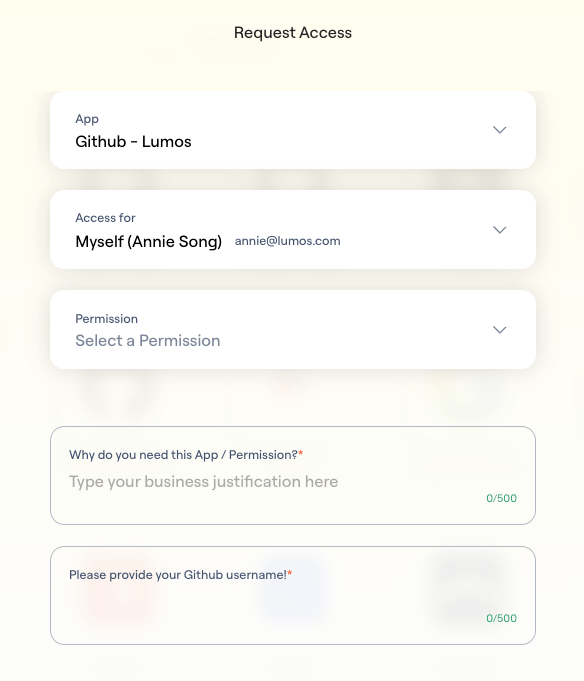
With the V1 settings API (beta)
The AppStore settings endpoints read and set custom intake fields. They are in beta and not yet in the public API reference. Contact your Lumos customer success manager for access.- Get AppStore settings returns the
custom_intake_fieldsarray. - Update AppStore settings sets it.
custom_intake_fields has:
Lumos matches fields in the list you send to existing fields by
reference_key:
- A matching key updates that field in place and keeps its key.
- A key you leave out of the list deletes that field.
- A new key creates a new field.
How do employees provide custom intake fields?
How employees answer depends on where they request access. In the Employee AppStore and Slack. The Access Request Agent asks each configured field in the conversation. Text fields are answered in chat. Dropdown fields are shown as choices. The agent writes the answers onto the request, and the employee reviews them in the request preview before submitting. In MCP-compatible AI assistants. The assistant asks for each field and submits the answers with the request, keyed by reference key. You can shape how the agent asks, for example how it phrases a question or formats an answer, with a prompt for the app in Knowledge Hub. See Knowledge Hub: AppStore. In the standard request form. Employees fill in each field on the form. Required fields must be answered before they can submit.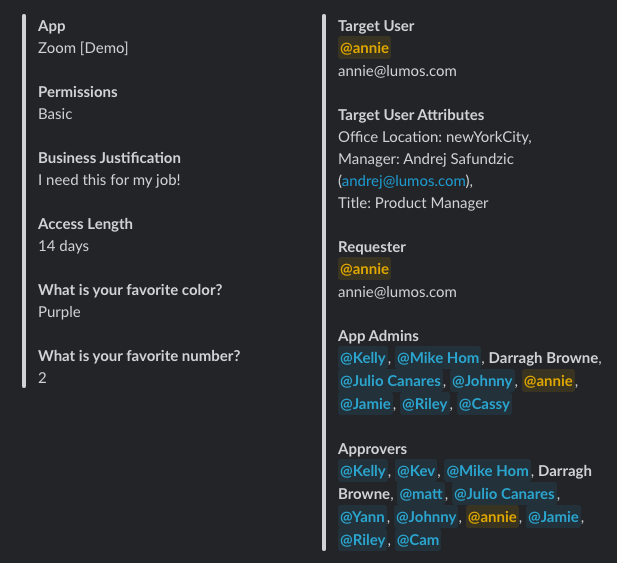
How can custom intake fields be used in provisioning?
Every field has a reference key, and workflows can use the answer. Referencing intake answers in Lumos Expression Language (LEL) is rolling out with the November 4 release. In any workflow step input that supports LEL, reference the answer by its reference key:access_request.intake_responses["github_username"]. For example, a GitHub app can have a GitHub username field with the reference key github_username. The Invite user to GitHub org step then reads the requester’s answer instead of asking someone to look it up.
Answers resolve the same way however the request was submitted: through the Employee AppStore, Slack, or MCP.
Lumos also sends custom intake fields in webhook payloads for request validation, pre-approval, provisioning, and deprovisioning. See Webhook FAQs.