

Who does what
- An admin builds the policy. They create the draft: conditions, apps and permissions, and business justification. Admins also make any changes owners can’t (conditions, name, justification), and publish once the owner signs off.
- The policy owner signs off on the policy as a whole. Usually the team lead or manager. They review the full policy, take in feedback from reviewers, update the apps and permissions, and give the final sign-off. The question they answer: is this the right access for everyone this policy covers?
- A reviewer weighs in on one specific grant. Whoever is closest to that access: the owner of the group being granted, the app owner, an app admin, a security reviewer. Their question: should this policy be handing out the access I am responsible for? You share the policy with them, and they provide their input as a comment. Group owners you maintain in Active Directory and Office 365 come into Lumos automatically.
What needs approval
Approval covers the access a policy grants. On a new policy, every app and permission is new access, so the whole draft needs an approval before its first publish.- Needs approval: adding, removing, or changing apps and permissions.
- Doesn’t need approval: changes to the policy name, conditions, business justification, owners, or custom attributes.
Draft statuses
Every draft shows a status on the Drafts tab and on the policy page.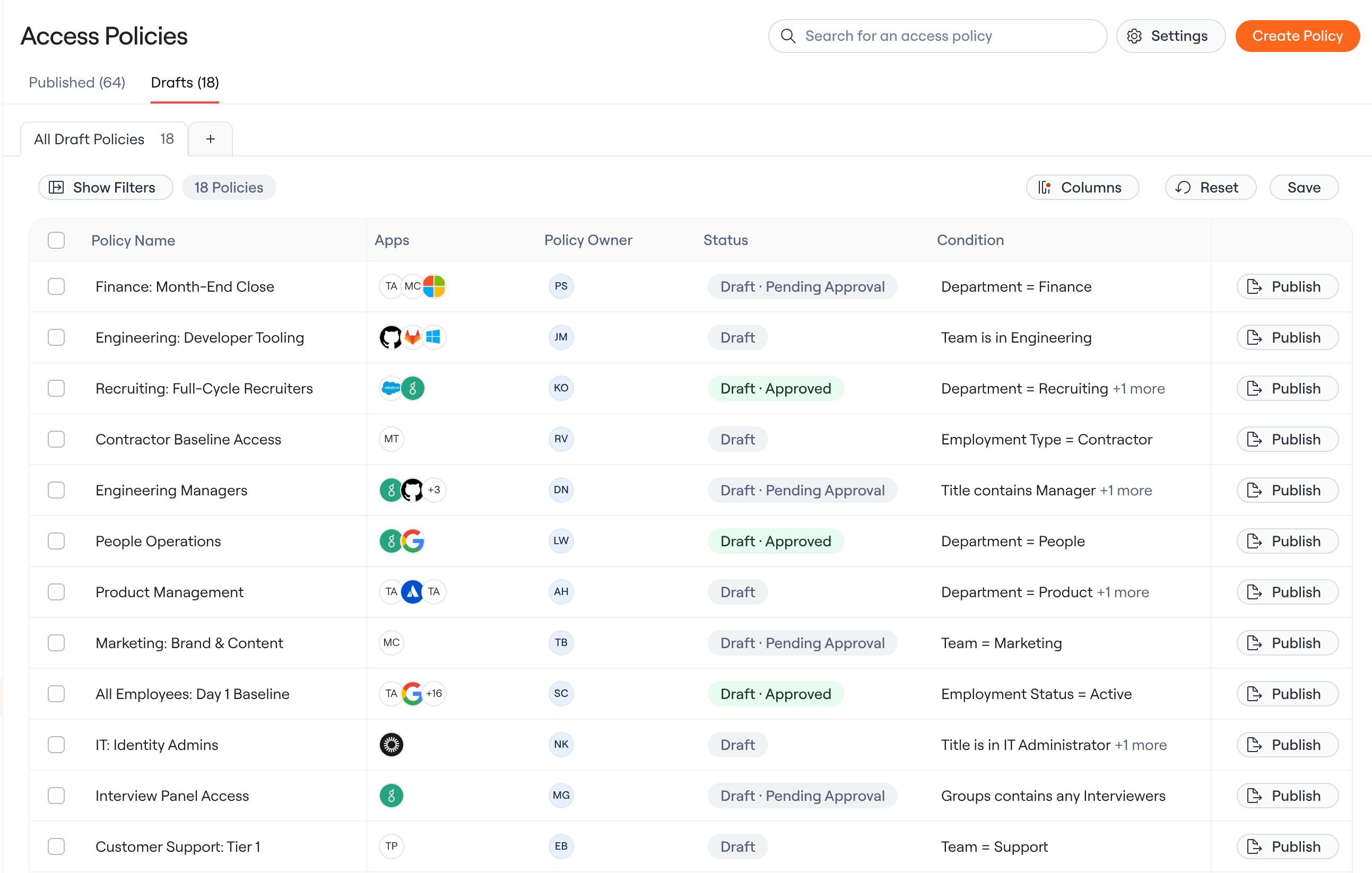
Before you start
- The integrations that carry your owners are connected. Group owners maintained in Active Directory and Office 365 come in automatically.
- Owners have the app-view permission. Grant Inventory → Apps → View → Basic Details from Settings → User Roles. One org-wide grant lets owners browse apps while editing a policy.
Phase 1: Prep (admin team, about a day)
- Pick the first wave. Start with one department, or 10 to 20 policies. A pilot wave surfaces the questions owners will ask before hundreds of people ask them.
- Build the policies as drafts. For each policy, set the conditions that define who it covers, add the apps and permissions, and write the business justification. Owners can’t change conditions, the name, or the justification, so get those as close as you can here. If you use Role Mining, start from its recommendations.
- Assign policy owners in bulk. Select the policies, click Assign Owners, and pick the users or groups. Until you change it, every policy defaults to its creator as owner. Full steps: Assigning Access Policy Owners.
-
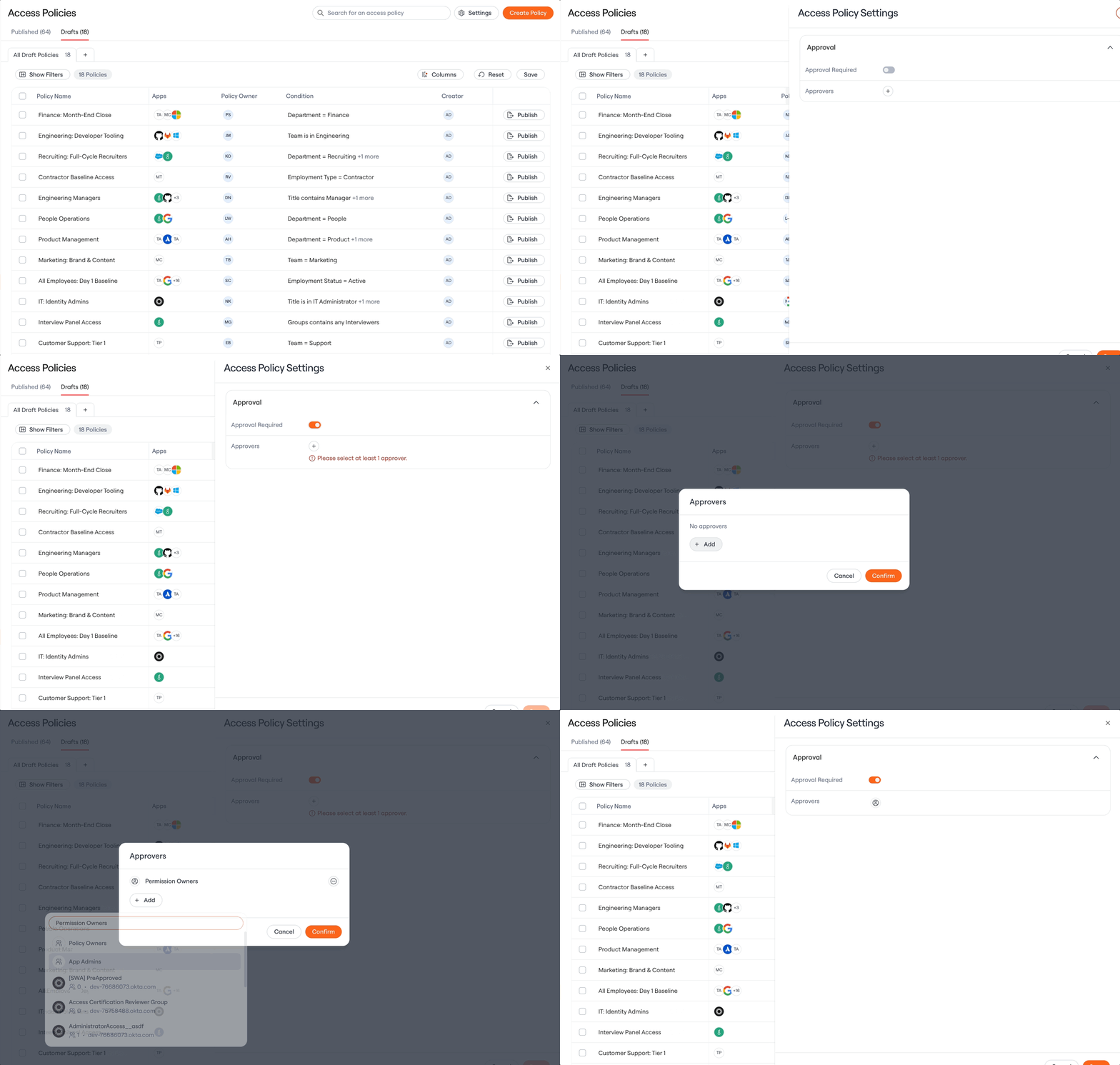
Turn on approvals, with policy owners as the approvers. Approvals are off by default, and the setting applies to every policy. Turn it on before you submit the drafts, so none can be published without an approval. Org admins can always approve as well, so agree in your team that admins leave sign-off to the policy owner.
- Go to Access Policies and click Settings.
- Turn on Approval Required.
- Next to Approvers, click Add approvers, choose Policy Owners, and click Confirm.
- Click Save.
- Share policies with reviewers. Share each policy with the people who should weigh in on the access it grants. The steps are in Phase 4.
Phase 2: Kickoff (program lead, one message)
- Submit each draft for approval. Once owners are assigned, open each draft and click Submit for Approval. It moves to Draft · Pending Approval, which opens the review: owners check their policies, gather input from reviewers, and approve when they’re done.
- Notify approvers. Lumos does not yet email approvers when drafts are submitted for review; notifications are planned. Until then, send a message to policy owners and approvers with a direct link. Set a deadline about two weeks out and keep the ask small: one policy is a ten-minute review.
We’ve drafted an access policy for your team in Lumos, and you’re its owner. It defines which apps and permissions your team will get automatically, and you sign off on it before it goes live. Take ten minutes this week: open the link, confirm the apps and permissions are right, and add or remove anything that is not. Consider input from reviewers, who will leave comments on the policy. When it’s right, click Approve. Conditions and publishing stay with the IAM team, so nothing goes live until you approve it and we publish it.
Phase 3: Owners review their policies
When an owner logs in, Lumos is scoped to the job. They see the Access Policies page with only the policies they own.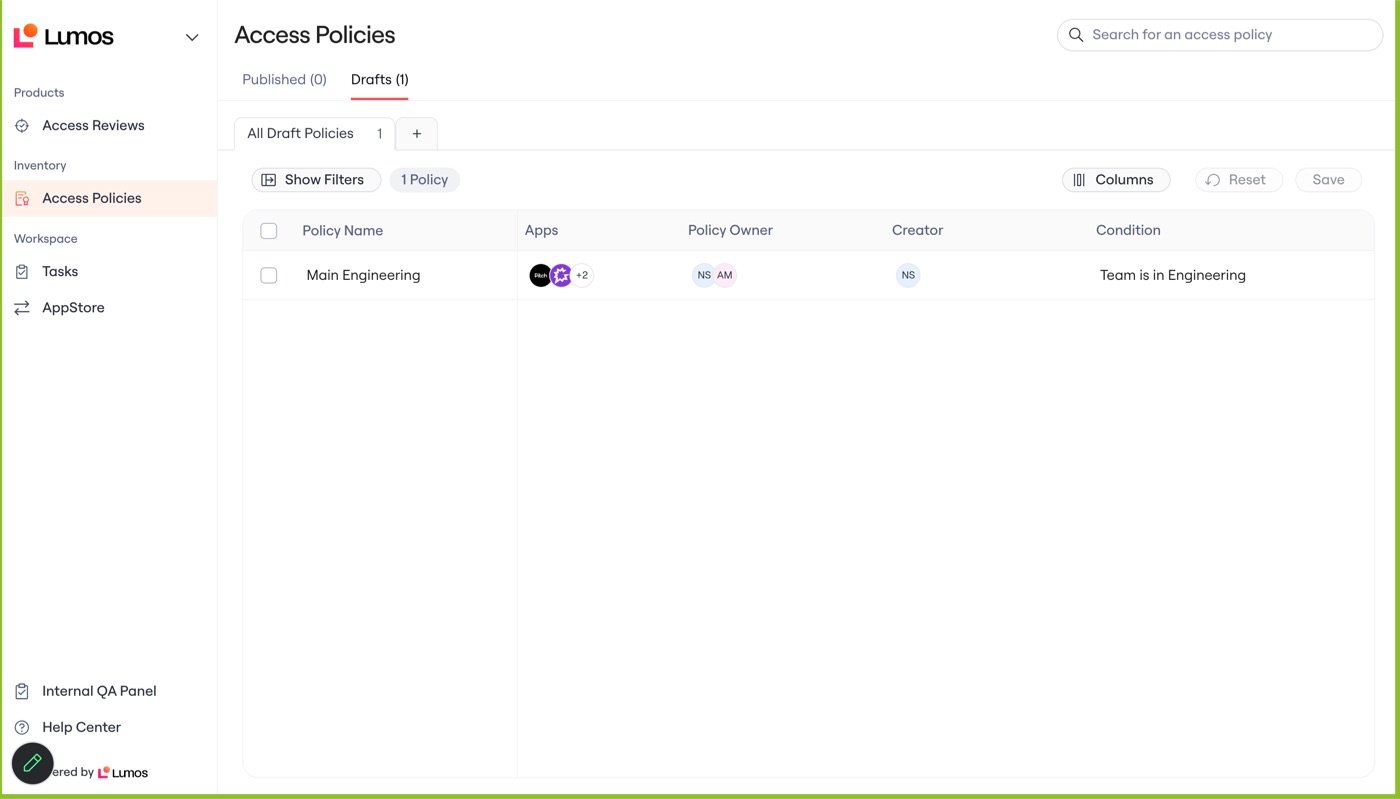
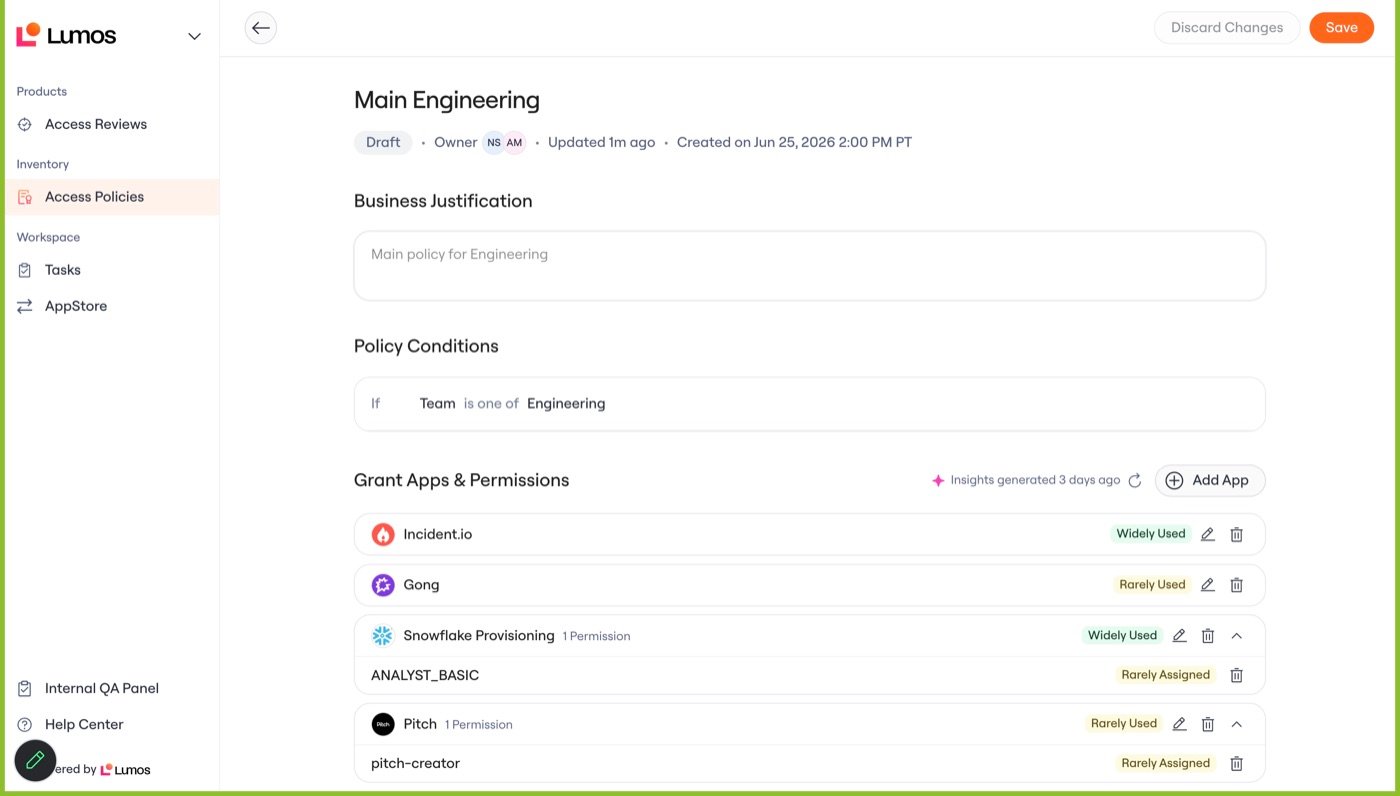
- Widely Used: keep it. The team depends on it.
- Rarely Used: remove it from the policy. Anyone who still needs it can request it through the AppStore, so removal is low-stakes.
- Rarely Assigned: tighten it or remove it.
- Something missing: add it. If the team uses an app the policy does not grant, add it with Add App.
- Covers the wrong people, or the justification is off: comment. Conditions, name and justification are admin-owned, so the owner leaves a comment and the admin makes the change.
Phase 4: Reviewers provide input
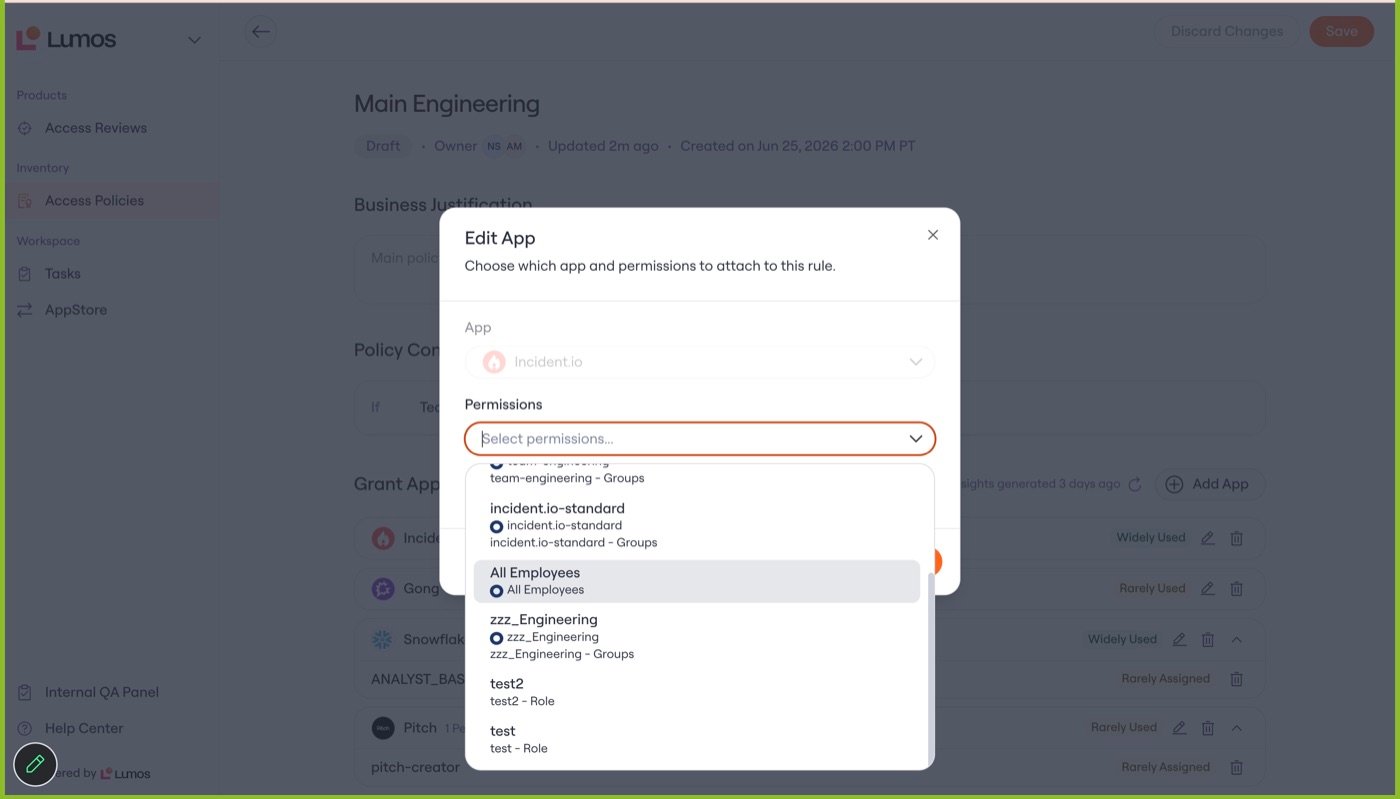
The policy owner decides what their team should get. A reviewer decides whether the policy should be handing out the access they are responsible for. Share the policy with them, and they add their input as a comment on the policy itself.Share a policy with reviewers
- Open the policy from Access Policies.
- Click Share.
- Search for the users or groups who should weigh in. There is no fixed role here: the owner of a group the policy grants, an app owner, an app admin, a security reviewer.
- Click Confirm. Access takes effect immediately.
I shared a new access policy with you in Lumos because it grants access you administer. Open the link, check the apps and permissions it grants, and leave a comment with anything you would change. If it is right as it stands, leave a comment saying so. The policy is read-only for you. The policy owner will make the changes and sign off once everyone has weighed in.What reviewers can do: view the policy in both draft and published states, leave comments, and resolve them. They cannot edit the access, rename the policy, publish it, share it on, or approve it.
Work the feedback
The owner and the admin work the comment thread together, making changes to apps and permissions. Answer each comment on the policy and resolve it once the change is made or the question is settled. Resolved threads stay under See Resolved, so the reason a group is in a policy is still there at the next review. Picking the reviewers is manual today. Auto-sharing is planned: Lumos will match each policy to the group owners it already ingested from Active Directory and Office 365, then share on your behalf.Phase 5: Owners sign off (policy owner)
Once every reviewer has weighed in and the comments are resolved, the owner gives the final approval.- Open the policy and read it end to end one more time: who it covers, what it grants, and the resolved comments.
- Click Approve. The draft moves to Draft · Approved and is ready for an admin to publish.
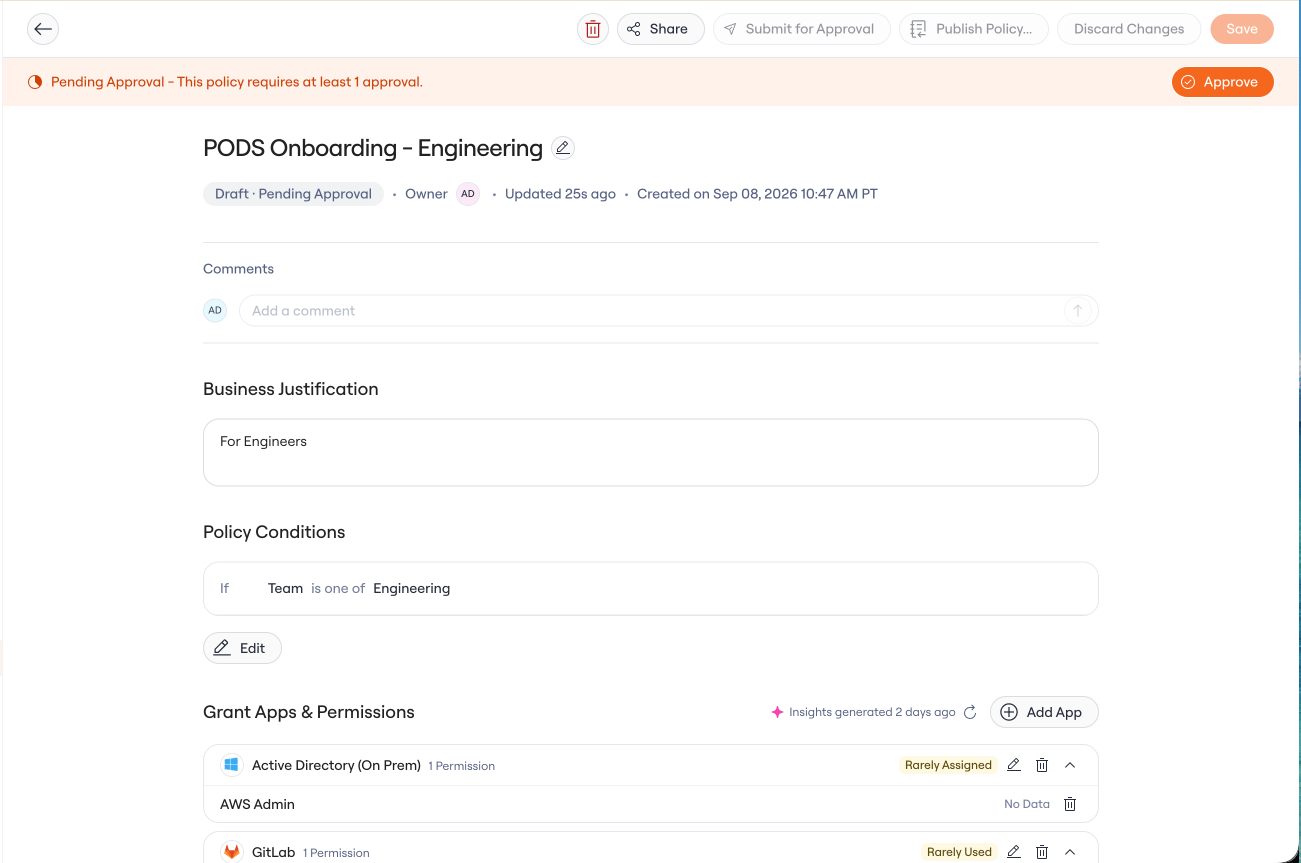
- One owner’s approval is enough. If a policy has several owners, or a group as its owner, any one of them can approve.
- Changes after approval reset it. If apps or permissions change after the owner approves, for example because the admin made a late change, the approval resets and the draft needs to be submitted again. The owner then approves the latest version.
- Edits to conditions, the name, or the justification don’t reset approval. If the admin changes who the policy covers after sign-off, tell the owner before you publish.
- Turning approvals off applies to drafts already in review. Once approvals are off, policy changes no longer need approval before they are published, including drafts already awaiting approval.
Phase 6: Publish and audit (admin team)
Review what owners changed and clear the open comments from reviewers. If you use Role Mining, confirm the policy lines up with its recommendations. Lumos won’t publish a draft until it is Approved: Publish Policy… is disabled on the policy page, and publishing from the Drafts tab returns an error for any draft that isn’t approved. Once it is approved, publish the policy, then activate it. When a policy is active, Lumos starts granting its access to everyone who matches its conditions, so activate in waves if you want to watch the first provisioning runs. See Making your Policies Active / Inactive for the steps. Lumos writes every ownership change and policy update to the Activity Log, along with who approved each publish and every change to the approval settings, capturing the whole audit trail.Keeping the review moving
- Track progress from the Status column on the Drafts tab.
- Draft: not submitted yet, or changed since it was submitted. Finish building it, confirm the owner is assigned, and submit it.
- Draft · Pending Approval: in review. Open comments are your queue: they show whether the owner, a reviewer, or your team is holding it up. Once the comments are resolved, nudge the owner to approve.
- Draft · Approved: ready for you to publish.
- Escalate after two quiet weeks. Loop in the owner’s manager, or reassign ownership to someone closer to the team’s day-to-day.
- Move to the next wave once the first wave is published and active.
- Rerun on a cadence. Quarterly works for most teams. The first cycle is the heavy one. After that, owners are just confirming changes, and each change goes through a draft and the owner’s sign-off before it’s published.
Quick reminder: your team’s access policy is due for sign-off Friday. It is one link and about ten minutes. Check that reviewers’ comments are resolved, then click Approve. Reply here if anything is unclear and I will help.
FAQ
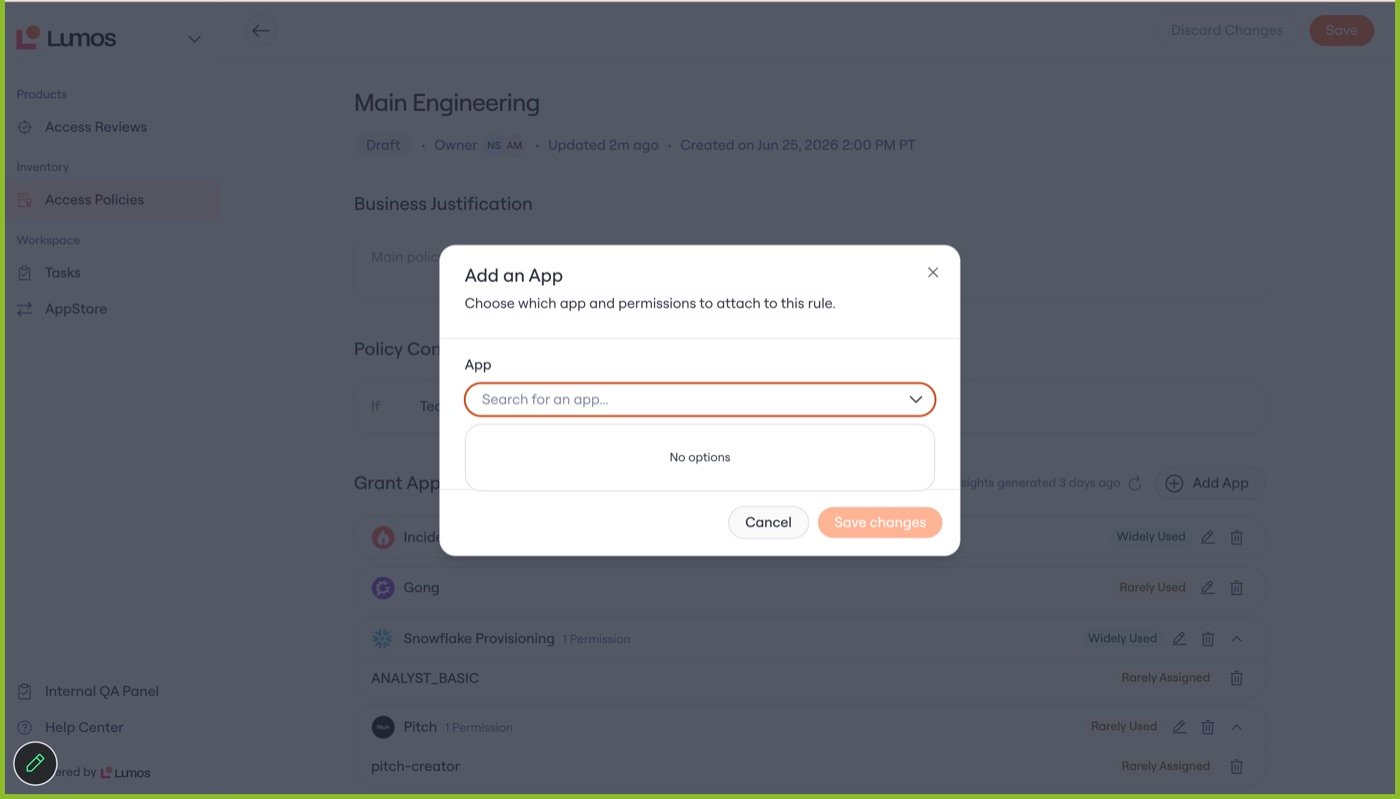
An owner clicks Add App and sees “No options.” Why?They are missing the app-view permission from Before you start. Grant Inventory → Apps → View → Basic Details once from Settings → User Roles, and it applies across the org. Before, without the app-view permission:
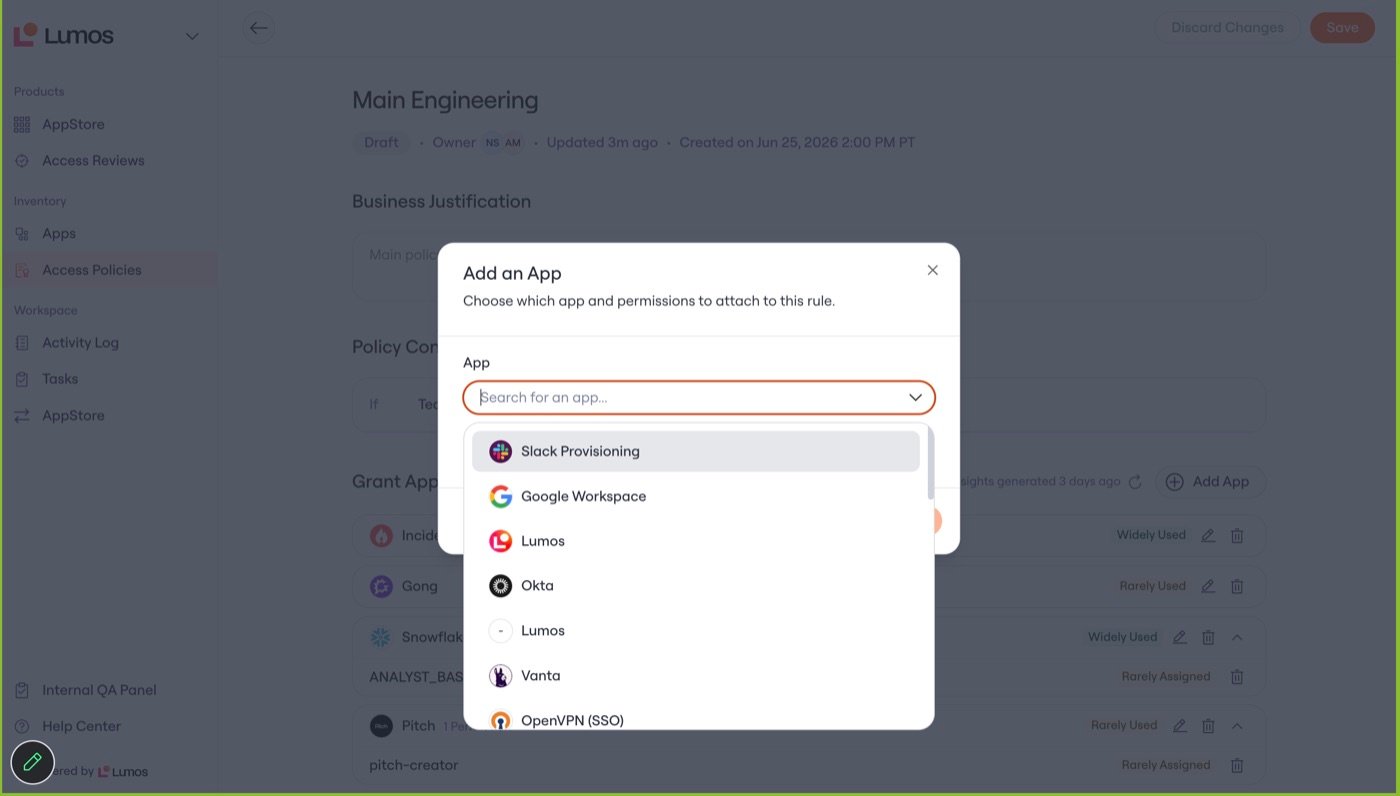
The permission was granted scoped to specific apps instead of org-wide. Owners see only the apps in scope, plus their own. Grant the permission at the org level to show the full list. Does an owner need to be an app admin for the apps in their policy?
No. The app-view permission is org-wide, not per app. Does a new policy need approval before its first publish?
Yes. Every app and permission on a new policy is new access, so it needs an approval before an admin can publish it. Who can turn on approvals?
Admins. It’s one setting that covers every policy. Org admins can also approve any policy, whoever the approvers are. If a policy has more than one owner, does each one need to approve?
No. One owner’s approval is enough. Do reviewers need to approve?
No. Reviewers weigh in through comments. The owner takes their feedback into account and signs off. What happens if apps or permissions change after the owner approves?
The approval resets, and the draft needs to be submitted again before the owner approves the latest version. Are owners notified when they are assigned?
Not yet; notifications are planned. Until then, the kickoff message with a direct link does the job. Are reviewers notified when I share a policy with them?
Not yet. Send them the link with the review ask. Can a reviewer change a policy I shared with them?
No. Sharing is view and comment only. If you want someone editing the apps and permissions and signing off, assign them as a policy owner instead. Can an owner change who a policy covers?
No. Conditions are admin-owned, so the population a policy covers never changes without an admin. If an owner thinks the policy covers the wrong people, they leave a comment and the admin makes the change. Can I submit or approve through the API?
Submitting and approving happen in the Lumos app. With approvals on, the API also can’t create a policy directly as published, so scripts and Terraform should create drafts and let them go through approval. Is approval in the Activity Log?
Yes. The publish entry shows who approved, and every change to the approval settings is logged.