

Background
Access Policies control who gets access to what, so changes to a live policy carry risk. You can create a draft from any published Access Policy, change it, and publish it when it is ready. The published version stays in effect the whole time. You can’t edit published policies in place. Every change goes through a draft first.What you see on a published policy
Published policies are read-only. When you open one, these editing controls are disabled or hidden:- The “Add App” button under Apps & Permissions is disabled.
- The pencil icon on Conditions doesn’t appear.
- The edit and remove icons on apps and permissions don’t appear.
- The name, “Business Justification”, and owners can’t be changed.
This policy has edits in process. Click View Draft to open the existing draft.
To delete a published policy, click the trash icon in the top right of the policy, or select it in the Published tab and delete in bulk. See How do I delete a policy? Only Admins see the trash icon.
When to use a draft
- Rework conditions on a live policy. Change who a policy applies to (job title, department, employment type) without a half-finished condition set going live.
- Add or remove apps and permissions. Stage the new app list, review it with the app owner, then publish once.
- Get a review before a change takes effect. The policy owner builds the draft and moves it to Ready to Publish. An Admin reviews and publishes it.
- Collaborate on a change. Comment on the draft and share it with stakeholders while the current version keeps running.
Prerequisites
- You are an Admin or the owner of the policy. Owners can change apps and permissions in a draft but not the other fields. See What Admins and owners can edit in a draft.
- The policy is already published. New policies start as drafts on their own.
- Only Admins can publish a draft.
Create a draft
- Go to Access Policies and open the published policy you want to change.
-
Click the “Create Draft” button in the top right.
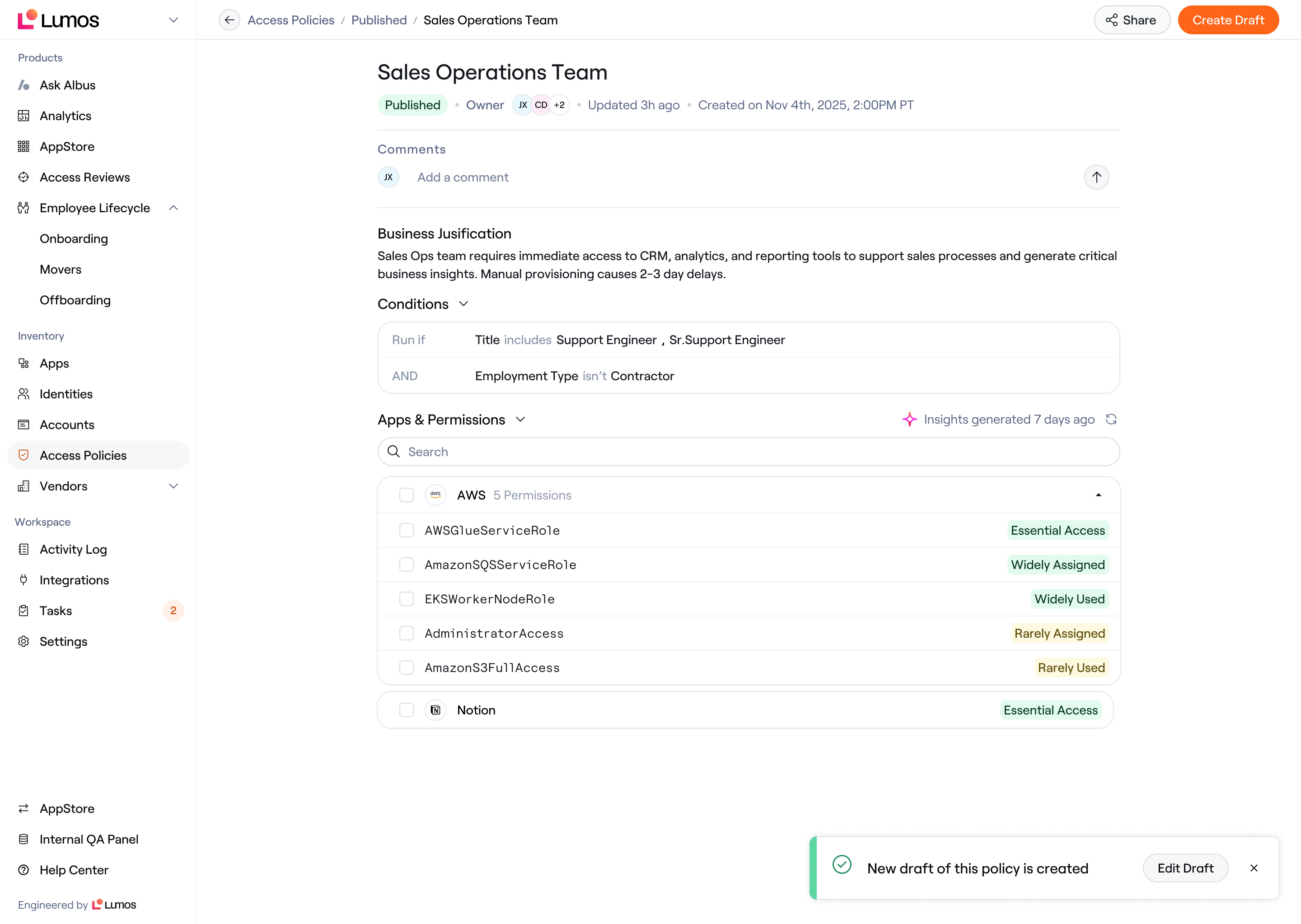
-
Lumos opens the draft. A banner at the top reads
This is a draft of an existing policy.with a View Published link back to the live version.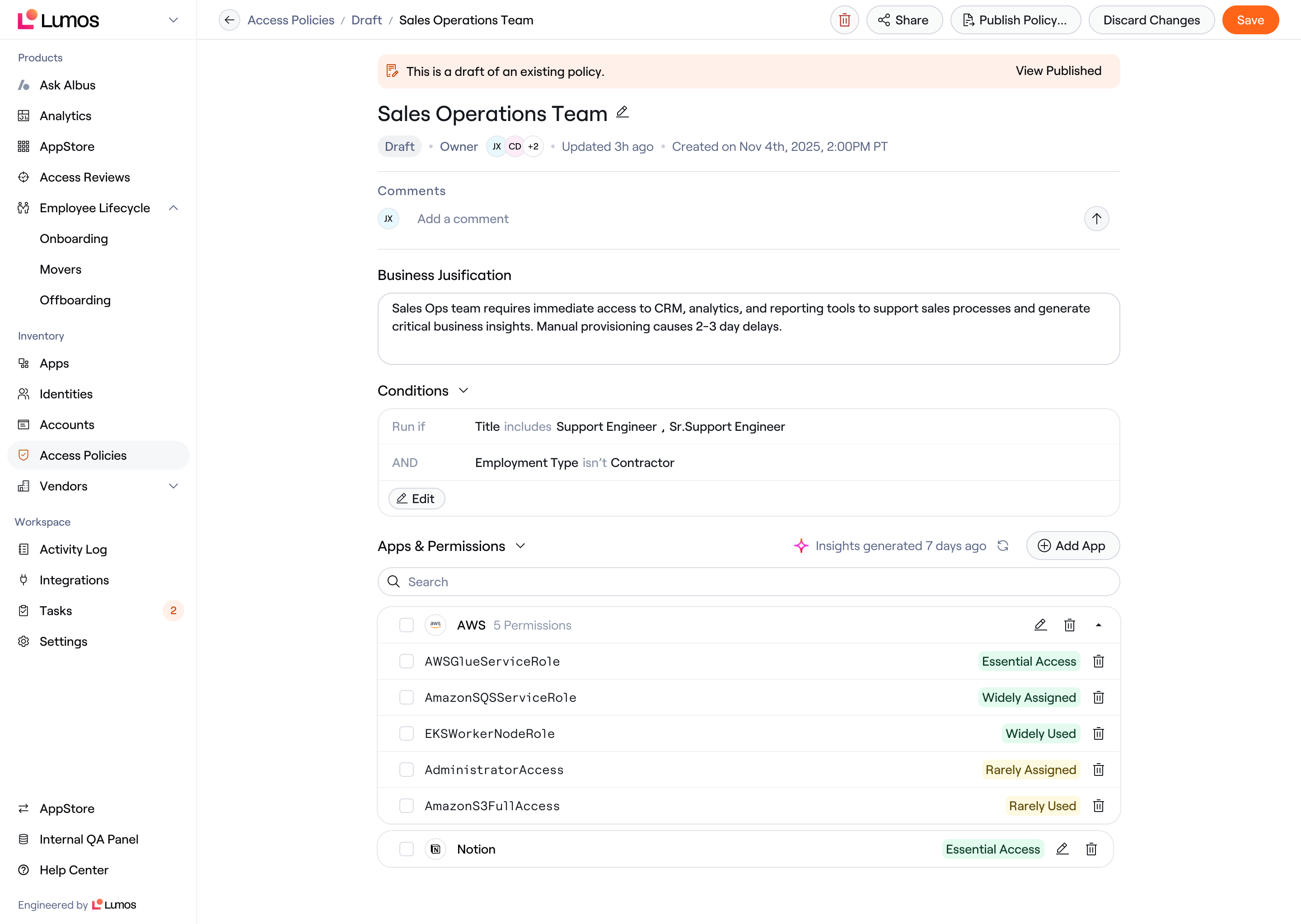
- Edit the draft. Admins can rename it, update the “Business Justification” field, edit Conditions, or add and remove apps under Apps & Permissions. Owners can add and remove apps under Apps & Permissions.
- Click “Save”.
What Admins and owners can edit in a draft
Publish a draft
-
As an Admin, open the draft and click the “Publish Policy” button.
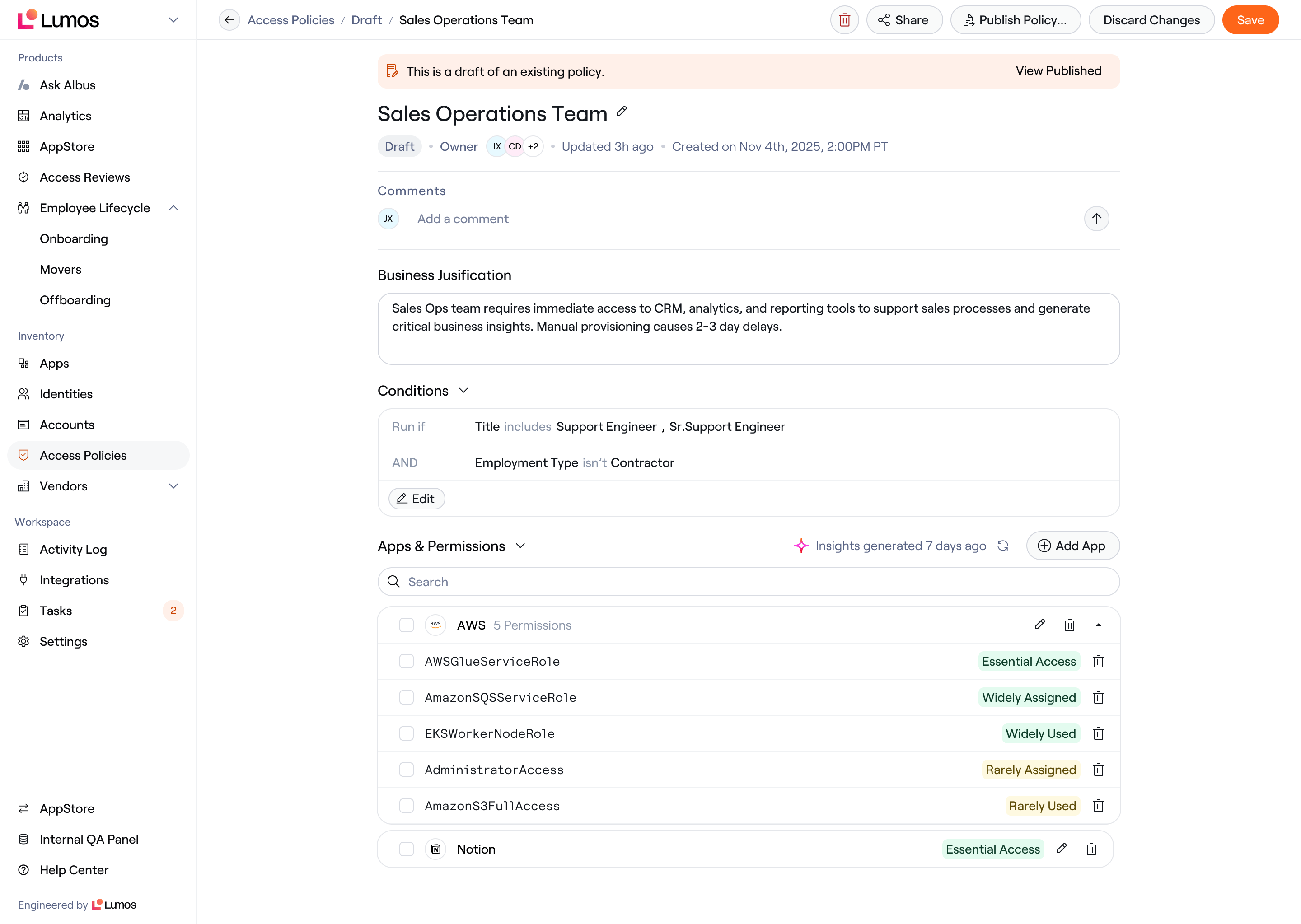
- Lumos checks the draft’s conditions for uniqueness against other published policies. It then replaces the published version with the draft.