

- Before a new policy is published for the first time. The approver reviews the whole policy.
- Before a change to a published policy goes live. The approver reviews the apps and permissions that changed.
- You need sign-off before access is granted or changed. A department lead or app owner confirms a new policy, or a change to a live one, before anyone gains or loses access.
- You run approvals outside Lumos today. Lumos replaces the Jira ticket or spreadsheet you use to approve a policy before you set it up by hand.
- You need audit evidence. Lumos records who approved each published version of a policy and when.
How approval works
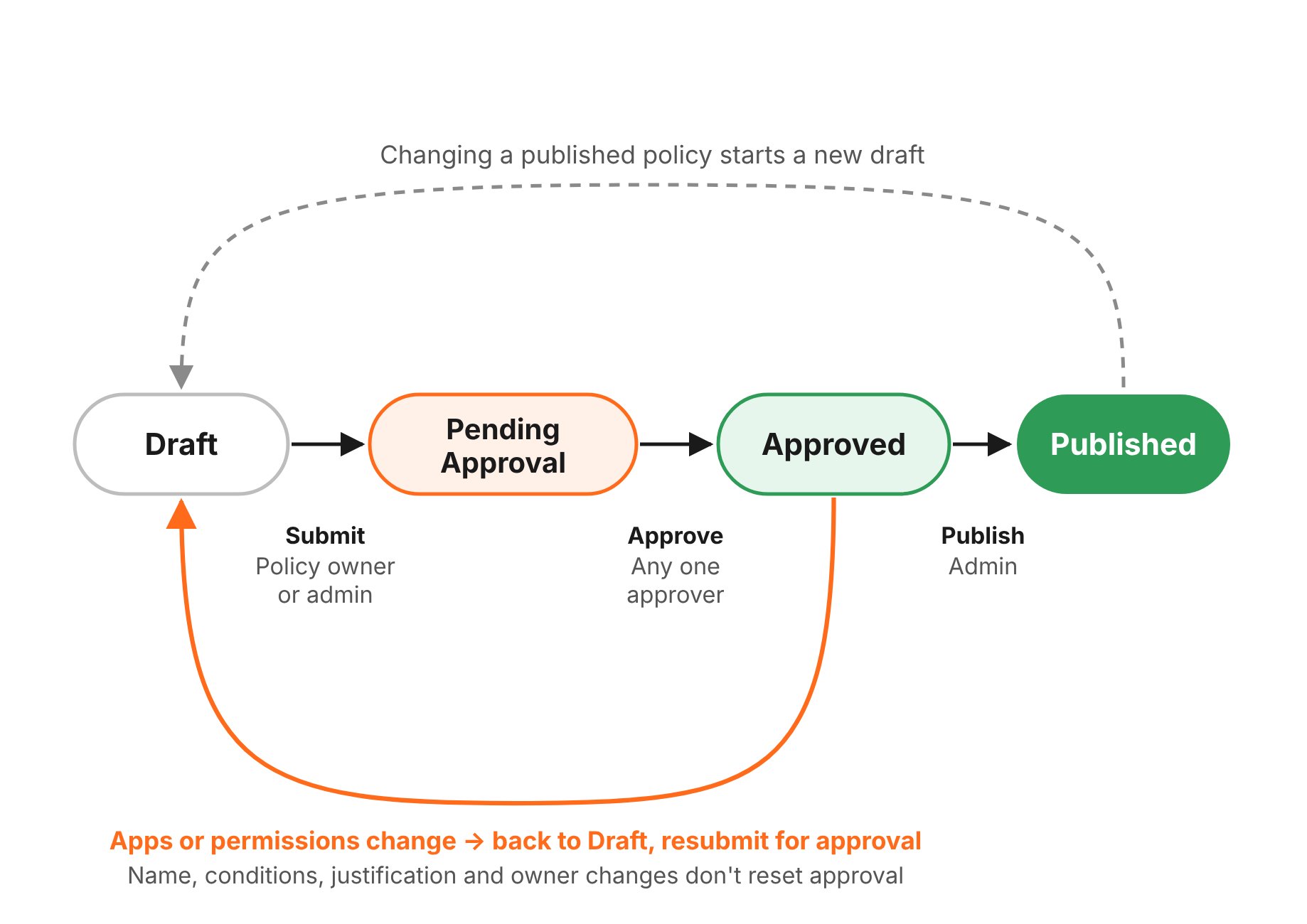
- An Admin or policy owner builds a new policy as a draft, or creates a draft of a published policy to change it. When the draft is ready, they submit it for approval.
- Lumos notifies the policy’s approvers.
- Approvers, and anyone the policy is shared with, leave comments on the draft to ask questions or request changes. For a new policy, they review the whole policy. For a change, they can compare the draft to the published version.
- A policy owner or Admin works through the comments and updates the draft. If they change the apps or permissions, they submit the draft again.
- When the draft is final, an approver approves it.
- An Admin publishes the approved draft. A new policy is published for the first time, or the approved draft replaces the published version.
Turn on approvals
Only Org Admins can change approval settings.-
Go to Access Policies and click Settings in the top right.

-
In the Access Policy Settings drawer, turn on Approval Required.
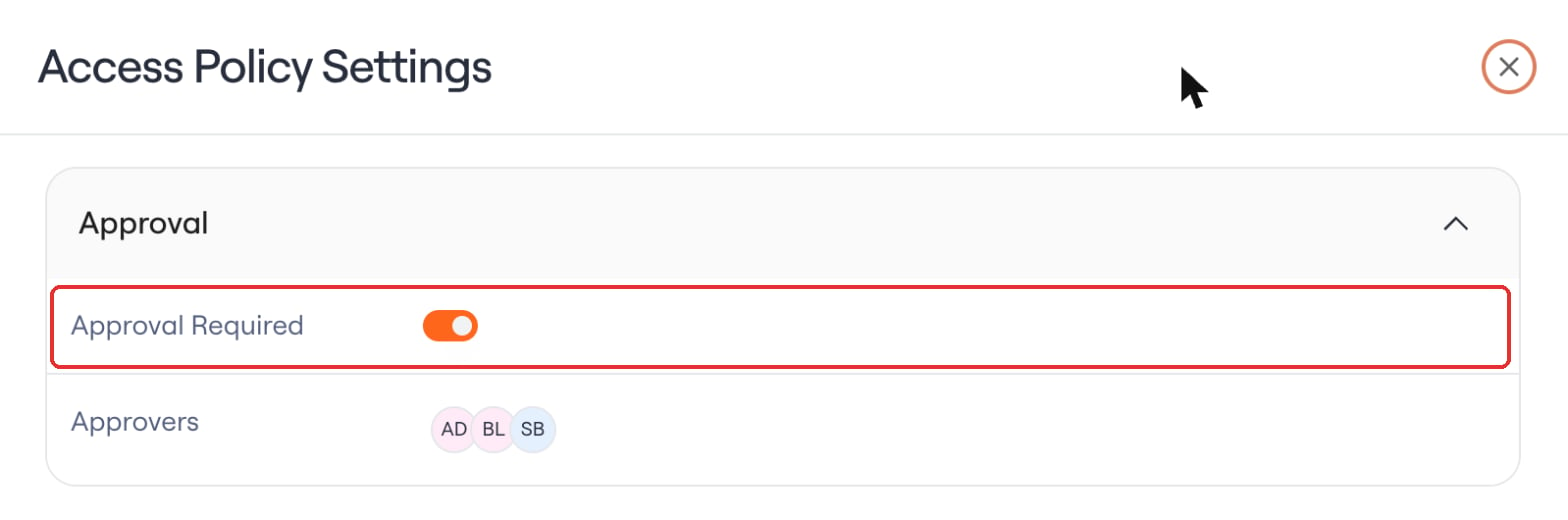
- Add at least one approver. See Assign approvers.
-
Click Save. Lumos shows
Approval settings saved.
Approvals also apply to drafts that already exist when you turn them on, including new policies that haven’t been published yet. Each of those drafts has to be submitted and approved before an Admin can publish it, even if it only changes conditions or the name.
Assign approvers
- In the Access Policy Settings drawer, click Add approvers next to Approvers. If approvers are already set, click them to edit the list.
-
In the Approvers dialog, click Add and choose who can approve. You can combine any of these:
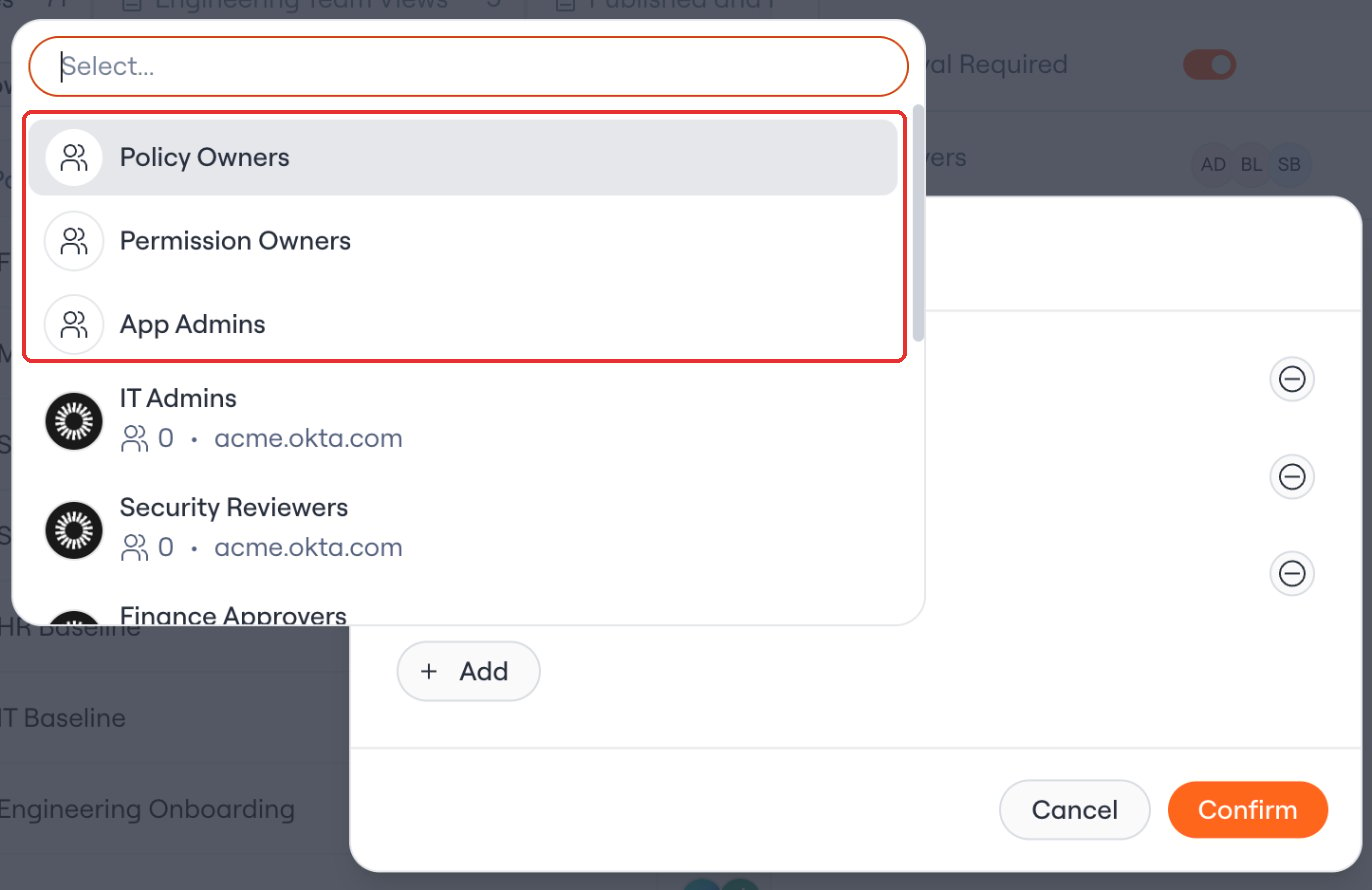
- Click Confirm, then click Save.
What needs approval
A new policy always needs approval before it’s published for the first time, because everything in it is new access. After that, only changes to the access a policy grants need approval.
If a draft only has changes that don’t need approval, an Admin can publish it without submitting it. This only applies to a published policy. A new policy always needs approval before its first publish, and so does any draft that already existed when approvals were turned on.
Submit a draft for approval
Admins and policy owners can submit a draft for approval. How you get to the draft depends on whether the policy is new or already published.Submit a new policy
- Go to Access Policies and click Create Policy.
- Set up the policy: its conditions, the apps and permissions it grants, and its business justification.
- Click Save. Lumos saves the policy as a draft and opens the Drafts tab.
- Open the draft, then click Submit for Approval.
Submit a change to a published policy
- Open the published policy and click Create Draft. If the policy already has a draft, open it from the Drafts tab instead.
- Make your changes under Grant Apps & Permissions.
- Click Save, then click Submit for Approval.
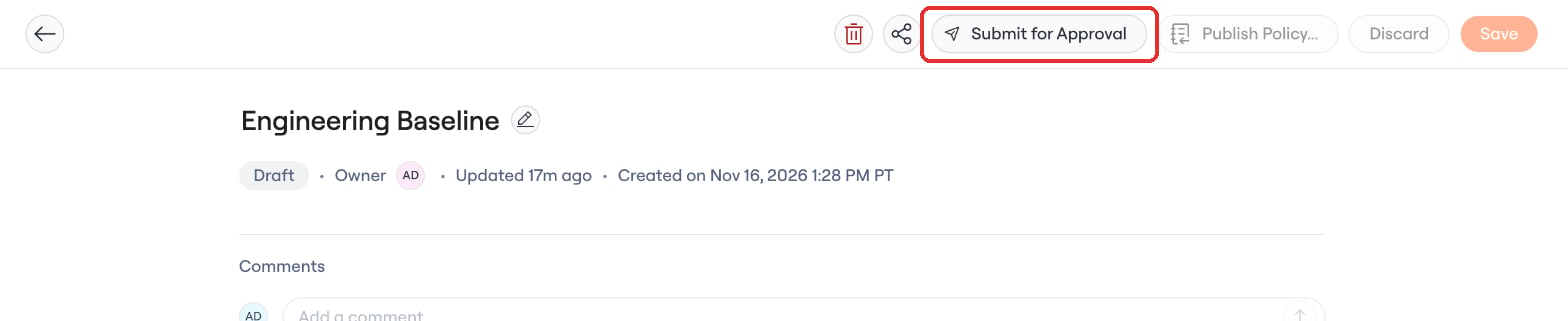
These changes need approval before they can be published. Submit them for approval first. before you submit, and These changes need approval before they can be published. Waiting for an approver. while the draft is pending.
If Submit for Approval is disabled, hover over it to see why:
Approval status
| Badge | Meaning |
|---|---|
 | The draft hasn’t been submitted yet, its changes don’t need approval, or its apps or permissions changed after it was submitted and it needs to be submitted again |
 | The draft is waiting for an approver |
 | An approver approved the draft. Hover over the badge to see who approved and when. |

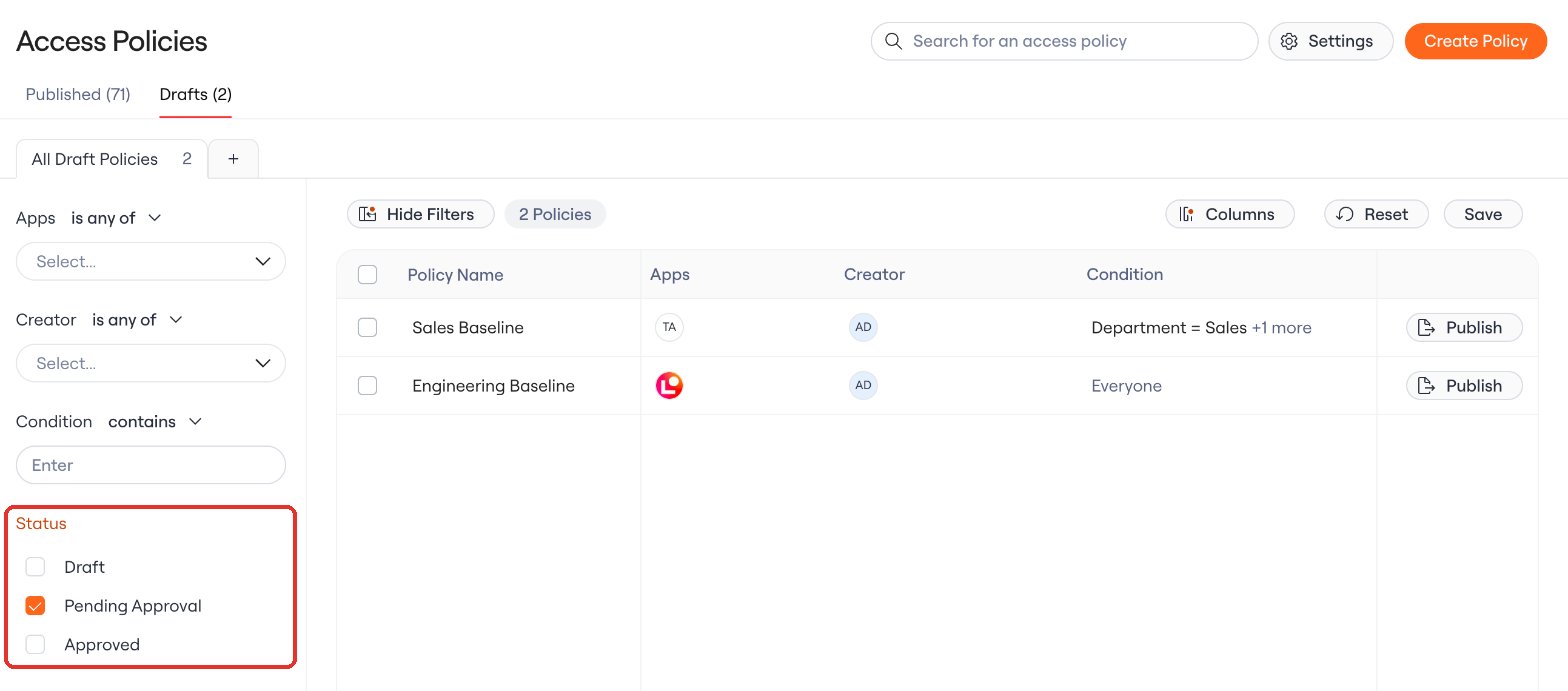
Notifications
Lumos sends approval notifications by email, Slack or Microsoft Teams, depending on your organization’s settings under Settings → Notifications.
Lumos doesn’t notify you about your own request, even if you are one of its approvers.
Who needs to approve
One approval from any approver is enough, even if a draft has several approvers. Lumos works out who the approvers are when a draft is submitted. If you change the approval settings, the change applies the next time a draft is submitted. You can approve your own draft if you are one of its approvers.Review and approve a draft
When a draft is pending approval, its approvers can open it and see the whole policy: its conditions, business justification, apps and permissions, and comments. Approvers can’t edit or publish the draft unless they’re also policy owners or Admins. What approvers look at depends on the draft:- A new policy: there’s no published version yet, so approvers review the whole policy. The badges next to each app and permission show how widely it’s used and assigned.
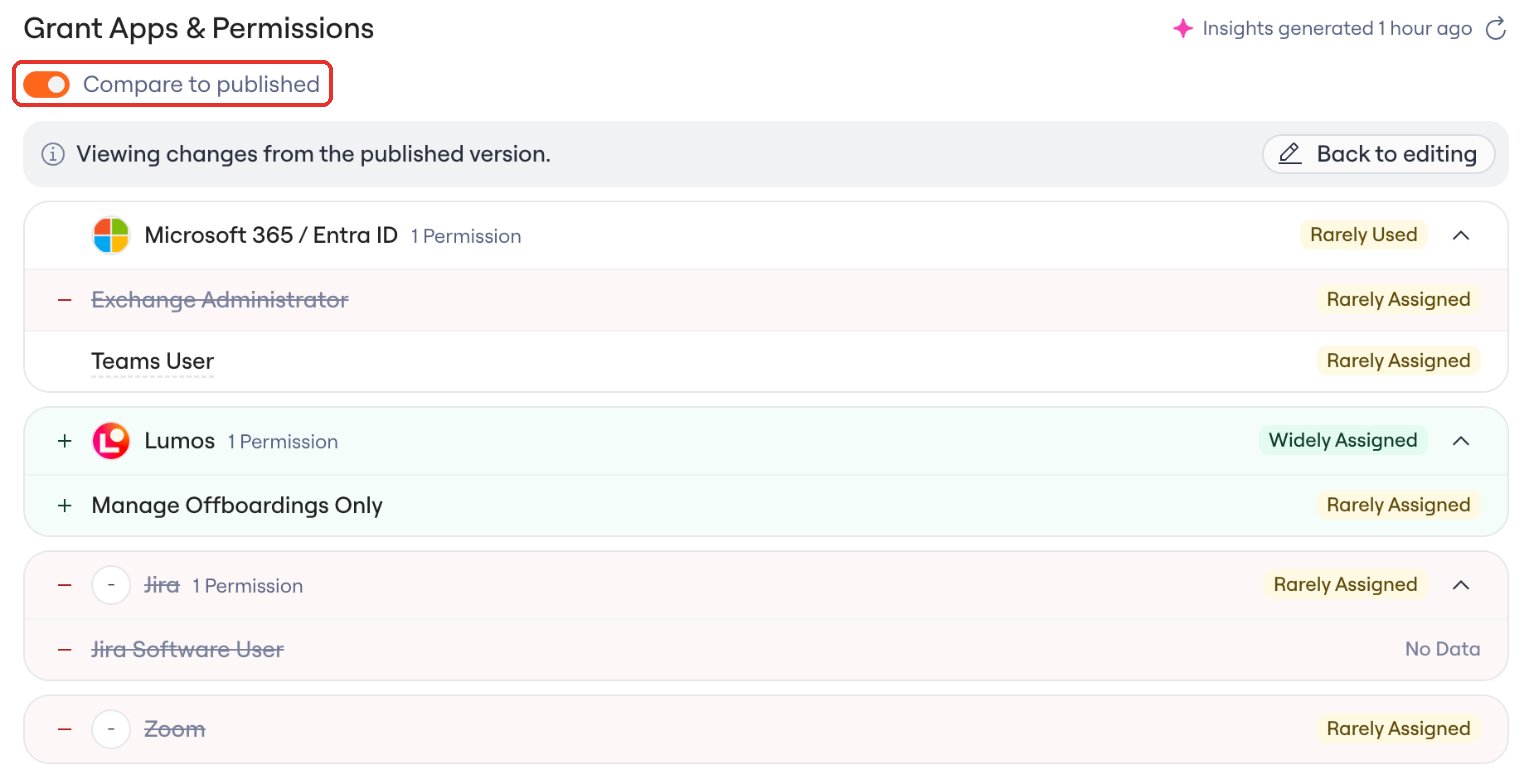
- A change to a published policy: approvers can turn on Compare to published to see only the apps and permissions that changed.
Approve

Pending Approval banner.
Approve only appears while the draft is waiting for approval. If another approver approves first, the banner reads This draft was already approved.
Leave comments
Use the comment section on the policy page to ask a question or request a change. Approvers can’t reject a draft. To ask for changes, they comment, and a policy owner or Admin updates the draft. See Sharing Access Policies.Compare to the published version
A new policy has no published version, so Compare to published doesn’t appear.

Make updates and resubmit
If anyone changes the apps or permissions after a draft is submitted, the draft goes back to Draft and needs to be submitted and approved again. This applies to new policies and to changes to published policies, whether the draft was waiting on approval or already approved.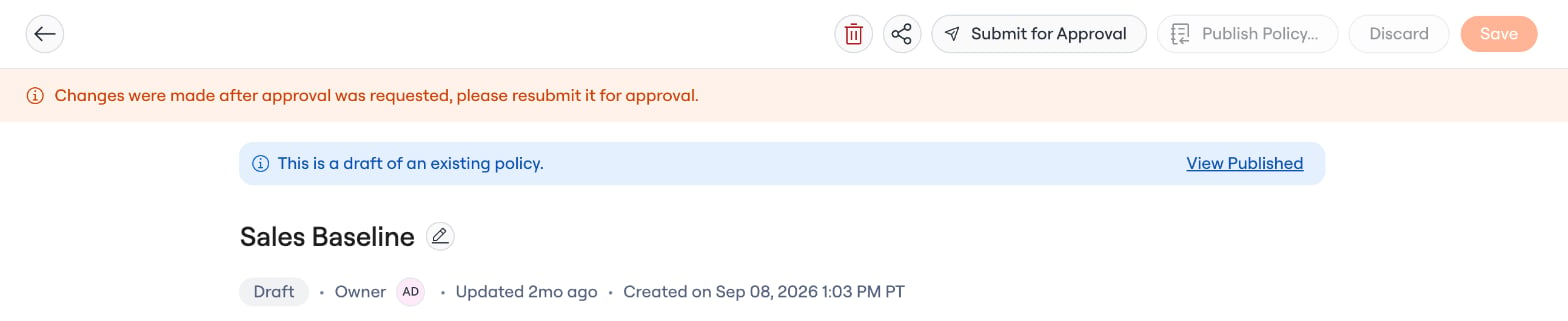
After approval
When an approver approves a draft:-
The badge changes to Draft · Approved, and Publish Policy… is enabled.

- Lumos notifies the person who submitted the draft.
- An Admin clicks Publish Policy…. A new policy is published for the first time, or the approved draft replaces the published version.
Activity log
The activity log records:- Each publish that needed approval, including who approved the published version and when, in the Approved By field.
- Each change to approval settings, including turning approvals on or off and changes to approvers.
Turn off approvals
- Go to Access Policies and click Settings.
- Turn off Approval Required and click Save.
- In the Turn off approvals? dialog, click Turn off.