

Background
Offboarding workflows let you set up different kinds of departures ahead of time, each with its own name, apps, and steps, so whoever runs an offboarding picks one by name instead of configuring each app. This article follows one example, a Contractor Offboarding workflow that covers only the apps contractors use.If you used offboarding before this change, Lumos moved your Apps to Include setting and your offboarding steps into a workflow named Default Offboarding Workflow and made it the automatic offboarding workflow, so your offboardings keep running the way they did.
Before you start
- You need at least one offboarding workflow before anyone can start an offboarding. If your organization never set up offboarding steps, there was nothing for Lumos to move, so you start with no workflows. Create one, then make it the automatic offboarding workflow.
- You need the View offboardings permission to see offboarding workflows. To create, edit, or delete them, or to choose which one runs automatically, you need the Create/manage offboardings permission. See Lumos Roles.
How offboarding workflows fit together
Three different things in offboarding are called a workflow. This table shows what each one controls and where you manage it.
An offboarding workflow removes each app’s accounts with the deprovisioning workflow assigned to Offboarding on that app, unless you assign it a different one.
Automatic offboardings, the ones triggered by a deactivation or an End Date, always run the automatic offboarding workflow.
When you offboard someone manually, Lumos starts with the automatic offboarding workflow selected, and you can switch to any other workflow.
Create an offboarding workflow
-
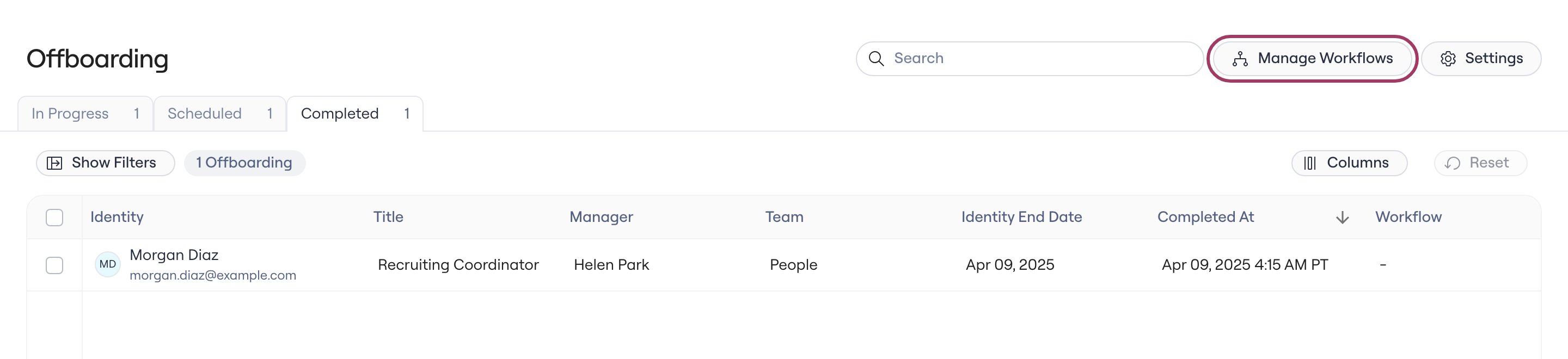
Go to Offboarding and click Manage Workflows. You can also get there from Employee Lifecycle > Workflows in the left nav.
-
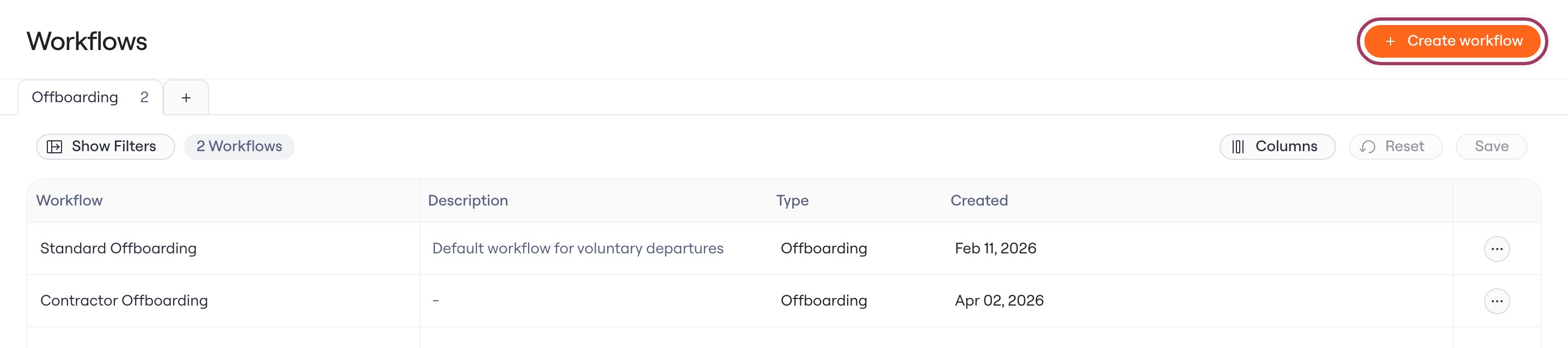
Click Create workflow.
-
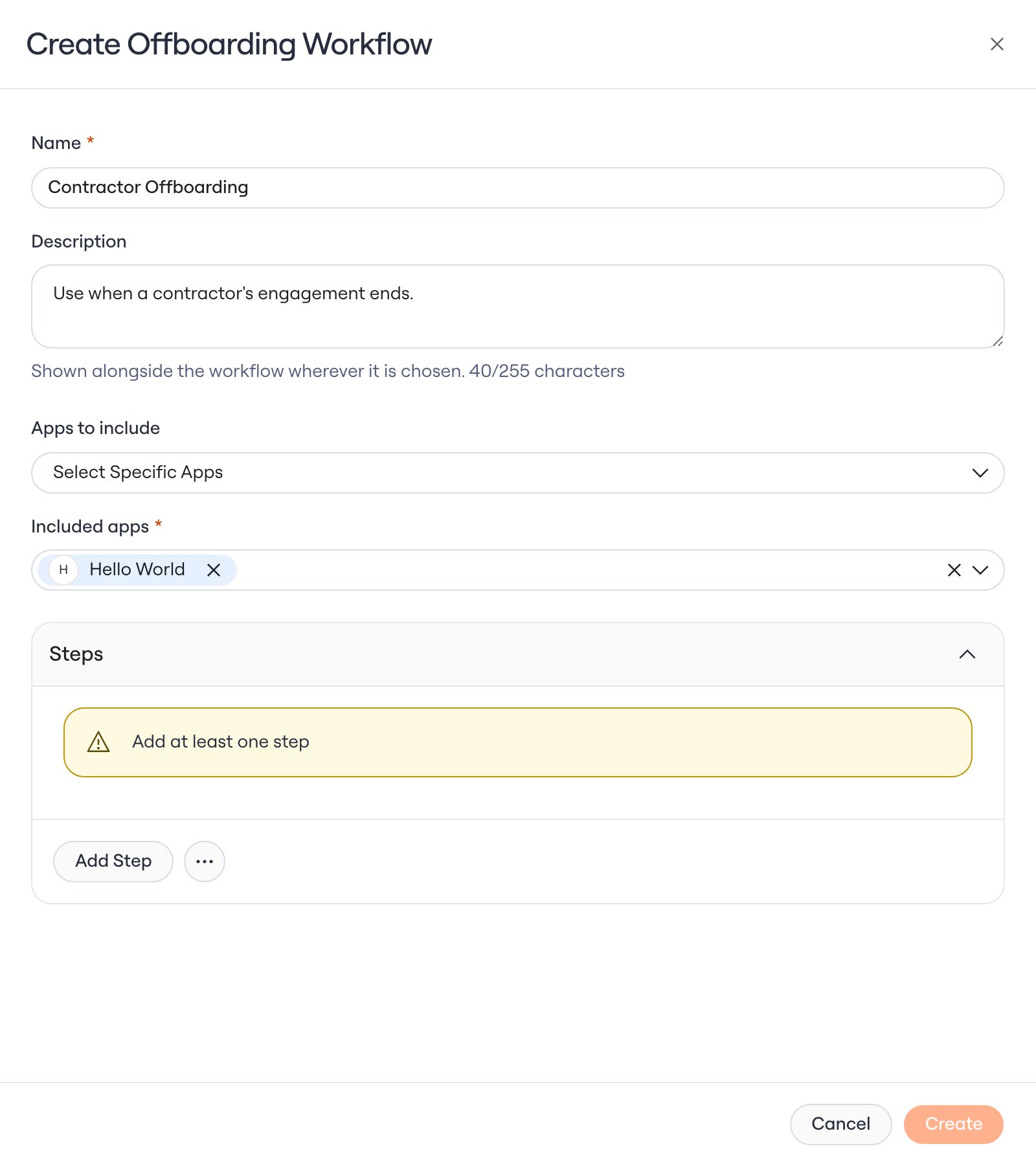
Enter a Name, such as
Contractor Offboarding. People see this name when they choose a workflow, so make it clear which departures it’s for. - Optionally, add a Description of up to 255 characters. Lumos shows it next to the name wherever someone picks a workflow, which makes it a good place to say when to use this one.
-
Choose Apps to include. Contractors only use a few apps, so Contractor Offboarding uses Select Specific Apps. The three options are:
- Approved Apps, which covers apps whose App Status is Approved.
- Apps with App Admins, which covers apps that have at least one app admin.
- Select Specific Apps, which covers only the apps you pick under Included apps.
-
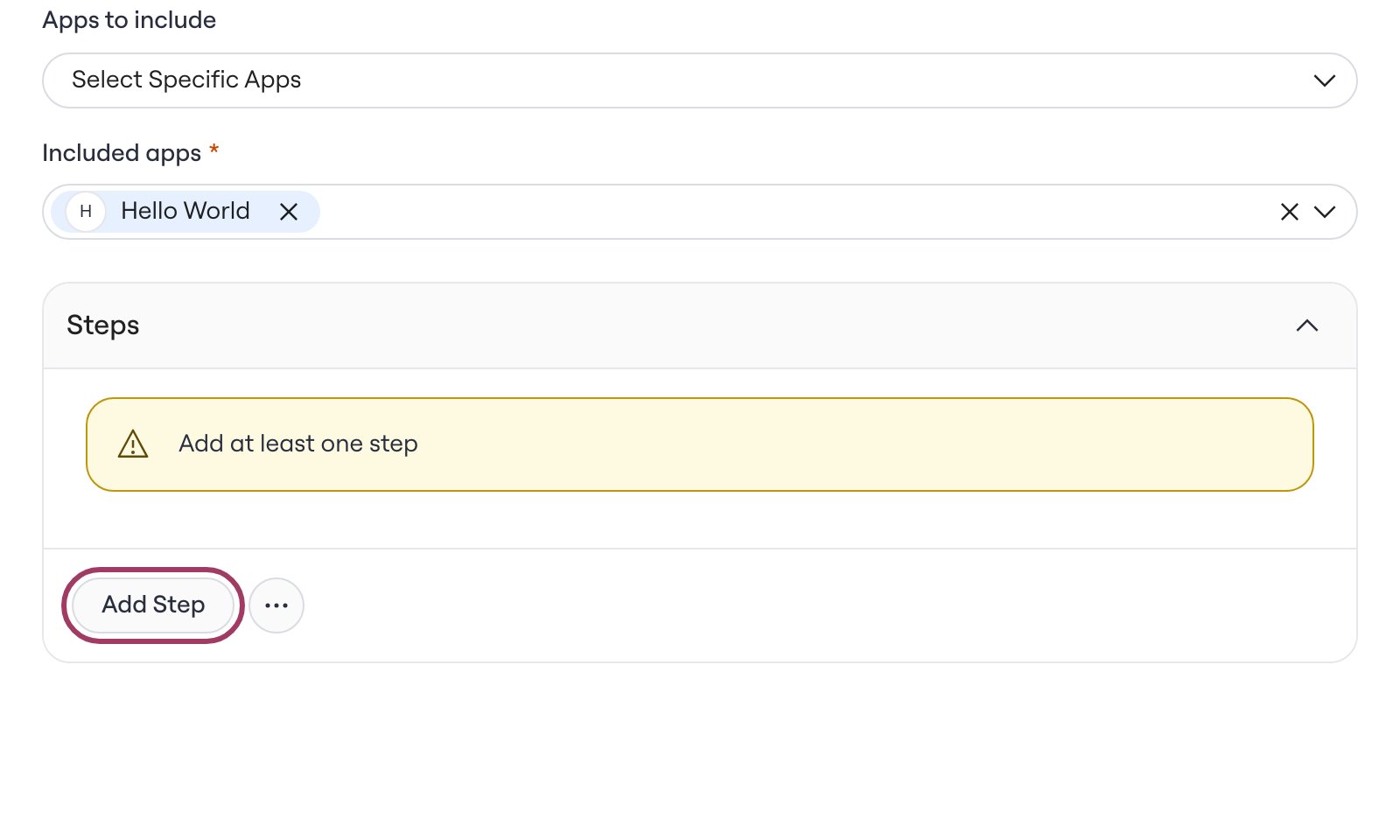
Under Steps, add the steps this offboarding runs. You can’t create a workflow until it has at least one step.
- Click Create. Contractor Offboarding now appears in the Workflows table, along with its description and the date you created it.
Remove an app differently in one workflow
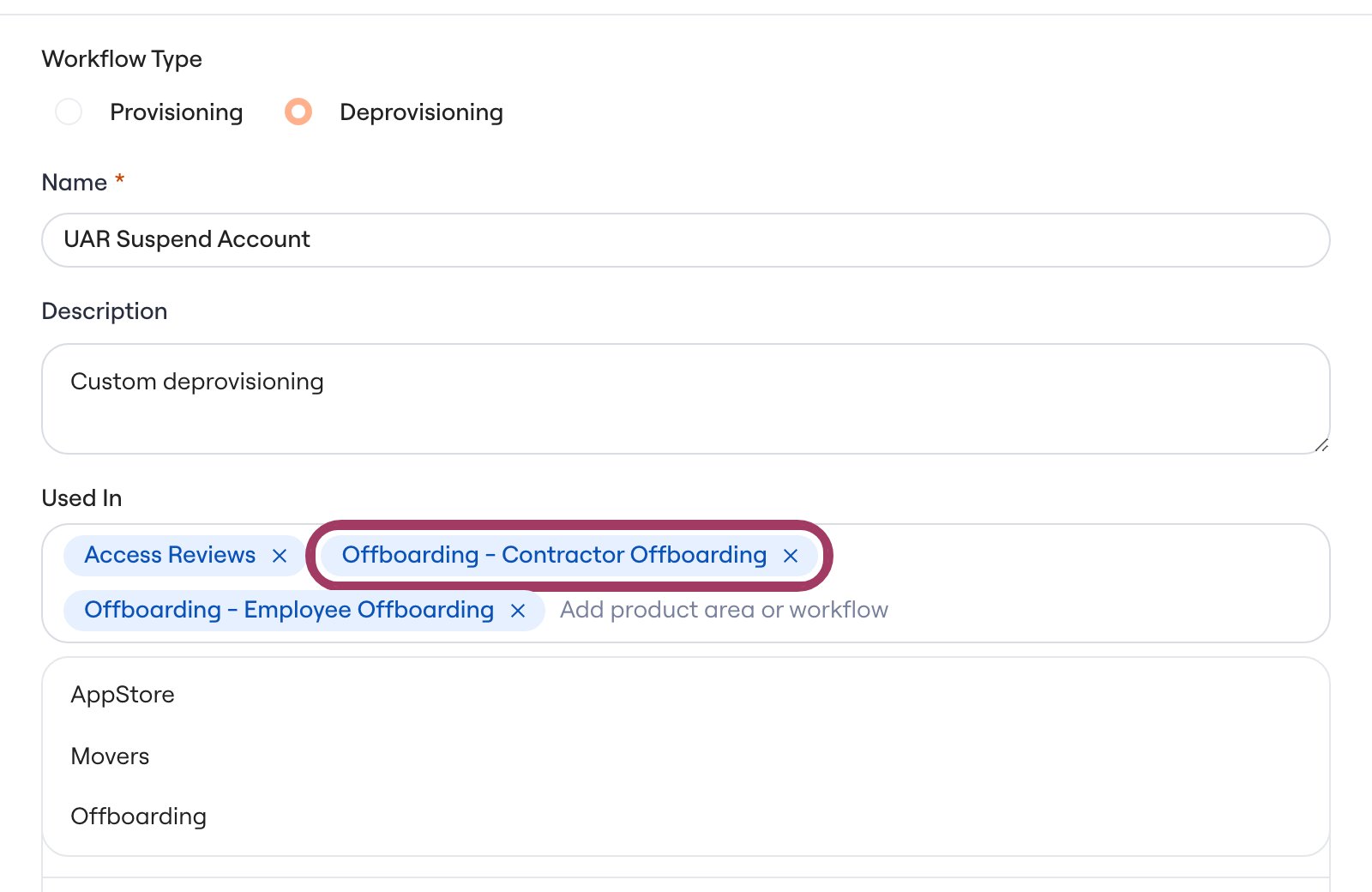
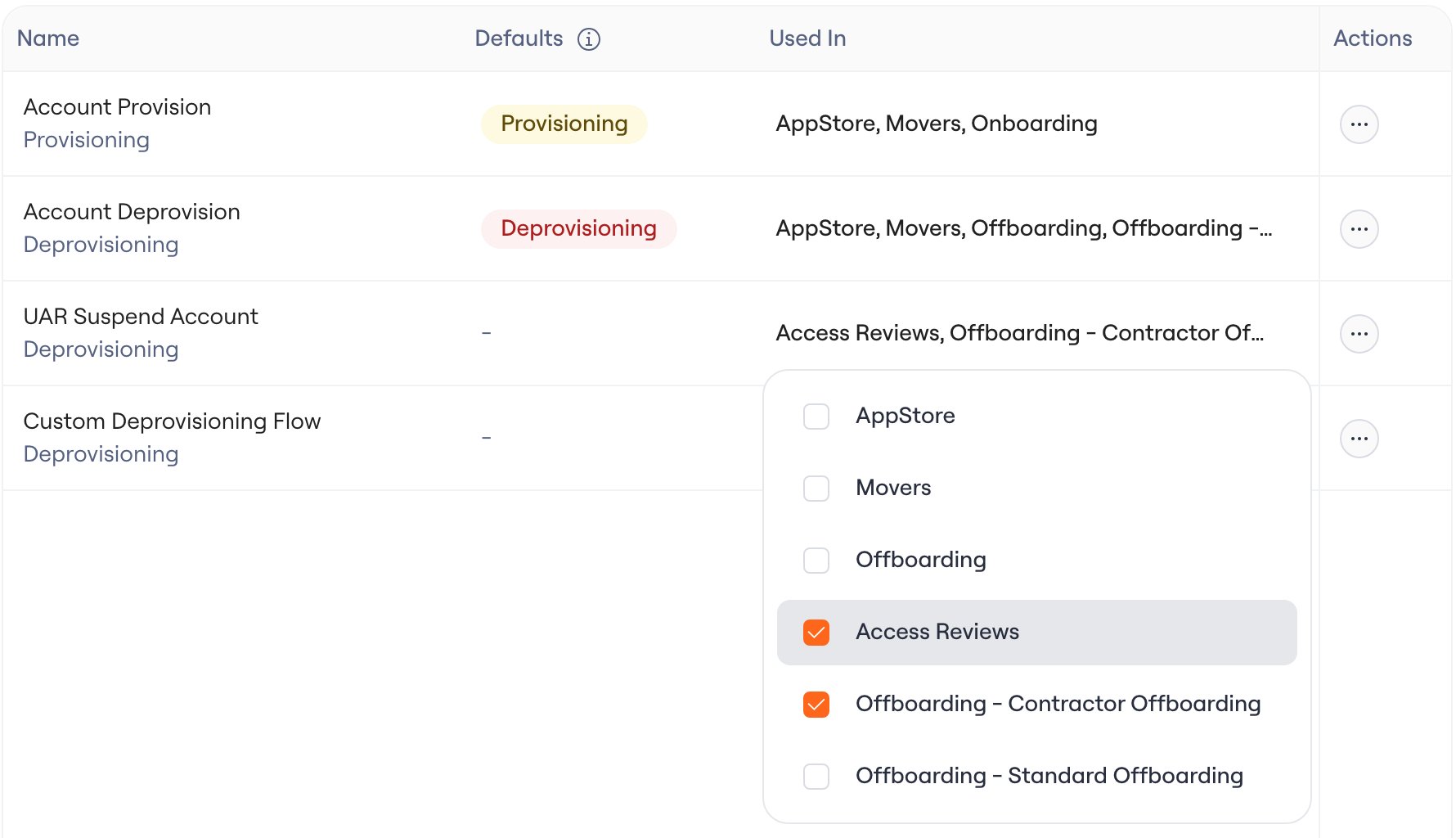
By default, every offboarding workflow removes an app’s accounts with the deprovisioning workflow assigned to Offboarding on that app. Contractors sometimes come back, so you might want Contractor Offboarding to suspend their account in an app instead of deleting it, while your other offboarding workflows keep deleting. To do that, assign a suspend workflow to Offboarding - Contractor Offboarding on that app.- Go to Apps, open the app, and click its Account Workflows tab.
- Open the deprovisioning workflow that suspends the account, or click Create Workflow to build one. See Standardized Account Workflows.
-
In the Used In field, click Add product area or workflow and select Offboarding - Contractor Offboarding.
- Click Save.
Choose the automatic offboarding workflow
When an offboarding starts on its own, it runs the automatic offboarding workflow. Only one workflow can be automatic at a time, and manual offboardings start with it selected too.-
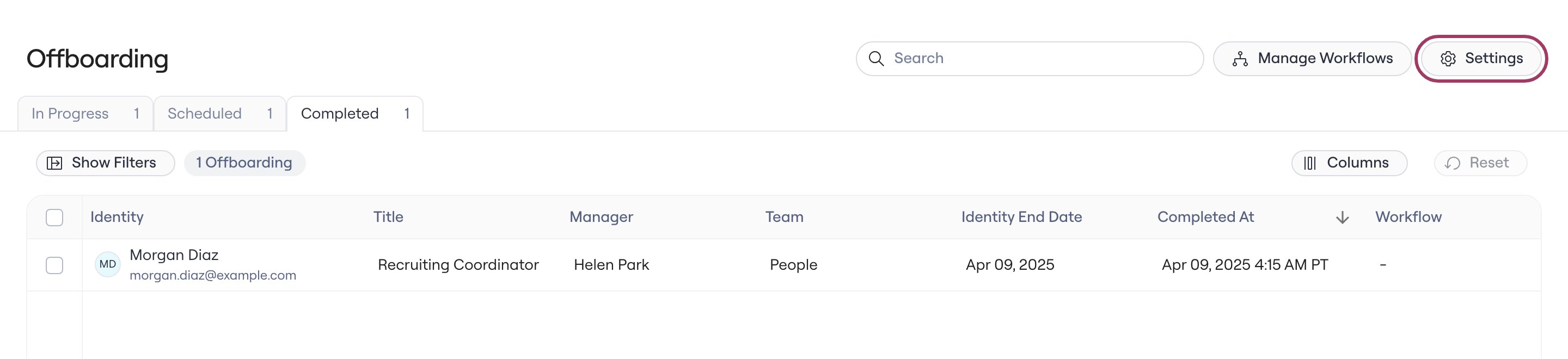
Go to Offboarding and click Settings.
-
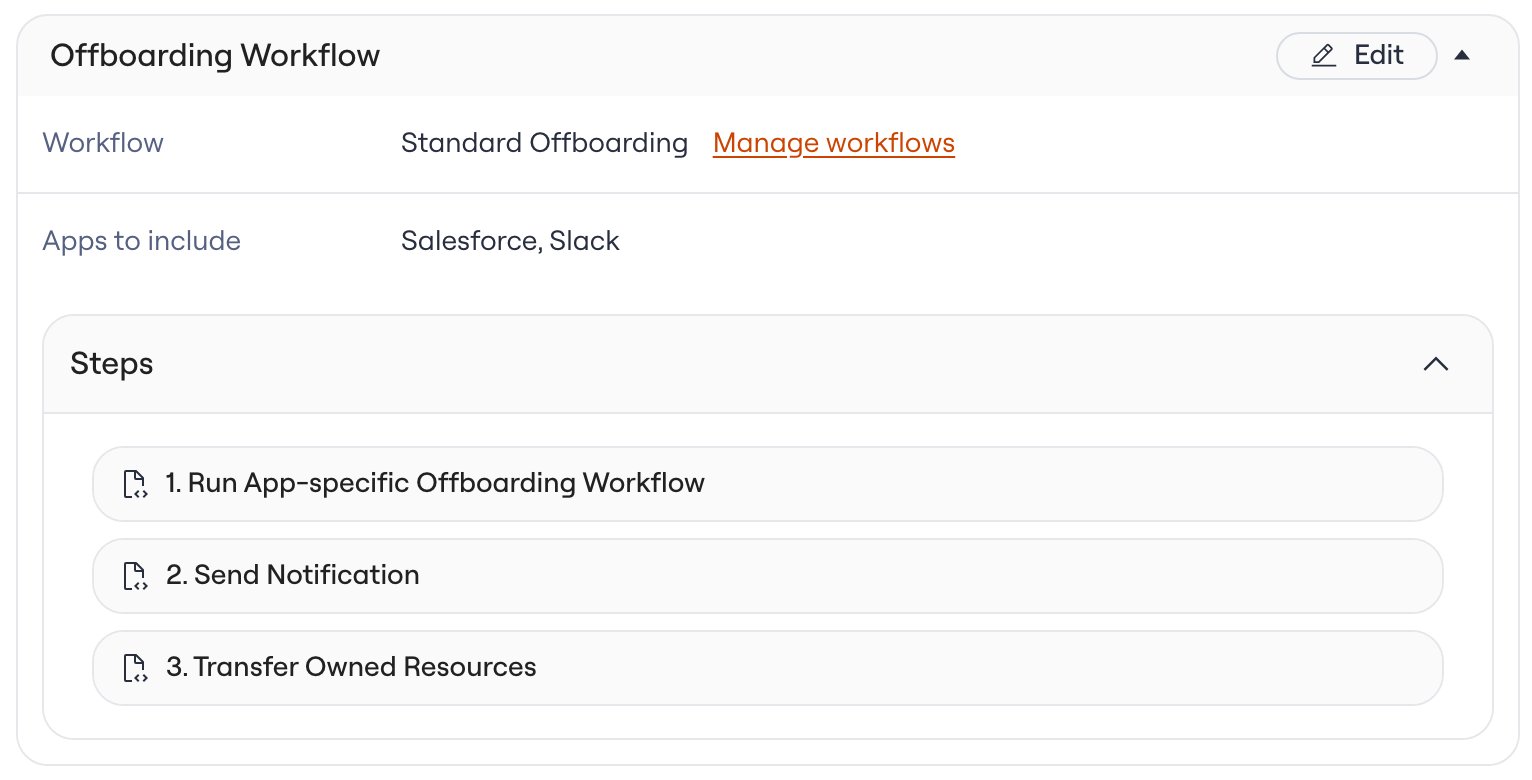
In the Offboarding Workflow section, click Edit.
-
Choose a Workflow. If the one you want doesn’t exist yet, choose + Create new workflow.
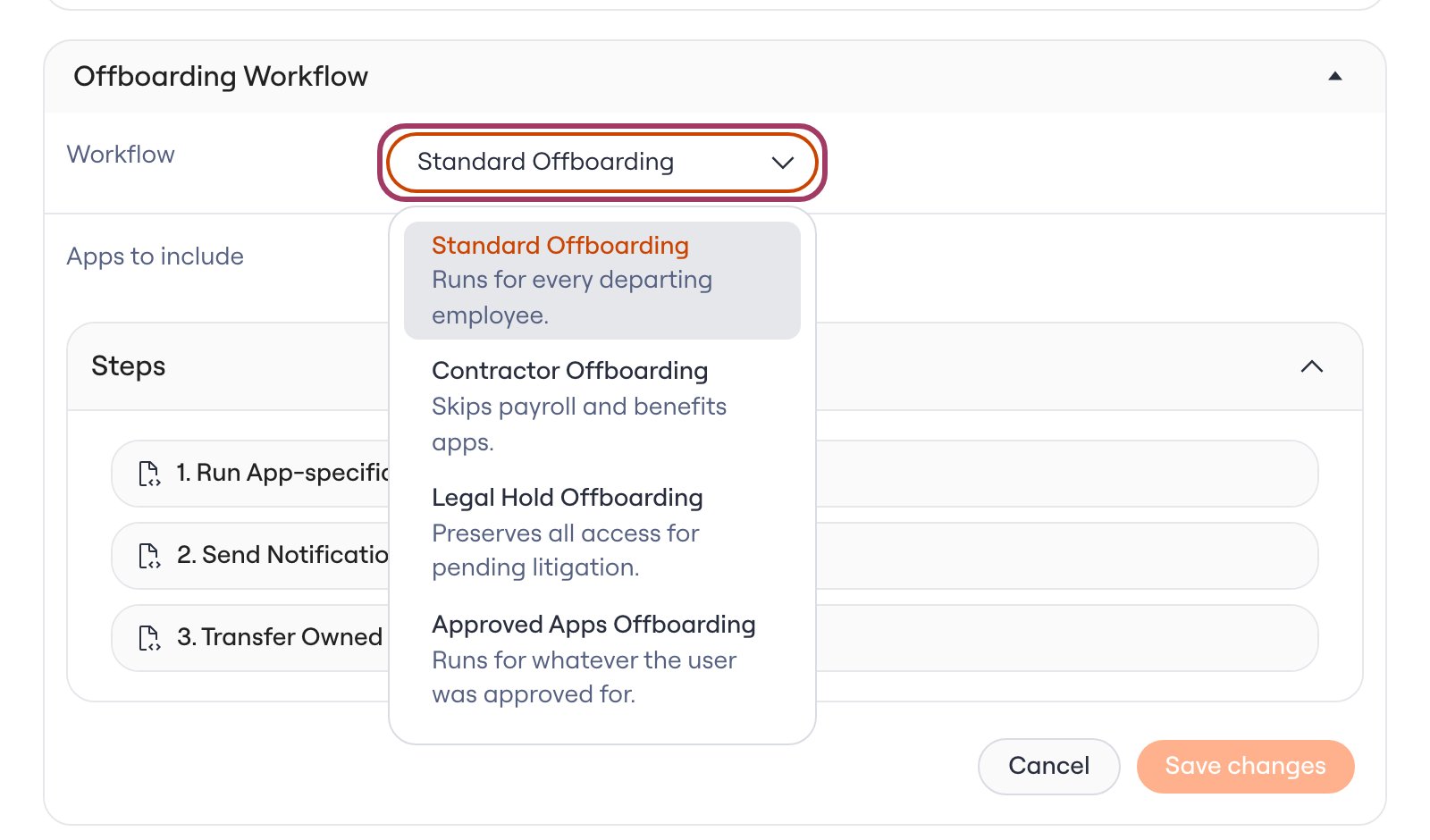
- Click Save changes.
Run an offboarding with a workflow
- Go to Identities and click the person you want to offboard.
-
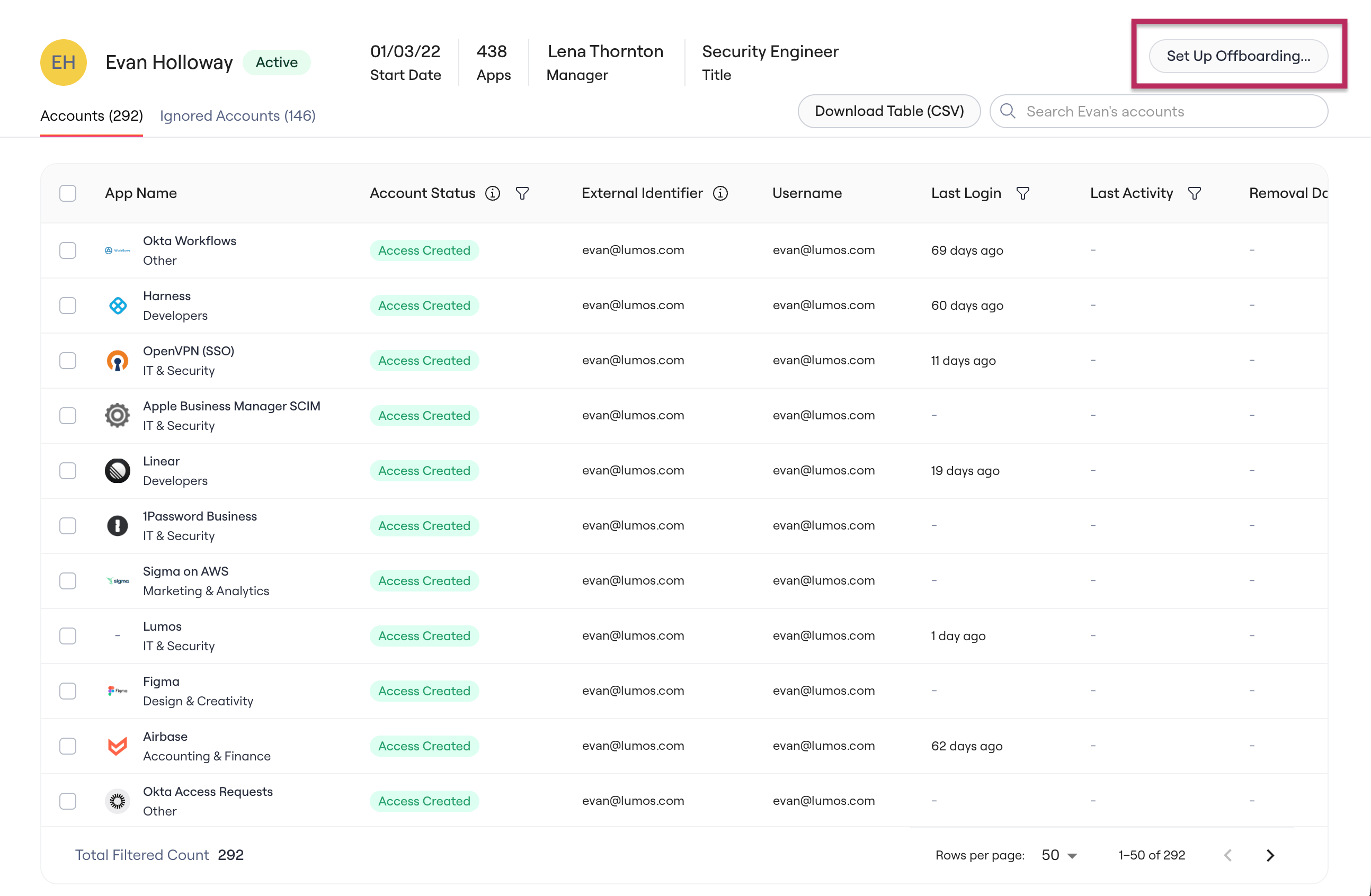
Click Set Up Offboarding… at the top right of their page.
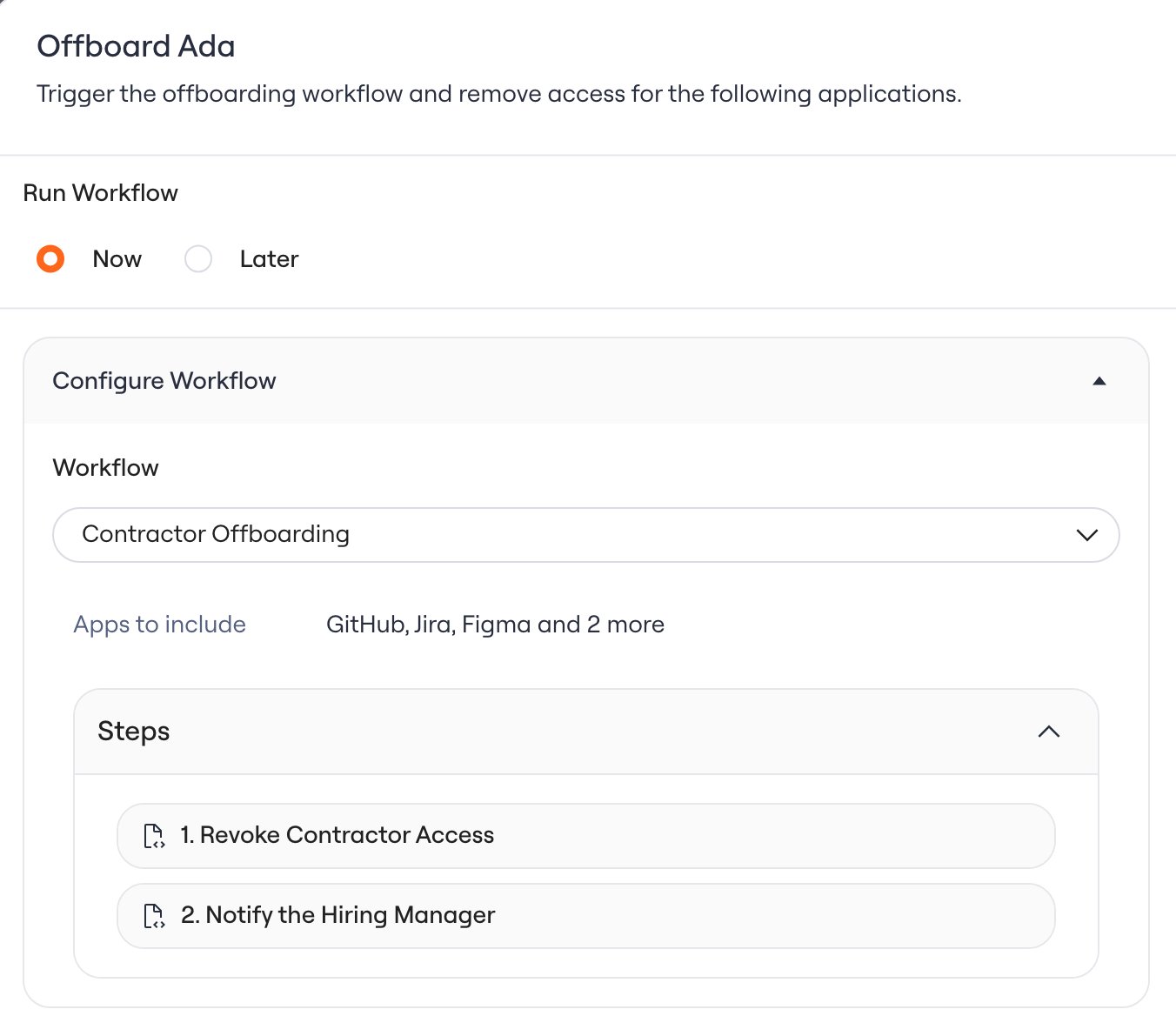
- Under Run Workflow, choose Now, or choose Later and pick a date and time.
-
Under Configure Workflow, choose a Workflow, such as Contractor Offboarding. Lumos starts with the automatic offboarding workflow selected, and shows the apps and steps of whichever workflow you choose.
-
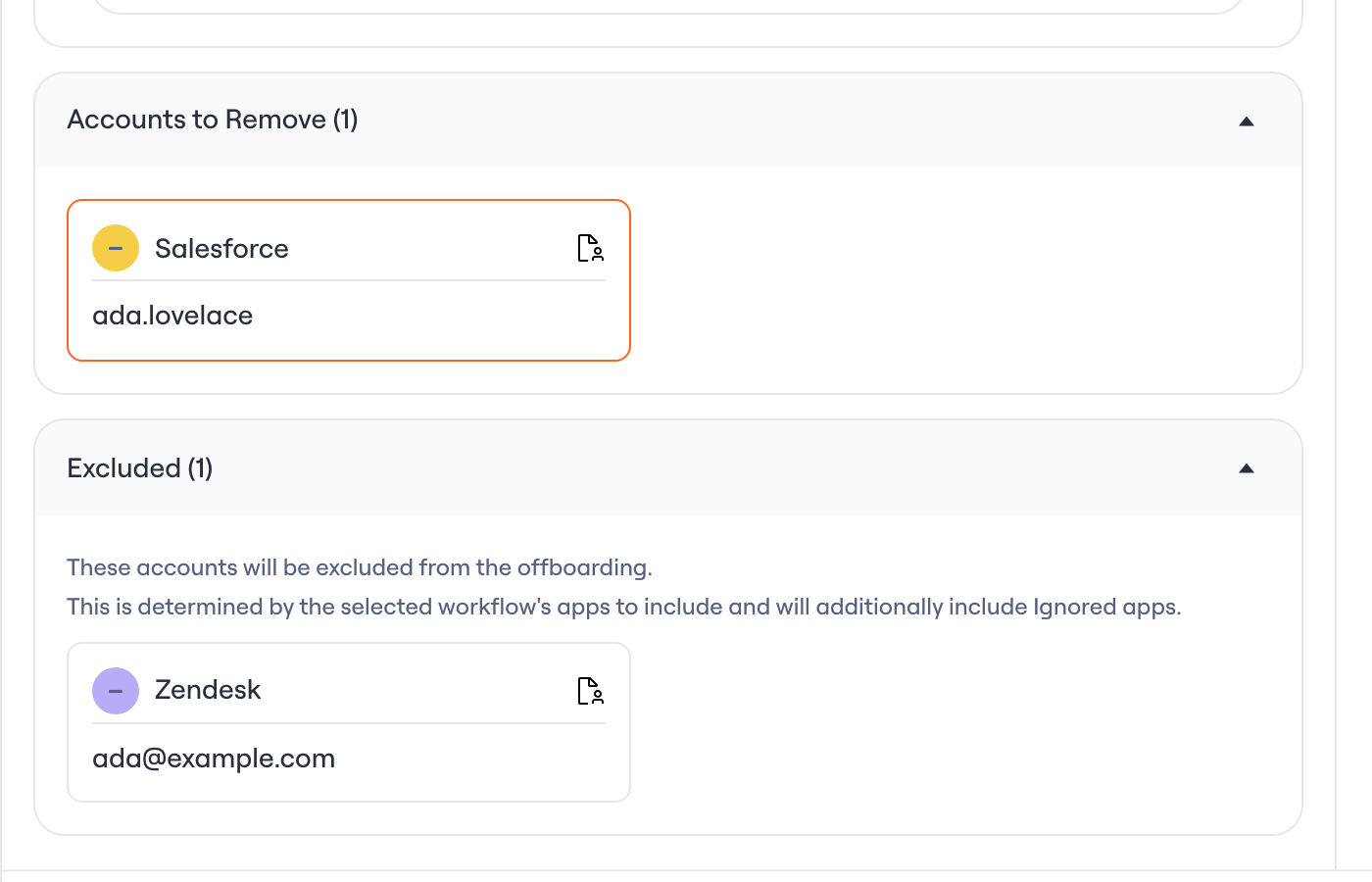
Review Accounts to Remove and Excluded. The workflow’s apps to include decide which list each account lands in, and accounts in Ignored apps are always excluded. Select an account to see the steps the workflow runs for it.
- Click Start Offboarding, or Schedule Offboarding if you chose Later.
You can’t exclude one account or change how one app is removed from this dialog. If an offboarding needs different handling, choose or create a workflow that does what you need.
See which workflow an offboarding ran
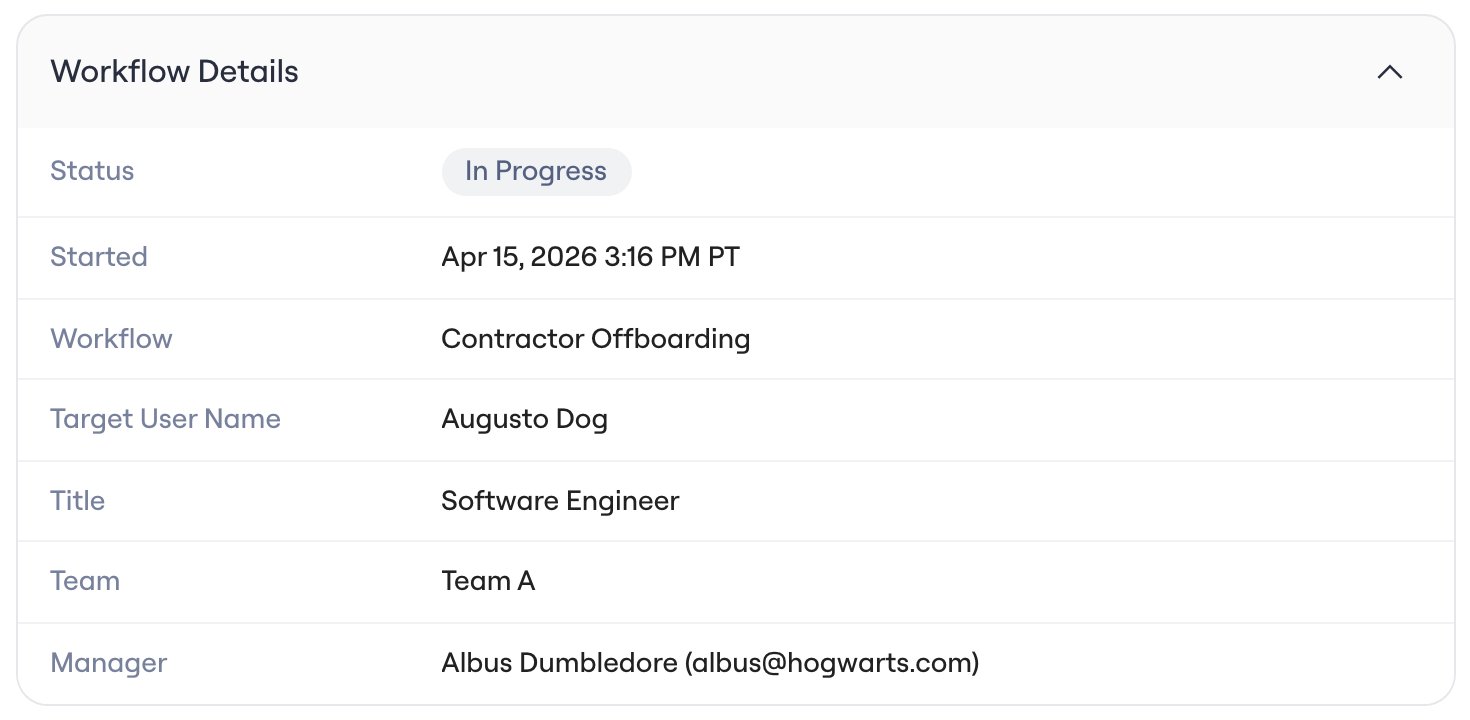
The Offboarding table shows the workflow each offboarding runs in its Workflow column.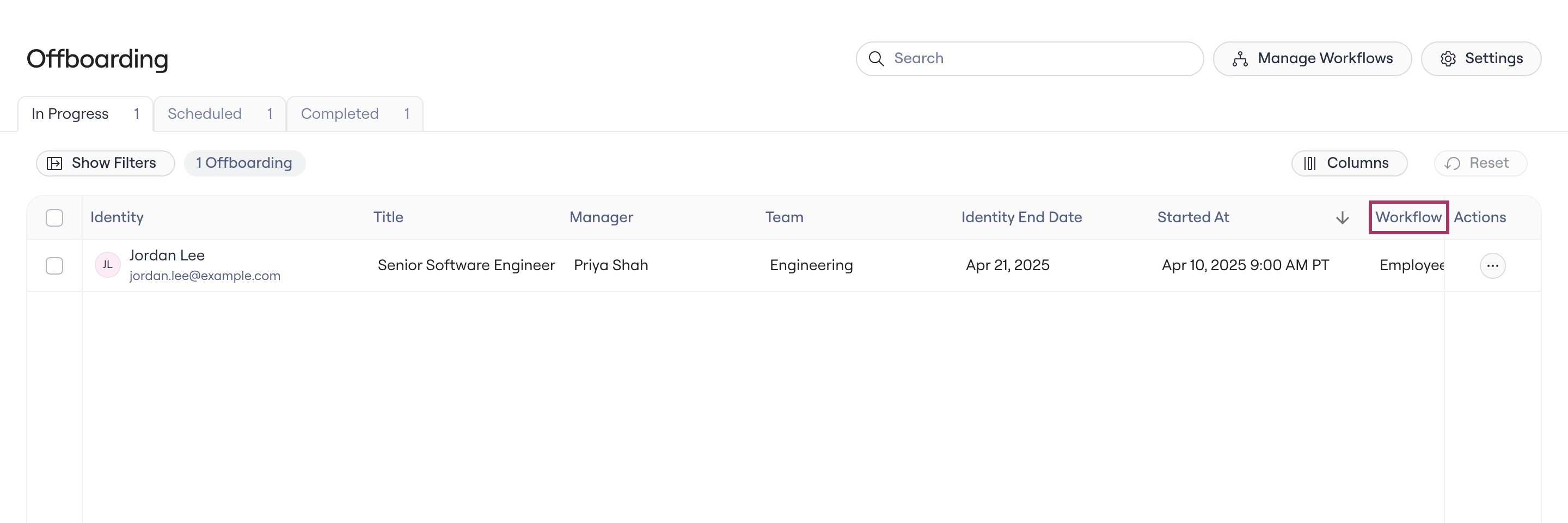
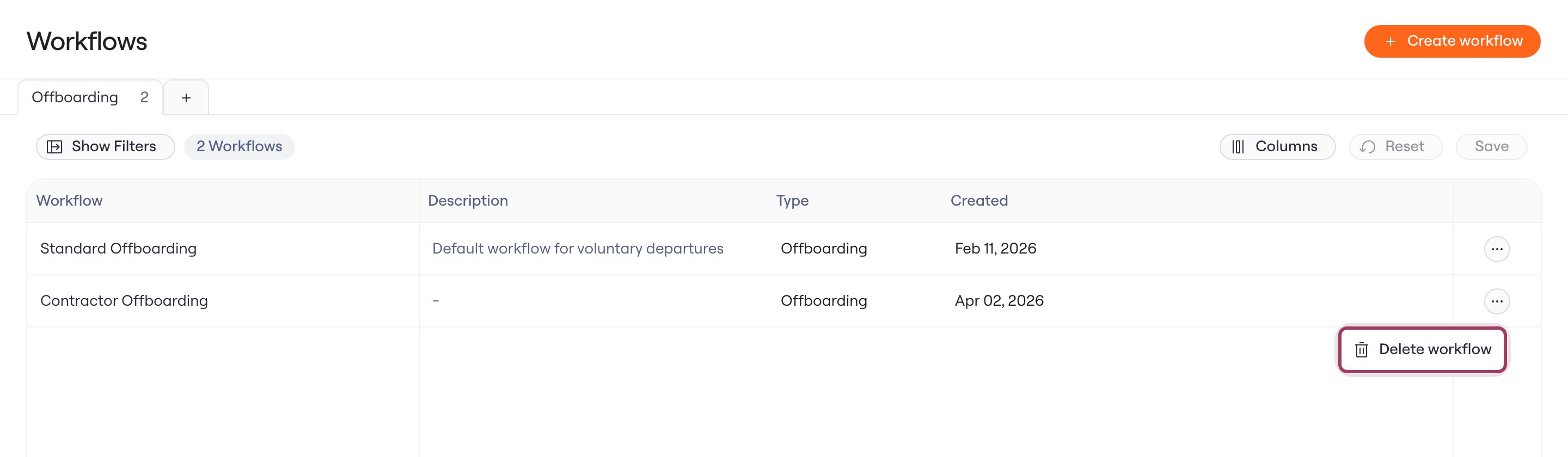
Edit or delete an offboarding workflow
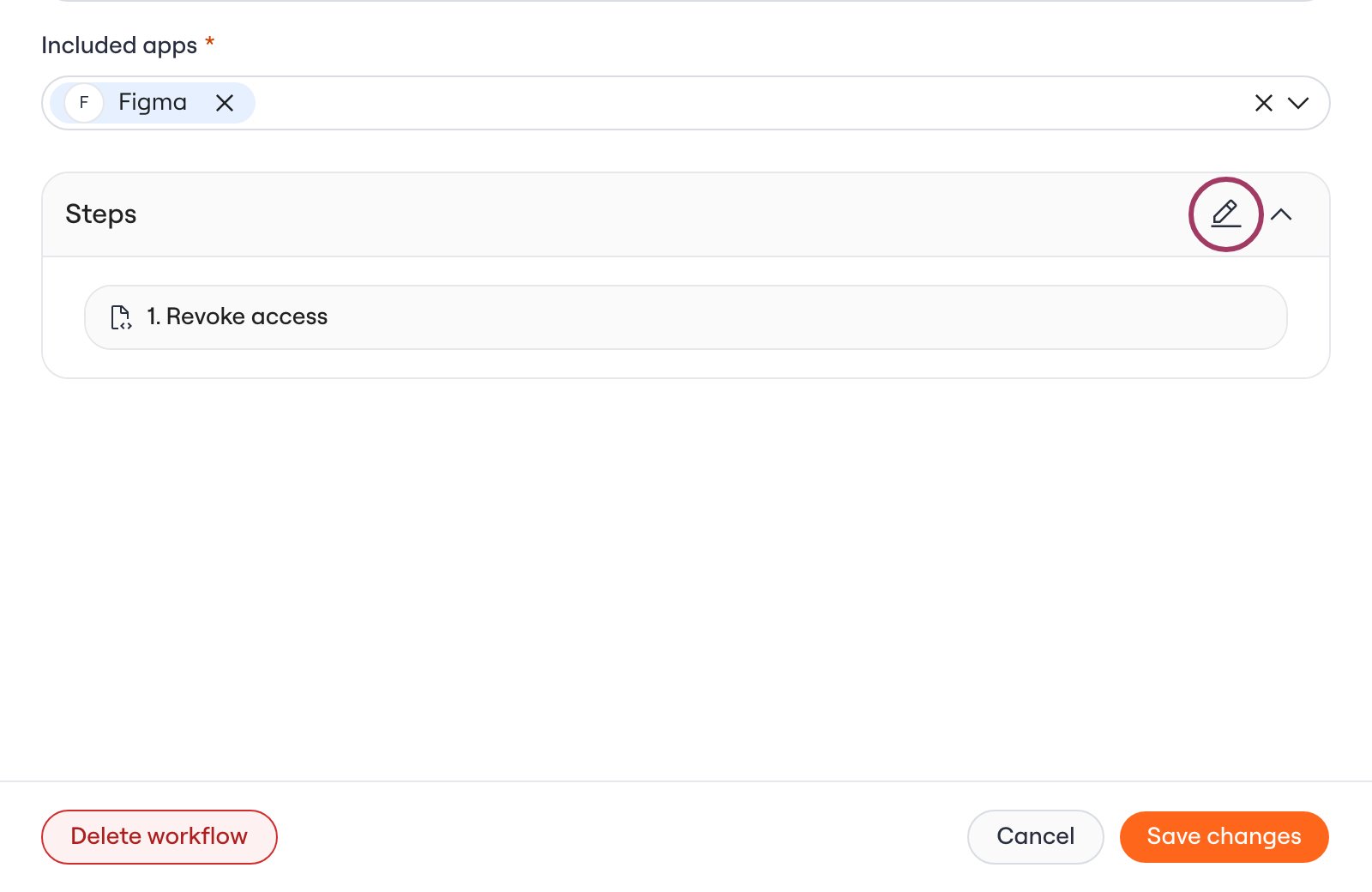
To edit a workflow, click its name on the Workflows page. The steps have their own Save button, because Save changes at the bottom of the drawer doesn’t save them. If you change both, save the steps first.- To change the steps, click the edit icon on Steps, make your changes, and click Save under the steps.
- To change the name, description, or apps to include, make your changes and click Save changes.
Run an offboarding workflow from the API
When you start an offboarding with the Create User Offboarding endpoint, passworkflow_config_id to choose the workflow. If you leave it out, Lumos runs the automatic offboarding workflow. To find a workflow’s ID, open the workflow on the Workflows page and copy the workflow value from the page URL.