Prerequisites
- The Lumos Admin role, or a custom role that can manage the app’s workflows (Apps → Manage → Workflows). See Lumos Roles.
- For automated steps, the app connected through a direct integration. Manual steps work for any app.
Instructions
1. Go to the Apps table and click into an app.
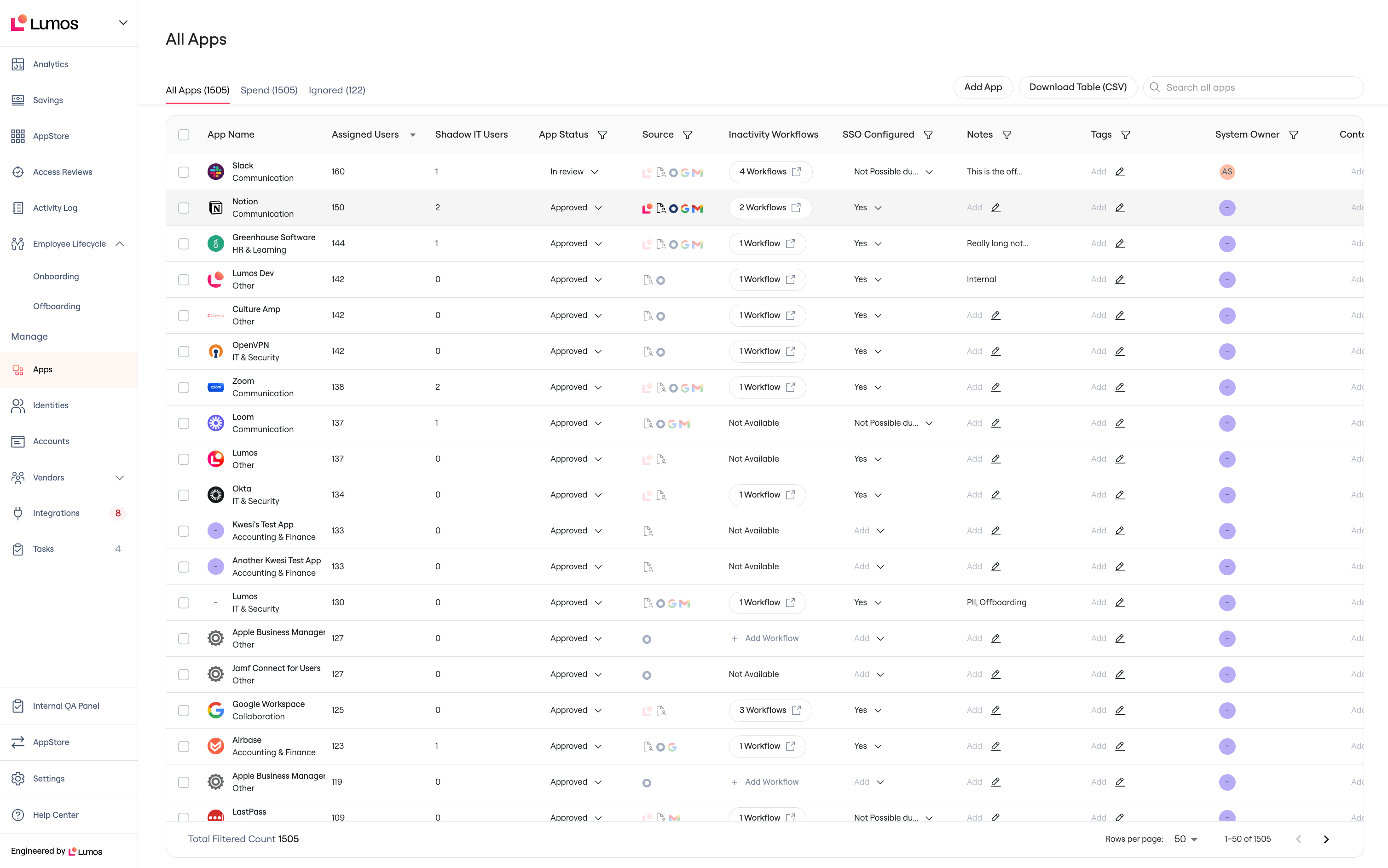
2. Go to the Account Workflows tab for the app.
Offboarding removals are configured as deprovisioning workflows on the app’s Account Workflows tab. The Integrations tab no longer shows offboarding settings.3. Choose or create a deprovisioning workflow
Select an existing deprovisioning workflow, or click Create Workflow to build a new one. See Standardized Account Workflows for how to add and order the workflow’s steps.4. Use it for Offboarding
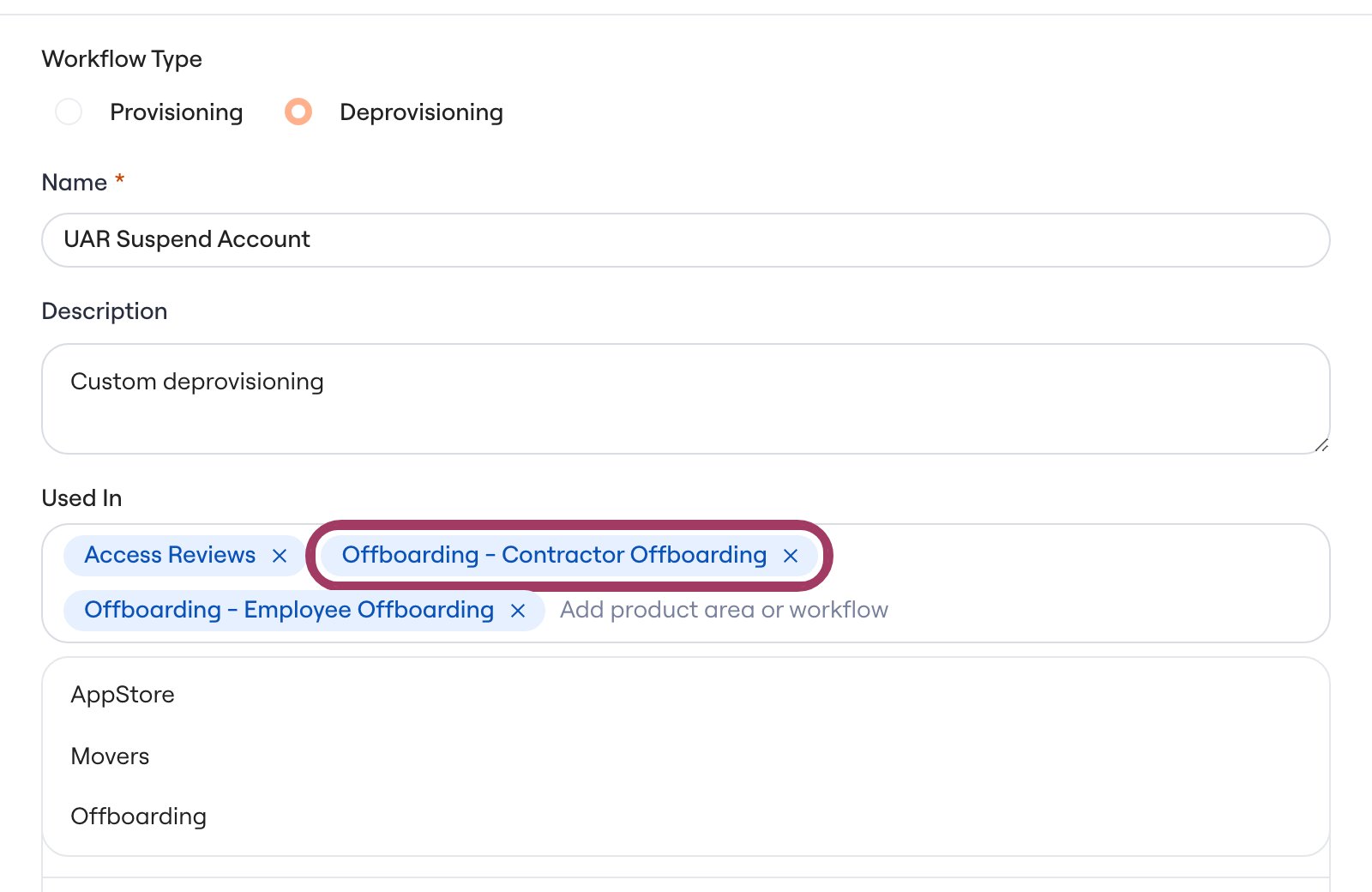
In the workflow’s Used In field, click Add product area or workflow and select Offboarding. Then click Save. If you only want this workflow to run when a specific offboarding workflow runs, select Offboarding - workflow name instead, for example Offboarding - Contractor Offboarding. See Remove an app differently in one workflow.