

Background
Movers now runs on standardized account workflows, and you can optionally give Movers its own workflows per app. Because a mover both gains and loses access, Movers uses two workflows: a provisioning workflow for access being added and a deprovisioning workflow for access being removed. Previously, AppStore, Onboarding, and Movers always shared a single provisioning workflow. If you configure nothing, behavior is unchanged: Movers continues to use the app’s default workflows. References Standardized Account WorkflowsWhy use this
- Give role transitions their own logic. A mover’s access removal can run a gentler workflow (for example, suspend instead of deprovision) than a full offboarding.
- You don’t have to configure anything. If the app’s default workflows work for role changes too, leave them as is. Movers uses the app’s default workflows until you assign it separate ones.
-
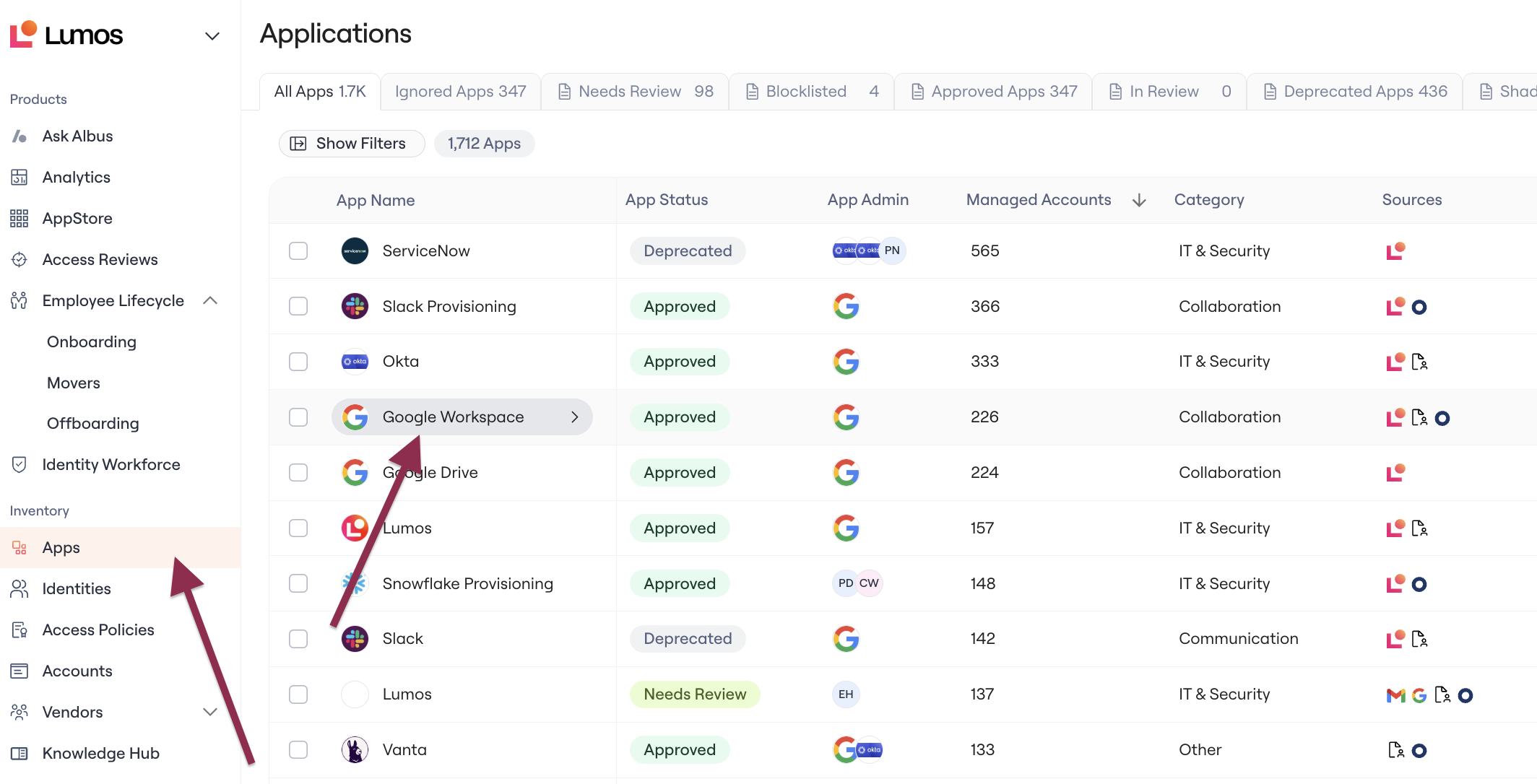
In the left nav, go to Apps > Select the app you want to configure to open its page.
-
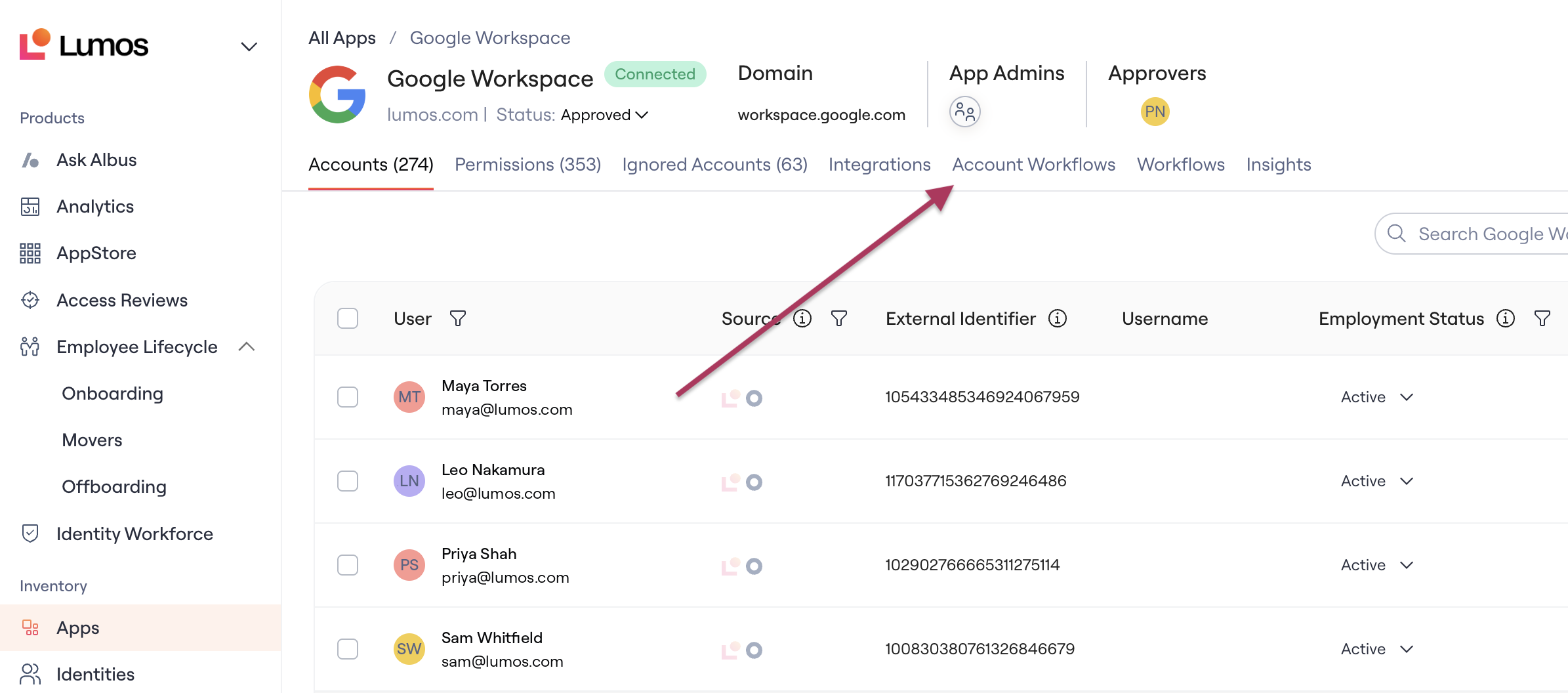
Navigate to the Account Workflows tab.
-
View existing workflows, or click Create Workflow to create a new one (details in Standardized Account Workflows)
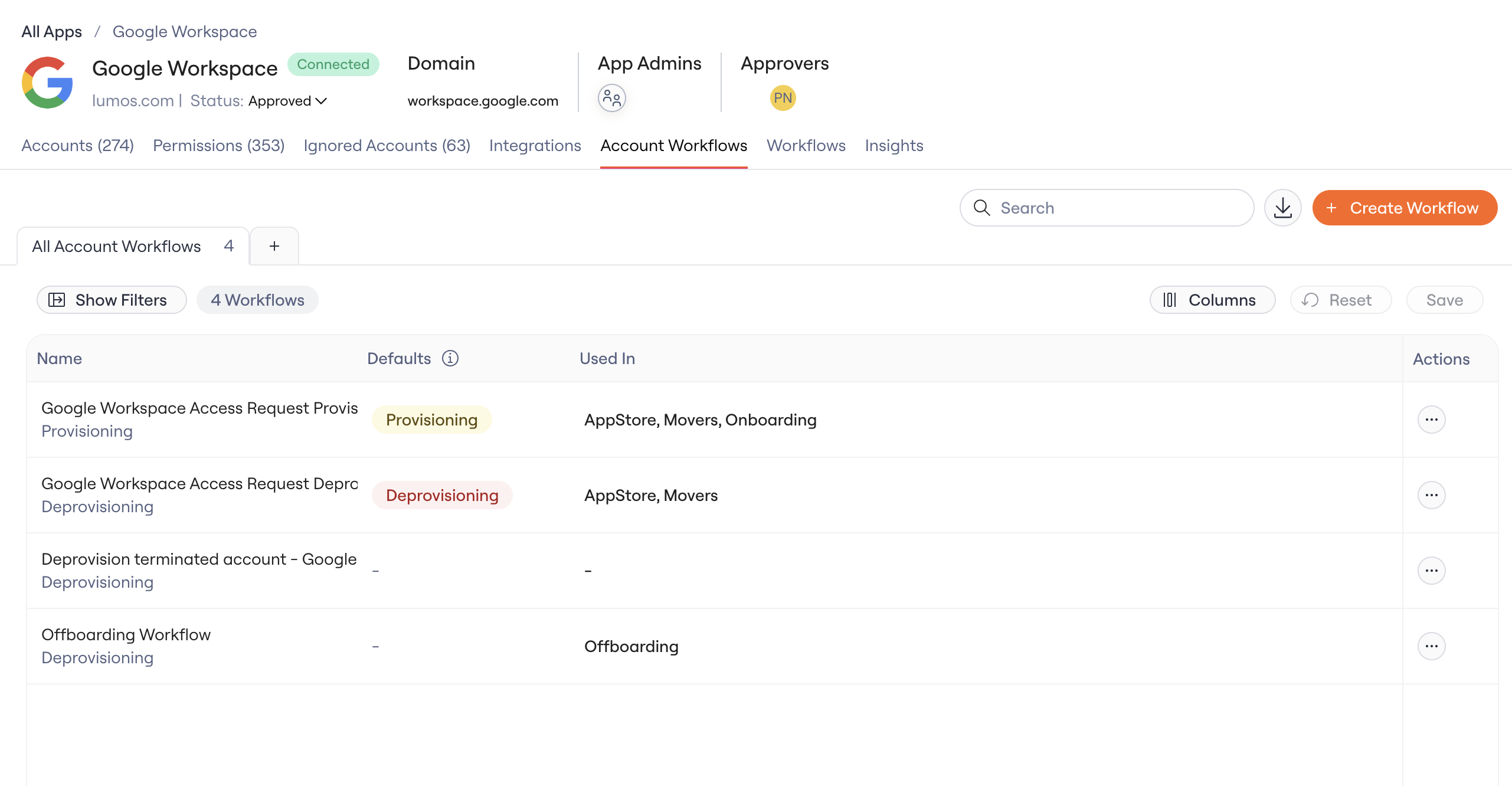
- Navigate to the Provisioning and Deprovisioning workflows you want to use for Movers.
-
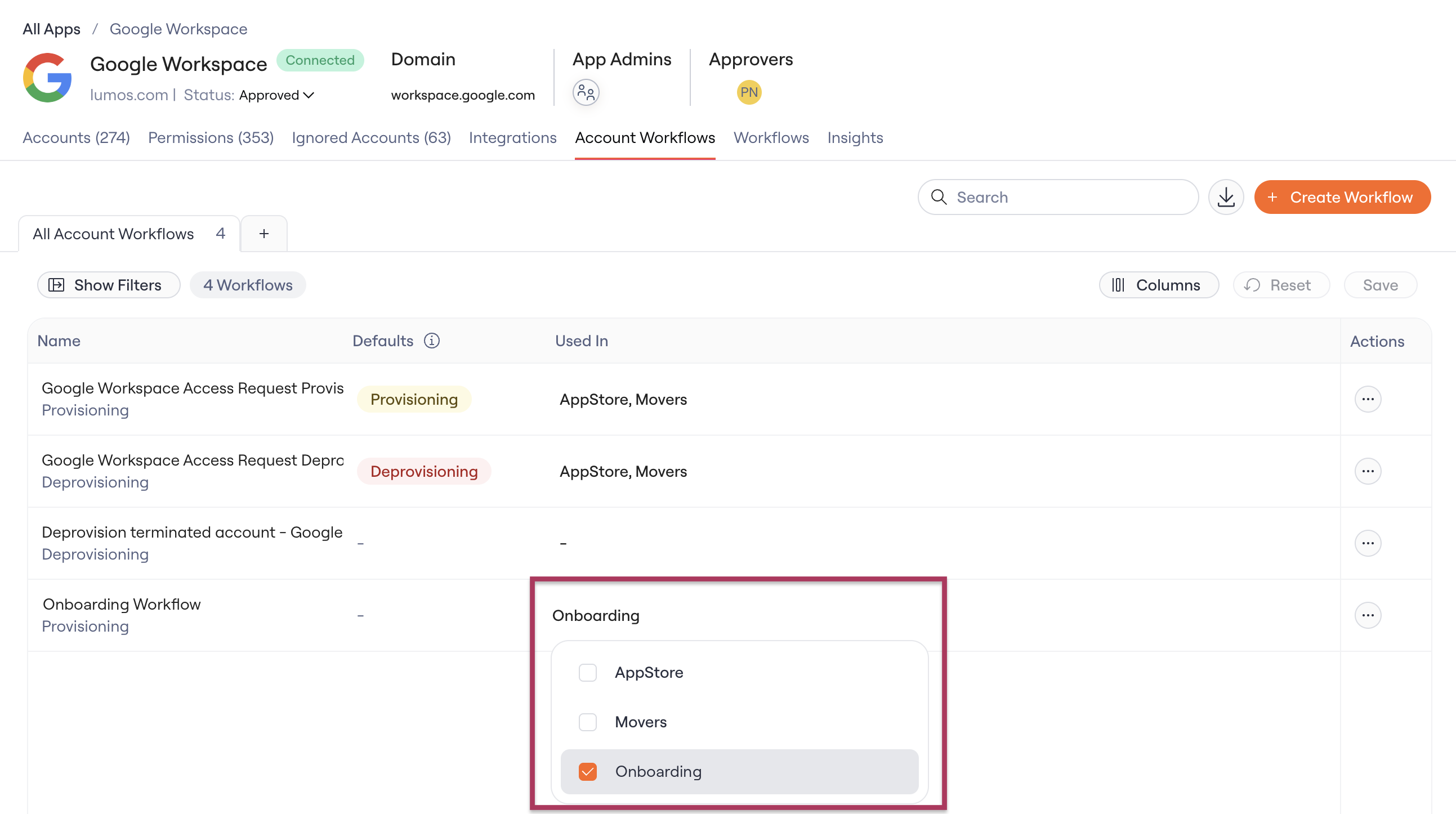
In the workflow’s Used in setting, check Movers.
Notifications
- The person changing roles is not emailed about each access change. Normally, Lumos messages a user as their access requests move along (created, approved, completed, removed). Mover-driven changes skip these messages, so the person isn’t notified about every app being added or removed during their transition.
- Task Summaries now cover Movers workflows. To enable digests for Movers tasks, go to Settings > Notifications > Task Summaries and select the Movers option.