

The problem
Employees get accounts in company apps when they join, change roles, or need access for a project. When they stop using an account, it often stays active until an Access Review or an app admin notices it. Unused accounts can cost your company money or create a security risk. See Using Lumos for Access Reviews. Contacting each employee manually is tedious.The solution
Inactivity Workflows in Lumos automatically reclaim unused software accounts or licenses from employees that are no longer using them.How it works
An account becomes “inactive” when its most recent Last Login or Last Activity is older than the number of days you set. Lumos then sends a notification, by email or Slack, to the person who decides whether access is still needed. That could be the owner of the account, reviewers you choose, or the owner first and then your reviewers. You can also skip review and go straight to removal. By default, accounts with no login or activity data are skipped. Check Include accounts without activity data under Inactivity Time to include them.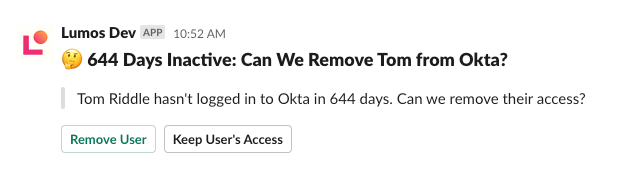
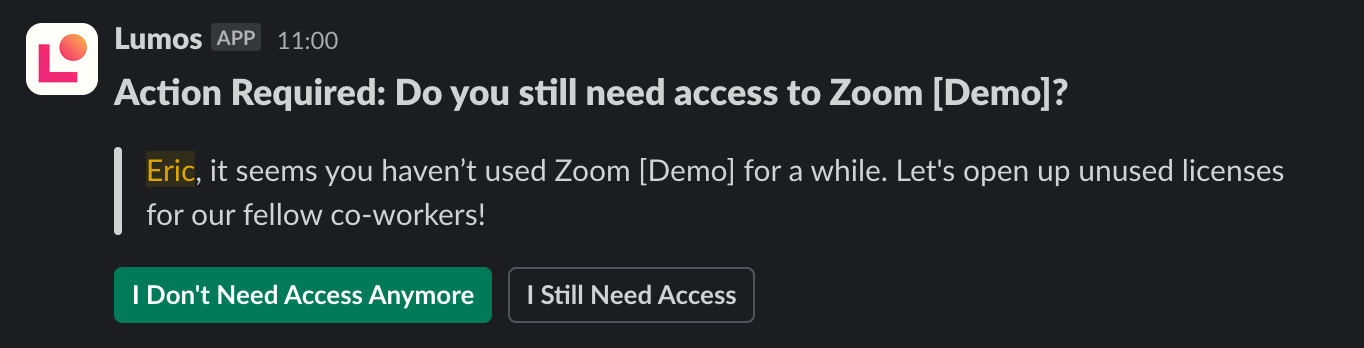
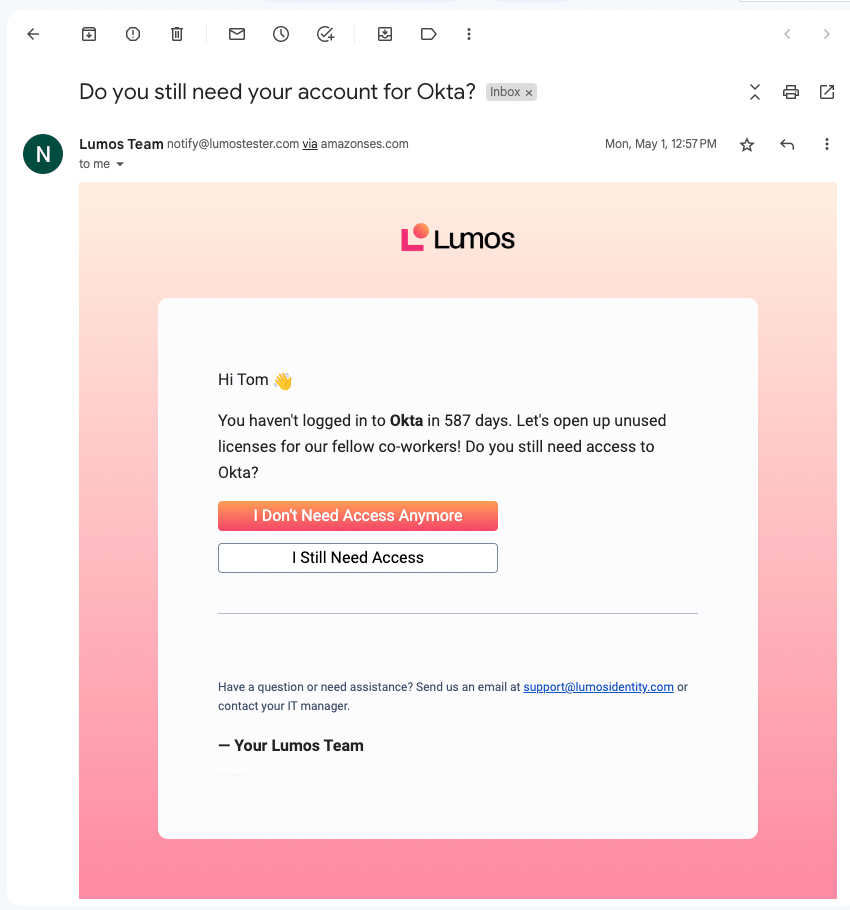
Example: Suppose an inactivity workflow is configured to trigger after 60 days of inactivity. If the employee responds that they still need access, Lumos will:If they say they don’t need access, Lumos can automatically remove their account or license behind the scenes via a removal process you configure. If nobody responds within the Ignore Threshold you set, Lumos either runs your removal steps or ends the workflow, depending on the Default Behavior you choose. These workflows run automatically on a schedule, so you don’t have to audit license usage manually, and they route decisions to the right people. See Inactivity Workflow FAQs for when they run.
- Reset the inactivity timer: it will wait another 60 days.
- At the end of that period, Lumos will check whether the account has remained inactive the entire time.
- If the account is still inactive, Lumos will send a new notification to confirm continued access needs.